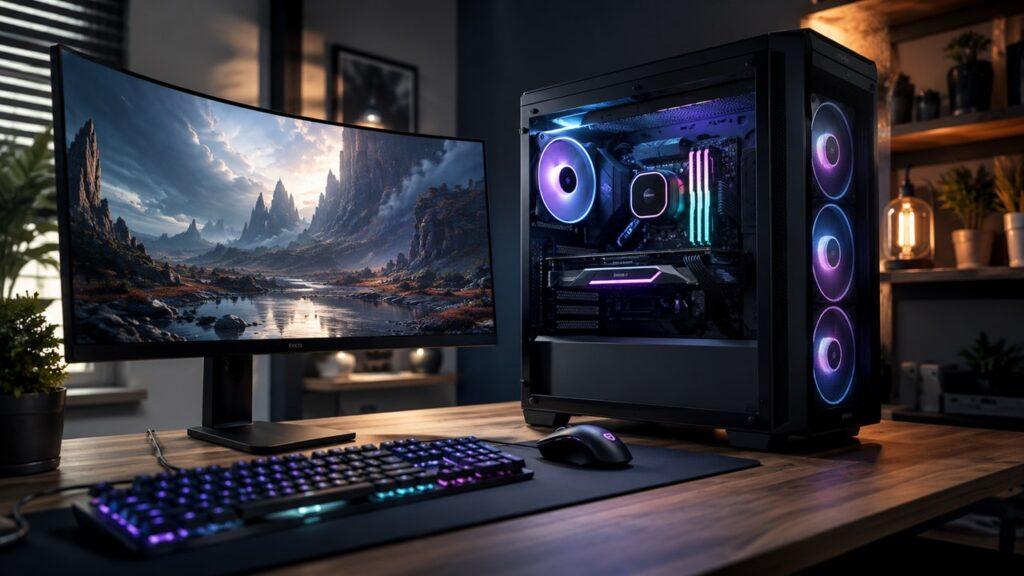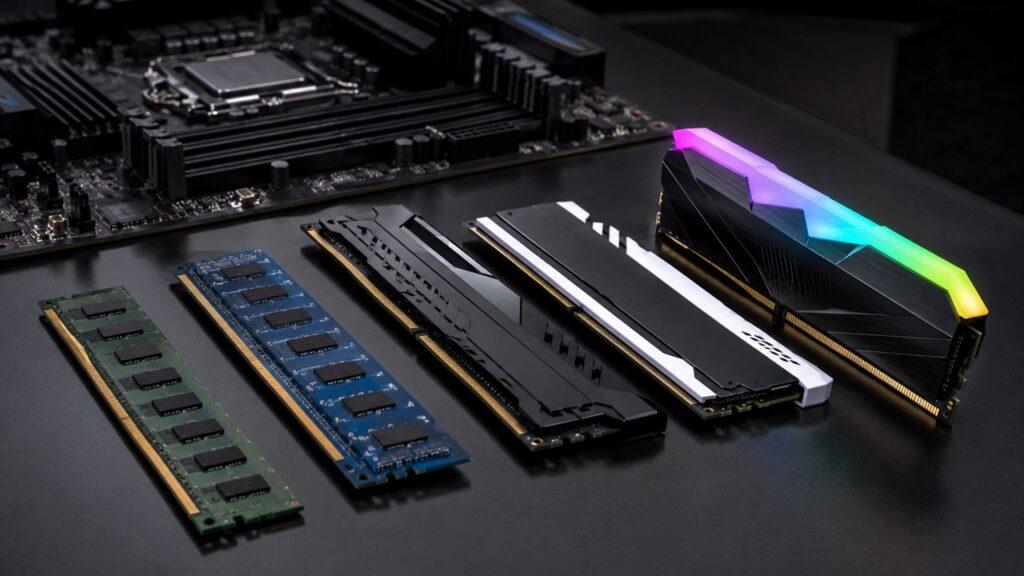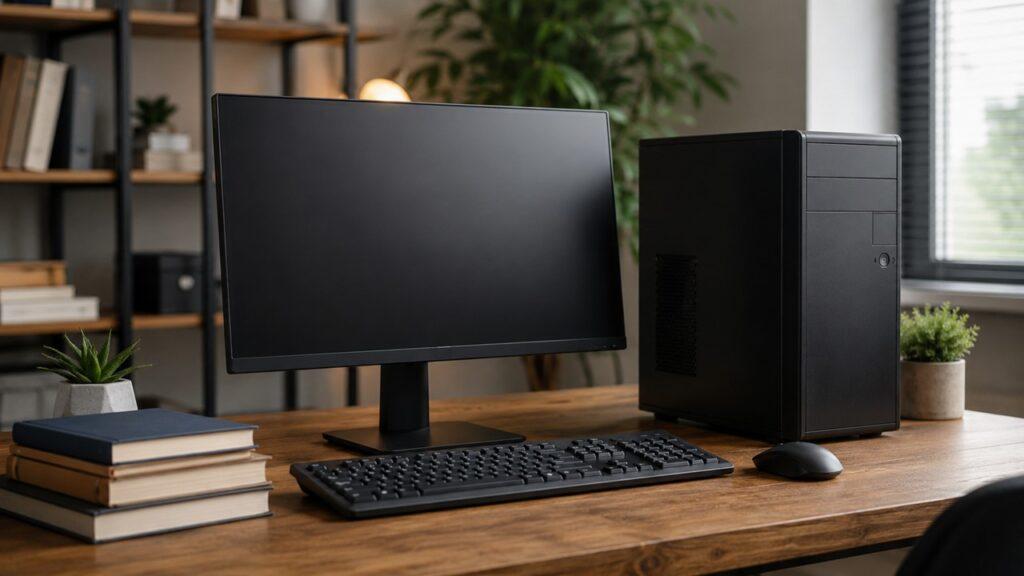
A desktop computer typically lasts 5 to 8 years for everyday use, though it can physically run for 10 years or more with proper care. Its lifespan depends on two factors: physical lifespan (how long it works) and useful lifespan (how long it stays fast, secure, and compatible).
Desktops often last longer than laptops because they have better cooling, larger cases, and easier upgrade options.
Key Takeaways
- Most desktops remain useful for 5 to 8 years
- With maintenance, they can run for 10+ years
- Useful lifespan matters more than just turning on
- Upgrades (SSD, RAM, GPU) can extend usability
- Desktops last longer than laptops due to better cooling and upgradeability
How Long Does a Desktop Computer Last on Average?
A desktop computer usually lasts 5 to 8 years for normal users. If you only use your desktop for browsing, email, documents, online classes, and light office work, it may remain useful for 7 to 10 years.
A gaming desktop or creative workstation may feel outdated sooner. Modern games, video editing software, design tools, and AI-based apps can demand more CPU power, GPU performance, RAM, and storage speed every few years.
Here is a simple desktop lifespan estimate by use case:
- Basic home use: 7 to 10 years
- Office work: 5 to 8 years
- School or student use: 5 to 8 years
- Gaming: 4 to 6 years before major upgrades feel necessary
- Video editing or design work: 4 to 6 years depending on workload
- High-end custom desktop: 6 to 10 years with upgrades
A desktop computer does not usually die all at once. In most cases, one part becomes slow, outdated, noisy, unstable, or unreliable first. For example, an old hard drive may make the whole PC feel slow, even when the CPU and RAM still work fine.
Desktop Computer Lifespan by Usage Type
The same desktop can last different lengths for different people. A 7-year-old desktop may be perfectly fine for writing documents, browsing the web, and watching videos. However, that same desktop may feel slow for gaming, 4K video editing, large spreadsheets, or heavy multitasking.
| Usage Type | Expected Lifespan | Why It Lasts This Long |
| Basic browsing and email | 7 to 10 years | Light tasks do not stress hardware much |
| Office work | 5 to 8 years | Apps, browser tabs, and updates slowly increase demands |
| School or student use | 5 to 8 years | Depends on software, storage, and multitasking |
| Gaming | 4 to 6 years | GPU and CPU demands increase quickly |
| Streaming and content creation | 4 to 6 years | Editing and encoding require stronger hardware |
| Business desktop | 4 to 7 years | Security, support, and productivity matter more than hardware survival |
| Custom-built desktop | 6 to 10 years | Easier to upgrade part by part |
So, the better question is not only, “How old is my desktop?” The better question is, “Can my desktop still handle what I need it to do safely and smoothly?”
Physical Lifespan vs Useful Lifespan: What Is the Difference?
Understanding the difference between how long a desktop can physically run and how long it remains practical for everyday use helps you make smarter upgrade and replacement decisions.
Physical Lifespan
Physical lifespan means your desktop still turns on and functions. The fans spin, the motherboard works, the power supply delivers power, the storage drive loads the operating system, and the computer can still complete basic tasks.
Some desktops can physically run for more than 10 years. This is especially true if they use quality parts, stay cool, avoid dust buildup, and are not pushed under heavy workloads every day.
However, a desktop that still turns on is not always a good daily-use computer. It may be too slow, too insecure, or too limited for modern software.
Useful Lifespan
Useful lifespan means your desktop still performs well for modern tasks. It can run a supported operating system, receive security updates, open current software, handle your workload, and stay stable during normal use.
This matters because an old desktop can still work physically but become unsafe or impractical. For example, Microsoft says Windows 10 support ended on October 14, 2025. Microsoft also states that Windows 10 PCs can continue to function, but they no longer receive normal software updates, security fixes, or technical support unless covered by available extended options.
That means an older desktop may still turn on, but it may not be the best choice for online banking, business work, sensitive files, or daily internet use if it cannot run a supported operating system.
Why Useful Lifespan Matters More
Useful lifespan matters more than physical lifespan because a working computer can still become a poor tool.
- Older software may stop receiving updates.
- New apps may need newer CPUs, GPUs, or more RAM.
- Unsupported operating systems increase security risks.
- Browsers and productivity apps become heavier over time.
- Slow performance can waste more time than the PC is worth.
- Older hardware may lack modern security features.
- Newer accessories may need ports your desktop does not have.
If your desktop still runs but slows down your work every day, its useful lifespan may already be ending.
How Long Do Desktop Computer Parts Last?
These are general estimates, not guaranteed expiration dates. A cheap power supply can fail early. A quality SSD can last many years. A clean office desktop may outlive a dusty gaming desktop that runs hot every day.
| Desktop Component | Typical Lifespan | Common Failure Signs |
| SSD | 5 to 10 plus years | Errors, missing files, slow writes, drive health warnings |
| HDD | 3 to 5 years | Clicking sounds, slow loading, bad sectors |
| Power supply unit | 5 to 8 years | Random shutdowns, burning smell, boot failure |
| CPU | 8 to 10 plus years | Rarely fails, but may become outdated |
| GPU | 5 to 8 years | Artifacts, crashes, overheating, poor gaming performance |
| RAM | 8 to 10 plus years | Blue screens, crashes, memory errors |
| Motherboard | 5 to 10 years | Boot issues, dead ports, instability |
| Cooling fans | 5 to 8 years | Noise, rattling, poor airflow |
| CMOS battery | 3 to 7 years | Wrong time, wrong date, BIOS settings reset |
| Case | 10 plus years | Usually lasts unless damaged or airflow is poor |
Storage Drives Usually Fail First
Storage is one of the most important parts of a desktop computer because it holds your operating system, apps, documents, photos, videos, and personal files.
Older desktops often use HDDs, or hard disk drives. HDDs have spinning platters and moving read-write heads. Because they have moving parts, they are more vulnerable to wear, vibration, heat, and shock.
Newer desktops often use SSDs, or solid-state drives. SSDs do not have spinning parts, so they usually feel much faster and handle movement better. However, SSDs still have limited write cycles, which means they can wear down after very heavy data writing over time.
Large-scale drive reports show that storage failure can vary by model, workload, and age. For example, Backblaze reported tracking more than 328,000 storage drives in its Q3 2025 drive statistics, with different hard drive models showing different annualized failure rates.
For a normal desktop user, the practical lesson is simple:
- HDDs have moving parts, so they are more vulnerable to wear.
- SSDs have no moving parts, but they still have limited write cycles.
- Any desktop with important files should have regular backups.
- A slow old HDD is often the first part worth replacing.
- A failing drive should be replaced before it causes data loss.
If your old desktop still uses an HDD as the main drive, upgrading to an SSD can make it feel much faster without replacing the whole computer.
Power Supply Units Can Shorten a Desktop’s Life
The power supply unit, or PSU, gives power to every part of the desktop. A good PSU helps the system run safely and consistently. A poor-quality or failing PSU can cause random shutdowns, restarts, boot problems, buzzing sounds, or burning smells.
A bad PSU can also damage other components. This is why the power supply is not the best place to save money when building or repairing a desktop.
Common PSU warning signs include sudden power loss, failure to boot, electrical smell, clicking sounds, or shutdowns under load. If your desktop turns off while gaming, rendering, or opening heavy apps, the PSU should be checked.
CPUs and RAM Usually Last a Long Time
The CPU and RAM often last longer than the practical life of the desktop. In many cases, they become outdated before they physically fail.
A CPU can keep working for many years if it stays cool and receives stable power. RAM is also durable, although bad memory can cause blue screens, crashes, freezing, or failed boot attempts.
The main issue with CPUs and RAM is platform age. An older CPU may still work, but it may not support modern performance needs. An older motherboard may only support old RAM types, slower storage, and limited upgrade options.
Graphics Cards Age Faster in Gaming and Creative PCs
A graphics card, or GPU, often ages faster in gaming and creative desktops. Modern games, 3D software, video editing tools, and GPU-accelerated apps keep becoming more demanding.
A GPU may still work physically, but it may no longer provide the performance you want. For gamers, this usually means lowering graphics settings, accepting lower frame rates, or upgrading the card.
Watch for these GPU warning signs:
- Games run poorly even on low settings.
- GPU fans become loud.
- The screen shows artifacts or flickering.
- The PC crashes during gaming or rendering.
- New software requires newer GPU features.
- The GPU overheats during normal workloads.
- Video playback or editing becomes unstable.
For gaming desktops, the GPU usually becomes outdated before the entire computer fails.
Motherboards Can Limit Future Upgrades
The motherboard connects the CPU, RAM, storage, GPU, and other parts. Even if the motherboard still works, it can limit future upgrades.
An old motherboard may not support newer CPUs, DDR4 or DDR5 RAM, fast NVMe SSDs, PCIe upgrades, TPM 2.0, or modern USB ports. This matters because Microsoft lists Windows 11 requirements that include TPM 2.0, Secure Boot support, 4 GB RAM, 64 GB storage, and a compatible 64-bit processor.
So, a desktop can still work physically but fail modern compatibility checks. When that happens, replacing the full platform may make more sense than upgrading one part.
What Makes a Desktop Computer Last Longer?
A desktop computer can last significantly longer when it is built with quality components, kept clean, and used within its limits. Factors like proper cooling, regular maintenance, and smart upgrades play a major role in extending both its physical and useful lifespan.
Better Airflow and Cooling
Heat is one of the biggest enemies of desktop lifespan. When internal parts run hot for long periods, they can become unstable, throttle performance, or wear faster.
Desktops usually last longer than laptops because they have more room for cooling. A larger case can hold more fans, bigger heatsinks, better cable management, and stronger airflow paths.
Good airflow keeps the CPU, GPU, motherboard, storage, and PSU cooler. That makes the computer more stable and can help it stay useful longer.
Quality Components
Component quality has a major effect on desktop lifespan. A cheap office PC with weak cooling and a low-quality power supply may not last as long as a well-built desktop with strong parts.
Quality matters most for:
- Power supply
- Motherboard
- Cooling fans
- SSD
- Case airflow
- GPU cooling design
- CPU cooler
- Surge protection
A desktop is only as reliable as its weakest important part. A strong CPU does not help much if the power supply is unstable or the storage drive is failing.
Light vs Heavy Workload
A desktop used for browsing, documents, email, and light office tasks usually lasts longer than a desktop used for gaming, streaming, video editing, mining, rendering, or heavy design work.
Heavy workloads create more heat and keep the CPU, GPU, storage, and power supply under stress for longer periods. That does not mean gaming or editing destroys a desktop quickly. It means cooling, cleaning, and quality parts become more important.
If you use your PC heavily every day, expect to upgrade individual parts sooner.
Clean Environment
The environment around your desktop affects how long it lasts. A clean, cool, dry, ventilated space is better than a dusty, humid, hot, closed area.
Common environmental problems include:
- Dust blocks airflow.
- Pet hair clogs fans.
- High humidity can increase corrosion risk.
- Poor ventilation traps heat.
- Direct sunlight can raise case temperature.
- Carpet placement can increase dust intake.
- Closed cabinets can trap hot air.
If your desktop sits under a desk, near a wall, or inside a cabinet, make sure it has enough space to breathe.
Software Maintenance
Software maintenance also affects useful lifespan. A desktop may feel old because of background apps, malware, full storage, outdated drivers, or too many startup programs.
Good software habits include:
- Keep the operating system updated.
- Remove unused startup apps.
- Keep 15 to 20 percent storage space free.
- Uninstall unnecessary programs.
- Scan for malware.
- Update drivers carefully.
- Restart the computer regularly.
- Avoid installing unknown software.
- Keep browsers and security tools updated.
A clean software setup cannot make very old hardware modern, but it can stop a good desktop from feeling slower than it should.
Signs Your Desktop Computer Is Near the End of Its Life
A desktop near the end of its useful life usually shows warning signs before it completely fails.
Common signs include:
- Frequent freezing or crashing
- Random restarts or shutdowns
- Very slow startup
- Loud fan noise during simple tasks
- Overheating
- Storage errors
- Blue screens
- Burning smell
- USB ports or display outputs stop working
- Apps take too long to open
- The desktop cannot run a supported operating system
- Repairs are becoming frequent
One symptom does not always mean the whole desktop is dead. A slow desktop may only need an SSD, more RAM, dust cleaning, or a fresh operating system install.
However, some signs need urgent attention. Burning smells, repeated shutdowns, clicking storage drives, failed boots, or unstable power can point to serious hardware problems. If you notice these issues, back up your files immediately and stop ignoring the problem.
When Should You Upgrade a Desktop Instead of Replacing It?
The best rule is simple. If one affordable part fixes the issue, upgrade it. If the desktop needs a new CPU, motherboard, RAM, PSU, and storage together, replacing the whole system usually makes more sense.
For example, an old desktop with a hard drive may feel painfully slow. Replacing that HDD with an SSD can make the PC feel much faster. But if the desktop also has an outdated CPU, too little RAM, a weak PSU, and no supported OS path, a full replacement may be smarter.
| Problem | Better Option | Why |
| Slow boot time | Upgrade to SSD | Biggest speed improvement for old HDD systems |
| Not enough memory | Add RAM | Helps multitasking and browser tabs |
| Low storage space | Add or replace storage | Cheaper than buying a new PC |
| Poor gaming performance | Upgrade GPU | Useful if CPU and PSU are still good |
| Overheating | Clean PC or improve cooling | Often cheaper than replacing the system |
| Outdated CPU platform | Replace desktop | CPU upgrades may require motherboard and RAM |
| Unsupported OS | Replace or switch OS | Security and compatibility become concerns |
| Repeated hardware failures | Replace desktop | Repair costs may exceed value |
When Should You Replace a Desktop Computer?
You should consider replacing a desktop computer when it becomes too slow, insecure, unstable, or expensive to maintain.
Clear replacement triggers include:
- It is more than 7 to 8 years old and struggles with daily work.
- It cannot run a supported operating system.
- Repair costs are more than 40 to 50 percent of a new desktop.
- Multiple parts are failing at the same time.
- It cannot support the software you need.
- It lacks modern ports, security features, or upgrade options.
- It wastes time through constant slowdowns and crashes.
- It fails Windows 11 compatibility and you do not want another supported OS.
- It crashes even after cleaning, updates, and basic repairs.
Older desktops may fail Windows 11 compatibility even if they still work physically. Microsoft’s Windows 11 requirements include security and hardware requirements such as TPM 2.0 and Secure Boot support.
If your desktop is still fast enough and receives security updates, you may not need to replace it yet. But if it is slow, unsupported, and unreliable, replacing it can save time and reduce risk.
How to Make a Desktop Computer Last Longer
Taking a few simple steps can significantly extend the life of your desktop computer. Regular maintenance, smart upgrades, and good usage habits help keep your system running smoothly and reduce the risk of early hardware failure.
- Clean dust every 3 to 6 months: Dust blocks airflow and raises internal temperature, which can reduce performance and shorten component lifespan. Use compressed air carefully and make sure fans, vents, and heatsinks stay clean so your desktop can cool itself properly.
- Keep the desktop in a ventilated area: Avoid placing your desktop in closed cabinets, carpeted corners, direct sunlight, or tight spaces where airflow is restricted. A desktop needs enough room to pull in cool air and push out warm air to maintain safe operating temperatures.
- Use a good surge protector or UPS: A surge protector helps protect your desktop from sudden voltage spikes that can damage internal components. A UPS (uninterruptible power supply) also provides backup power during outages and helps prevent data loss or system damage from sudden shutdowns.
- Monitor temperatures: Keep an eye on CPU and GPU temperatures, especially if your desktop feels hot, noisy, or unstable. High temperatures can lead to performance throttling, system crashes, and long-term hardware stress.
- Replace old thermal paste when needed: Thermal paste helps transfer heat from the CPU to the cooler efficiently. Over time, it can dry out, especially in older desktops, which can cause higher temperatures and reduced cooling performance.
- Upgrade to an SSD: Switching from a traditional hard drive to an SSD can significantly improve your desktop’s speed and responsiveness. This is often the most noticeable and cost-effective upgrade for older systems.
- Add more RAM if multitasking is slow: Increasing RAM can improve performance when running multiple applications at once, such as browser tabs, spreadsheets, office programs, or creative tools. It helps your system handle multitasking more smoothly.
- Keep software updated: Regular updates improve your system’s security, stability, and compatibility with modern applications. They also help protect your desktop from known vulnerabilities and bugs.
- Back up important files: Storage drives can fail without warning, so it is important to keep backups of your important files. Use an external drive, cloud storage, or both to ensure your data is safe.
- Do not ignore strange smells, sounds, or shutdowns: Burning smells, clicking noises from drives, loud fans, or random shutdowns can indicate serious hardware problems. Address these issues quickly to prevent further damage to your desktop.
Can a Desktop Computer Last 10 Years?
Yes, a desktop computer can last 10 years or more, especially for light tasks. A 10-year-old desktop may still be useful for browsing, writing, email, media playback, basic office work, and offline tasks.
However, a 10-year-old desktop may not feel modern. It may struggle with newer software, heavy browser use, modern games, 4K video editing, AI tools, or current Windows requirements.
A 10-year-old desktop is usually best for:
- Browsing
- Writing documents
- Media playback
- Offline tasks
- Lightweight Linux use
- Secondary home server use
- Basic file storage
- Learning computer repair or upgrades
But it may not be good for:
- Modern gaming
- 4K video editing
- AI tools
- Heavy multitasking
- Newer Windows requirements
- Professional creative workloads
- Business use with sensitive data
- New software that needs modern hardware
A 10-year-old desktop can still have value. The key is matching the computer to the right task.
Is It Worth Repairing an Old Desktop Computer?
Repairing an old desktop can be a smart choice if the issue is minor and the system still meets your basic needs. However, if multiple components are outdated or failing, replacing the entire computer may save you more time and money in the long run.
Repair It If the Problem Is Small
Repairing an old desktop can be worth it when the issue is simple, cheap, and limited to one part.
Small repairs and upgrades may include:
- Replacing an SSD
- Adding RAM
- Replacing a fan
- Replacing the CMOS battery
- Reinstalling the operating system
- Cleaning dust
- Replacing a low-cost PSU if the rest of the system is strong
- Adding more storage
- Replacing a damaged cable
If the desktop is still useful after one affordable repair, keeping it may be the better financial choice.
Replace It If the Platform Is Too Old
Replacement makes more sense when the whole platform is outdated. This usually happens when the CPU, motherboard, RAM type, storage support, and operating system compatibility are all holding you back.
Replacement may be smarter if the desktop has:
- Very old CPU
- Unsupported motherboard
- DDR3-only system
- No TPM 2.0 support for Windows 11
- Weak or aging PSU
- Multiple failing parts
- Poor performance after basic upgrades
- No upgrade path for your workload
At that point, repairing one part may only delay the real problem.
Use the 50 Percent Rule
The 50 percent rule is a simple way to decide. If repairs and upgrades cost close to half the price of a better new or refurbished desktop, replacement is usually smarter.
For example, replacing a storage drive is usually reasonable. But replacing the motherboard, CPU, RAM, PSU, and storage together may cost enough that a newer desktop becomes the better value.
Desktop vs Laptop Lifespan: Which Lasts Longer?
Desktops usually last longer than laptops because they stay in one place, run cooler, and allow easier part-by-part upgrades. You can often replace the storage, RAM, GPU, fans, power supply, and sometimes the CPU.
Laptops are more compact, harder to cool, easier to drop, and usually harder to upgrade. Their batteries also degrade over time. That is why a laptop may feel old after 3 to 5 years, while a desktop can often stay useful for 5 to 8 years or longer.
| Factor | Desktop | Laptop |
| Average lifespan | 5 to 8 years | 3 to 5 years |
| Cooling | Better | More limited |
| Upgrade options | Easier | Limited |
| Repair cost | Often lower | Often higher |
| Damage risk | Lower | Higher |
| Battery issue | No main battery | Battery degrades |
| Best for long-term use | Yes | Less ideal |
What to Do Before Replacing an Old Desktop
Before replacing, selling, recycling, or donating an old desktop, protect your data first.
Do these steps before letting the computer go:
- Back up personal files.
- Export browser bookmarks and passwords.
- Deauthorize paid software if needed.
- Save license keys.
- Transfer important documents.
- Copy photos, videos, and work files.
- Remove or wipe the old storage drive.
- Sign out of accounts.
- Recycle, sell, donate, or repurpose the PC.
Data removal matters because deleted files may still be recoverable. NIST defines media sanitization as a process that makes access to data on storage media infeasible for a given level of effort. In simple terms, you should properly wipe, purge, destroy, or remove storage drives before selling, recycling, or donating an old desktop.
What Can You Do With an Old Desktop Computer?
An old desktop is not always useless. If it still works, you may be able to reuse it for lighter tasks.
Useful ideas include:
- Use it as a backup computer.
- Turn it into a media server.
- Install a lightweight Linux operating system.
- Use it for basic browsing or writing.
- Give it to a student or family member.
- Use it for offline storage.
- Sell working parts.
- Recycle it responsibly.
- Use it as a learning PC for upgrades.
- Turn it into a home lab machine.
- Use it for retro games or older software.
Repurposing an old desktop can save money and reduce electronic waste. Just make sure the system is safe, stable, and not used for sensitive online tasks if it no longer receives security updates.
Quick Desktop Lifespan Checklist
This checklist helps you avoid replacing a desktop too early. It also helps you avoid wasting money on repairs when the entire system is already too old.
| Question | If Yes, What It Means |
| Is your desktop less than 5 years old? | Upgrade may be enough |
| Is it 5 to 8 years old? | Check performance, OS support, and parts |
| Is it over 8 years old? | Replacement may be more practical |
| Does it have an SSD? | If not, upgrade this first |
| Does it have enough RAM? | Add RAM if multitasking is slow |
| Is the PSU old or low quality? | Replace before it causes bigger issues |
| Can it run a supported OS? | If not, security becomes a concern |
| Are multiple parts failing? | Replacement is usually smarter |
Final Verdict
For most people, a desktop computer should last 5 to 8 years. With good cooling, regular dust cleaning, quality parts, and smart upgrades, it can last 10 years or more for light tasks.
However, you should replace a desktop when it becomes insecure, incompatible, unreliable, or too slow for your daily work. A working desktop is not always a useful desktop.
If the problem is storage, RAM, cooling, or software, upgrade it. If the problem is age, platform limits, repeated failures, or unsupported software, replace it.
Related FAQs
How Long Does a Desktop Computer Usually Last?
A desktop computer usually lasts 5 to 8 years for practical use. With good care and light workloads, it can continue working for 10 years or more.
Can a Desktop PC Last 10 Years?
Yes, a desktop PC can last 10 years, especially for basic tasks. However, it may not support newer operating systems, modern games, or demanding software.
What Part of a Desktop Computer Fails First?
Storage drives and power supplies are often among the first parts to fail. HDDs are especially vulnerable because they have moving parts.
Is a 7-Year-Old Desktop Computer Too Old?
A 7-year-old desktop is not automatically too old. It may still be fine for basic work, but it may struggle with modern software, gaming, or Windows 11 compatibility.
Should I Upgrade or Replace My Old Desktop?
Upgrade your desktop if one part, such as the SSD or RAM, is causing the problem. Replace it if the CPU, motherboard, PSU, and storage are all outdated or failing.
Do Desktops Last Longer Than Laptops?
Yes, desktops usually last longer than laptops. They have better cooling, easier repairs, and more upgrade options.
How Often Should I Replace My Desktop Computer?
Most users should consider replacing a desktop every 5 to 8 years. Heavy users, gamers, and creators may need major upgrades sooner.
Can Cleaning Dust Make a Desktop Last Longer?
Yes, cleaning dust helps keep temperatures lower. Lower temperatures reduce stress on fans, CPU, GPU, motherboard, and power supply.

Justin has spent years learning how blogs, websites, hosting, and online income work in the real world. Along with blogging and SEO, he also covers desktops, laptops, PC parts, and everyday tech, sharing easy-to-understand advice for readers who want to build better websites and choose better tools.