A CPU, or Central Processing Unit, is the main processor that runs instructions inside a computer. It fetches commands from memory, decodes them, performs calculations or decisions, and sends results back so your apps, operating system, keyboard, mouse, storage, and screen can work together.
In this guide, I’ll explain what a CPU does in simple words, how it works, what its main parts do, and why CPU cores, clock speed, cache, and performance matter. I’ll also compare the CPU with RAM, storage, and the GPU so you can clearly understand its role inside your computer.
Key Takeaways
- The CPU is the main processor that executes computer instructions.
- It runs apps, operating system tasks, calculations, and background processes.
- A CPU works through a repeated cycle: fetch, decode, execute, and store.
- CPU cores help your computer handle multiple tasks at the same time.
- Clock speed affects how many cycles a CPU can run per second.
- Cache gives the CPU faster access to frequently used data.
- The CPU works with RAM, storage, GPU, motherboard, and cooling.
- A better CPU helps most when your task depends on processing power.
- A slow computer is not always caused by the CPU alone.
- You do not always need the most expensive CPU for daily use.
What Does a CPU Do? Quick Answer
The CPU does the main “thinking” work inside your computer. When you open an app, type a sentence, move your mouse, browse the web, edit a file, or play a game, the CPU helps process the instructions behind those actions.
You can think of the CPU as the part that reads what software wants, breaks that request into small instructions, and tells the rest of the computer what needs to happen next. It works closely with RAM, storage, the GPU, and the operating system.
The CPU does not permanently store your files like an SSD or hard drive. It also does not handle every visual task by itself like a GPU. Instead, the CPU processes instructions and coordinates the work so your computer can respond properly.
CPU at a Glance: Main Jobs and Simple Meaning
A CPU does many small jobs very quickly. To make it easier, here is a simple table that connects each CPU job with a real-life example you can understand.
| CPU Job | What It Means | Simple Example |
| Fetch instructions | Gets commands from memory | Loading app instructions |
| Decode instructions | Understands what the command means | Reading what the app wants |
| Execute instructions | Performs the required action | Calculating or comparing data |
| Store results | Saves the result temporarily | Updating an open document |
| Manage data flow | Coordinates other hardware | Sending work to RAM or GPU |
| Handle input | Responds to user actions | Moving the cursor after mouse movement |
| Run background tasks | Keeps system processes active | Updates, security scans, and syncing |
| Control software behavior | Helps apps follow instructions | Opening menus, tools, and settings |
These actions happen constantly while your computer is on. Even when you are only typing one word, the CPU is still helping process input, update the screen, manage memory, and keep the operating system running.
How Does a CPU Work?
A CPU works by repeating a simple instruction cycle again and again. Every click, typed letter, app launch, and system task is broken into tiny instructions that the CPU can process.
Step 1: Fetch
The first step is fetch. In this step, the CPU gets an instruction from memory.
Most of the time, that instruction comes from RAM or CPU cache. The CPU does not randomly guess what to do next. It follows a sequence of instructions, and a part called the program counter helps track which instruction should come next.
For example, when you open a browser, the CPU fetches the instructions needed to start that program. It pulls the required information into its working area so the next steps can happen.
Step 2: Decode
After fetching the instruction, the CPU needs to decode it. This means the CPU translates the instruction into a form its internal parts can understand.
Software instructions are not written in normal human language when they reach the CPU. They are represented as low-level commands. The CPU’s control unit helps interpret those commands and decides which part of the CPU should handle the next action.
This step is like reading a task note and understanding what the task actually requires.
Step 3: Execute
After decoding, the CPU executes the instruction. This is where the real work happens.
The CPU may perform math, compare two values, move data, check a condition, or tell another component what to do. For example, it may compare whether one number is greater than another, process a keyboard input, or help an app load the next part of its interface.
This step is one reason the CPU is so important. It turns instructions into actual computer actions.
Step 4: Store
After the CPU executes an instruction, it needs to store the result somewhere. The result may go into a register, cache, RAM, or another area where the computer can use it.
For example, when you type a letter in a document, the CPU helps process that input. Then the result is stored and updated so the letter appears in the right place on your screen.
After this step, the CPU moves to the next instruction and repeats the cycle again.
The Instruction Cycle in Real Life
Here is a simple example of what happens when you double-click a document:
- You double-click the file.
- The operating system receives your command.
- The CPU fetches the related instructions.
- The CPU decodes what needs to happen.
- The CPU works with storage to locate the file.
- RAM holds the active file data.
- The CPU helps open the document in the correct app.
- The graphics system helps show it on your screen.
- The CPU keeps managing your input while the file is open.
From your side, it feels like one simple click. Inside the computer, it is a chain of fast, organized steps.
Main Parts of a CPU
A CPU is not just one simple block. It contains several internal parts that work together to process instructions quickly and efficiently.
Control Unit
The control unit is like the manager inside the CPU. It does not usually perform the calculations itself. Instead, it directs the flow of instructions and tells other CPU parts what to do.
When an instruction comes in, the control unit helps decode it and sends signals to the right place. It decides when data should move, when the ALU should work, and when results should be stored.
Without the control unit, the CPU would have no organized way to process instructions.
Arithmetic Logic Unit
The Arithmetic Logic Unit, or ALU, handles math and logic operations.
Math operations include addition, subtraction, multiplication, and division. Logic operations include comparisons like true or false, yes or no, greater than, less than, or equal to.
For example, when a spreadsheet calculates totals, the CPU uses logic and arithmetic to help process those results. When a game checks whether your character hits an object, logical decisions are also involved.
Registers
Registers are tiny storage areas inside the CPU. They are extremely fast because they sit directly inside the processor.
The CPU uses registers to hold the data it is working on right now. This may include numbers, memory addresses, instructions, or temporary results.
You can think of registers as the CPU’s immediate hand space. If the CPU needs something instantly, it often uses registers instead of waiting for slower memory.
Cache
Cache is high-speed memory located very close to the CPU, and often built into the processor itself. It stores frequently used instructions and data so the CPU can access them faster.
RAM is fast, but cache is even faster. If the CPU had to wait for RAM every time, performance would be slower. Cache reduces that waiting time by keeping important data nearby.
This is why CPU cache can affect gaming, productivity, browsing, and general responsiveness.
Clock
The CPU clock keeps the processor’s internal work synchronized. It sends regular timing signals that help the CPU coordinate its actions.
Clock speed is usually measured in gigahertz, or GHz. A CPU running at 4 GHz can perform billions of cycles per second.
However, clock speed is not the only thing that decides performance. A newer CPU may do more work per cycle than an older CPU, even if both have similar GHz numbers.
Cores
A CPU core is like a smaller processor inside the main CPU. Modern CPUs usually have multiple cores, which allows them to handle more work at once.
For example, one core may help run your browser while another handles background system tasks. More cores are especially useful for multitasking, video editing, gaming, streaming, coding, and professional workloads.
Still, more cores do not automatically make every task faster. The software must be able to use those cores effectively.
What Does the CPU Do When You Use a Computer?
The CPU is involved in almost everything you do on a computer. Even when another component does part of the work, the CPU usually helps organize, process, or coordinate the task.
Here are some everyday examples:
- When you open an app, the CPU helps load and run its instructions.
- When you type, the CPU processes your keyboard input.
- When you move the mouse, the CPU helps update the pointer movement.
- When you browse the web, the CPU helps run scripts and manage tabs.
- When you watch a video, the CPU helps with playback and system tasks.
- When you play a game, the CPU handles logic, physics, and background work.
- When you edit photos, the CPU helps process tools and adjustments.
- When you export video, the CPU may help encode and render the file.
- When you multitask, the CPU switches between active processes.
- When software updates run, the CPU helps install and organize changes.
The CPU is always doing something in the background. Even if your screen looks still, the operating system is checking tasks, managing memory, handling input, and keeping the system ready.
CPU vs RAM vs Storage vs GPU: What Is the Difference?
The CPU is important, but it does not work alone. Your computer feels fast when the CPU, RAM, storage, GPU, and other parts work well together.
| Component | Main Job | Simple Analogy | Example |
| CPU | Processes instructions | The brain or main worker | Runs app commands |
| RAM | Holds active data temporarily | The desk | Keeps open apps ready |
| Storage | Saves data long-term | The filing cabinet | Stores files and programs |
| GPU | Handles graphics and visual tasks | The visual specialist | Renders games and videos |
| Motherboard | Connects components | The road system | Lets parts communicate |
| Cooling | Removes heat | The cooling fan | Keeps performance stable |
A fast CPU with too little RAM can still feel slow. A strong CPU with an old hard drive may also feel sluggish. That is why computer performance depends on balance, not just one powerful part.
What Is CPU Speed?
CPU speed can be confusing because it is not based on one number only. Performance depends on clock speed, core count, threads, cache, architecture, cooling, and the type of task you are doing.
Clock Speed
Clock speed tells you how many cycles a CPU can run per second. It is usually measured in GHz.
For example, a 4 GHz CPU can run about four billion cycles per second. That sounds simple, but real-world performance is more complex.
A higher GHz number can help, especially in tasks that depend on fast single-core performance. However, it does not always mean one CPU is better than another. A newer CPU with better design may outperform an older CPU with higher clock speed.
Core Count
Core count tells you how many processing cores a CPU has.
A 4-core CPU can handle multiple tasks better than a single-core CPU. A 6-core or 8-core CPU is often better for gaming, multitasking, and heavier work. CPUs with 12 or more cores are useful for demanding workloads like rendering, editing, compiling code, and workstation tasks.
More cores are helpful when the software can split work across them.
Threads
Threads are like task paths the CPU can work on. A CPU core may handle one or more threads depending on the design.
For example, an 8-core CPU may show 16 threads if it supports simultaneous multithreading. This allows the CPU to use its resources more efficiently.
Threads help with multitasking and heavy workloads, but they are not exactly the same as physical cores.
Cache Size
Cache size matters because cache helps the CPU access important data quickly.
If the CPU needs the same data again and again, keeping it in cache saves time. This can improve performance in games, office apps, creative software, and general system use.
A larger cache is not the only sign of a better CPU, but it can make a noticeable difference in some tasks.
CPU Architecture
CPU architecture means the design of the processor. This includes how efficiently it handles instructions, how it uses power, how it manages cache, and how much work it can complete per cycle.
This is why you should not compare CPUs by GHz alone. A newer 3.8 GHz CPU may beat an older 4.5 GHz CPU because it has a better internal design.
Architecture is one of the biggest reasons newer CPUs become faster and more efficient over time.
Does a Better CPU Make a Computer Faster?
Yes, a better CPU can make a computer faster, but only when the task depends on processor power. If your computer is slow because of low RAM, slow storage, overheating, or too many background apps, a CPU upgrade alone may not fix everything.
A better CPU can help with:
- Heavy multitasking
- Video editing
- File compression
- Software development
- Large spreadsheet calculations
- Gaming in CPU-heavy titles
- Streaming while gaming
- Running virtual machines
- Rendering and exporting projects
- Handling many browser tabs and background tasks
However, a better CPU may not help much if your main problem is a slow hard drive. In that case, moving to an SSD may feel like a bigger upgrade. If your RAM is too low, adding more memory may help more than replacing the CPU.
So yes, the CPU matters, but it works best when the whole system is balanced.
What Tasks Use the CPU the Most?
Some tasks barely stress the CPU, while others can push it very hard. The more instructions a task needs, the more CPU power it usually requires.
Common CPU-heavy tasks include:
- Opening and running programs
- Operating system background processes
- Web browsing with many active tabs
- Spreadsheet calculations
- Software development and code compiling
- File compression and decompression
- Video editing and exporting
- Photo editing with complex effects
- Game physics and artificial intelligence
- Streaming while gaming
- Running virtual machines
- Data analysis
- Security scans
- Encryption and decryption
- 3D rendering and simulation work
Some of these tasks also use the GPU, RAM, and storage heavily. For example, gaming depends on both CPU and GPU. Video editing can use CPU, GPU, RAM, and storage at the same time.
CPU Cores Explained Simply
Older CPUs often had only one core. Modern CPUs usually have several cores, and each core can work on instructions. This helps the computer handle more work at the same time.
Single-Core Performance
Single-core performance means how fast one CPU core can handle a task.
This still matters a lot. Some apps, older games, and simple actions depend heavily on one strong core. A CPU with strong single-core performance can make your computer feel more responsive in everyday use.
For example, opening apps, using office software, browsing the web, and running certain games can benefit from strong single-core speed.
Multi-Core Performance
Multi-core performance means how well the CPU uses several cores together.
This matters for heavier tasks. Video editing, rendering, streaming, software development, virtual machines, and modern creative workloads often benefit from more cores.
If your work involves doing many demanding things at once, a higher core count can make the system smoother.
How Many CPU Cores Do You Need?
The right number of CPU cores depends on what you do. Most people do not need the highest-core processor, but very basic CPUs may feel limited over time.
| User Type | Suggested CPU Cores | Why |
| Basic browsing and email | 4 cores | Enough for light daily use |
| Students and home users | 4–6 cores | Good for documents, classes, and tabs |
| Office work | 4–6 cores | Smooth for productivity apps |
| Gaming | 6–8 cores | Better for modern games |
| Gaming and streaming | 8+ cores | Handles game and stream together |
| Video editing | 8–12+ cores | Helps with exports and effects |
| Programming | 6–12 cores | Depends on project size |
| Workstation tasks | 12+ cores | Better for demanding professional work |
For most normal users, a modern 4-core to 6-core CPU is enough. For gaming and creative work, 6 to 8 cores is often a better target. Professional workloads require more cores which can save time.
CPU Clock Speed Explained Simply
CPU clock speed is measured in GHz. It shows how many cycles a CPU can run per second.
For example, a 3.5 GHz CPU can run about 3.5 billion cycles per second. That sounds like a direct performance number, but it is only part of the story.
A 4.5 GHz CPU is not automatically better than every 3.8 GHz CPU. CPU generation, architecture, cache, core count, power limits, and cooling all matter.
Think of clock speed like how fast a worker moves. Architecture is how smart and efficient that worker is. A faster worker is helpful, but a smarter worker may finish more work with fewer movements.
That is why comparing CPUs only by GHz can be misleading.
What Is CPU Cache and Why Does It Matter?
CPU cache is fast memory located very close to the processor. It stores frequently used data and instructions so the CPU can access them quickly.
L1 Cache
L1 cache is the smallest and fastest cache level. It sits closest to the CPU cores and holds the most urgent data.
Because it is so fast, the CPU can use it almost instantly. However, it is limited in size.
L2 Cache
L2 cache is larger than L1 cache but slightly slower. It still gives the CPU quick access to important data.
It acts like a second nearby storage area when the CPU needs more room than L1 cache can provide.
L3 Cache
L3 cache is usually larger and shared across multiple CPU cores. It is slower than L1 and L2, but still much faster than RAM.
L3 cache can be especially useful in gaming, multitasking, and workloads where several cores need access to shared data.
Cache matters because the CPU is extremely fast. If it has to wait too long for data, performance drops. Cache helps reduce that waiting time.
What Happens If Your CPU Is Too Slow?
A slow CPU can make a computer feel delayed, especially when you run demanding software. However, similar symptoms can also come from low RAM, slow storage, overheating, or software problems.
Common signs of a slow or overloaded CPU include:
- Apps take a long time to open.
- The computer freezes during multitasking.
- Browser tabs lag or become unresponsive.
- Video calls stutter.
- Games stutter even with a decent GPU.
- Video exports take too long.
- CPU usage stays near 100%.
- Fans get loud during simple tasks.
- The system responds slowly after clicks.
- Typing feels delayed.
- Background tasks slow everything down.
- Updates make the computer almost unusable.
Before blaming the CPU, check the full system. An old hard drive, too little RAM, dust buildup, malware, or too many startup apps can also make a computer slow.
How to Check What CPU You Have
You do not need to open your computer to check your CPU model. Your operating system can show the processor name, speed, cores, and other details.
On Windows
- Right-click the Start button.
- Click Task Manager.
- Open the Performance tab.
- Select CPU.
- Check the CPU name, speed, cores, and logical processors.
You can also go to Settings > System > About to see your processor name.
On Mac
- Click the Apple menu.
- Select About This Mac.
- Check the chip or processor name.
- For more details, open System Information.
Newer Macs may show Apple silicon names such as M-series chips. Older Macs may show Intel processor names.
On Linux
- Open the terminal.
- Type lscpu.
- Press Enter.
- Check the CPU model, architecture, cores, and threads.
You can also use system monitor tools if you prefer a visual interface.
How Much CPU Power Do You Really Need?
You do not always need the most expensive CPU. The right CPU depends on what you actually do on your computer.
| Use Case | CPU Need | Simple Recommendation |
| Email and browsing | Low | Modern entry-level CPU is enough |
| Documents and schoolwork | Low to medium | 4–6 cores feels comfortable |
| Office work | Low to medium | Balanced CPU with enough RAM |
| Many browser tabs | Medium | 6 cores and good RAM help |
| Gaming | Medium to high | Strong 6–8 core CPU is a good target |
| Streaming | High | 8 cores or more helps |
| Video editing | High | More cores and strong single-core speed help |
| 3D rendering | Very high | Many cores are useful |
| Programming | Medium to high | Depends on project size |
| Virtual machines | High | More cores and more RAM matter |
For normal use, balance matters more than buying the strongest CPU. A good CPU with enough RAM and an SSD often feels much better than a powerful CPU paired with weak supporting parts.
CPU Myths People Often Believe
CPU marketing can be confusing. Numbers like GHz, cores, threads, and generation names are useful, but they do not always tell the full story.
Myth 1: Higher GHz Always Means Faster
Higher GHz can help, but it does not automatically make one CPU better than another.
A newer CPU may complete more work per cycle than an older CPU. That means a lower-GHz modern chip can beat a higher-GHz older chip in real performance.
Myth 2: More Cores Always Make Everything Faster
More cores help when software can use them. But not every task can split work across many cores.
For example, basic browsing or older software may not fully use a 16-core CPU. In that case, strong single-core performance may matter more.
Myth 3: The CPU Does Everything Alone
The CPU is important, but it does not work alone.
RAM holds active data. Storage saves files. The GPU handles graphics. The motherboard connects everything. Cooling keeps performance stable. Your computer needs all of these parts to work well.
Myth 4: A New CPU Always Fixes a Slow Computer
A new CPU can help, but it is not always the answer.
If your computer has low RAM, an old hard drive, poor cooling, malware, or too many startup apps, upgrading the CPU may not solve the real problem.
CPU vs Processor: Are They the Same?
In everyday computer conversations, people usually use CPU and processor to mean the same thing. If someone asks what processor your laptop has, they are usually asking about the CPU.
Technically, the word “processor” can be broader. A GPU is also a type of processor. Some devices have AI processors, image processors, or signal processors.
But for normal desktop and laptop discussions, CPU and processor are often used interchangeably.
CPU vs Microprocessor vs SoC
These terms are related, but they are not always exactly the same. This table makes the differences easier to understand.
| Term | Meaning | Where You See It |
| CPU | Main instruction-processing unit | Desktops, laptops, and servers |
| Microprocessor | CPU built into a single chip | Modern PCs and laptops |
| SoC | CPU plus other components on one chip | Phones, tablets, and some laptops |
| Microcontroller | Small computer on one chip for control tasks | Appliances, cars, and embedded devices |
Modern devices often combine several parts into one chip to save space and power. That is why phones, tablets, and some laptops use SoCs instead of separate traditional components.
How the CPU Works With Other Computer Parts
The CPU is powerful, but it depends on other parts to complete real tasks. A computer feels fast when these components communicate smoothly.
CPU and RAM
RAM holds the active data your computer is using right now. The CPU processes instructions using that data.
For example, when you open a browser, RAM holds the active browser data. The CPU processes the instructions that make the browser work.
If you do not have enough RAM, the CPU may have to wait more often, and your computer can feel slower.
CPU and Storage
Storage keeps your files, apps, and operating system long-term. Your SSD or hard drive stores data even when the computer is turned off.
The CPU helps load programs from storage, but it does not store those files permanently. Once a program opens, the active parts are usually moved into RAM so the CPU can work with them faster.
This is why upgrading from a hard drive to an SSD can make a computer feel much faster.
CPU and GPU
The CPU handles general instructions. The GPU specializes in graphics and many parallel visual tasks.
In gaming, the CPU may handle physics, game logic, character behavior, and background systems. The GPU handles textures, lighting, resolution, and frame rendering.
A strong gaming PC needs both parts to be balanced. A powerful GPU with a weak CPU can create a bottleneck in some games.
CPU and Motherboard
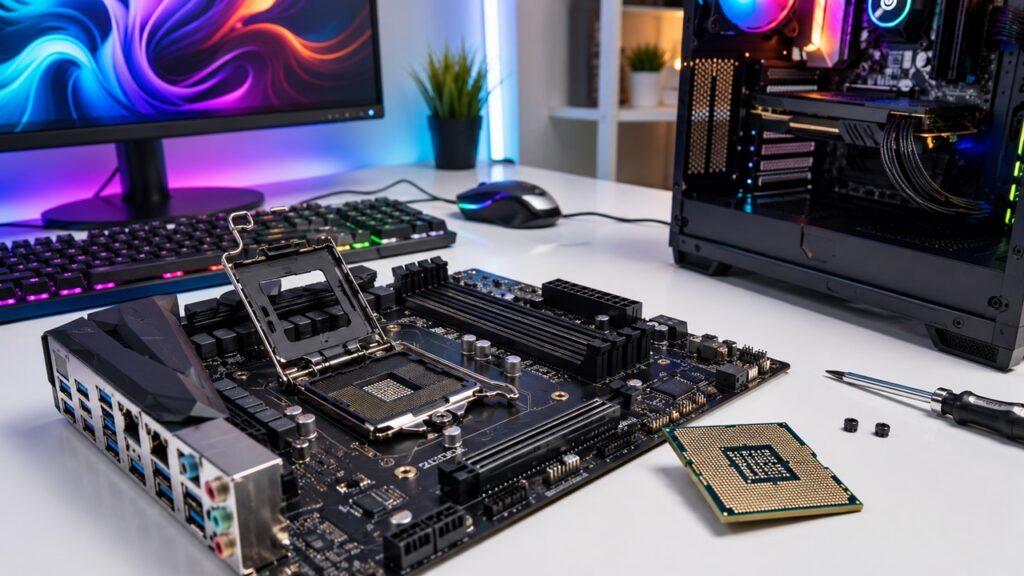
The motherboard connects the CPU to the rest of the computer. It provides the CPU socket, chipset support, power delivery, memory slots, and communication paths.
Not every CPU works with every motherboard. The socket, chipset, BIOS support, and power requirements must match.
This is important if you are planning a CPU upgrade.
CPU and Cooling
CPUs create heat when they work. Cooling helps remove that heat so the processor can maintain performance.
If a CPU gets too hot, it may slow itself down to avoid damage. This is called thermal throttling.
Good cooling helps your CPU run faster, quieter, and more consistently.
Why Does the CPU Get Hot?
A CPU gets hot because it uses electricity to switch billions of tiny transistors on and off. The harder the CPU works, the more heat it usually creates.
Common reasons a CPU gets hot include:
- Heavy gaming
- Video rendering
- Software compiling
- Too many background apps
- Dust buildup
- Weak CPU cooler
- Old thermal paste
- Poor case airflow
- Overclocking
- High room temperature
- Malware or unwanted background processes
Heat is normal, but too much heat is a problem. When the CPU becomes too hot, it can reduce speed to protect itself. That can make your computer feel slower during heavy tasks.
Can a Computer Run Without a CPU?
No, a normal computer cannot run without a CPU. The CPU is required to process instructions, start the system, run the operating system, and coordinate hardware.
A computer may have other processors, such as a GPU or a chip inside a storage drive. But those do not replace the main CPU in a normal PC.
Some devices use SoCs, where the CPU is built together with other components on one chip. Even then, the device still needs a processing unit to function.
Simple Example: What the CPU Does When You Open a Browser
Opening a browser feels simple, but many things happen behind the scenes. The CPU helps coordinate most of that process.
- You click the browser icon.
- The operating system receives your command.
- The CPU processes that instruction.
- Storage provides the browser’s program files.
- RAM holds the active browser data.
- The CPU runs browser instructions.
- The CPU helps load tabs, settings, and extensions.
- The GPU helps display the browser window.
- The CPU manages scripts, downloads, and inputs.
- The browser appears ready for you to use.
You only see the browser open. Inside the computer, the CPU, RAM, storage, GPU, and operating system are all working together.
Final Thoughts
The CPU is the main processor that runs instructions inside your computer. It fetches instructions, decodes them, executes the required action, and stores the result so the system can keep working.
It helps open apps, process input, run background tasks, manage software, handle calculations, and coordinate with other hardware. Without a CPU, a normal computer cannot run.
However, the CPU is not the only part that matters. RAM, storage, GPU, motherboard, software, and cooling all affect performance. That is why a balanced computer usually feels better than one with only a powerful CPU.
So, when choosing or upgrading a CPU, think about your actual use. Browsing, office work, gaming, editing, streaming, and professional workloads all need different levels of CPU power.
Related FAQs
What Is the Main Job of a CPU?
The main job of a CPU is to process instructions. It runs apps, operating system tasks, calculations, logic, and background processes that keep your computer working.
Is the CPU the Brain of the Computer?
Yes, the CPU is often called the brain of the computer because it processes instructions and coordinates tasks. However, it still depends on RAM, storage, GPU, and other parts.
Does the CPU Store Data?
A CPU can hold tiny amounts of temporary data in registers and cache. It does not permanently store your files like an SSD or hard drive does.
Is CPU or RAM More Important?
Both are important because they do different jobs. The CPU processes instructions, while RAM holds active data the CPU needs quickly.
Is CPU or GPU More Important for Gaming?
Both matter for gaming. The CPU handles game logic, physics, and background tasks, while the GPU handles graphics, resolution, textures, and frame rendering.
What Makes a CPU Fast?
A CPU is fast because of its architecture, clock speed, core count, cache, power limits, and efficiency. GHz alone does not tell the full story.
Can I Upgrade My CPU?
You can upgrade a desktop CPU if the motherboard socket, chipset, BIOS, power supply, and cooler support it. Many laptops do not allow CPU upgrades.
Why Is My CPU Usage 100%?
CPU usage may reach 100% because of heavy apps, too many tabs, background updates, malware scans, games, or old hardware struggling with modern software.
Can a Computer Work Without a CPU?
No, a normal computer cannot work without a CPU. It needs a CPU or main processing unit to start, run software, and coordinate hardware.
Does a Better CPU Increase FPS?
A better CPU can increase FPS if your game is CPU-limited. If your GPU is the main limit, upgrading the CPU may not improve gaming performance much.

Justin has spent years learning how blogs, websites, hosting, and online income work in the real world. Along with blogging and SEO, he also covers desktops, laptops, PC parts, and everyday tech, sharing easy-to-understand advice for readers who want to build better websites and choose better tools.