RAM helps your computer keep active work ready for quick access. In simple words, RAM is your computer’s short-term workspace. It temporarily holds the data your processor needs right now, such as open apps, browser tabs, games, documents, and background tasks.
In this article, we will break down what RAM does, how it works, why it affects speed, how much RAM you need, and how to know when your computer may need more memory.
Key Takeaways
- RAM stands for Random Access Memory.
- RAM temporarily stores active data your computer is using right now.
- More RAM helps with multitasking, browser tabs, games, editing, and large files.
- RAM is different from storage because RAM does not save files permanently.
- When RAM is full, your computer may use slower storage as virtual memory.
- For most modern users, 16 GB RAM is a strong starting point.
- For gaming, editing, and heavy multitasking, 32 GB RAM is often better.
What Does RAM Do in a Computer? Quick Answer
RAM gives your computer a fast place to keep the data it is currently using. When you open a browser, document, game, photo editor, or video call, your computer does not work from storage alone. It loads active parts of that work into RAM so the CPU can reach them quickly.
That is why RAM affects how smooth your computer feels. A computer with enough RAM can switch between apps, keep tabs open, and handle active tasks without constant slowdowns. A computer with too little RAM may freeze, lag, or feel heavy even if it has a good processor.
RAM does not permanently store your files. It only holds temporary data while the computer is running. When you turn the computer off, the data in RAM is cleared.
RAM in a Computer: Quick Comparison Table
RAM is only one part of your computer. To understand it clearly, it helps to compare RAM with the CPU and storage because these three parts work together every time you use your PC.
| Feature | RAM | SSD / Hard Drive | CPU |
| Main Job | Holds active data temporarily | Stores files permanently | Processes instructions |
| Speed | Very fast | Slower than RAM | Handles calculations and commands |
| Data Stays After Shutdown? | No | Yes | No |
| Example Use | Open apps, tabs, files, games | Photos, videos, apps, Windows files | Running programs and tasks |
| Simple Analogy | Desk space | Filing cabinet | Worker or brain |
The CPU does the actual processing. Storage keeps your files for the long term. RAM sits between them as the fast working area. Without enough RAM, even a decent CPU and SSD can feel slower during daily use.
What Is RAM?
RAM stands for Random Access Memory. It is a high-speed memory component inside your computer that temporarily stores the information your system needs right now.
You can think of RAM as the space your computer uses while it is actively working. If you open a Word document, that document is loaded into RAM while you edit it. If you open ten browser tabs, the active parts of those tabs use RAM. If you play a game, many game files, maps, textures, and background processes also use RAM.
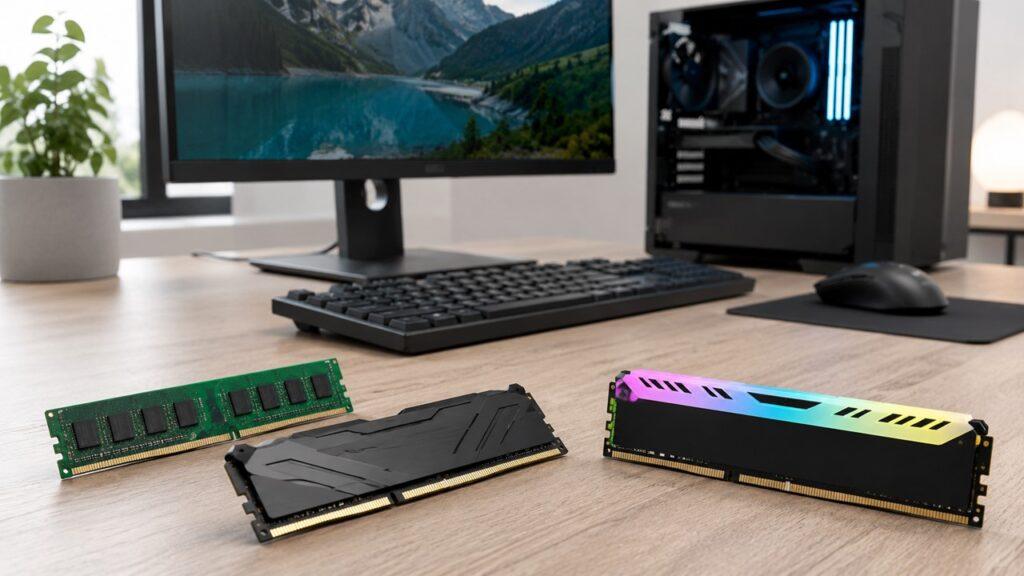
RAM is usually installed on the motherboard. In desktop computers, RAM often comes as long memory sticks called DIMMs. In laptops, it may come as smaller SO-DIMM modules, or it may be soldered directly to the motherboard.
The important thing to remember is this: RAM is fast, temporary, and active. It is not where your files live forever.
How RAM Works in Simple Terms
RAM may sound technical, but the basic process is easy to understand. Every time you open something on your computer, your system moves active data from storage into RAM so the processor can use it faster.
Step 1: You Open a Program
Let’s say you open Chrome, Microsoft Word, Photoshop, or a game. The program itself is stored on your SSD or hard drive. That storage keeps the program safe even when your computer is turned off.
But storage is not the best place for active work. It is designed for saving data, not constantly feeding the CPU every second.
Step 2: Your Computer Loads Active Data Into RAM
After you open the program, your computer loads the important active parts into RAM. This may include menus, documents, browser data, images, game assets, or temporary files the program needs while running.
This happens because RAM is much faster than regular storage. The faster your computer can access active data, the smoother the experience feels.
Step 3: The CPU Uses That Data
The CPU then reads data from RAM and processes instructions. For example, when you type a sentence, scroll a web page, edit a photo, or move inside a game, the CPU and RAM are constantly working together.
The CPU is like the person doing the work. RAM is the table where the current work is placed.
Step 4: RAM Clears Data When It Is No Longer Needed
When you close a program, the RAM used by that program becomes available again. When you shut down your computer, RAM loses the temporary data it was holding.
That is why you must save your files before shutting down. Saving moves your work from RAM back to permanent storage.
A Simple RAM Example You Can Understand
Imagine your computer is a small office. Your SSD or hard drive is the storage room. It keeps all your files, apps, photos, videos, and documents safe for later.
RAM is your desk. It is where you place the things you are working on right now. Your CPU is the person sitting at the desk doing the work.
If your desk is large, you can keep a notebook, laptop, calculator, phone, documents, and coffee mug there without trouble. You can move between tasks easily. That is what more RAM does for your computer.
But if your desk is tiny, you have to keep removing one thing to make space for another. That slows you down. Your computer does the same thing when RAM is too small. It keeps moving data back and forth, and the whole system starts feeling slower.
Why RAM Is Important for Computer Performance
RAM matters because modern computers rarely do only one thing at a time. Even when you think you are only browsing the web, your computer may be running antivirus tools, cloud sync, browser extensions, updates, music apps, and background services.
RAM Helps With Multitasking
If you open many programs together, each one needs some RAM. Your browser needs RAM. Your video call needs RAM. Your spreadsheet needs RAM. Your music app needs RAM.
The more RAM you have, the more comfortably your computer can keep those tasks open at the same time. This is why a computer with too little RAM may feel fine with one app open but slow down badly when you open several apps.
RAM Helps Apps Run Smoothly
Apps use RAM while they are active. Simple apps may use a small amount, while creative and professional apps can use much more.
Photo editors, video editors, design tools, coding software, and large spreadsheets can become slow if they do not have enough memory. With enough RAM, these apps have more room to work.
RAM Helps Games Load and Run Better
Games often use RAM for maps, textures, character data, background systems, and game assets. If your computer does not have enough RAM, games may stutter, freeze, or load areas slowly.
RAM does not automatically increase FPS in every game. Your graphics card and CPU usually affect FPS more. But enough RAM helps prevent performance drops when the system is running out of memory.
RAM Helps Large Files Open Faster
Large files need more working space. A simple text document may not need much RAM, but a huge Excel file, high-resolution photo, video timeline, or design project can need a lot.
If you work with big files, RAM can make the difference between smooth editing and constant waiting.
What Happens When You Do Not Have Enough RAM?
When your computer does not have enough RAM, it starts struggling to keep active tasks ready. The system may still work, but it has to use slower methods to manage memory.
Common signs of low RAM include:
- Apps take longer to open.
- Browser tabs reload again and again.
- The computer freezes or stutters.
- Games lag, crash, or load textures slowly.
- Video editing and photo editing feel slow.
- Switching between apps takes longer.
- Your computer uses virtual memory or a page file.
- Storage activity becomes unusually high.
- Task Manager shows RAM usage near 80–100% often.
Low RAM does not always mean your computer is broken. It usually means your computer is trying to handle more active work than its memory can comfortably support.
RAM vs Storage: What Is the Difference?
Many people confuse RAM with storage because both are measured in gigabytes. But they do very different jobs. RAM is for active work. Storage is for keeping files permanently.
| Comparison Point | RAM | SSD / HDD Storage |
| Main Purpose | Runs active tasks | Saves files and programs |
| Speed | Much faster | Slower than RAM |
| Capacity | Usually smaller | Usually much larger |
| Data Type | Temporary | Permanent |
| Data After Shutdown | Cleared | Saved |
| Example | Open Chrome tabs | Saved photos and videos |
Adding more RAM helps your computer handle more active tasks. Adding more storage helps you save more files.
For example, a 1 TB SSD gives you plenty of space for photos, videos, games, and programs. But if your computer only has 4 GB RAM, it can still feel slow when several apps are open.
RAM affects what your computer can handle right now. Storage affects what your computer can keep for later.
RAM vs CPU: What Is the Difference?
The CPU is the processor. It performs calculations, follows instructions, and runs the logic behind your programs. RAM does not process instructions by itself. Instead, it gives the CPU quick access to the data it needs.
Here is the easiest way to remember it:
The CPU does the work. RAM holds the work that needs to be done right now.
A fast CPU can still feel limited if the computer does not have enough RAM. This is especially true when many apps are open at the same time.
On the other hand, adding more RAM will not fix every slow computer. If the CPU is very old, the storage drive is failing, or the system has malware, RAM alone may not solve everything.
RAM vs VRAM: Are They the Same?
RAM and VRAM are related, but they are not the same thing. RAM is the main system memory used by your computer. VRAM is video memory used by the graphics processor.
System RAM helps with apps, browser tabs, files, and general multitasking. VRAM helps with graphics-related work, such as gaming, 3D rendering, video editing, high-resolution textures, and multiple displays.
If you are using a desktop with a dedicated graphics card, the card usually has its own VRAM. If you are using integrated graphics, the system may share regular RAM with the graphics processor.
For everyday users, system RAM is usually the main thing to check. For gamers, designers, and video editors, both RAM and VRAM matter.
What Is Virtual Memory?
Virtual memory is a backup system your computer uses when RAM is full. Instead of crashing immediately, the computer uses part of the SSD or hard drive as temporary memory.
This sounds helpful, and it is. Virtual memory can keep your system running when RAM is under pressure. But it is much slower than real RAM.
That is why a computer may become sluggish when memory is full. It is not just “thinking harder.” It is moving data between fast RAM and slower storage.
If this happens often, adding more RAM can make the computer feel much smoother.
How Much RAM Do You Need?
The right amount of RAM depends on what you do with your computer. A casual user does not need the same RAM as a video editor, gamer, programmer, or designer.
| RAM Amount | Best For | Who Should Use It |
| 4 GB | Very basic tasks | Older PCs, light browsing, simple documents |
| 8 GB | Basic everyday use | Students, email, light browsing, office work |
| 16 GB | Smooth everyday performance | Most users, remote workers, casual gamers |
| 32 GB | Heavy multitasking and creative work | Gamers, editors, designers, power users |
| 64 GB or More | Professional workloads | 4K/8K editing, 3D rendering, virtual machines, large datasets |
For most modern laptops and desktops, 16 GB RAM is the best starting point. It gives enough room for browsing, office work, video calls, streaming, light editing, and casual gaming.
Choose 32 GB RAM if you play newer games, edit videos, use design software, run many apps together, or want your computer to stay useful longer.
Choose 64 GB or more only if your work truly needs it. This includes heavy video editing, 3D rendering, large coding projects, virtual machines, and professional creative workloads.
Does More RAM Make a Computer Faster?
More RAM can make a computer faster, but only when your current RAM is not enough. This is an important point because RAM is not magic.
If your computer has 8 GB RAM and it often slows down with many tabs or apps open, upgrading to 16 GB can make a big difference. You may notice smoother multitasking, fewer freezes, and faster app switching.
But if your computer already has 32 GB RAM and you only browse the web, watch videos, and write documents, upgrading to 64 GB probably will not feel much faster.
More RAM helps most when your computer is running out of memory. Once you already have enough, other parts like the CPU, SSD, GPU, cooling, and software health may matter more.
Does RAM Speed Matter?
RAM speed tells you how quickly memory can move data. Modern systems use DDR memory, such as DDR4 or DDR5, and different RAM kits can run at different speeds.
RAM speed can matter in some cases. Gaming, integrated graphics, content creation, and certain professional workloads may benefit from faster memory. However, most everyday users should focus on capacity first.
In simple terms:
Having enough RAM is usually more important than buying the fastest RAM.
For example, 16 GB of normal-speed RAM will usually feel better than 8 GB of very fast RAM if your system keeps running out of memory.
Compatibility also matters. You cannot always install any RAM you want. Your motherboard or laptop must support the RAM type, speed, and capacity.
Common Types of RAM
There are different types of RAM, but most regular users only need to understand the basics. The main thing is knowing what kind of memory your computer supports before buying or upgrading.
DRAM
DRAM stands for Dynamic Random Access Memory. This is the common type of memory used as main system RAM in most computers.
It is affordable, widely used, and available in large capacities. When people talk about upgrading RAM in a desktop or laptop, they are usually talking about some form of DRAM.
SRAM
SRAM stands for Static Random Access Memory. It is faster than DRAM but also more expensive and not used as normal upgradeable system memory.
SRAM is commonly used for CPU cache. That cache helps the processor access very small amounts of important data extremely quickly.
DDR RAM
Modern computers use DDR RAM. DDR stands for Double Data Rate. Common generations include DDR3, DDR4, and DDR5.
DDR generations are not usually interchangeable. A motherboard designed for DDR4 will not normally accept DDR5 RAM. That is why you should always check compatibility before upgrading.
How to Check How Much RAM You Have
Before you think about upgrading, you should check how much RAM your computer already has. You can also check how much is being used during normal work.
On Windows
- Press Ctrl + Shift + Esc to open Task Manager.
- Click the Performance tab.
- Select Memory.
- Check your total RAM amount.
- Look at current memory usage.
- Check RAM speed and available slots if shown.
If your memory usage often stays near 80–100%, your system may not have enough RAM for your daily workload.
On macOS
- Click the Apple menu.
- Select About This Mac.
- Check the memory amount listed.
- On Apple silicon Macs, memory may appear as unified memory.
- Many newer Macs do not allow memory upgrades after purchase.
For Mac users, it is especially important to choose enough memory when buying the computer because upgrades may not be possible later.
Signs You May Need More RAM
Your computer will usually give you clues when RAM is too low. The problem is that people often blame the whole computer when memory is the real issue.
Signs you may need more RAM include:
- RAM usage often stays above 80%.
- Your browser slows down with many tabs open.
- Apps freeze when switching between them.
- Games stutter even at reasonable graphics settings.
- Large files open slowly.
- Video calls lag while other apps are open.
- Your computer relies heavily on virtual memory.
- Restarting helps for a while, but the problem returns.
- You cannot run the software you need smoothly.
However, RAM is not always the only cause of a slow computer. You should also check storage health, CPU usage, startup apps, malware, overheating, and outdated software.
If your computer has an old hard drive, upgrading to an SSD may help more than adding RAM. If your CPU is very old, RAM may improve multitasking but not completely modernize the system.
Can You Upgrade RAM?
Whether you can upgrade RAM depends on your device. Desktop PCs are usually easier to upgrade. Laptops can be more limited, especially thin and lightweight models.
Desktop PCs
Many desktop computers allow RAM upgrades. You can usually open the case, check the motherboard, and add compatible RAM sticks if slots are available.
Before upgrading, check the motherboard’s supported RAM type, maximum capacity, and recommended speed. Also make sure the RAM sticks are installed in the correct slots for better performance.
Laptops
Some laptops have upgradeable RAM. Others have one upgradeable slot and some soldered memory. Many modern thin laptops have fully soldered RAM, which means you cannot upgrade it later.
This is why laptop buyers should think carefully before choosing 8 GB, 16 GB, or 32 GB. If the RAM is soldered, you are stuck with that amount for the life of the laptop.
Things to Check Before Buying RAM
- RAM type, such as DDR4 or DDR5.
- Maximum supported RAM capacity.
- Number of available RAM slots.
- Supported RAM speed.
- Desktop DIMM or laptop SO-DIMM size.
- Whether the memory is soldered.
- Whether you need matching RAM sticks.
- Warranty or service restrictions.
- Motherboard or laptop model compatibility.
Do not buy RAM only because it looks fast or has a large number on the box. Compatibility matters more than marketing.
Common RAM Myths
RAM is one of the most misunderstood computer parts. Some advice online sounds simple, but it is not always true.
Myth 1: More RAM Always Means More Speed
More RAM helps when your computer does not have enough memory. But if you already have enough RAM for your tasks, adding more may not make the system feel faster.
For example, upgrading from 8 GB to 16 GB can be very noticeable. Upgrading from 32 GB to 64 GB may not matter unless you use heavy software.
Myth 2: RAM Stores Your Files Permanently
RAM does not permanently store your files. It only holds temporary data while your computer is running.
Your documents, photos, apps, and videos are saved on your SSD or hard drive. If you do not save your work, turning off the computer can cause unsaved changes to disappear.
Myth 3: Downloading More RAM Is Real
You cannot download real RAM. RAM is physical hardware inside your computer.
Some tools may claim to clean or boost memory, but they do not add actual RAM. At best, they close background processes. At worst, they may be useless or unsafe.
Myth 4: RAM and Storage Are the Same Thing
RAM and storage are not the same. RAM is temporary workspace. Storage is permanent file space.
A computer can have a huge SSD and still slow down if it does not have enough RAM. It can also have plenty of RAM but still run out of storage space for files.
RAM Examples by Real-Life Use
The amount of RAM you need depends on your real workload. A student, gamer, office worker, and video editor may all need different amounts.
| User Type | What RAM Handles | Suggested RAM |
| Student | Docs, browser, video classes | 8–16 GB |
| Office Worker | Email, spreadsheets, meetings, browser tabs | 16 GB |
| Gamer | Game data, launchers, background apps | 16–32 GB |
| Video Editor | Timeline, effects, previews, large files | 32 GB or more |
| Programmer | IDEs, browsers, local servers, virtual machines | 16–32 GB |
| Casual User | Browsing, streaming, light documents | 8–16 GB |
A good way to choose RAM is to look at what you actually do every day. If you only browse and write documents, you do not need extreme memory. If you edit videos, game, stream, code, and keep many apps open, more RAM makes sense.
Final Verdict
RAM gives your computer a fast temporary workspace. It holds the active data your CPU needs right now, helping your apps open, run, and switch more smoothly.
The more RAM you have, the more active tasks your computer can manage at the same time. That is why RAM matters for multitasking, gaming, video editing, large files, browser tabs, and overall responsiveness.
But RAM is not permanent storage. It does not save your files after shutdown. It also does not replace a good CPU, SSD, or graphics card.
For most people, 16 GB RAM is the safest modern choice. If you are gaming, editing, designing, coding, or doing heavier multitasking, 32 GB RAM is a smarter long-term option.
Related FAQs
What Does RAM Do in Simple Words?
RAM temporarily holds the data your computer is using right now. It helps apps, files, games, and browser tabs run smoothly while your computer is on.
Is RAM The Same As Storage?
No, RAM and storage are different. RAM is temporary memory, while storage permanently saves your files, apps, photos, and videos.
Is 8 GB RAM Enough?
8 GB RAM is enough for basic browsing, email, school work, and simple office tasks. For smoother modern use, 16 GB is usually a better choice.
Is 16 GB RAM Enough For Most People?
Yes, 16 GB RAM is enough for most everyday users. It works well for browsing, office work, streaming, video calls, and casual gaming.
Does RAM Increase FPS In Games?
RAM can improve gaming smoothness if your system does not have enough memory. However, the graphics card and CPU usually affect FPS more.
What Happens If RAM Is Full?
When RAM is full, your computer may use slower storage as virtual memory. This can make apps lag, freeze, reload, or open slowly.
Can I Add More RAM To My Laptop?
Some laptops allow RAM upgrades, but many thin modern laptops have soldered RAM. Always check your exact laptop model before buying memory.
Is Faster RAM Better Than More RAM?
For most users, having enough RAM matters more than faster RAM. RAM speed matters more for gaming, integrated graphics, and advanced workloads.
How Do I Know If My Computer Needs More RAM?
Check Task Manager on Windows or Activity Monitor on macOS. If memory usage often stays near 80–100%, more RAM may help.
Does RAM Save Data When The Computer Is Off?
No, RAM does not save data after shutdown. It is volatile memory, so it clears temporary data when power is turned off.

Justin has spent years learning how blogs, websites, hosting, and online income work in the real world. Along with blogging and SEO, he also covers desktops, laptops, PC parts, and everyday tech, sharing easy-to-understand advice for readers who want to build better websites and choose better tools.