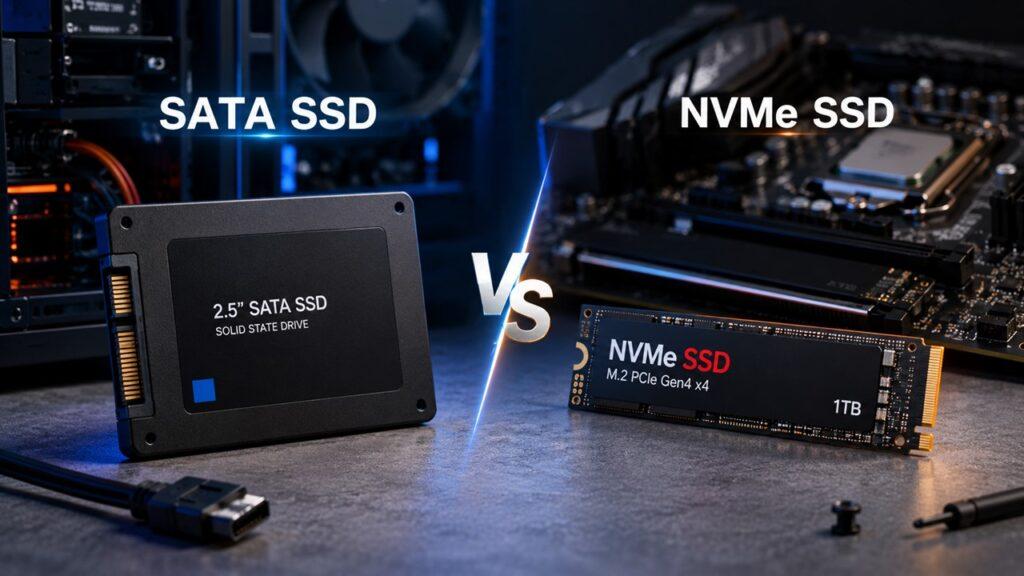
NVMe SSD is better for most modern PCs and laptops because it is much faster, cleaner to install, and better suited for Windows, gaming, editing, and heavy workloads. However, SATA SSD still makes sense if you are upgrading an older computer, need cheap extra storage, or do not have an M.2 NVMe slot.
In this guide, we will compare SATA SSD vs NVMe SSD in a simple way. We will look at speed, compatibility, gaming, laptops, desktops, price, heat, lifespan, and which one you should actually choose.
Key Takeaways
- NVMe SSD is the better choice for most modern desktops and laptops.
- SATA SSD is still useful for older PCs, budget upgrades, and secondary storage.
- SATA SSDs usually reach around 500–550 MB/s, while NVMe SSDs can reach several thousand MB/s.
- M.2 does not always mean NVMe because some M.2 drives still use SATA.
- NVMe usually does not increase FPS, but it can improve loading, updates, and asset streaming.
- A good Gen 3 or Gen 4 NVMe SSD is enough for most users.
- Gen 5 NVMe drives are fast, but many people do not need that speed yet.
SATA SSD vs NVMe SSD: Quick Comparison
The biggest difference between SATA SSD and NVMe SSD is not only speed. The real difference comes from the interface, protocol, motherboard support, installation style, and what you actually do on your computer.
A SATA SSD is still a huge upgrade over a hard drive. But if your PC supports NVMe, it usually makes more sense to choose NVMe, especially when the price difference is small.
| Feature | SATA SSD | NVMe SSD |
| Connection | SATA port or M.2 SATA slot | M.2 PCIe slot |
| Protocol | AHCI / SATA | NVMe |
| Typical Speed | 500–550 MB/s | 3,500–14,000+ MB/s |
| Best For | Older PCs, basic upgrades, budget storage | OS, gaming, editing, modern PCs |
| Form Factor | 2.5-inch or M.2 SATA | Mostly M.2 2280 |
| Cables Needed | Yes for 2.5-inch SATA | No |
| Heat | Usually cooler | Can run hotter |
| Price | Often cheaper | Affordable now, premium Gen 5 costs more |
| Compatibility | Excellent with older systems | Needs M.2 PCIe/NVMe support |
| Overall Winner | Good for budget/legacy use | Best for performance |
What Is a SATA SSD?
A SATA SSD is a solid-state drive that uses the SATA interface. SATA was originally designed for hard drives, but later SSDs started using the same connection because it was already common in desktops and laptops.
A SATA SSD stores data on NAND flash memory, so it has no spinning disk inside. That is why it feels much faster than a traditional hard drive. However, SATA itself has a speed limit. SATA III runs at 6 Gb/s, which is why real-world SATA SSD speeds usually stay around 500–550 MB/s after overhead.
In simple words, a SATA SSD is fast enough for normal use, but the connection is old. The SSD may be capable, but the SATA lane limits how much performance it can deliver.
How SATA SSDs Work
Most 2.5-inch SATA SSDs connect to your desktop using two cables. One is a SATA data cable that connects to the motherboard. The other is a SATA power cable that comes from the power supply.
Some SATA SSDs also come in the M.2 form factor. This is where many buyers get confused. An M.2 SATA SSD may look like a small NVMe stick, but it still uses the SATA protocol. So, even if it looks modern, it is still limited by SATA speed.
That is why you should not buy an SSD only by looking at its shape. Always check whether it says SATA M.2 or NVMe M.2.
Common SATA SSD Form Factors
- 2.5-inch SATA SSD: The most common type for desktops and older laptops.
- M.2 SATA SSD: Looks like an M.2 NVMe drive but uses the SATA protocol.
- mSATA SSD: An older small SSD format used in some older laptops.
Main Advantages of SATA SSDs
- Cheaper for basic storage upgrades.
- Works with many older desktops and laptops.
- Much faster than a traditional hard drive.
- Usually runs cooler than high-end NVMe drives.
- Easy to use as secondary storage.
- Good for documents, photos, music, movies, and basic apps.
Main Limitations of SATA SSDs
- Limited to around 500–550 MB/s in real-world use.
- Requires cables if it is a 2.5-inch model.
- Slower for large file transfers.
- Less ideal for heavy editing, gaming libraries, and professional workloads.
- M.2 SATA can confuse buyers because it looks like NVMe.
- Not the best choice for a new performance-focused PC.
What Is an NVMe SSD?
An NVMe SSD is a solid-state drive that uses the NVMe protocol. NVMe stands for Non-Volatile Memory Express. It was designed specifically for flash-based storage, unlike older storage protocols that were built around mechanical hard drives.
NVMe SSDs usually connect through PCIe lanes. This lets the SSD communicate with the CPU and system much faster than SATA. That is why NVMe drives can reach several thousand MB/s instead of stopping around 550 MB/s.
NVMe also handles many commands at the same time. The official NVM Express FAQ says NVMe supports 65,535 I/O queues with 65,535 commands per queue, which is far beyond the older SATA/AHCI design.
How NVMe SSDs Work
NVMe SSDs usually plug directly into an M.2 slot on the motherboard. You do not need a SATA data cable or a separate SATA power cable. The drive gets power and transfers data through the motherboard slot.
This direct PCIe connection is the main reason NVMe is so fast. Instead of going through the older SATA path, NVMe uses the faster PCIe bus. Each newer PCIe generation also increases available bandwidth, so modern NVMe drives can keep getting faster.
That is why you see Gen 3, Gen 4, and Gen 5 NVMe drives. The generation matters because your SSD speed depends on both the drive and the PCIe version supported by your motherboard or laptop.
Common NVMe SSD Form Factors
- M.2 2280 NVMe: The most common size for desktops and laptops.
- M.2 2230 NVMe: Used in compact devices and handheld gaming PCs.
- U.2 NVMe: More common in servers and high-end workstations.
- PCIe add-in card NVMe: Used when a desktop lacks a built-in M.2 slot.
Main Advantages of NVMe SSDs
- Much faster sequential read and write speeds.
- Lower latency than SATA.
- Better for OS, apps, games, and active projects.
- No SATA data or power cables.
- Better suited for modern gaming, editing, and workstation tasks.
- Uses modern PCIe bandwidth.
- Cleaner installation inside desktop builds.
Main Limitations of NVMe SSDs
- Needs motherboard or laptop support.
- Can run hotter under heavy workloads.
- Premium Gen 5 drives can cost more.
- Some older laptops cannot boot from NVMe.
- Real-world gains may be small for basic browsing or office work.
- Some high-speed NVMe drives need a heatsink.
SATA SSD vs NVMe SSD Speed: How Much Faster Is NVMe?
On paper, NVMe is much faster than SATA. Kingston’s PCIe generation guide lists PCIe Gen 3 NVMe SSDs around 3,500 MB/s, Gen 4 SSDs above 7,000 MB/s, and Gen 5 SSDs above 14,000 MB/s.
But speed numbers need context. A Gen 5 NVMe SSD may look amazing in benchmarks, but that does not mean every user will feel a huge difference every second. The type of work you do matters.
| SSD Type | Typical Sequential Speed | Common Use |
| SATA SSD | 500–550 MB/s | Basic upgrade, older systems |
| PCIe Gen 3 NVMe | Up to around 3,500 MB/s | Budget modern PCs |
| PCIe Gen 4 NVMe | Up to around 7,000 MB/s | Gaming, editing, productivity |
| PCIe Gen 5 NVMe | 10,000–14,000+ MB/s | High-end workloads, creators, workstations |
Sequential Speed vs Random Speed
Sequential speed matters when your computer reads or writes large files in a straight line. Random speed matters when your computer opens many smaller files scattered around the drive.
Here is the simple way to understand it:
- Sequential speed: Copying large videos, game files, ISO files, and project folders.
- Random speed: Opening apps, booting Windows, loading small files, and multitasking.
- Latency: How quickly the drive responds to each request.
This is why benchmark charts can sometimes feel confusing. One SSD may show a huge sequential speed number, but your daily experience depends on many smaller actions.
Why NVMe Looks Much Faster on Paper
NVMe looks faster because it really is faster at the hardware level. It uses PCIe bandwidth, supports deep queues, and has lower overhead than older SATA/AHCI storage.
SATA was good when hard drives were the main storage device. But SSDs became fast enough to hit the SATA ceiling. NVMe removed that bottleneck by giving flash storage a better path to the system.
That is why NVMe shines in large file transfers, demanding apps, workstation tasks, and active storage workloads.
Why You May Not Always Feel a Huge Difference
You may not feel a massive difference if your work is simple. Browsing websites, watching YouTube, writing documents, checking email, and using basic office apps do not need 7,000 MB/s.
A SATA SSD already feels fast compared with an HDD. So, if you are upgrading from a hard drive, even SATA SSD will feel like a big jump. NVMe is better, but the improvement is more noticeable when your workload needs that extra speed.
Real-World Performance: Where NVMe Actually Feels Faster
NVMe feels noticeably faster in:
- Large file transfers.
- 4K or 8K video editing.
- Game installation and updates.
- Large game loading.
- Virtual machines.
- Software development.
- 3D rendering projects.
- AI, data science, and active datasets.
- Heavy multitasking with large files.
- Running the operating system on a modern PC.
This is where NVMe becomes more than a benchmark number. If your work constantly reads and writes large files, NVMe saves time. If your PC is only used for light browsing, the difference is smaller.
Everyday Use
For everyday use, both SATA SSD and NVMe SSD feel quick. Windows opens faster than on a hard drive. Apps launch faster. The system feels smoother.
If you only browse the web, stream videos, write documents, and store photos, a SATA SSD is still usable. However, if NVMe and SATA prices are close, I would still choose NVMe because it gives better long-term value.
Gaming
NVMe can help gaming, but not always in the way people expect. It usually does not turn a weak gaming PC into a high-FPS machine. Instead, it helps with loading, updates, installs, and sometimes asset streaming in modern games.
Microsoft describes DirectStorage as a feature that lets games make better use of high-speed storage, such as NVMe SSDs, for small data reads with lower CPU overhead.
NVMe can help with:
- Faster game loading.
- Smoother asset streaming in some modern games.
- Faster game installation and patching.
- Better future-proofing for DirectStorage-supported games.
So, if you are building a modern gaming PC, NVMe is the better choice. If you already have a SATA SSD, it is still far better than playing games from an old hard drive.
Video Editing and Content Creation
NVMe is much better for creators who work with large files. Video editing, photo editing, animation, and 3D work can all benefit from faster storage.
NVMe is better for:
- 4K and 8K footage.
- High-bitrate video.
- Multi-camera timelines.
- Large RAW photo libraries.
- Cache and scratch disks.
- Exporting and importing large files.
- Moving project folders quickly.
If you edit short 1080p videos sometimes, SATA SSD can still work. But if your projects are large, NVMe will make your workflow smoother.
Office Work and Study
For office work and study, SATA SSD is enough. Microsoft Word, Excel, browser tabs, PDFs, online classes, and basic apps do not usually need NVMe-level speed.
Still, NVMe is the smarter choice if your system supports it and the price is close. You may not need all the speed today, but it gives your PC more room for future software and larger files.
SATA SSD vs NVMe SSD for Boot Drive
Your boot drive stores your operating system, installed programs, updates, temporary files, browser cache, and system files. Because the boot drive is used constantly, it should be as fast and responsive as your budget allows.
For a modern system, NVMe is the better boot drive. It gives your operating system more speed, lower latency, and better responsiveness.
- Choose NVMe for your main OS drive.
- Choose SATA SSD only if your system does not support NVMe.
- Avoid using an HDD as a boot drive in 2026 unless there is no other option.
- A budget Gen 3 or Gen 4 NVMe is usually enough for most users.
Is SATA SSD Still Good for Windows?
Yes, SATA SSD is still good for Windows compared with an HDD. If your old PC has a hard drive, upgrading to a SATA SSD can make it feel much faster.
But if your motherboard supports NVMe and the price is similar, NVMe is the smarter choice. It is faster, cleaner, and better for a modern boot drive.
SATA SSD vs NVMe SSD for Gaming
Gaming is one of the most common reasons people compare SATA SSD vs NVMe SSD. The answer is simple: NVMe is better, but SATA SSD is not useless.
If you are coming from an HDD, both SATA SSD and NVMe SSD will feel much better. If you are building a new gaming PC, choose NVMe.
| Gaming Task | SATA SSD | NVMe SSD |
| Booting game launcher | Good | Better |
| Loading most older games | Good | Better, but not always dramatic |
| Modern open-world games | Acceptable | Better |
| Installing large games | Slower | Faster |
| Game updates | Slower | Faster |
| Future DirectStorage games | Limited | Better suited |
Does NVMe Increase FPS?
NVMe usually does not increase FPS directly. FPS depends more on your GPU, CPU, RAM, cooling, resolution, and graphics settings.
NVMe mainly improves loading times, game installation, updates, file decompression, and asset streaming. In some modern games, that can make the game feel smoother when new areas or textures load. But it should not be treated like a graphics card upgrade.
Is SATA SSD Enough for Gaming?
Yes, SATA SSD is still enough for many games. Older games and lighter games can run very well from a SATA SSD.
However, NVMe is better for modern gaming PCs. Game sizes are larger now, updates are heavier, and some newer games are built with faster storage in mind. If the price difference is small, NVMe is the better gaming drive.
SATA SSD vs NVMe SSD for Laptops
Laptop upgrades need more care than desktop upgrades. In a desktop, you usually have more ports, more room, and more cooling. In a laptop, you must check the exact slot type, supported length, BIOS support, and heat limits.
Some laptops support only SATA M.2. Some support only NVMe M.2. Some support both. So before buying, check your laptop manual or support page.
- Check your laptop manual.
- Check whether the M.2 slot supports SATA, NVMe, or both.
- Check SSD length, usually 2280, 2242, or 2230.
- Check single-sided vs double-sided SSD support.
- Check whether the laptop BIOS supports NVMe boot.
- Consider heat and battery life.
Can You Replace a SATA SSD with NVMe in a Laptop?
You can replace a SATA SSD with NVMe only if the laptop’s M.2 slot supports PCIe/NVMe. A SATA-only M.2 slot cannot use an NVMe SSD.
This is one of the biggest mistakes people make. They see an M.2 slot and assume every M.2 SSD will work. But M.2 is just the physical shape. The actual supported protocol matters more.
Does NVMe Improve Laptop Battery Life?
NVMe can be efficient, but it does not automatically improve battery life. Some NVMe drives are power-efficient during light use, while high-performance NVMe drives can use more power under heavy load.
For normal laptop use, the difference depends on the exact SSD, laptop cooling, workload, and power settings. If battery life matters most, do not just buy the fastest NVMe drive. Choose a reliable, efficient model.
SATA SSD vs NVMe SSD for Desktop PCs
Desktop users usually have more upgrade options. That makes storage planning easier.
Desktop PCs can use:
- 2.5-inch SATA SSDs through SATA ports.
- M.2 NVMe SSDs through motherboard M.2 slots.
- PCIe adapter cards for extra NVMe drives.
- Multiple drives for OS, games, media, and backups.
If your motherboard has an M.2 NVMe slot, use it for your main drive. Then you can use SATA SSDs or HDDs for extra storage.
Best Desktop Storage Setup
A practical desktop setup looks like this:
- Primary drive: NVMe SSD for OS, apps, and active games.
- Secondary drive: SATA SSD for extra games and regular files.
- Bulk storage: HDD for backups, archives, and media.
- Creator setup: Separate NVMe drive for cache, scratch files, and active projects.
This setup gives you speed where it matters and cheaper space where speed is less important.
Compatibility: Will Your PC Support SATA or NVMe?
Compatibility is the section you should not skip. A fast SSD is useless if your PC cannot support it properly.
For older desktops, SATA SSD is usually the safest upgrade. For newer desktops and laptops, NVMe is usually supported. But you should still check your motherboard or laptop model before buying.
| System Feature | SATA SSD Requirement | NVMe SSD Requirement |
| 2.5-inch bay | Needed for 2.5-inch SATA | Not needed |
| SATA data port | Required | Not required |
| SATA power cable | Required | Not required |
| M.2 slot | Only for M.2 SATA | Required for M.2 NVMe |
| PCIe support | Not needed | Required |
| BIOS boot support | Usually supported | Needed for boot drive |
| Heatsink | Usually not needed | Recommended for Gen 4/Gen 5 |
M.2 SATA vs M.2 NVMe Confusion
M.2 is a shape, not a speed standard. This is very important.
An M.2 SSD can be SATA or NVMe. Both can look similar, but they do not work the same way. A SATA M.2 drive still uses the SATA protocol. An NVMe M.2 drive uses PCIe and NVMe.
So, when you buy an SSD, do not just read “M.2.” Look for “NVMe,” “PCIe,” “SATA,” and your system’s supported slot type.
Key Types and Slot Support
- B-key: Usually SATA or PCIe x2.
- M-key: Usually NVMe PCIe x4.
- B+M key: Often SATA or limited PCIe support.
- M.2 2280: 22 mm wide and 80 mm long; the most common size.
These details may sound small, but they matter when upgrading laptops and compact PCs.
Price and Value: Is NVMe Worth the Extra Money?
NVMe used to be much more expensive than SATA SSD. Today, many Gen 3 and Gen 4 NVMe drives are affordable. In many cases, the price difference between a SATA SSD and a normal NVMe SSD is small.
That changes the buying decision. If your system supports NVMe and the price is close, choose NVMe. You get better speed, better future-proofing, and cleaner installation.
- If SATA and NVMe prices are close, choose NVMe.
- If upgrading an old PC, choose SATA if NVMe is unsupported.
- If buying storage only for movies and documents, SATA is fine.
- If building a new PC, choose NVMe as the main drive.
- If doing professional work, choose a good NVMe drive with DRAM or strong sustained performance.
Cost Per GB
HDDs are still cheaper for bulk storage. If you need several terabytes for old photos, movies, backups, or archives, an HDD can still make sense.
SATA SSDs are affordable and useful for extra storage. NVMe SSDs offer the best performance value for active use, especially for your operating system, games, apps, and project files.
Heat, Cooling, and Reliability
SATA SSDs usually run cooler because they are slower and use less performance bandwidth. NVMe SSDs, especially Gen 4 and Gen 5 models, can run hotter under heavy workloads.
Heat does not mean NVMe is bad. It just means you should install it properly. Many motherboards include M.2 heatsinks, and many SSDs come with built-in heatsinks.
- Gen 3 NVMe usually runs cool enough in most systems.
- Gen 4 NVMe benefits from motherboard heatsinks.
- Gen 5 NVMe often needs better cooling.
- Thermal throttling can reduce speed during long transfers.
- Good airflow matters in desktops.
- Laptop NVMe temperatures depend on chassis design.
Does NVMe Last Less Than SATA?
NVMe does not automatically last less than SATA. SSD lifespan depends more on NAND type, TBW rating, controller quality, workload, heat, and warranty.
A cheap NVMe drive can be weaker than a good SATA SSD. A premium NVMe drive can be much better than a low-end SATA SSD. So, judge the actual model, not only the interface.
What Is TBW?
TBW means terabytes written. It tells you how much data the manufacturer expects the SSD to write during its warranty endurance period.
For normal users, TBW is usually not a problem. But for video editors, database users, creators, and workstation users, a higher TBW rating is useful.
SATA SSD vs NVMe SSD Lifespan
SSD lifespan is not only about SATA vs NVMe. It depends on the quality of the drive and how you use it.
Important lifespan factors include:
- NAND type: TLC usually lasts longer than QLC.
- TBW rating: Higher TBW means better write endurance.
- Heat: Excessive heat can reduce long-term reliability.
- Workload: Editing and databases write more data.
- Firmware: Updated firmware can improve stability.
- Brand quality: Controller and NAND quality matter.
Which One Is More Reliable?
Neither SATA SSD nor NVMe SSD is automatically more reliable. A high-quality SATA SSD can be more reliable than a cheap NVMe SSD. A premium NVMe SSD can be more reliable than a low-end SATA SSD.
If reliability matters, check warranty, TBW rating, reviews, controller quality, and real user feedback. Do not choose only by speed.
SATA SSD vs NVMe SSD for Different Users
The best SSD depends on your system and your work. Do not buy the fastest drive only because the number looks impressive. Buy the drive that matches your PC, budget, and workload.
| User Type | Better Choice | Why |
| Basic home user | SATA or NVMe | Both feel fast for simple tasks |
| Student | NVMe if supported | Better long-term value |
| Office worker | SATA or NVMe | SATA is enough, NVMe is smoother |
| Gamer | NVMe | Better loading and future-proofing |
| Video editor | NVMe | Faster file handling and cache |
| Programmer | NVMe | Better for builds, VMs, datasets |
| Old laptop user | SATA SSD | Compatibility matters |
| New PC builder | NVMe | Best default choice |
| Backup storage | SATA SSD or HDD | Speed is less important |
| AI/data workload | NVMe | Needs high throughput and low latency |
When Should You Choose a SATA SSD?
Choose a SATA SSD if:
- Your PC or laptop does not support NVMe.
- You are upgrading from an HDD on a tight budget.
- You need cheap secondary storage.
- You mostly store documents, photos, music, and movies.
- You want a simple 2.5-inch replacement drive.
- Your workload is basic office, school, or browsing.
- Your motherboard M.2 slot only supports SATA.
SATA SSDs are not bad. They are just limited by an older interface. For older computers, they can still be one of the best upgrades you can make.
When Should You Choose an NVMe SSD?
Choose an NVMe SSD if:
- Your motherboard or laptop supports NVMe.
- You are building a new PC.
- You want the best boot drive.
- You play modern games.
- You edit videos or photos.
- You move large files often.
- You use virtual machines.
- You work with coding, databases, or AI tools.
- The price difference from SATA is small.
For most modern users, NVMe is the better long-term choice. It is faster, cleaner, and better matched to current desktops and laptops.
SATA SSD vs NVMe SSD: Which Is Better Overall?
NVMe SSD is better overall because it is faster, newer, more efficient for modern workloads, and better suited for current desktops and laptops. If you are building or upgrading a modern PC, NVMe should usually be your first choice.
SATA SSD is still useful for older systems, budget upgrades, and secondary storage. It is not useless, and it is still much faster than an HDD. But it is no longer the best performance choice when NVMe is available.
Also, remember this: not everyone needs the fastest Gen 5 NVMe SSD. A good Gen 3 or Gen 4 NVMe SSD is enough for most people. You can save money and still get excellent real-world performance.
Common Mistakes to Avoid When Buying an SSD
These mistakes are common because SSD names can be confusing. Before buying, check your motherboard or laptop manual, slot type, supported size, and PCIe generation.
- Buying M.2 SATA when you wanted M.2 NVMe.
- Assuming every M.2 slot supports NVMe.
- Buying Gen 5 NVMe for a Gen 3-only system.
- Ignoring SSD length support in laptops.
- Forgetting that 2.5-inch SATA needs power and data cables.
- Buying a DRAM-less SSD for heavy workloads without checking reviews.
- Ignoring heat and heatsink requirements.
- Using a fast NVMe only for cold storage.
- Choosing capacity too small for Windows, apps, and games.
Recommended Storage Setup in 2026
For a modern PC:
- Budget PC: 1TB Gen 3 or Gen 4 NVMe.
- Gaming PC: 1TB–2TB Gen 4 NVMe.
- Creator PC: 2TB Gen 4 or Gen 5 NVMe plus backup drive.
- Office PC: 500GB–1TB SATA SSD or NVMe.
- Old laptop: 2.5-inch SATA SSD or compatible M.2 SSD.
- Backup setup: HDD or large SATA SSD.
Best Practical Setup for Most Users
The best practical setup is simple. Use an NVMe SSD for Windows, apps, and active games. Use a SATA SSD or HDD for extra files, media, and backups.
This gives you fast performance where you actually feel it. At the same time, you do not waste money using expensive high-speed storage for files you rarely open.
Final Verdict
NVMe SSD is the better choice for most modern users. It is faster, cleaner to install, and better suited for Windows, gaming, editing, content creation, and professional workloads. If your laptop or desktop supports NVMe, that should usually be your main drive.
SATA SSD still has a place. It is a smart choice for older computers, basic upgrades, and extra storage. It is also a great way to make an old hard-drive-based PC feel much faster without spending too much.
So, here is the simple answer. Choose NVMe for your main drive. Choose SATA SSD for older systems or extra storage. Use HDD only for large backups and rarely accessed files.
Related FAQs
Is NVMe Better Than SATA SSD?
Yes, NVMe is better than SATA SSD for speed, latency, and modern performance. It is the better choice for gaming, Windows, editing, and new PC builds. SATA SSD is still useful for older systems and basic storage.
Is SATA SSD Still Worth It?
Yes, SATA SSD is still worth it if you are upgrading an older laptop or desktop. It is much faster than an HDD and usually easy to install. However, if your PC supports NVMe and prices are close, NVMe is the better option.
Can I Use NVMe SSD in a SATA Slot?
No, you cannot use an NVMe SSD in a SATA-only slot. NVMe needs PCIe/NVMe support. Some M.2 slots support SATA, some support NVMe, and some support both. Always check your device manual before buying.
Is M.2 Always NVMe?
No, M.2 is not always NVMe. M.2 only describes the physical shape of the drive. An M.2 SSD can use SATA or NVMe. That is why you should check the SSD’s protocol before buying it.
Does NVMe Improve Gaming FPS?
NVMe usually does not improve FPS directly. FPS mostly depends on your GPU, CPU, RAM, and graphics settings. NVMe helps more with loading times, game updates, asset streaming, and overall responsiveness.
Is SATA SSD Enough for Gaming?
Yes, SATA SSD is enough for many games and is much better than an HDD. However, NVMe is better for modern gaming PCs, large games, faster updates, and future storage-focused gaming features.
Do NVMe SSDs Get Hot?
Yes, some NVMe SSDs can get hot, especially Gen 4 and Gen 5 models under heavy workloads. A heatsink, good airflow, and proper installation can help prevent thermal throttling and keep performance stable.
Which SSD Should I Use for Windows?
Use NVMe for Windows if your system supports it. It gives better speed and responsiveness. Use SATA SSD if your computer is older, lacks NVMe support, or you are upgrading from a hard drive on a budget.

Justin has spent years learning how blogs, websites, hosting, and online income work in the real world. Along with blogging and SEO, he also covers desktops, laptops, PC parts, and everyday tech, sharing easy-to-understand advice for readers who want to build better websites and choose better tools.