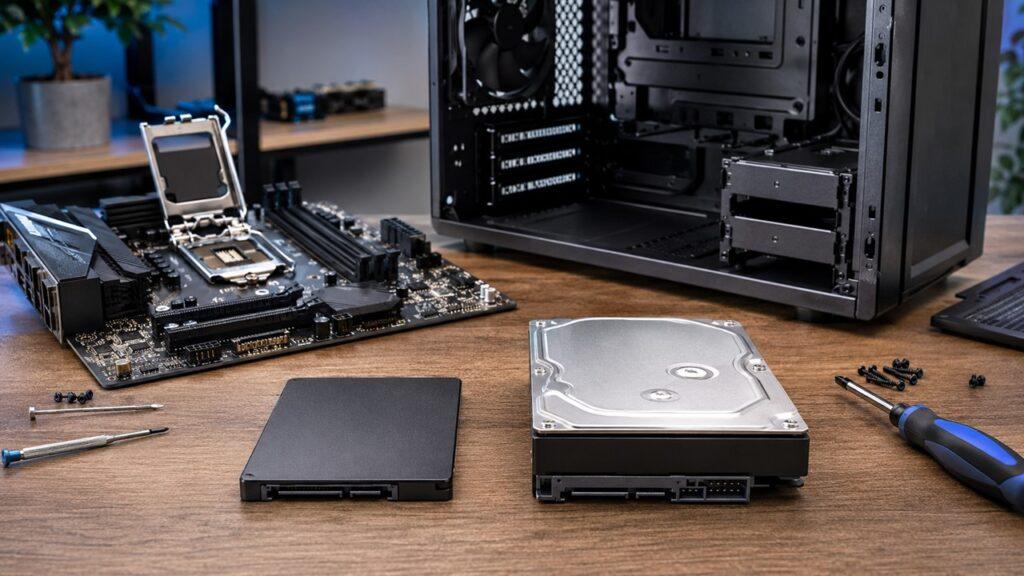
An SSD is better than an HDD for most people because it makes a computer feel faster, smoother, quieter, and more responsive. If you want quick boot times, faster app loading, better laptop performance, and shorter game loading screens, an SSD should be your main storage drive.
However, an HDD is still useful when you need a lot of storage for less money. In this article, we will compare SSDs and HDDs by speed, price, durability, lifespan, gaming, laptops, desktops, backups, and upgrade value, so you can choose the right storage drive for your needs.
Key Takeaways
- SSD is better for speed, boot time, gaming load times, laptops, and everyday performance.
- HDD is better for cheap large-capacity storage, backups, media files, and archives.
- SSD has no moving parts, so it is quieter and more shock-resistant than HDD.
- HDD uses spinning platters, so it is slower and more fragile during movement.
- Most modern PCs and laptops should use an SSD as the main drive.
- The best value setup is often an SSD for Windows and apps, plus an HDD for bulk storage.
Quick Answer: Is SSD Better Than HDD?
Yes, an SSD is better than an HDD for most everyday users. An SSD improves boot time, app loading, file opening, game loading, and overall system responsiveness because it stores and accesses data electronically instead of mechanically.
- SSD is better for speed, boot time, gaming load times, laptops, and durability.
- HDD is better for cheap large-capacity storage and backups.
- Best choice for most users: SSD as the main drive.
- Best value setup: SSD and HDD together.
For most modern PCs and laptops, an SSD should be the main storage drive.
SSD vs HDD Comparison Table
Real-world performance depends on the SSD type, HDD RPM, capacity, file size, workload, available free space, and device compatibility. Western Digital also summarizes the same practical split: SSDs fit performance-critical uses, while HDDs remain practical for mass storage where capacity and cost matter most.
| Feature | SSD | HDD |
| Full Form | Solid State Drive | Hard Disk Drive |
| Storage Technology | NAND flash memory | Spinning magnetic platters |
| Speed | Much faster | Slower |
| Moving Parts | No | Yes |
| Noise | Silent | Can make spinning or clicking noise |
| Durability | Better against bumps and drops | More fragile |
| Power Use | Lower in many everyday tasks | Higher because platters must spin |
| Heat | Usually lower | Can run warmer |
| Price per GB | Higher | Lower |
| Large Capacity Value | Expensive | Better value |
| Best For | OS, apps, gaming, laptops | Backups, media, bulk files |
| Main Weakness | Higher cost per TB | Slow speed and mechanical failure risk |
What Is an SSD?
An SSD, or Solid State Drive, is a storage device that uses flash memory chips to store data. It does not use spinning disks, magnetic platters, or a moving mechanical arm.
That simple difference changes how the whole computer feels. Since an SSD can access data electronically, it can open files, load apps, and start Windows much faster than a traditional hard drive.
SSDs are now common in modern laptops, desktops, gaming PCs, workstations, and portable external drives. Crucial explains that SSDs use non-volatile NAND flash memory and do not rely on mechanical or magnetic moving parts.
How Does an SSD Work?
An SSD works by storing data inside NAND flash memory cells. These cells can keep data even when the computer is turned off.
The SSD also has a controller. The controller manages where data goes, how data is read, how data is written, and how the drive maintains performance over time.
Because an SSD does not need to wait for a disk to spin or a read/write head to move, it can respond much faster than an HDD.
NAND Flash Memory
NAND flash memory stores data electronically. You can think of it as a more advanced version of the storage technology used in USB flash drives and memory cards.
The main advantage is speed. NAND flash allows the SSD to access data quickly without physical movement.
SSD Controller
The SSD controller is the brain of the drive. It manages reading, writing, error correction, data placement, and performance.
A good SSD controller can make a big difference in real-world speed, especially when moving large files or using the drive heavily.
TRIM and Wear Leveling
Modern SSDs use features that help performance and lifespan.
- TRIM helps the SSD identify unused data blocks, so the drive can clean and reuse them more efficiently.
- Wear leveling spreads writes across memory cells, so the same cells are not used too often.
- Overprovisioning gives the SSD extra hidden space to help with maintenance and performance.
These features help SSDs last longer and stay faster over time.
What Is an HDD?
An HDD, or Hard Disk Drive, is a traditional storage device that stores data on spinning magnetic platters. A mechanical read/write head moves across the disk to read and write information.
HDDs have been used in computers for decades. They are slower than SSDs, but they are still useful because they offer large storage capacity at a lower price.
If you need to store thousands of photos, videos, movies, backups, or old project files, an HDD can still make sense.
How Does an HDD Work?
An HDD works mechanically. Inside the drive, circular magnetic platters spin at high speed. A read/write head moves across those platters to find and change data.
This physical movement creates delay. That delay is one reason an HDD feels slower when booting Windows, opening apps, or searching through files.
Common consumer HDD speeds are often 5,400 RPM or 7,200 RPM. RPM means revolutions per minute. A higher RPM drive can be faster, but it is still limited by mechanical movement.
Spinning Platters
HDD platters are circular disks coated with magnetic material. Data is stored magnetically on these disks.
When you open a file, the platter must spin to the correct location before the data can be read.
Read/Write Head
The read/write head moves over the spinning platter. It reads existing data and writes new data.
This movement is precise, but it is also a weakness. If an active HDD is dropped or hit hard, the internal parts can be damaged.
Latency and RPM
Latency means delay. HDDs have more latency because the drive must physically locate data before reading it.
- Higher RPM can improve HDD speed.
- Mechanical movement still limits performance.
- This is why HDDs feel slower than SSDs in everyday use.
SSD vs HDD: Key Differences Explained
The biggest difference between SSD and HDD is how they store and access data. SSDs use flash memory. HDDs use spinning disks.
That one difference affects speed, durability, noise, power use, price, and the best use case for each drive.
1. Speed and Performance
An SSD is much faster than an HDD because it accesses data electronically. An HDD must wait for spinning platters and a moving read/write head.
A SATA SSD is already much faster than most HDDs. An NVMe SSD is much faster than a SATA SSD because it uses PCIe lanes and a more modern storage protocol.
Kingston explains that NVMe uses PCIe connections and can transfer far more data than SATA-based storage. Samsung also states that its PCIe 4.0 980 PRO SSD can reach up to 7,000 MB/s sequential read speed, showing how fast modern NVMe drives can be compared with older storage.
In real life, SSD speed helps with:
- Faster boot time
- Faster app opening
- Faster file transfers
- Faster game loading screens
- Smoother multitasking
- Less system lag
If your computer still uses an HDD as the main drive, switching to an SSD can make the system feel completely different.
2. Boot Time
Boot time is one of the easiest differences to notice. A computer with an HDD can take much longer to reach the desktop because Windows must load many small files from a slow mechanical drive.
An SSD can read those files much faster. That is why an old laptop can feel new again after replacing the HDD with an SSD.
This upgrade can help even if you do not change the processor or RAM.
3. File Transfer Speed
| Drive Type | Typical Real-World Speed Range |
| HDD | Around 80 to 160 MB/s |
| SATA SSD | Around 400 to 550 MB/s |
| NVMe SSD | Around 2,000 to 7,000+ MB/s |
These numbers are not universal. Actual speed depends on the drive model, interface, file size, system hardware, temperature, and workload.
Still, the pattern is clear. HDD is the slowest, SATA SSD is much faster, and NVMe SSD is the fastest common option for modern PCs.
4. Durability
An SSD is more durable for movement because it has no moving parts. This makes it better for laptops, portable external drives, students, travelers, and anyone who moves their computer often.
An HDD is more fragile because it has spinning platters and a mechanical head. Dropping an active HDD can damage the internal parts and cause data loss.
- SSD: Better for laptops, travel, and portable external drives.
- HDD: Better kept stationary in desktops, NAS systems, or backup drives.
Durability does not mean an SSD is impossible to fail. It only means an SSD handles physical movement better than an HDD.
5. Lifespan and Reliability
Both SSDs and HDDs can last for years, but they fail in different ways. HDDs can fail mechanically because they have moving parts. SSDs can wear through write cycles, although modern SSDs use wear leveling and endurance ratings to manage that wear.
Backblaze’s 2025 drive stats covered more than 344,000 drives and reported an annualized failure rate of 1.36% across its hard drive fleet. However, the report also shows that reliability varies by model, age, workload, and environment.
So, do not choose storage based only on the idea that “SSD always lasts longer” or “HDD always lasts longer.” Any drive can fail.
The safest rule is simple: keep backups.
6. Price and Cost per GB
HDDs are usually cheaper per gigabyte or per terabyte. That is why they are still popular for backups, media libraries, large file storage, and archive drives.
SSDs cost more, especially at high capacities. Prices can also change based on NAND supply, demand, and broader hardware market conditions. Recent 2026 SSD deal coverage also notes that SSD pricing has been volatile because of memory supply pressure linked to enterprise and AI demand.
Use this simple rule:
- Choose SSD when speed matters.
- Choose HDD when capacity matters more than speed.
- Use both when you want performance and storage value.
7. Storage Capacity
HDDs are still strong for very large storage needs. It is common to see HDDs in 4TB, 8TB, 12TB, 16TB, 20TB, and even larger capacities.
SSDs are also available in large capacities, but high-capacity SSDs usually cost much more than HDDs.
For most everyday users, a 500GB to 2TB SSD is a practical main-drive range. For backups, archives, movies, and older files, an HDD is often more cost-effective.
8. Noise and Vibration
An SSD is silent because it has no spinning disk or moving arm.
An HDD can make spinning, humming, clicking, or vibration sounds. Some soft drive noise is normal, especially during file access. However, repeated clicking, grinding, or sudden unusual noise can be a warning sign.
If your HDD starts making strange sounds, back up important files quickly.
9. Power Consumption and Heat
An SSD usually uses less power in many everyday tasks because it does not need to spin platters. This can help laptops with battery life and lower heat.
An HDD needs power to keep the disk spinning. It can also create more vibration and heat during use.
- Laptop users: SSD is better.
- Desktop bulk storage: HDD is still fine.
- Portable external storage: SSD is safer and more convenient.
SSD vs HDD for Everyday Use
For everyday use, an SSD is the better choice. It makes the whole computer feel faster, even when the processor and RAM stay the same.
If you use your computer for web browsing, Microsoft Office, online classes, video meetings, email, file opening, and multitasking, an SSD will usually give you the biggest noticeable improvement.
An HDD can still handle basic tasks, but it often makes the system feel slow. You may notice long startup times, delayed app launches, freezing during updates, and slow file searches.
If you are looking for a simple answer, choose an SSD for everyday computing.
SSD vs HDD for Gaming
An SSD is better for gaming load times, but it does not usually increase FPS directly.
FPS mostly depends on your graphics card, processor, RAM, game settings, and display resolution. Storage affects how fast game data loads from the drive.
Does an SSD Increase FPS?
Usually, no. An SSD does not work like a better GPU or CPU.
However, an SSD can improve the gaming experience by reducing loading screens, improving level transitions, and helping some open-world games stream assets more smoothly.
An SSD can improve:
- Game loading time
- Texture streaming
- Open-world stutter in some games
- Level transitions
- Game installation speed
- Game update speed
Should Games Be Installed on SSD or HDD?
Install your most important games on an SSD. This is especially useful for modern games with large maps, heavy textures, and frequent loading screens.
- Install your operating system on an SSD.
- Install your favorite or most-played games on an SSD.
- Use an HDD for older games or games you rarely play.
- Use a larger SSD if you play modern AAA games often.
Best Gaming Setup
A good gaming setup is a 1TB or 2TB NVMe SSD for Windows and main games.
You can add an HDD for older games, screen recordings, downloads, movies, and backups. This gives you SSD speed without paying SSD prices for every file.
SSD vs HDD for Laptops
An SSD is the clear winner for laptops.
Laptops are moved, carried, opened, closed, and sometimes bumped. Since an SSD has no moving parts, it is better suited for portable use.
SSD benefits for laptops include:
- Better battery life
- Faster wake and boot
- More shock resistance
- Lighter and quieter operation
- Less heat and vibration
- Faster app loading
Simple laptop recommendations:
- Student laptop: SSD
- Office laptop: SSD
- Travel laptop: SSD
- Old laptop upgrade: Replace HDD with SSD first
If your old laptop feels slow, an SSD upgrade is often the first upgrade you should consider.
SSD vs HDD for Desktops
Desktops can use both SSDs and HDDs more easily. That is why a mixed setup often makes sense.
Use the SSD for the operating system, apps, browser, office software, games, and active files. Use the HDD for photos, videos, downloads, movies, old projects, and backups.
| Desktop User Type | Best Storage Setup |
| Basic home user | 500GB to 1TB SSD |
| Office user | 500GB to 1TB SSD |
| Gamer | 1TB to 2TB NVMe SSD |
| Video editor | Fast SSD plus large HDD |
| Photographer | SSD for editing plus HDD for archive |
| Data hoarder | SSD for OS plus multiple HDDs |
If you are building a new desktop, do not use an HDD as your main boot drive unless your budget is extremely tight.
SSD vs HDD for External Storage
External storage depends on what you need: speed, portability, price, or capacity.
An external SSD is better if you move files often. An external HDD is better if you mainly want cheap backup storage.
External SSD
An external SSD is fast, quiet, compact, and more resistant to movement. It is a strong choice for people who travel or work with large files.
Benefits include:
- Better for travel
- Faster file transfer
- More durable
- Good for video editors and photographers
- Easier to carry
- More expensive than external HDDs
External HDD
An external HDD is useful when you need lots of storage for less money. It is good for backups, photos, documents, movies, and archived files.
Benefits and limits include:
- Better for cheap backup storage
- Good for photos, movies, and documents
- Slower transfer speed
- More fragile when dropped
- Best kept in one safe place
Which External Drive Should You Buy?
Choose an external SSD if you move files often, travel, edit videos, edit photos, or work directly from the drive.
Choose an external HDD if you mainly need a low-cost backup drive for files you do not open every day.
SSD vs HDD for Video Editing, Photo Editing, and Creative Work
Creative work benefits from SSD speed. Video editing, photo editing, 3D work, music production, and design projects often involve large files and repeated file access.
An SSD helps software load faster and helps active project files respond faster.
A practical creator setup looks like this:
- SSD for operating system
- SSD for editing software
- SSD for active project files
- HDD for completed projects and archives
Use these simple rules:
- Video editing: SSD for active footage and cache.
- Photo editing: SSD for catalogs and current projects.
- 3D work: SSD for project files and assets.
- Long-term archive: HDD can save money.
If you work with large projects daily, SSD storage is worth the extra cost.
SSD vs HDD for Backups and Long-Term Storage
HDDs are still very useful for backups and long-term storage because they offer a lot of space for less money.
However, neither SSD nor HDD is a complete backup strategy alone. A drive can fail, get lost, become corrupted, or be damaged.
Important files should exist in more than one place.
Good backup habits include:
- Keep one local backup.
- Keep one external or cloud backup.
- Do not store important files on only one drive.
- Replace aging drives before failure signs get worse.
- Check backup drives regularly.
- Keep one copy away from your main computer if possible.
For many people, an external HDD is a good budget backup drive. An external SSD is better when speed and portability matter more.
Types of SSDs Explained
Not all SSDs are the same. The type of SSD affects speed, compatibility, price, and installation.
The most common SSD types are SATA SSD, NVMe SSD, and M.2 SSD.
SATA SSD
A SATA SSD often looks like a 2.5-inch laptop hard drive. It connects using the SATA interface.
A SATA SSD is much faster than an HDD, but slower than an NVMe SSD. It is still a great upgrade for older laptops and desktops.
Choose a SATA SSD if your older computer does not support NVMe.
NVMe SSD
An NVMe SSD usually uses the M.2 form factor and connects through PCIe. It is much faster than a SATA SSD.
NVMe is best for modern PCs, gaming systems, creative workstations, and users who want the fastest common storage option.
Many PCIe 4.0 NVMe drives can reach several thousand MB/s. Some newer PCIe 5.0 drives can go even higher, although most everyday users do not need that much speed.
M.2 SSD
M.2 is the physical shape of the drive. It looks like a small stick that plugs directly into the motherboard.
However, M.2 does not always mean NVMe. Some M.2 SSDs use SATA, while many modern M.2 SSDs use NVMe.
Before buying an M.2 SSD, check whether your laptop or motherboard supports M.2 SATA, M.2 NVMe, or both.
PCIe Gen 3, Gen 4, and Gen 5 SSDs
PCIe generation affects maximum SSD speed.
- PCIe Gen 3: Still fast for everyday users.
- PCIe Gen 4: Strong choice for gaming and modern PCs.
- PCIe Gen 5: Very fast, but often expensive and unnecessary for most users.
If you browse the web, write documents, watch videos, and do normal work, even a SATA SSD can feel fast. If you game or edit videos, NVMe is a better choice.
Types of HDDs Explained
HDDs also come in different sizes and formats. The right one depends on whether you use a laptop, desktop, external drive, or storage system.
2.5-Inch HDD
A 2.5-inch HDD is commonly found in older laptops and portable external drives.
It is smaller and uses less power than many 3.5-inch drives, but it is still slower than an SSD.
3.5-Inch HDD
A 3.5-inch HDD is commonly used in desktops, NAS systems, and external desktop backup drives.
It often offers higher capacities and better value per terabyte than smaller drives.
5,400 RPM vs 7,200 RPM HDD
RPM affects HDD performance. A faster spinning drive can usually read and write data faster.
- 5,400 RPM drives are often quieter and may use less power.
- 7,200 RPM drives are usually faster.
- Both are still much slower than SSDs.
If speed matters, choose an SSD instead of worrying too much about HDD RPM.
Internal vs External HDD
An internal HDD stays inside your computer. It is useful for desktop bulk storage.
An external HDD connects through USB or another external connection. It is useful for backups, media storage, and moving large files between devices.
SSD Pros and Cons
Pros
- Much faster than HDD
- Faster boot and app loading
- Silent operation
- Better for laptops
- Lower power use in many tasks
- More resistant to drops and movement
- Available in compact M.2 sizes
- Better for gaming load times
- Better for daily system responsiveness
Cons
- More expensive per GB
- High-capacity SSDs can be costly
- Write endurance matters for heavy workloads
- Data recovery can be harder after some failures
- Cheap SSDs may slow down during large transfers
- Nearly full SSDs may lose performance
HDD Pros and Cons
Pros
- Cheaper per GB
- Great for large storage
- Good for backups and archives
- Available in very high capacities
- Useful for media libraries
- Practical for NAS and home storage systems
- Good for files you do not access every day
Cons
- Much slower than SSD
- Mechanical parts can fail
- Noisy compared with SSD
- More fragile in portable use
- Higher latency
- Less ideal for laptops
- Slower boot and app loading
Should You Replace an HDD With an SSD?
Yes, you should replace an HDD with an SSD if the HDD is your main system drive. This is one of the most noticeable upgrades for an old computer.
You should consider upgrading if:
- Your computer takes too long to start.
- Apps open slowly.
- The system freezes during normal use.
- You hear clicking or grinding from the drive.
- Your laptop feels slow despite having enough RAM.
- Windows updates take too long.
- File searches are painfully slow.
- You want a low-cost speed upgrade.
If your computer has a decent processor and enough RAM, an SSD upgrade can make it feel much newer.
How to Upgrade From HDD to SSD
Upgrading from an HDD to an SSD is usually simple, but you should check compatibility first.
Follow these steps:
- Check whether your computer supports SATA, M.2, or NVMe SSDs.
- Choose the right SSD capacity.
- Back up your important files.
- Clone your old drive or prepare a fresh operating system installation.
- Install the SSD.
- Set the SSD as the boot drive.
- Move your important files back.
- Keep the old HDD as secondary storage if the computer has space.
Before buying an SSD, check your laptop manual, desktop motherboard manual, or manufacturer support page. Some older systems support only 2.5-inch SATA drives, while newer systems may support M.2 NVMe drives.
Can You Use SSD and HDD Together?
Yes, you can use SSD and HDD together. In fact, this is often the best value setup.
Use the SSD for speed. Use the HDD for storage capacity.
Recommended layout:
- SSD: Windows, apps, browser, office software, active games, current projects
- HDD: Photos, videos, downloads, movies, backups, old projects, archives
This setup gives you the fast feel of an SSD and the affordable space of an HDD.
SSD vs HDD: Which One Should You Choose?
If you are choosing only one drive, choose an SSD for your main computer. If you need a lot of cheap storage, add an HDD.
| User Need | Better Choice | Why |
| Fast everyday computer | SSD | Makes the system feel much faster |
| Cheap large storage | HDD | Lower cost per TB |
| Gaming PC | SSD | Faster loading and smoother asset streaming |
| Laptop | SSD | Better speed, durability, and battery use |
| Backup drive | HDD | More storage for less money |
| Travel drive | SSD | More durable and portable |
| Video editing | SSD plus HDD | Speed for active work, HDD for archive |
| Old PC upgrade | SSD | Biggest noticeable speed improvement |
| NAS or home server | HDD or hybrid | Large capacity at lower cost |
Common Myths About SSDs and HDDs
There are many half-truths about SSDs and HDDs. Some were true years ago, but they are not always useful today.
Myth 1: SSDs Always Last Longer Than HDDs
SSDs and HDDs fail in different ways. SSDs have no moving parts, but they have limited write endurance. HDDs can last for years, but they can fail mechanically.
The better rule is simple: do not trust any single drive with your only copy of important data.
Myth 2: HDDs Are Useless Now
HDDs are not useless. They are still useful for backups, media storage, surveillance footage, NAS systems, and long-term archives.
SSD is better for speed. HDD is still better for cheap large-capacity storage.
Myth 3: SSDs Improve Gaming FPS
An SSD usually does not increase average FPS. Your GPU and CPU matter more for frame rate.
However, an SSD can improve game loading times, asset loading, and responsiveness in some games.
Myth 4: You Should Defragment an SSD
You should not manually defragment an SSD like a traditional HDD. Modern operating systems handle SSD optimization differently.
Microsoft’s Windows support page separates drive optimization steps and notes that hard disk drives can be analyzed and optimized through the Optimize Drives tool. For SSDs, Windows generally handles maintenance such as TRIM automatically.
SSD vs HDD Maintenance Tips
Good maintenance can help both SSDs and HDDs perform better and last longer.
For SSDs
- Keep some free space available.
- Keep firmware updated if the manufacturer recommends it.
- Make sure TRIM is enabled.
- Avoid unnecessary full-drive writes.
- Do not manually defragment SSDs.
- Avoid filling the drive to 100% capacity.
For HDDs
- Avoid drops and vibration.
- Keep the drive cool.
- Listen for unusual clicking or grinding.
- Defragment only if using a traditional HDD and the operating system recommends it.
- Replace old drives before failure signs get worse.
- Back up important files before testing a suspicious drive.
Maintenance helps, but it does not replace backups.
Final Verdict: SSD or HDD?
An SSD is better for most people because it improves speed, responsiveness, durability, noise, and everyday comfort. If you are buying a laptop, building a modern PC, upgrading an old computer, or installing your operating system, choose an SSD.
An HDD is still worth buying when you need many terabytes of storage at the lowest possible cost. It is practical for backups, archives, media libraries, and files you do not access every day.
The best practical answer is this: use an SSD for performance and an HDD for bulk storage.
Related FAQs
Is SSD Better Than HDD?
Yes, SSD is better than HDD for speed, durability, noise, power use, and everyday performance. HDD is better only when you need large storage for less money.
Is HDD Still Worth It?
Yes, HDD is still worth it for backups, media storage, archives, NAS systems, and large files that do not need fast access.
Does SSD Make a Computer Faster?
Yes, an SSD can make booting, app loading, file opening, and multitasking feel much faster. It is one of the most noticeable upgrades for an old PC or laptop.
Does SSD Increase FPS in Games?
Usually, no. An SSD mainly improves loading times, asset streaming, installation speed, and game responsiveness, not average FPS.
Which Lasts Longer, SSD or HDD?
It depends on the drive model, workload, temperature, age, and usage. SSDs do not have moving parts, while HDDs can fail mechanically, so backups are important for both.
Is 256GB SSD Enough?
A 256GB SSD is enough for basic use, but it can fill up quickly. A 500GB or 1TB SSD is better for most modern users.
Is 1TB SSD Enough?
Yes, a 1TB SSD is enough for most everyday users, students, office workers, and many gamers. Heavy gamers and creators may prefer 2TB or more.
Should I Buy SSD or HDD for Backup?
Use an HDD for affordable large backups. Use an SSD if you need faster, portable, and more durable backup storage.
Can I Replace HDD With SSD in a Laptop?
In many older laptops, yes. However, you should check whether your laptop supports 2.5-inch SATA, M.2 SATA, or M.2 NVMe storage before buying.
Can I Use Both SSD and HDD in One PC?
Yes, many desktops use an SSD for the operating system and an HDD for bulk files. This gives you speed and affordable storage together.
Is SSD Good for Office Work?
Yes, SSD is excellent for office work. It helps Windows, browsers, documents, spreadsheets, and video meeting apps open faster.
Is HDD Good for Gaming?
An HDD can store games, but it is not ideal for modern gaming. An SSD gives faster loading times and a smoother experience in many newer games.
What Is the Best Setup for Most Users?
The best setup for most users is an SSD as the main drive. If more storage is needed, add an HDD for backups, media, and old files.

Justin has spent years learning how blogs, websites, hosting, and online income work in the real world. Along with blogging and SEO, he also covers desktops, laptops, PC parts, and everyday tech, sharing easy-to-understand advice for readers who want to build better websites and choose better tools.