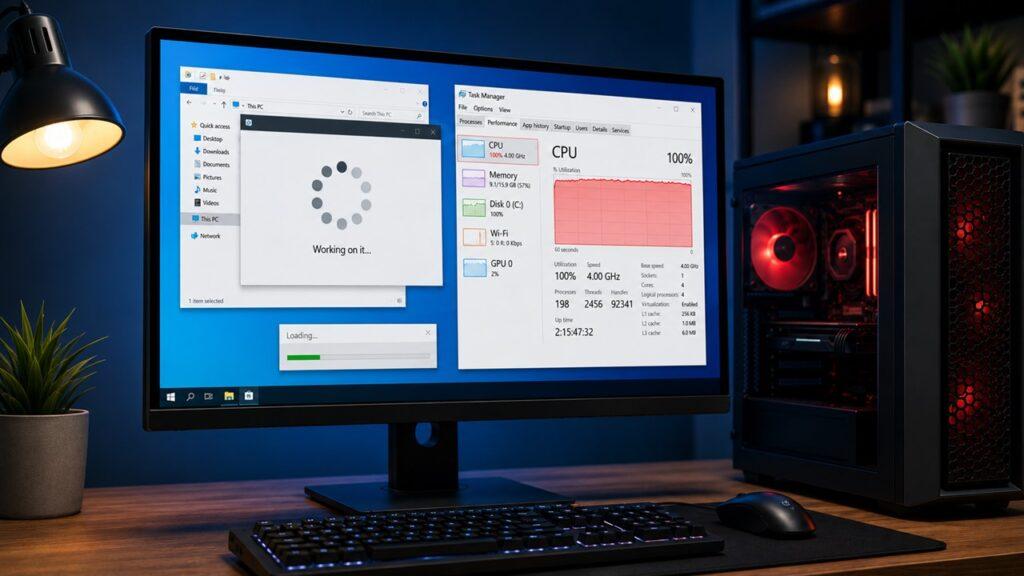
Your PC is usually slow because too many background apps are running, your RAM is overloaded, your storage drive is nearly full, your hard drive is too slow, or your computer is overheating. Malware, outdated drivers, browser overload, Windows updates, and aging hardware can also make your PC feel slower than normal.
In this guide, we’ll walk through the most common reasons your PC is slow, how to check the real problem using Task Manager, which quick fixes actually help, and when it makes sense to upgrade your RAM, storage, or the entire computer.
Key Takeaways
- A slow PC usually has a bottleneck in CPU, RAM, disk usage, storage space, heat, or background apps.
- Task Manager is the easiest place to find what is slowing your computer down.
- Restarting, disabling startup apps, freeing storage, and scanning for malware can fix many slowdowns.
- If your PC still uses a hard drive, upgrading to an SSD can make it feel much faster.
- If memory usage is often above 80–90%, adding more RAM may improve multitasking.
- Overheating can make your PC slow down to protect the processor and graphics card.
- Very old PCs may be better replaced if upgrades cost too much.
Why Is My PC So Slow? Quick Answer
A PC becomes slow when its main resources are being pushed too hard. That usually means the CPU is overloaded, RAM is full, the storage drive is nearly full, or the disk is stuck at high usage. In many older computers, the biggest cause is still a traditional hard drive, because it cannot load Windows, apps, and files as quickly as an SSD.
The best first step is to open Task Manager and check CPU, Memory, and Disk usage. If one of those stays high even when you are not doing much, you have found the likely bottleneck. From there, you can close heavy apps, disable startup programs, free up storage, scan for malware, clean dust, or upgrade the part that is holding your PC back.
Common Reasons Your PC Is Running Slow
A slow computer can come from software, hardware, heat, storage, or even your browser. Before you assume your PC is “old and finished,” it helps to understand what might actually be causing the slowdown.
Too Many Background Apps Are Running
Many apps keep running even after you close their main window. Chat apps, game launchers, cloud backup tools, printer software, update managers, and browser helpers can sit quietly in the background while using CPU, RAM, disk, or internet resources.
This becomes a problem when several small apps pile up. One app may not slow your PC much, but ten background apps can make your system feel heavy. You may notice slow startup, delayed clicks, frozen windows, or apps taking longer to open.
The simple fix is to open Task Manager and check what is running. If you see apps you do not need right now, close them. For apps you rarely use, disable them from startup so they do not launch every time Windows starts.
Your PC Does Not Have Enough RAM
RAM is your computer’s short-term workspace. It holds the active data your PC is using right now, such as browser tabs, open apps, documents, games, and background processes.
When your PC runs out of RAM, Windows starts using storage as backup memory. That backup space is much slower than real RAM, especially if your system has an older hard drive. This is why a computer can feel fine with one or two apps open but become painfully slow when you open many browser tabs, office files, or design apps.
If Task Manager shows Memory usage above 80–90% most of the time, low RAM is likely part of the problem.
Your Storage Drive Is Almost Full
Windows needs free storage space to work smoothly. It uses free space for temporary files, updates, cache, virtual memory, downloads, and background system tasks.
When your C drive is almost full, your PC has less room to breathe. You may notice slow app launches, failed updates, lag while copying files, and general sluggishness. This can happen on both hard drives and SSDs, but it is especially noticeable when the main Windows drive is packed with old downloads, videos, games, and unused apps.
A good rule is to avoid letting your main drive go above 80–85% full. Keeping some free space gives Windows room to manage files properly.
Your PC Still Uses a Hard Drive
If your PC still runs Windows on a traditional HDD, that may be the biggest reason it feels slow. Hard drives use spinning disks and moving parts. They are fine for storing large files, but they are much slower at loading Windows, opening apps, and handling many small tasks at once.
An SSD uses flash memory instead of moving parts. That means faster boot times, quicker app launches, smoother updates, and better overall responsiveness. For many older PCs, switching from HDD to SSD feels like a completely new computer.
If Task Manager often shows Disk usage at 100%, and your PC has a hard drive, an SSD upgrade should be one of your first serious fixes.
Startup Programs Are Slowing Down Boot Time
Some apps automatically start when you turn on your PC. This can include messaging apps, cloud storage, game launchers, update tools, RGB software, printer tools, and background utilities.
The more startup apps you have, the longer Windows takes to become usable. Your desktop may appear quickly, but the system can still be busy loading background programs for several minutes.
If your PC is slow only after startup but improves later, startup apps are a likely cause. Disabling unnecessary startup apps can make boot time much smoother.
Your Browser Is Using Too Many Resources
Your web browser can easily become one of the heaviest apps on your PC. Modern websites, video tabs, web apps, extensions, and background scripts can use a lot of RAM and CPU.
If you keep dozens of tabs open, your browser may use several gigabytes of memory. Some extensions also run constantly in the background, even when you are not actively using them. This can make the whole PC slow, not just the browser.
Closing unused tabs, removing unnecessary extensions, and restarting the browser can often make your PC feel lighter almost immediately.
Malware or Unwanted Software Is Running
Malware, adware, and unwanted programs can secretly use your computer’s resources. They may run hidden processes, show pop-ups, change browser settings, use your internet connection, or keep your CPU and disk busy.
A sudden slowdown can sometimes point to malware, especially if you also notice unknown apps, strange browser behavior, random ads, or high resource usage when nothing is open.
Use Windows Security or another trusted antivirus program to scan your PC. Avoid random “PC cleaner” or “speed booster” tools from unknown websites, because some of them create more problems than they solve.
Your PC Is Overheating
When your CPU or GPU gets too hot, your PC may reduce performance to protect itself. This is called thermal throttling. In simple words, your computer slows itself down so it does not overheat and damage important parts.
Overheating is common in dusty desktops, older laptops, gaming PCs, and computers with blocked vents. You may hear loud fans, feel hot air, or notice performance dropping after a few minutes of use.
Cleaning dust from vents and fans can help. For older systems, replacing dried thermal paste may also improve temperatures.
Windows, Drivers, or Apps Are Outdated
Outdated software can cause bugs, crashes, slow performance, and compatibility issues. Windows updates, graphics drivers, chipset drivers, browser updates, and app updates can all affect how smoothly your PC runs.
This does not mean every update magically makes your PC faster. Sometimes an update can temporarily slow things down while Windows finishes background tasks. However, keeping your system updated usually helps stability and security over time.
If your PC became slow after a driver update, you may need to roll back or reinstall that driver. This is especially common with graphics drivers on gaming or creative PCs.
Your Hardware Is Getting Too Old
Sometimes the honest answer is that the PC hardware is simply outdated. Older CPUs, 4GB or 8GB RAM setups, weak integrated graphics, and slow hard drives can struggle with modern Windows, browsers, office apps, games, and creative software.
A very old PC may still work for basic writing and browsing, but it may not feel fast with today’s heavier websites and apps. In that case, cleaning software helps only up to a point. You may need an SSD, more RAM, or a newer computer.
Quick Diagnosis: How to Find What Is Slowing Down Your PC
Before deleting files or buying upgrades, try to find the bottleneck first. Task Manager can quickly show whether your PC is struggling with CPU, memory, disk, storage, network activity, or heat-related symptoms.
Use This Task Manager Checklist
| What to Check | What It Means | Common Cause | What to Do |
| CPU above 80–100% | Processor is overloaded | Too many apps, updates, malware, heavy software | Close apps, restart, scan for malware |
| Memory above 80–90% | RAM is nearly full | Too many tabs, low RAM, heavy apps | Close apps, add RAM |
| Disk at 100% | Storage drive is overloaded | Old HDD, indexing, updates, low space | Clear storage, pause sync, upgrade to SSD |
| Storage above 85% full | Not enough free space | Large files, temp files, old downloads | Delete files, uninstall apps, use Storage Sense |
| High network usage | Internet is busy in the background | Cloud sync, downloads, updates | Pause downloads or syncing |
| Loud fan and heat | PC may be overheating | Dust, blocked airflow, old thermal paste | Clean vents, improve cooling |
How to Open Task Manager
- Press Ctrl + Shift + Esc on your keyboard.
- Click Processes to see active apps and background processes.
- Click the CPU, Memory, or Disk column to sort by usage.
- Look for apps using unusually high resources.
- Close only apps you recognize and do not need.
- Use the Performance tab to check overall CPU, RAM, disk, and network activity.
Do not randomly end Windows system processes if you do not know what they do. Closing the wrong process can make Windows unstable until you restart.
Sudden Slowdown vs Gradual Slowdown
| Type of Slowdown | Likely Cause | Best First Step |
| Slow all of a sudden | Malware, recent update, new app, background process | Check Task Manager and run a malware scan |
| Slowly getting worse over months | Too many files, startup apps, old hardware | Clean storage and disable startup apps |
| Slow only after startup | Startup programs and background services | Disable unnecessary startup apps |
| Slow while browsing | Too many tabs, extensions, weak internet | Clean browser and check extensions |
| Slow during gaming/editing | Weak CPU, GPU, RAM, or overheating | Check temperatures and hardware usage |
| Slow when opening files/apps | HDD or full storage | Free space or upgrade to SSD |
Quick Fixes to Speed Up a Slow PC
Start with the easy fixes before spending money. These steps are safe for most users and often solve common performance issues within minutes.
Restart Your PC
Restarting sounds too simple, but it works surprisingly often. When your PC stays on for days, apps and background processes can get stuck, memory can fill up, and Windows may feel heavier than usual.
A restart clears temporary memory, closes stuck processes, reloads drivers, and gives Windows a fresh start. If your PC suddenly feels slow, restart it before trying anything more complicated.
Close Heavy Apps in Task Manager
- Open Task Manager.
- Sort apps by CPU, Memory, or Disk usage.
- Look for apps using high resources.
- Select an app you recognize and do not need.
- Click End Task.
- Avoid ending unknown Windows processes.
This is useful when one app is frozen or using too much memory. For example, a browser with many tabs, a game launcher, or a background updater can sometimes slow down the entire system.
Disable Startup Apps
- Open Task Manager.
- Go to Startup apps.
- Look for apps with high startup impact.
- Disable apps you do not need immediately after boot.
- Keep antivirus, touchpad tools, audio tools, and essential drivers enabled.
You do not have to uninstall these apps. Disabling startup only stops them from opening automatically. You can still open them manually when needed.
Free Up Disk Space
- Empty the Recycle Bin.
- Delete old files from the Downloads folder.
- Uninstall apps and games you no longer use.
- Move large videos and photos to external storage.
- Use Settings > System > Storage.
- Turn on Storage Sense.
- Remove old temporary files and update leftovers.
If your C drive is nearly full, this step can make Windows feel more stable. It can also help updates install properly.
Run Disk Cleanup or Storage Sense
Windows includes built-in cleanup tools that can safely remove temporary files, old cache, thumbnails, delivery optimization files, and some update leftovers. These files build up over time and can waste several gigabytes of space.
On Windows 10 or Windows 11, go to Settings > System > Storage and review cleanup recommendations. You can also enable Storage Sense so Windows automatically removes certain temporary files on a schedule.
Pause Cloud Syncing
Cloud storage apps like OneDrive, Google Drive, Dropbox, and similar tools can slow your PC when they sync many files. They may use disk, CPU, and internet bandwidth in the background.
If your PC becomes slow while files are uploading or downloading, pause syncing temporarily. This is especially helpful when you are gaming, editing videos, joining meetings, or working on large files.
Clean Up Your Browser
- Close tabs you are not using.
- Remove extensions you do not need.
- Clear cache and cookies if the browser feels heavy.
- Update the browser.
- Restart the browser.
- Avoid keeping too many heavy web apps open at once.
A browser can act like a mini operating system inside your PC. If you use many tabs, extensions, and web apps, your browser may become the main reason your computer feels slow.
Scan for Malware
Malware can make a fast PC feel slow by running hidden tasks in the background. It can use CPU, memory, disk, and network resources without your permission.
Open Windows Security, go to Virus & threat protection, and run a scan. If the slowdown started suddenly, consider running a full scan. Use trusted security tools only, and avoid downloading random “free PC booster” apps from unknown websites.
Update Windows, Drivers, and Apps
Updates can fix bugs, security problems, and performance issues. Start with Windows Update, then update important apps and drivers.
For gaming and creative work, graphics drivers are especially important. For desktops, motherboard chipset drivers can also matter. For laptops, check the manufacturer’s support tool or support page if you suspect driver-related issues.
Reduce Visual Effects
Windows animations, transparency, shadows, and visual effects can make older PCs feel slower. Reducing these effects will not turn an old computer into a gaming machine, but it can make basic navigation feel lighter.
Search for Adjust the appearance and performance of Windows in the Start menu. From there, you can choose settings that prioritize performance over visual effects.
Is Your PC Slow Because of Low RAM?
RAM affects how well your PC handles multitasking. If your computer slows down when you open many tabs, apps, documents, or games, memory could be the problem.
Signs You Need More RAM
- Apps freeze when several programs are open.
- Browser tabs reload often.
- Task Manager shows memory above 80–90%.
- The PC becomes slow when multitasking.
- Games or editing apps stutter.
- Windows feels slow even after closing background apps.
- You hear the storage drive working hard during multitasking.
- Switching between apps takes too long.
How Much RAM Do You Need?
| User Type | Recommended RAM | Good For |
| Basic use | 8GB minimum, 16GB better | Email, browsing, documents |
| Everyday multitasking | 16GB | Many tabs, office apps, streaming |
| Gaming | 16GB to 32GB | Modern games and background apps |
| Video editing/design | 32GB or more | Editing, rendering, large files |
| Heavy AI/3D workloads | 32GB to 64GB+ | AI tools, 3D work, large datasets |
Will Adding RAM Make Your PC Faster?
Adding RAM can make your PC faster, but only if low memory is the real problem. If Task Manager shows RAM usage near the limit most of the time, a memory upgrade can improve multitasking and reduce freezing.
However, RAM is not always the answer. If your PC is slow because it uses an old hard drive, adding RAM may help a little, but an SSD would usually make a bigger difference. If your PC is overheating or has a weak CPU, RAM will not fix the main bottleneck.
Is Your Storage Drive Making Your PC Slow?
Storage affects boot time, app loading, file opening, Windows updates, and overall responsiveness. A slow or nearly full drive can make the entire PC feel delayed.
Full Storage vs Slow Storage
A full drive and a slow drive are not the same problem. A full drive means Windows does not have enough free space for temporary files, updates, cache, and virtual memory. This can slow down even a modern SSD.
A slow drive usually means your PC is using an old hard drive. An HDD can feel slow even when it still has free space, because it cannot read and write data as quickly as an SSD. If Windows is installed on an HDD, the whole computer may feel sluggish.
HDD vs SSD: Why It Matters
| Feature | HDD | SSD |
| Technology | Spinning disk | Flash memory |
| Speed | Slower | Much faster |
| Boot time | Often slow | Much quicker |
| App loading | Delayed | Faster |
| Noise | Can make sound | Silent |
| Durability | More fragile | More shock-resistant |
| Best use | Bulk storage | Windows, apps, games, active files |
When Should You Upgrade to an SSD?
- Your PC still uses a hard drive.
- Disk usage often hits 100%.
- Windows takes a long time to boot.
- Apps open slowly.
- Files take too long to load.
- Your PC feels slow even after software cleanup.
- Updates take a long time to install.
- The computer freezes when opening multiple apps.
For many older desktops and laptops, an SSD upgrade is the most noticeable speed improvement. It makes Windows feel more responsive because the system can access files much faster.
Is Your PC Slow Because It Is Overheating?
Overheating can reduce performance even when your PC has decent hardware. This is common in dusty desktops, older laptops, compact PCs, and gaming systems.
Signs Your PC Is Overheating
- Fans are loud most of the time.
- The laptop or desktop case feels very hot.
- Performance drops after a few minutes of use.
- Games or apps run fast at first, then slow down.
- The PC shuts down unexpectedly.
- Dust is visible around vents or fans.
- The keyboard area feels unusually hot on a laptop.
- The PC becomes slow during gaming or video editing.
How to Fix Overheating
- Clean dust from vents and fans.
- Keep the laptop on a hard, flat surface.
- Improve airflow around the desktop case.
- Check that fans are spinning properly.
- Replace dried thermal paste if needed.
- Avoid blocking air vents.
- Use a cooling pad for laptops if necessary.
- Keep the PC away from very hot areas.
- Make sure desktop intake and exhaust fans are not blocked.
Do not open a laptop or desktop if you are not comfortable working with hardware. If the PC is under warranty, check support options before opening it.
Why Is My PC Slow All of a Sudden?
If your PC became slow all of a sudden, the cause is often a recent change. It could be a Windows update, a newly installed app, a driver issue, malware, background syncing, or a process that got stuck.
Common sudden slowdown causes include:
- A new app was installed.
- Windows Update is running in the background.
- Antivirus is scanning.
- Malware is using resources.
- A cloud app is syncing files.
- Storage is nearly full.
- A driver update caused problems.
- The PC is overheating.
- A browser extension is misbehaving.
- A large download is running silently.
Start by opening Task Manager and sorting by CPU, Memory, and Disk. Then run a malware scan and review recently installed apps. If the slowdown started right after an update, give Windows time to finish background tasks, then restart the PC.
Why Is My PC Slow After Startup?
A PC that feels slow right after startup is usually dealing with too many startup apps. Windows may load the desktop, but your computer can still be busy opening background programs, update services, cloud sync tools, launchers, and security scans.
This is why your PC may feel slow for the first few minutes and then become normal later. The fix is to reduce startup load. Open Task Manager, go to Startup apps, and disable programs you do not need immediately.
You can also check cloud syncing and antivirus scans. These tools are useful, but they can make startup feel heavier when they begin working right after boot.
Why Is My PC Slow When Browsing the Internet?
Slow browsing can happen because of your PC, your browser, or your internet connection. So before blaming the computer, check both sides: system performance and network speed.
Browser-Related Causes
- Too many tabs are open.
- Too many extensions are installed.
- Browser cache is overloaded.
- The browser is outdated.
- Heavy websites are using too much RAM.
- Hardware acceleration is causing issues.
- Web apps are running in the background.
- Video tabs are consuming CPU or memory.
Internet-Related Causes
- Weak Wi-Fi signal.
- Slow internet plan.
- Router problems.
- Background downloads.
- Cloud syncing.
- Too many devices on the network.
- VPN slowing down the connection.
- Poor signal between the router and PC.
How to Fix Slow Browsing
- Restart the browser.
- Close unused tabs.
- Clear cache.
- Remove unused extensions.
- Restart the router.
- Pause downloads and syncing.
- Try a wired connection.
- Test another browser.
- Move closer to the Wi-Fi router.
- Check whether other devices are also slow.
If only one browser is slow, the browser is probably the issue. If every device in your home is slow, the problem is more likely your internet connection or router.
Why Is My Gaming PC So Slow?
A gaming PC can slow down for different reasons than a basic office PC. Games depend heavily on CPU, GPU, RAM, VRAM, storage speed, drivers, and cooling.
Common Gaming Performance Problems
- Low FPS.
- Stuttering.
- Long loading times.
- Sudden frame drops.
- High GPU or CPU temperature.
- Background apps using resources.
- Game installed on an HDD.
- Not enough RAM or VRAM.
- Outdated graphics drivers.
- Graphics settings are too high.
- The PC is using integrated graphics instead of dedicated graphics.
How to Improve Gaming Performance
- Update GPU drivers.
- Close background apps.
- Lower graphics settings.
- Move games to an SSD.
- Check CPU and GPU temperatures.
- Enable Game Mode.
- Make sure the monitor is using the correct refresh rate.
- Keep Windows updated.
- Check that the game is using the right GPU.
- Upgrade RAM or GPU if needed.
If games load slowly but run fine after loading, storage may be the issue. If FPS is low, look at GPU, CPU, RAM, and temperature. If performance starts strong and drops later, overheating may be the cause.
When Should You Upgrade Instead of Troubleshooting?
Software fixes help, but some PCs are limited by hardware. If your computer is old, has a hard drive, has very little RAM, or cannot support modern software well, an upgrade or replacement may be smarter.
Upgrade vs Replace Decision Table
| Situation | Better Choice | Why |
| PC has HDD but decent CPU | Upgrade to SSD | Biggest speed improvement for older PCs |
| RAM is always full | Add RAM | Improves multitasking |
| PC is under 5 years old | Upgrade | Usually still worth improving |
| PC is over 6–8 years old | Consider replacement | CPU, RAM, and motherboard may be outdated |
| Laptop has soldered RAM/storage | Replace or use external solutions | Limited upgrade options |
| Upgrade costs more than 40–50% of a new PC | Replace | Better long-term value |
| PC cannot run modern Windows smoothly | Replace | Software support and performance may be limited |
Best Upgrade Order for a Slow PC
- Upgrade from HDD to SSD.
- Add more RAM.
- Clean install Windows.
- Upgrade CPU or GPU if the desktop supports it.
- Replace the PC if upgrades are too expensive or limited.
If your PC still has an HDD, start with the SSD. If your PC already has an SSD but memory is always full, add RAM. If both RAM and storage are fine, then the CPU, GPU, cooling, or software installation may be the next thing to check.
How to Keep Your PC Fast in the Future
A fast PC can become slow again if it is not maintained. The goal is not to obsess over every setting, but to build a few simple habits.
- Restart your PC regularly.
- Keep at least 15–25% storage free.
- Uninstall apps you no longer use.
- Disable unnecessary startup apps.
- Keep Windows and drivers updated.
- Clean dust from fans and vents.
- Avoid installing random “speed booster” tools.
- Scan for malware regularly.
- Use an SSD for Windows and important apps.
- Add enough RAM for your actual workload.
- Keep browser tabs and extensions under control.
- Back up important files before major changes.
- Review installed apps every few months.
These small habits prevent clutter from building up. They also make it easier to notice when something suddenly changes.
Common Mistakes That Make a PC Slower
Sometimes users accidentally make their PC slower while trying to fix it. Avoid these common mistakes.
- Installing too many “PC cleaner” apps.
- Keeping hundreds of browser tabs open.
- Ignoring startup programs.
- Letting the C drive become almost full.
- Using an old HDD as the main Windows drive.
- Blocking laptop air vents.
- Ignoring malware warnings.
- Never restarting the PC.
- Running modern software on very old hardware.
- Updating nothing for months.
- Ending random system processes in Task Manager.
- Installing unknown browser extensions.
- Keeping unused apps because “maybe I’ll need them.”
- Ignoring loud fan noise and overheating signs.
A slow PC is usually easier to fix when you deal with the real cause instead of trying random tricks. Diagnose first, then fix the bottleneck.
Conclusion
The best way to fix a slow PC is to stop guessing and find the bottleneck first. Open Task Manager and check CPU, Memory, and Disk usage. Then look at startup apps, storage space, browser load, malware, updates, and overheating.
Many slowdowns can be fixed with simple steps like restarting your PC, disabling startup programs, freeing storage, cleaning your browser, scanning for malware, and updating Windows or drivers. If those fixes do not help, hardware may be the real limitation.
For older PCs, upgrading from an HDD to an SSD can make the biggest difference. Adding RAM can also help if your memory usage is always high. But if the computer is too old, too limited, or too expensive to upgrade, replacing it may be the better long-term choice.
Related FAQs
Why Is My PC So Slow All of a Sudden?
A sudden slowdown is usually caused by a recent update, malware, a new background app, overheating, or high disk usage. Open Task Manager first to see what is using your CPU, RAM, or disk.
How Do I Find Out What Is Slowing Down My PC?
Open Task Manager with Ctrl + Shift + Esc and check CPU, Memory, and Disk usage. Sort each column to see which apps or processes are using the most resources.
Will More RAM Speed Up My PC?
More RAM helps if your memory usage is often high. If your PC is slow because of an old hard drive, overheating, or weak CPU, RAM alone may not fix the issue.
Can a Full SSD Slow Down My PC?
Yes, a nearly full SSD can slow down because Windows needs free space for temporary files, updates, cache, and virtual memory. Try to keep some free space available.
Why Is My PC Slow Even After Restarting?
If your PC is still slow after restarting, the problem may be low RAM, full storage, malware, overheating, startup apps, or outdated hardware. Task Manager can help identify the main bottleneck.
Why Is My PC Slow When I Turn It On?
Slow startup is often caused by too many apps launching automatically. Disable unnecessary startup apps in Task Manager or Windows Settings to reduce startup load.
Does Malware Make a PC Slow?
Yes, malware can run hidden processes that use CPU, RAM, disk, and internet resources. Run a scan with Windows Security or another trusted antivirus tool.
Is An SSD Better Than RAM For Speed?
An SSD usually gives the biggest improvement if your PC still uses a hard drive. RAM is better if your PC slows down mainly when multitasking.
Why Is My PC Slow When Browsing?
Your browser may be overloaded with tabs, extensions, cache, or heavy websites. Slow Wi-Fi, cloud syncing, downloads, or router problems can also make browsing feel slow.
When Should I Replace My Slow PC?
Consider replacing your PC if it is very old, cannot run modern software smoothly, has limited upgrade options, or the upgrade cost is close to buying a newer system.

Justin has spent years learning how blogs, websites, hosting, and online income work in the real world. Along with blogging and SEO, he also covers desktops, laptops, PC parts, and everyday tech, sharing easy-to-understand advice for readers who want to build better websites and choose better tools.