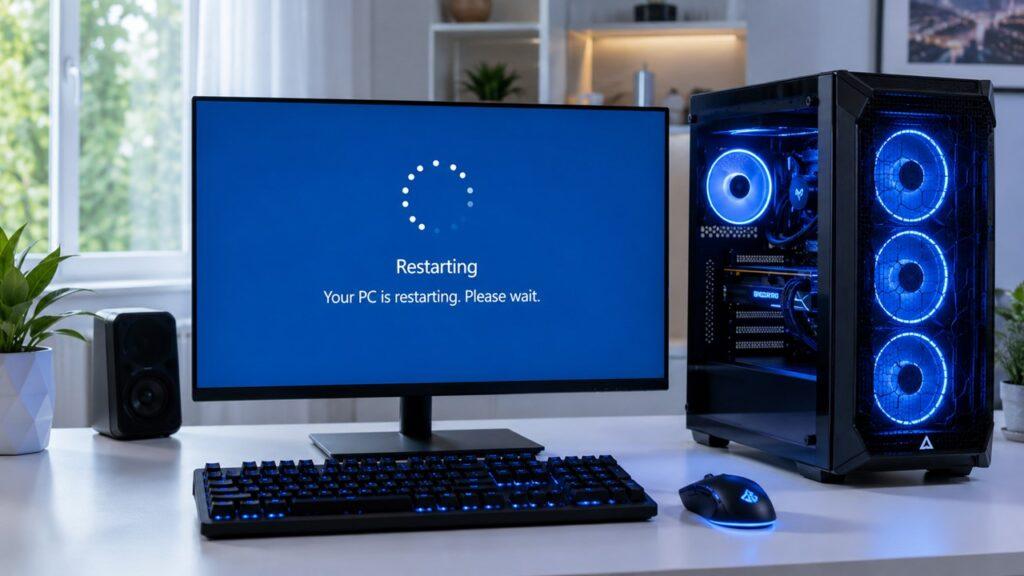
A computer usually keeps restarting because of overheating, power supply problems, faulty RAM, corrupted drivers, malware, Windows update settings, or system file errors. In many cases, the restart is your PC’s way of protecting itself from damage or recovering from a serious crash.
In this guide, I’ll walk you through the most common reasons your computer keeps restarting, how to identify the real cause, what to fix first, and when it is safer to get professional help.
Key Takeaways
- A computer may keep restarting because of overheating, bad RAM, power issues, driver problems, malware, or corrupted Windows files.
- If your PC restarts during gaming or heavy work, check temperatures, GPU drivers, and power supply capacity first.
- If your computer restarts before Windows loads, the issue may involve RAM, PSU, motherboard, BIOS, or loose internal connections.
- Disabling “Automatically restart” in Windows can help you see the real blue screen error.
- Start with simple checks like cleaning dust, checking cables, updating drivers, and scanning for malware.
- Back up your important files before running deeper diagnostics or changing hardware.
Why Does My Computer Keep Restarting? Quick Answer
Your computer keeps restarting because something is making the system unstable. That “something” could be heat, power, hardware failure, software conflict, malware, or a Windows setting that restarts the PC automatically after a crash or update.
If the restart happens only during gaming, rendering, or heavy software use, the likely causes are overheating, GPU driver issues, or an underpowered power supply. If it restarts before Windows opens, the problem is more likely hardware-related, such as RAM, PSU, motherboard, or BIOS trouble.
The important thing is not to guess too early. A random restart can look like one problem but be caused by another. That is why you should check the pattern first: when it restarts, what you were doing, whether there is a blue screen, and whether the PC gets hot before shutting off.
Common Reasons Your Computer Keeps Restarting
Before you replace parts or reinstall Windows, it helps to understand the most likely causes. Some restart problems are simple, like blocked airflow. Others may point to failing RAM, a weak power supply, corrupted system files, or deeper motherboard issues.
Overheating
Overheating is one of the most common reasons a computer restarts without warning. Your CPU and GPU generate heat while working. If the cooling system cannot remove that heat fast enough, the computer may shut down or restart to protect itself.
This often happens when dust blocks vents, fans, or heatsinks. It can also happen if a laptop is used on a bed, blanket, or couch where the bottom vents are blocked.
Common overheating causes include:
- Dust buildup inside fans, vents, or heatsinks
- Blocked airflow around the case or laptop body
- Failed CPU, GPU, or case fan
- Old or dried thermal paste
- Poor desktop case airflow
- High room temperature
- Heavy gaming, editing, or rendering loads
To fix overheating, start with basic cleaning. Turn off the computer, unplug it, and carefully clean the vents and fans. For a desktop, make sure the case fans are spinning and that air can move through the case properly. For a laptop, keep it on a hard, flat surface.
Faulty Power Supply or Power Problems
A weak or failing power supply can make your desktop restart suddenly, especially when the CPU or GPU needs more power. This is common during gaming, video editing, 3D rendering, or other demanding work.
A power problem can also come from outside the PC. A bad wall outlet, loose power cable, damaged surge protector, or unstable electricity can cause restarts too.
Common power-related causes include:
- Failing power supply unit
- Low-quality or underpowered PSU
- Loose power cable
- Bad wall outlet
- Faulty surge protector
- Voltage drops or power spikes
- GPU drawing more power than the PSU can provide
If your PC restarts only when the graphics card is under load, the PSU should be one of the first things you check. Also make sure your GPU power cables are connected properly. If your graphics card needs multiple power connectors, use the correct cable setup recommended by the PSU and GPU manufacturer.
Bad RAM or Memory Errors
Faulty RAM can cause random restarts, blue screens, freezing, failed boots, and app crashes. The tricky part is that bad RAM does not always fail in an obvious way. Your computer may work fine for a while, then restart suddenly.
RAM problems are also common after installing new memory sticks, mixing different RAM kits, or enabling unstable memory overclocking settings.
Signs of bad RAM include:
- Random restarts during normal use
- Blue screen errors
- Apps crashing often
- PC freezing before restart
- Restart loop after installing new RAM
- Failure to boot with multiple RAM sticks installed
You can start by running Windows Memory Diagnostic. If you are comfortable with deeper testing, MemTest86 is often used for longer memory checks. On a desktop, you can also test one RAM stick at a time to see if one module causes the restart.
Outdated, Corrupted, or Conflicting Drivers
Drivers help Windows communicate with your hardware. If a driver is outdated, corrupted, or incompatible, Windows may crash and restart. Graphics drivers are especially common restart triggers because the GPU handles heavy visual loads.
Driver problems often appear after a Windows update, GPU driver update, new hardware installation, or software conflict.
Common driver troublemakers include:
- Graphics driver
- Chipset driver
- Network driver
- Audio driver
- Storage controller driver
- Peripheral drivers for printers, webcams, or USB devices
If the restart started after updating a driver, rolling it back may help. If your drivers are old, download updated versions from the laptop, motherboard, GPU, or hardware manufacturer’s official website.
Windows Update and Automatic Restart Settings
Sometimes your computer restarts because Windows is completing an update. That is normal when it happens occasionally. However, if the PC restarts frequently, suddenly, or during work, it may not be a normal update restart.
Windows can also restart automatically after a system failure. In that case, you may not see the blue screen error because the computer restarts too quickly.
Check Windows Update settings, active hours, and restart notifications. If updates are pending or stuck, finish them properly before moving to deeper troubleshooting.
Malware or Virus Infection
Malware can interfere with system files, overload background processes, disable security tools, or trigger shutdown and restart behavior. It may not always show obvious signs, so a full scan is worth doing.
Possible malware signs include:
- Unknown apps appearing
- Browser redirects
- Sudden slow performance
- Antivirus disabled without your action
- High CPU usage from unknown processes
- Strange pop-ups or background activity
Open Windows Security and run a full scan. If the system still behaves strangely, use a trusted second-opinion malware scanner as well.
Corrupted System Files
Windows relies on many system files to boot, run apps, manage drivers, and shut down properly. If those files become damaged, your computer may crash and restart.
System file corruption can happen after failed updates, sudden power loss, malware infection, disk problems, or interrupted installations.
This is where tools like System File Checker and DISM can help. I’ll show you how to run those later in the troubleshooting section.
Failing Hard Drive or SSD
A failing storage drive can make Windows unstable. If the drive cannot read important system files properly, the computer may freeze, crash, or restart.
Signs of storage failure include:
- Very slow boot times
- File errors
- Apps failing to open
- Disk repair messages during startup
- Blue screen errors
- Clicking noises from an HDD
- Missing or corrupted files
If you suspect storage failure, back up your files immediately. Do not keep forcing restarts on a drive that may be failing.
BIOS, Motherboard, or Hardware Connection Issues
If your computer restarts before Windows loads, the problem may be below the operating system level. That means Windows apps and normal software may not be the cause.
Loose RAM, a poorly seated GPU, unstable BIOS settings, damaged motherboard components, or a failing PSU can all cause restart loops before startup finishes. This is especially true if the PC restarts before showing the Windows logo.
Computer Restarting Causes: Quick Comparison Table
The exact timing of the restart gives you a strong clue. A PC that restarts during gaming has a different likely cause than one that restarts before Windows loads. Use this table to narrow the problem quickly.
| Symptom | Most Likely Cause | What to Check First |
| Restarts during gaming | Overheating, weak PSU, GPU driver issue | GPU temperature, PSU wattage, graphics driver |
| Restarts before Windows loads | RAM, PSU, motherboard, BIOS issue | RAM seating, power cables, BIOS settings |
| Restarts after updates | Windows update or driver conflict | Update history, driver rollback, active hours |
| Restarts with blue screen | Driver, RAM, storage, or system file error | Error code, Event Viewer, memory test |
| Restarts with no warning | PSU, overheating, malware, hardware failure | Temperatures, power cable, antivirus scan |
| Restarts when shutting down | Fast Startup, driver issue, power setting | Fast Startup, drivers, Windows updates |
| Restarts with no display | GPU, monitor cable, RAM, motherboard | Display cable, GPU seating, integrated graphics |
| Restarts only when plugged in | Charger, battery, or power circuit issue | Adapter, battery health, outlet |
First Things to Do Before Troubleshooting
Before you start changing settings or opening your computer, take a few simple safety steps. These steps protect your files, your hardware, and you.
- Save your work if the PC stays on long enough.
- Back up important files to an external drive or cloud storage.
- Unplug unnecessary devices like printers, external drives, USB hubs, and webcams.
- Write down when the restart happens: startup, gaming, shutdown, idle, or updates.
- Do not keep forcing restarts if you smell burning, hear clicking, or see sparks.
- For desktops, shut down the PC and unplug it before opening the case.
- For laptops, avoid opening the device unless you are comfortable with hardware work.
- Never open the power supply unit itself, even if you suspect it is faulty.
How to Find Out Why Your Computer Keeps Restarting
The best way to fix random restarts is to look for patterns. A restart during gaming means something different from a restart before Windows loads. These checks help you narrow down the cause instead of guessing.
Check When the Restart Happens
Start by noticing the moment your computer restarts. This one detail can save you a lot of time.
Common patterns include:
- During gaming or video editing
- Right after startup
- Before the BIOS or logo screen
- After Windows updates
- While shutting down
- While idle
- When charging a laptop
- When connecting a USB device
- After installing new software or hardware
For example, if your PC restarts only during games, think about heat, GPU drivers, and power supply first. If it restarts before Windows opens, think about RAM, PSU, motherboard, or BIOS.
Check CPU and GPU Temperatures
If the computer restarts during heavy tasks, check temperatures. Overheating restarts often happen when the CPU or GPU is under load.
You can check temperatures in the BIOS or with a trusted hardware monitoring tool. Watch the CPU and GPU temperatures while doing the task that usually causes the restart.
Look for these warning signs:
- Temperatures rise quickly under load
- Fans spin loudly before restart
- Laptop body feels extremely hot
- PC restarts faster during warm weather
- Performance slows down before restart
There is no single perfect temperature number for every computer because CPUs and GPUs vary. Still, consistently high temperatures during normal use are a warning sign.
Check Windows Event Viewer
Windows Event Viewer can show system errors that happened before the restart. It may show critical events, driver crashes, shutdown errors, or Kernel-Power warnings.
A Kernel-Power error usually means Windows detected an unexpected shutdown or restart. However, it does not always tell you the exact cause. It simply confirms that the system shut down incorrectly.
To check it, search for “Event Viewer,” open Windows Logs, and look under System. Focus on critical errors around the exact time your PC restarted.
Turn Off Automatic Restart After System Failure
Windows may restart so quickly after a crash that you never see the blue screen error. Turning off automatic restart helps you catch the actual stop code.
Follow these steps:
- Press Windows + R.
- Type sysdm.cpl and press Enter.
- Open the Advanced tab.
- Under Startup and Recovery, click Settings.
- Uncheck Automatically restart.
- Click OK.
The next time your computer crashes, it may stay on the blue screen. Write down the stop code because it can point you toward the real cause.
Run a Memory Test
Bad RAM can cause restarts that feel completely random. Windows includes a built-in tool you can use first.
Follow these steps:
- Search for Windows Memory Diagnostic.
- Choose Restart now and check for problems.
- Let the test run.
- Check the result after Windows restarts.
If the tool finds errors, your RAM may be faulty or unstable. If you recently installed new RAM, remove it and test the system with the old configuration.
Check Storage Health
A failing HDD or SSD can also trigger restarts. This is especially important if your computer is slow, shows disk repair messages, or fails to open files properly.
Start with these checks:
- Run Windows drive error checking.
- Check SMART status with a trusted drive health tool.
- Listen for clicking noises if you use an HDD.
- Back up important files immediately if warnings appear.
- Avoid heavy use if the drive shows signs of failure.
Storage issues can get worse quickly, so protect your data first.
How to Fix a Computer That Keeps Restarting
Once you have a rough idea of the cause, start with the safest fixes first. Do not replace expensive parts until you have checked heat, cables, updates, drivers, malware, and system files.
Clean Dust and Improve Airflow
If your PC is hot, dusty, or loud, cleaning should be one of your first steps.
Try these fixes:
- Shut down and unplug the computer.
- Clean vents, fans, and heatsinks carefully.
- Keep laptops on hard, flat surfaces.
- Make sure desktop case fans are working.
- Leave open space around the computer for airflow.
- Clean dust filters if your case has them.
- Replace thermal paste if the CPU runs hot and the paste is old.
Do not spin fans aggressively with compressed air. Hold the fan gently in place while cleaning to avoid damage.
Update or Roll Back Drivers
Drivers can cause restarts when they are outdated, corrupted, or newly broken. That last part matters because sometimes a fresh driver update creates the problem.
Start with these driver fixes:
- Update GPU drivers from NVIDIA, AMD, or Intel.
- Update chipset drivers from the motherboard or laptop manufacturer.
- Roll back the driver if the problem started after an update.
- Update network, audio, and storage drivers if needed.
- Avoid random driver updater tools from unknown websites.
For gaming restarts, the graphics driver is especially important. If normal updating does not help, a clean GPU driver installation may fix corrupted driver files.
Install Pending Windows Updates
Incomplete or failed Windows updates can make the system unstable. Open Windows Update and check whether anything is pending.
Install available updates, restart properly, and let Windows finish the process. Avoid cutting power during updates because interrupted updates can damage system files.
If the restart problem started after a specific update, check update history. You may need to uninstall that update temporarily or wait for a newer patch.
Change Windows Restart and Active Hours Settings
Windows can restart automatically to complete updates. This is annoying when it happens during work, but you can reduce the chances.
Check these settings:
- Set active hours in Windows Update.
- Enable restart notifications.
- Schedule restarts manually when possible.
- Pause updates temporarily while troubleshooting.
- Avoid shutting down while updates are installing.
This will not fix hardware-related restarts, but it can stop update-related surprise restarts.
Disable Fast Startup
Fast Startup helps Windows boot faster, but it can sometimes cause shutdown and restart problems. If your computer restarts instead of shutting down, try disabling it.
Follow these steps:
- Open Control Panel.
- Go to Hardware and Sound.
- Click Power Options.
- Click Choose what the power buttons do.
- Click Change settings that are currently unavailable.
- Uncheck Turn on fast startup.
- Click Save changes.
After that, shut down the computer normally and see if the issue continues.
Scan for Malware
A full malware scan is worth doing, especially if the restart problem came with slow performance, pop-ups, unknown apps, or strange background activity.
Follow these steps:
- Open Windows Security.
- Go to Virus & threat protection.
- Choose Scan options.
- Select Full scan.
- Remove or quarantine any detected threats.
If Windows Security finds nothing but the symptoms continue, use a trusted second-opinion scanner. Avoid downloading security tools from random pop-ups or unknown websites.
Run System File Checker and DISM
If Windows system files are corrupted, built-in repair tools can help.
Open Command Prompt as administrator and run:
sfc /scannow
Let the scan finish. If problems remain, run:
DISM /Online /Cleanup-Image /RestoreHealth
After DISM finishes, restart the computer and run sfc /scannow again. These tools can repair many Windows file issues without reinstalling the whole operating system.
Reseat RAM, GPU, and Power Cables
If you use a desktop PC and feel comfortable opening the case, check internal connections. A loose component can cause restarts, failed boots, or no display.
Before touching anything, shut down the PC, unplug it, and ground yourself.
Check these parts:
- Reseat RAM sticks.
- Try one RAM stick at a time.
- Reseat the graphics card.
- Check motherboard power cables.
- Check GPU power cables.
- Check SATA or storage cables.
- Remove recently installed hardware.
- Make sure no cable is blocking a fan.
If you are not confident working inside the PC, ask a technician. A small mistake can damage components.
Test the Power Supply
A failing PSU can be difficult to confirm without proper tools. Still, there are warning signs you should take seriously.
Possible PSU warning signs include sudden restarts under load, burning smell, clicking noise, fan failure, or shutdowns when the GPU starts working hard.
Do not open the PSU itself. It can hold dangerous electrical charge even when unplugged. If you suspect the PSU, get it tested or replace it with a quality unit that matches your system’s power needs.
Why Does My Computer Keep Restarting While Gaming?
Gaming pushes your CPU, GPU, RAM, cooling system, and power supply harder than normal browsing or office work. So if your computer restarts mostly during games, the issue is usually load-related.
Common gaming restart causes include:
- GPU overheating
- CPU overheating
- Weak or failing PSU
- Outdated graphics driver
- Corrupted GPU driver
- Overclocking instability
- Bad GPU power cable setup
- Faulty graphics card
- Poor airflow inside the case
Start by monitoring CPU and GPU temperatures while gaming. If temperatures climb too high, clean the PC and improve airflow. Next, update or clean install the graphics driver.
If the restart happens suddenly with no blue screen, especially during demanding games, check the power supply. A PSU may work fine on the desktop but fail when the GPU pulls more power.
Also remove overclock settings while troubleshooting. CPU, GPU, or RAM overclocks can cause instability even if they worked fine before.
Why Does My Computer Keep Restarting Before Windows Loads?
If the restart happens before Windows opens, the problem is often hardware, firmware, or power-related. In this case, normal Windows apps are usually not the main cause.
Loose RAM or GPU
Loose RAM or a poorly seated graphics card can stop the system from completing startup. This can happen after moving the PC, installing parts, or even from vibration over time.
Check these items:
- Reseat the RAM.
- Try one RAM stick at a time.
- Reseat the graphics card.
- Check GPU power cables.
- Check motherboard power cables.
- Remove recently installed hardware.
If the PC boots with one RAM stick but not another, one stick or one slot may be faulty.
BIOS or UEFI Settings
Incorrect BIOS settings can cause restart loops before Windows loads. This may happen after changing boot settings, enabling overclocking, updating firmware, or adjusting memory profiles.
A safe first step is to load BIOS defaults. This removes unstable settings and returns the motherboard to a basic configuration.
If you recently enabled XMP, EXPO, CPU overclocking, or undervolting, disable those settings temporarily. Stability matters more than speed while troubleshooting.
Failing PSU or Motherboard
If your PC restarts before showing anything useful, a failing power supply or motherboard may be involved. This is more likely if the PC restarts instantly, clicks, smells burnt, or fails to power on consistently.
Motherboard issues can be hard to diagnose at home. Look for visible damage, swollen capacitors, burn marks, or unusual smells. If you see any of these signs, stop testing and get professional help.
Why Does My Computer Restart Instead of Shutting Down?
If your computer restarts when you click shut down, the cause is often different from random restart problems. This issue is commonly linked to Windows power settings, Fast Startup, drivers, updates, or wake settings.
Possible causes include:
- Fast Startup
- Outdated drivers
- Pending Windows updates
- Wake-on-LAN
- USB wake settings
- BIOS power settings
- System failure during shutdown
Start by disabling Fast Startup. Then install Windows updates and update key drivers, especially chipset, graphics, and network drivers.
If the problem continues, check whether a device is waking the computer immediately after shutdown. Network adapters, keyboards, mice, and USB devices can sometimes trigger wake behavior.
Why Does My Computer Keep Restarting With a Blue Screen?
A blue screen means Windows detected a serious problem and stopped to prevent further damage. The restart is not the main issue. The crash behind it is the real problem.
The most useful thing you can do is write down the stop code. Blue screen codes may point toward RAM, drivers, storage, system files, or hardware failure.
If the PC restarts too quickly to read the code, turn off automatic restart after system failure. Once you can see the code, use it to guide your next step. For example, memory-related errors point toward RAM, while driver-related errors may point toward GPU or chipset drivers.
Do not ignore repeated blue screens. One crash can happen. Repeated crashes mean the system needs attention.
Why Does My Computer Keep Restarting With No Display?
A restart with no display can feel confusing because the computer seems to turn on, but nothing appears on the screen. This usually points to the monitor, cable, GPU, RAM, PSU, or motherboard.
Check the Monitor and Cable
Start with the simple display checks first. Sometimes the PC is working, but the screen is not receiving a signal.
Check these items:
- Make sure the monitor is turned on.
- Check the HDMI, DisplayPort, DVI, or VGA cable.
- Try another cable.
- Try another monitor.
- Use the correct input source on the monitor.
- If using a dedicated GPU, connect the cable to the GPU, not the motherboard.
- Try another display port on the graphics card.
This may sound basic, but wrong display ports and loose cables are very common.
Check the Graphics Card
A graphics card problem can cause black screens, restarts, flickering, or visual artifacts. If your desktop has a dedicated GPU, check whether it is seated properly.
Try these steps:
- Reseat the graphics card.
- Check GPU power cables.
- Try another display output.
- Remove the GPU and test integrated graphics if your CPU supports it.
- Watch for screen artifacts, flickering, or sudden black screens.
If the PC works with integrated graphics but fails with the dedicated GPU, the graphics card or its power connection may be the issue.
Check RAM
Bad or loose RAM can also cause no display and repeated restarts. If the motherboard cannot initialize memory properly, the system may keep rebooting before showing anything.
Try reseating the RAM. If you have multiple sticks, test one at a time. Also check your motherboard manual to make sure the RAM is installed in the correct slots.
Laptop Keeps Restarting vs Desktop Keeps Restarting
Laptops and desktops can restart for similar reasons, but the troubleshooting process is different. Desktops are easier to open and inspect, while laptops are more compact and harder to service safely.
| Issue | Laptop | Desktop |
| Overheating | Often caused by blocked vents or dust | Often caused by poor airflow or failed fans |
| Power problem | Charger or battery may be faulty | PSU, outlet, or power cable may be faulty |
| Hardware access | Harder to inspect or replace parts | Easier to reseat RAM, GPU, and cables |
| Gaming restarts | May happen due to heat or power limits | Often linked to PSU, GPU, or cooling |
| No display restart | Could be screen, RAM, or motherboard | Could be GPU, monitor cable, RAM, or PSU |
| Best first fix | Clean vents and test charger | Check cables, temperatures, and PSU behavior |
For laptops, do not block the vents. Use the laptop on a desk, not on fabric. If the laptop restarts only when plugged in, test another compatible charger if possible.
For desktops, check airflow, cables, RAM, GPU seating, and PSU behavior. Desktop restart problems are often easier to isolate because parts can be tested separately.
Step-By-Step Troubleshooting Checklist
If you want a practical order to follow, use this checklist. Start from the easiest and safest steps before moving to hardware testing.
- Back up important files.
- Note when the restart happens.
- Disconnect unnecessary USB devices.
- Check the power cable, outlet, charger, or surge protector.
- Clean dust and improve airflow.
- Check CPU and GPU temperatures.
- Disable automatic restart after system failure.
- Check Event Viewer for critical errors.
- Update or roll back graphics and chipset drivers.
- Install pending Windows updates.
- Run a full malware scan.
- Run Windows Memory Diagnostic.
- Check storage health.
- Run SFC and DISM.
- Disable Fast Startup if the PC restarts after shutdown.
- Reseat RAM, GPU, and internal power cables if using a desktop.
- Remove overclock settings while testing.
- Get professional help if restarts continue after basic checks.
This order helps you avoid wasting money on parts before checking the common causes.
When Should You Get Professional Help?
Some restart problems are safe to troubleshoot at home. Others are risky, especially when power, burning smells, laptop internals, or data loss are involved.
Get professional help if:
- You smell burning from the PC.
- The computer restarts before BIOS repeatedly.
- The PSU makes strange noises.
- The laptop gets extremely hot.
- The hard drive clicks.
- You see sparks or damaged components.
- The PC restarts even after a clean Windows install.
- You are not comfortable opening the device.
- Important data is at risk.
- The system fails during every boot attempt.
Professional repair is safer when the issue involves the PSU, motherboard, liquid damage, internal laptop parts, or a drive that may be failing. If your data matters, focus on recovery before repeated testing.
How to Prevent Random Restarts in the Future
Once your computer is stable again, a few habits can reduce the chance of this happening later. Most restart problems are easier to prevent than fix after damage appears.
- Clean dust every few months.
- Keep Windows updated.
- Update GPU and chipset drivers carefully.
- Avoid installing unknown software.
- Use a surge protector or UPS.
- Keep laptops on hard, flat surfaces.
- Monitor temperatures during gaming.
- Do not ignore blue screen codes.
- Replace aging storage drives before failure.
- Avoid unstable overclocking.
- Keep important files backed up.
- Check desktop case airflow after hardware upgrades.
A stable computer needs clean airflow, steady power, healthy hardware, and updated software. If one of those fails, random restarts become much more likely.
Final Thoughts
A computer that keeps restarting can feel stressful, but the cause is usually traceable if you follow the symptoms. Start with the simple things: heat, power, cables, updates, drivers, and malware. These are easier to check and often solve the problem.
If the restart happens during gaming, focus on temperatures, GPU drivers, and the power supply. If it happens before Windows loads, look at RAM, PSU, BIOS, motherboard, and loose hardware connections.
Most importantly, protect your data first. If your computer clicks, smells burnt, restarts before BIOS, or contains important files you cannot lose, stop forcing restarts and get professional help.
Related FAQs
Why Does My Computer Keep Restarting Randomly?
Your computer may keep restarting randomly because of overheating, unstable power, bad RAM, corrupted drivers, malware, or Windows system errors. Start by checking temperatures, power connections, drivers, and malware first.
Why Does My PC Restart When I Play Games?
Gaming puts heavy load on the GPU, CPU, cooling system, and power supply. If one of these cannot handle the load, the PC may restart suddenly.
Can Bad RAM Cause a Computer to Restart?
Yes, bad RAM can cause random restarts, blue screens, freezing, and boot loops. Run Windows Memory Diagnostic or test one RAM stick at a time if you use a desktop.
Can a Virus Make My Computer Restart?
Yes, malware can interfere with Windows processes, damage files, or overload system resources. Run a full scan with Windows Security or another trusted antivirus tool.
Why Does My Computer Restart After Shutting Down?
This is often caused by Fast Startup, driver issues, Windows updates, wake settings, or BIOS power settings. Disabling Fast Startup is a good first step.
Why Does My Computer Keep Restarting Before BIOS?
If your computer restarts before BIOS, the issue is usually hardware-related. Check RAM, PSU, motherboard, GPU seating, power cables, and BIOS settings.
How Do I Stop Windows From Automatically Restarting?
Open Advanced system settings, go to Startup and Recovery, and uncheck Automatically restart under System failure. This helps you see the blue screen error instead of an instant reboot.
Should I Reinstall Windows If My Computer Keeps Restarting?
Not immediately. First check overheating, power issues, drivers, malware, RAM, storage health, and system files. Reinstalling Windows only helps if the cause is software-related.

Justin has spent years learning how blogs, websites, hosting, and online income work in the real world. Along with blogging and SEO, he also covers desktops, laptops, PC parts, and everyday tech, sharing easy-to-understand advice for readers who want to build better websites and choose better tools.