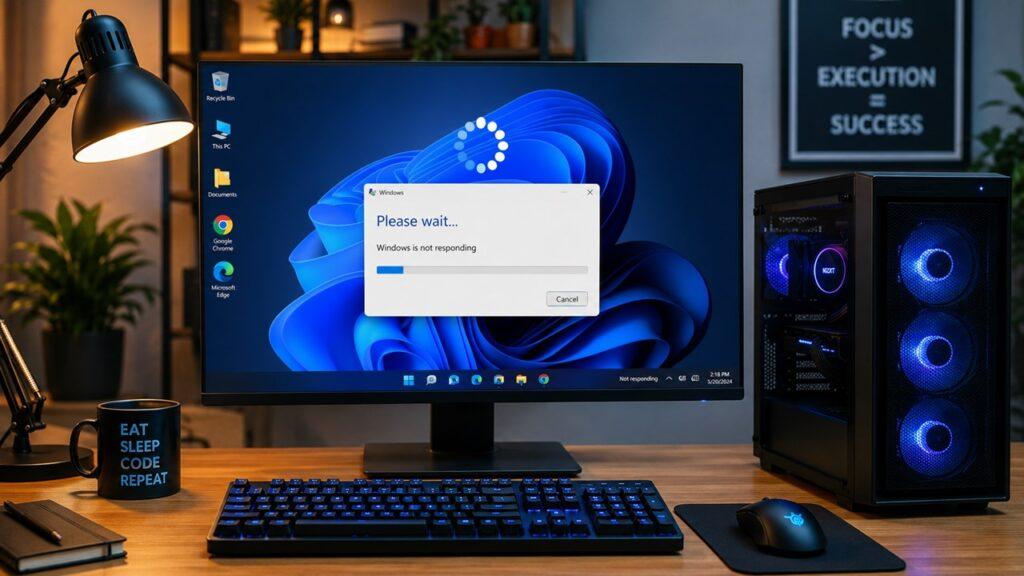
Your computer usually keeps freezing because something is overloading the system, overheating the hardware, corrupting Windows, conflicting with drivers, or failing inside the machine. In simple words, your PC is either running out of resources, getting too hot, struggling with bad software, or dealing with a hardware problem like faulty RAM, a weak storage drive, or power instability.
In this guide, I’ll walk you through the most common reasons your computer freezes, how to identify the exact pattern, and what you can do to fix it safely. We’ll start with quick checks first, then move into deeper software and hardware troubleshooting.
Key Takeaways
- A freezing computer stays powered on but stops responding to your mouse, keyboard, or apps.
- Random freezes often come from RAM overload, overheating, failing storage, bad drivers, or malware.
- Freezing during gaming usually points to heat, graphics drivers, or power supply problems.
- Freezing after a Windows update may be caused by a bad update or driver conflict.
- Repeated forced shutdowns can corrupt files and make freezing worse over time.
- Always back up important files if freezes happen when opening, saving, or moving data.
- Professional repair is worth considering if the PC freezes after every software fix.
Computer Freezing vs Crashing vs Lagging: What’s the Difference?
Before fixing the problem, it helps to know what your computer is actually doing. Freezing, crashing, lagging, and shutting down can feel similar, but they usually point to different causes.
| Problem | What It Means | Common Signs | Most Likely Cause |
| Freezing | The PC stops responding but stays on | Mouse stuck, keyboard not working, apps frozen | RAM, overheating, drivers, storage |
| Crashing | An app or Windows closes suddenly | Blue screen, restart, app closes | Driver error, software bug, bad update |
| Lagging | The PC is slow but still responds | Delayed clicks, slow typing, slow loading | Low RAM, full drive, background apps |
| Shutting Down | The PC powers off unexpectedly | Black screen, no warning, sudden power loss | Overheating, PSU, battery, hardware fault |
If your computer is only slow but still responds, that is usually lag. If everything locks in place and you cannot click, type, or move properly, that is freezing. This difference matters because a frozen computer often needs deeper troubleshooting than a slow one.
Quick Diagnostic: When Does Your Computer Freeze?
The fastest way to find the cause is to look at when the freeze happens. A computer that freezes during gaming has different likely causes than one that freezes right after startup.
| When It Freezes | Most Likely Cause | What To Check First |
| Right after startup | Startup apps, drivers, corrupted system files | Safe Mode, startup programs, recent updates |
| Randomly during normal use | RAM, storage, overheating, malware | Task Manager, drive health, temperature |
| While gaming or editing | Overheating, GPU driver, power issue | CPU/GPU temp, graphics driver, PSU |
| When browsing | Too many tabs, extensions, malware | RAM usage, browser extensions, malware scan |
| When idle or waking from sleep | Power settings, USB devices, Fast Startup | Power plan, peripherals, Fast Startup |
| After Windows update | Bad update or driver conflict | Update history, rollback, System Restore |
| When opening files | Failing HDD/SSD or corrupted files | Disk check, SMART health, backup |
| When plugging in USB devices | Faulty peripheral or driver | Disconnect devices, update drivers |
Start with the pattern that matches your situation. If there is no clear pattern, begin with Task Manager, temperature checks, storage health, malware scanning, and driver updates.
What To Do First When Your Computer Freezes
When your computer freezes, the first reaction is usually panic. You may want to hold the power button right away, but that should not always be your first move. A few simple steps can save your work and prevent extra system damage.
Wait Before Forcing a Shutdown
Give your computer a short moment before doing anything drastic. Sometimes Windows is not completely dead; it is just stuck while one program is using too much CPU, RAM, or disk activity.
If the mouse still moves, wait a little and see if the frozen app starts responding again. If one program is the problem, you may be able to close it without restarting the whole computer.
Try Keyboard Shortcuts First
Before you force the PC off, try these shortcuts:
- Press Ctrl + Alt + Delete to open the security menu.
- Press Ctrl + Shift + Esc to open Task Manager directly.
- Press Alt + F4 to close the active frozen window.
- Press Windows + Ctrl + Shift + B to reset the graphics driver.
- Press the Windows key and see if the Start menu responds.
If Task Manager opens, check which app is using the most CPU, Memory, or Disk. Select the frozen app and click End Task.
When a Hard Restart Is Safe
If the computer is completely frozen and nothing responds, hold the power button until it turns off. Wait a few seconds, then turn it back on.
This is safe when you have no other option, but do not make it a habit. Repeated forced shutdowns can corrupt system files, damage open documents, and create disk errors that make freezing worse later.
Why Does My Computer Keep Freezing? 12 Common Causes
Most freezing problems come from a small group of causes. The trick is not to guess randomly. Work through the causes below from the easiest checks to the more serious hardware problems.
1. Too Many Programs Are Using Your RAM or CPU
Your computer needs RAM and CPU power to keep apps running smoothly. When too many programs are open at once, your PC may run out of breathing room and freeze.
This often happens when you have many browser tabs open, a video editor running, a game in the background, cloud syncing active, and several startup apps quietly using memory. Even a powerful computer can freeze if one app has a memory leak or one background process eats too many resources.
Signs of RAM or CPU overload include:
- Task Manager shows CPU or Memory near 90–100%.
- Apps keep saying “Not Responding.”
- The PC freezes more when multitasking.
- Browser tabs reload or stop responding.
- The computer works better after a restart.
- The fan gets loud even during normal work.
To fix this, close apps you are not using. Open Task Manager with Ctrl + Shift + Esc, sort by CPU or Memory, and end tasks that are clearly unnecessary. You should also disable unneeded startup apps so they do not load every time Windows starts.
If your RAM usage regularly stays high, you may need more memory. For basic browsing and office work, 8GB can still work, but 16GB is much more comfortable for modern Windows use. For gaming, editing, virtual machines, or heavy multitasking, 32GB may make a noticeable difference.
2. Your Computer Is Overheating
Heat is one of the most common reasons a computer freezes. Your CPU and GPU create heat while working. If fans, vents, or cooling parts cannot remove that heat, the system may slow down, lock up, or shut off to protect itself.
Overheating is especially common in laptops because their cooling systems are smaller. It can also happen in desktops if dust blocks airflow or the thermal paste between the processor and cooler has dried out.
Common signs of overheating include:
- Fans are loud all the time.
- The laptop feels very hot underneath.
- Freezing happens during games or video editing.
- Performance drops before the PC freezes.
- The PC shuts down without warning.
- The computer works better after cooling down.
To fix overheating, start by cleaning the vents and fans. Use compressed air carefully, keep the laptop on a hard surface, and avoid using it on a bed, pillow, or blanket. For desktops, make sure the case has proper airflow and that cables are not blocking fans.
You can also check temperatures with tools like HWMonitor or Core Temp. If CPU or GPU temperatures are very high under normal use, your cooling system needs attention. Older computers may need new thermal paste or a fan replacement.
3. Your HDD or SSD May Be Failing
Your storage drive holds Windows, apps, and files. If the drive struggles to read or write data, the whole system can freeze while waiting for the drive to respond.
This is very common with older hard drives. Traditional HDDs have moving parts, and over time they can develop bad sectors, slow response times, or mechanical failure. SSDs are faster and more reliable, but they can also wear out or develop errors.
Signs of storage-related freezing include:
- The PC freezes when opening files or folders.
- Task Manager shows Disk usage at 100%.
- The computer takes too long to boot.
- File Explorer keeps saying “Not Responding.”
- Files disappear, fail to save, or become corrupted.
- You hear clicking or grinding from an HDD.
- Windows shows disk repair messages during startup.
If you suspect drive failure, back up your important files immediately. Do this before running heavy repair tools because a failing drive can get worse quickly.
After backing up, check the drive’s health. On Windows, you can right-click the C: drive, open Properties, go to Tools, and run error checking. You can also use a SMART health tool to see if the drive reports warnings.
If the drive is failing, replacement is the real fix. If you are still using an HDD, upgrading to an SSD can reduce freezing and make the whole computer feel much faster.
4. Drivers Are Outdated, Corrupted, or Incompatible
Drivers help Windows communicate with your hardware. Your graphics card, Wi-Fi adapter, printer, audio chip, storage controller, and motherboard chipset all depend on drivers.
If a driver is outdated, corrupted, or not compatible with your Windows version, it can cause freezes, crashes, display problems, or blue screens. Graphics drivers are especially common troublemakers because they handle games, videos, browsers, and external displays.
Signs of driver-related freezing include:
- Freezing started after a driver update.
- The screen freezes during games or videos.
- Wi-Fi, audio, or printer issues happen before freezing.
- Device Manager shows yellow warning icons.
- Blue screen errors mention driver names.
- The problem started after installing new hardware.
To fix this, update important drivers from official sources. Start with graphics, chipset, Wi-Fi, storage, and any device that started acting strangely. Windows Update may provide stable drivers, but graphics drivers are often better downloaded from the GPU manufacturer.
If freezing started after a driver update, roll back the driver. Open Device Manager, right-click the device, open Properties, go to the Driver tab, and choose Roll Back Driver if available.
Avoid downloading drivers from random websites. A bad driver can create more problems than the one you are trying to solve.
5. Windows System Files Are Corrupted
Windows depends on thousands of system files. If some of those files become corrupted, your computer may freeze, fail to update, crash, or behave unpredictably.
System file corruption can happen after sudden power loss, forced shutdowns, failed updates, malware infections, or interrupted installations. This is why repeated hard restarts can make freezing worse.
To repair Windows system files, open Command Prompt as administrator and run:
sfc /scannow
Let the scan finish. If Windows finds and repairs files, restart your computer and test again.
If the issue continues, run:
DISM /Online /Cleanup-Image /RestoreHealth
After DISM finishes, run sfc /scannow again. These two tools can fix many Windows-level problems without deleting your personal files.
If freezing started recently, System Restore may also help. It can roll your system settings back to a time before the problem began.
6. Malware or Virus Infection Is Using System Resources
Malware can make a computer freeze by secretly using CPU, memory, disk, or network resources. Some malware runs in the background to mine cryptocurrency, show ads, steal data, or damage system files.
A malware infection may not always look obvious. Sometimes the only signs are random freezes, slow startup, high CPU usage, or strange browser behavior.
Common malware warning signs include:
- Unknown programs running in Task Manager.
- Pop-ups or browser redirects.
- High CPU usage when the PC is idle.
- Security software is disabled.
- Strange extensions appear in your browser.
- Your homepage or search engine changes by itself.
- The computer freezes more when online.
Run a full malware scan with Windows Security or another reputable anti-malware tool. Do not rely only on a quick scan if the system keeps freezing. A full scan takes longer but checks more areas.
You should also remove unknown browser extensions, uninstall suspicious programs, and update Windows. If malware prevents you from scanning, boot into Safe Mode and try again.
7. Too Many Startup Apps or Background Processes Are Running
Many apps start automatically when Windows starts. Some are useful, but many are not needed every day. Over time, these startup apps can slow boot time, consume RAM, and cause freezing right after login.
Common background offenders include:
- Game launchers.
- Cloud sync tools.
- App updaters.
- Manufacturer utilities.
- Browser background processes.
- Trial antivirus software.
- Chat apps you rarely use.
- Printer and scanner utilities.
To fix this, open Task Manager and go to the Startup apps tab. Disable apps that you do not need immediately after startup. This does not uninstall them; it only stops them from launching automatically.
Then restart your computer and see if it feels more stable. If freezing happens mainly during the first few minutes after boot, startup apps are one of the first things to check.
8. A Buggy App or Software Conflict Is Freezing the System
Sometimes the computer is not the main problem. One badly built, outdated, or incompatible app can freeze the whole system.
This often happens with older programs, beta software, cracked apps, browser extensions, games, video editors, plugins, or security tools. Two programs may also conflict if they both try to control the same system resource.
Signs of a software conflict include:
- Freezing starts after installing a new app.
- One specific program always triggers the freeze.
- The PC works normally in Safe Mode.
- An app freezes before the whole PC locks.
- The issue happens after opening one file type.
- The problem started after adding a plugin or extension.
To fix it, update the app first. If that does not work, uninstall and reinstall it. For older apps, try compatibility mode. For browsers, disable extensions one by one and test again.
If the computer works fine in Safe Mode, that strongly suggests a third-party app, service, or driver is causing the issue.
9. A Recent Windows Update Caused a Conflict
Windows updates usually improve security and stability, but sometimes an update can create new problems on certain systems. A bad update may conflict with graphics drivers, chipset drivers, sleep settings, or older hardware.
Signs of an update-related freeze include:
- The PC was stable before the update.
- Freezing started within a few days of updating.
- The issue happens during sleep, wake, or shutdown.
- A driver problem appeared after the update.
- Other users with similar hardware report the issue.
To check this, open Settings > Windows Update > Update history. Look for updates installed around the time the freezing started.
If the timing matches, you can uninstall the recent update from the update history page. Then restart and test the computer. You can also pause updates temporarily so the same update does not immediately reinstall.
If uninstalling the update does not help, try updating your graphics and chipset drivers manually from the manufacturer’s website. System Restore is another option if the PC had a restore point before the problem started.
10. External Devices or USB Peripherals Are Causing Freezes
A faulty external device can freeze your computer. USB drives, printers, webcams, docking stations, external monitors, card readers, Bluetooth dongles, and USB hubs can all cause problems if their drivers or connections fail.
This is especially common when the PC freezes during startup, wakes from sleep, or locks up right after plugging in a device.
Signs of peripheral-related freezing include:
- Freezing starts when a device is connected.
- The PC freezes with USB devices plugged in during boot.
- An external drive disconnects randomly.
- A printer or docking station causes errors.
- The issue disappears when accessories are unplugged.
- A USB hub has too many devices connected.
To test this, shut down the computer and unplug everything except the keyboard and mouse. Then boot the PC and see if the freezing stops.
If it does, reconnect devices one by one. When the freezing returns, you have likely found the problem device. Try a different USB port, another cable, updated drivers, or a powered USB hub.
11. Power Supply, Battery, or Charging Problems
Power problems can make a computer freeze, restart, or shut down without warning. On desktops, the power supply unit must deliver stable power to the motherboard, CPU, GPU, and drives. On laptops, the charger and battery can create similar issues.
Desktop power supply warning signs include:
- Freezing during gaming or heavy work.
- Random restarts under load.
- Buzzing or electrical noise.
- Burning smell from the case.
- Freezing after a GPU upgrade.
- The PC sometimes fails to boot.
Laptop power warning signs include:
- Freezing when the charger is connected.
- Freezing when the charger is removed.
- Battery drains unusually fast.
- The charger gets very hot.
- The laptop shuts off suddenly.
- Performance changes sharply between battery and charging mode.
Start with simple checks. Use the original charger, try another wall outlet, and inspect cables for damage. For desktops, reseat the main motherboard power cable, CPU power cable, and GPU power cables if you are comfortable opening the case.
If there is a burning smell, visible damage, sparks, or repeated sudden shutdowns, stop using the computer and get professional help.
12. RAM, Motherboard, GPU, or Other Hardware Is Failing
If you have tried software fixes and the computer still freezes, hardware failure becomes more likely. Faulty RAM, a failing motherboard, a dying graphics card, or damaged internal connections can all create random freezes.
Hardware problems can be frustrating because they often appear random. The PC may work fine for hours, then suddenly lock up with no clear trigger.
Warning signs of hardware failure include:
- Freezing continues in Safe Mode.
- Freezing continues after reinstalling Windows.
- Blue screens mention memory or hardware.
- Visual glitches or artifacts appear on screen.
- The PC freezes during memory tests.
- The motherboard has swollen capacitors.
- Freezing gets worse over several months.
Start with a memory test. Windows Memory Diagnostic is built into Windows and can catch some RAM problems. For deeper testing, advanced users often use a bootable memory testing tool.
You can also reseat RAM and GPU components if you use a desktop and know how to work safely inside the case. If you are not comfortable doing that, a technician can test the components more safely.
How To Fix a Freezing Windows PC Step by Step
If you do not know the exact cause yet, follow this order. It moves from safe and simple checks to deeper fixes, so you do not waste time replacing parts before checking the basics.
Step 1: Check Task Manager
Open Task Manager with Ctrl + Shift + Esc.
Look at these columns:
- CPU: Shows processor usage.
- Memory: Shows RAM usage.
- Disk: Shows storage activity.
- GPU: Shows graphics usage.
- Startup apps: Shows what launches with Windows.
If one app is using too many resources, close it. If Disk, CPU, or Memory stays near 100% for no clear reason, that gives you a strong clue.
Step 2: Restart in Safe Mode
Safe Mode starts Windows with only essential drivers and services. This helps you find out whether third-party apps or drivers are causing the freeze.
Use Safe Mode when:
- The PC freezes after startup.
- A new app or driver may be causing problems.
- Malware removal is difficult in normal mode.
- Windows works badly during regular use.
If your PC works normally in Safe Mode, the issue is probably related to software, drivers, services, or startup apps.
Step 3: Disable Startup Apps
Too many startup apps can make Windows freeze right after login.
To reduce startup load:
- Open Task Manager.
- Click Startup apps.
- Disable apps you do not need immediately.
- Restart the PC.
- Test whether freezing improves.
Do not disable security software unless you are troubleshooting carefully. Focus first on game launchers, cloud tools, update utilities, and unused apps.
Step 4: Scan for Malware
Run a full malware scan, not just a quick scan. If the computer freezes during the scan, try scanning in Safe Mode.
Also check:
- Unknown installed apps.
- Suspicious browser extensions.
- Strange startup programs.
- Browser redirects.
- Unusual CPU usage when idle.
After removing threats, restart and scan again to confirm the system is clean.
Step 5: Repair Windows Files
Corrupted Windows files can cause freezing even when your hardware is fine.
Open Command Prompt as administrator and run:
sfc /scannow
Then run:
DISM /Online /Cleanup-Image /RestoreHealth
Restart your computer after the repairs. If Windows says it fixed files, test the PC for a while before trying more advanced steps.
Step 6: Check Drive Health
Storage problems are serious because they can lead to data loss. If your PC freezes when opening files, saving documents, booting, or using File Explorer, check the drive.
Do this:
- Back up important files first.
- Run Windows Error Checking.
- Check SMART health with a drive health tool.
- Watch for 100% Disk usage in Task Manager.
- Replace the drive if warnings appear.
Do not ignore clicking sounds from an HDD. That is often a sign of physical failure.
Step 7: Update or Roll Back Drivers
Update important drivers if freezing continues.
Focus on:
- Graphics driver.
- Chipset driver.
- Storage controller driver.
- Wi-Fi or network driver.
- Audio driver.
- Printer or peripheral drivers.
If the issue started after a driver update, roll back the driver instead of updating again.
Step 8: Check Temperatures and Clean Dust
Heat problems are easier to fix early than after hardware damage happens.
Check:
- CPU temperature.
- GPU temperature.
- Fan noise.
- Dust in vents.
- Blocked airflow.
- Laptop surface placement.
Clean the system carefully and improve airflow. If the PC is older, thermal paste replacement may help.
Step 9: Use System Restore or Reset Windows
If the freezing started recently, System Restore can roll back system settings without removing personal files.
If nothing else works and you believe the issue is software-related, you can reset Windows. Back up your data first. A reset can remove apps and settings, so use it only after easier repairs fail.
What If My Computer Freezes on Startup?
Startup freezes usually mean something is going wrong while Windows loads drivers, services, startup apps, or hardware. The good news is that startup freezes often have a clear trigger if you test things in order.
Disconnect External Devices
Before changing Windows settings, remove unnecessary devices.
Unplug:
- USB drives.
- Printers.
- External hard drives.
- Docking stations.
- Card readers.
- Webcams.
- External monitors.
- USB hubs.
Then restart with only the keyboard and mouse connected. If the PC boots normally, reconnect each device one at a time.
Boot Into Safe Mode
Safe Mode can help when the PC freezes right after login. If Windows starts properly in Safe Mode, the problem is likely a startup app, third-party service, or driver.
From Safe Mode, you can uninstall recent apps, disable startup programs, run malware scans, and roll back drivers.
Run Startup Repair
If Windows freezes before reaching the login screen, use Windows Recovery Environment. Startup Repair can fix some boot problems automatically.
This can help when boot files, startup settings, or system files are damaged. It will not fix every hardware problem, but it is a safe software step before reinstalling Windows.
Undo Recent Updates or Drivers
If startup freezing began after a Windows update or driver installation, undo that change.
Try:
- Uninstalling the recent update.
- Rolling back the driver.
- Using System Restore.
- Booting into Safe Mode to remove the problem app.
A computer that freezes right after a new update is often fixable without replacing hardware.
What If My Computer Freezes While Gaming?
Gaming freezes usually happen because games push the CPU, GPU, RAM, storage, and power supply harder than normal tasks. A PC may browse the web perfectly but freeze once a game starts demanding full performance.
Check CPU and GPU Temperatures
Heat is the first thing to check when freezing happens during gaming.
Look for:
- GPU temperatures rising too high.
- CPU temperatures spiking under load.
- Fans running loudly.
- Sudden FPS drops before freezing.
- Freezing after 10–30 minutes of gameplay.
Clean dust, improve airflow, and make sure fans are working. For laptops, use a hard surface and consider a cooling pad.
Update or Reinstall GPU Drivers
A bad graphics driver can freeze games and sometimes the whole PC.
Try these steps:
- Update the GPU driver from the official source.
- Roll back the driver if freezing started after an update.
- Reinstall the driver cleanly if problems continue.
- Update DirectX and game launchers.
- Install game patches.
Do not forget chipset drivers. They can also affect gaming stability.
Lower Game Settings
If your hardware is struggling, lower the settings before assuming something is broken.
Try reducing:
- Resolution.
- Texture quality.
- Ray tracing.
- Shadow quality.
- Anti-aliasing.
- Background apps.
- Uncapped FPS.
A simple FPS cap can reduce heat and power spikes, which may stop freezing on older systems.
Check Power Supply Stability
Games can pull much more power than normal desktop use. If the power supply is weak, old, or low-quality, the PC may freeze or restart under load.
This is especially important if you recently upgraded your graphics card. A GPU upgrade can push an old PSU beyond what it can safely provide.
What If My Laptop Keeps Freezing?
Laptop freezing has the same basic causes as desktop freezing, but heat, battery, charger, and limited upgrade options matter more. Laptops are compact, so small cooling or power problems can quickly affect stability.
Check Heat and Ventilation
Laptops overheat easily when vents are blocked.
To reduce heat:
- Use the laptop on a hard surface.
- Avoid beds, pillows, and blankets.
- Clean dust from vents.
- Listen for fan problems.
- Use a cooling pad if needed.
- Keep the laptop away from direct sunlight.
If your laptop freezes more during charging or gaming, heat may be a major factor.
Test the Charger and Battery
A faulty charger or weak battery can create freezing, shutdowns, or unstable performance.
Check whether freezing happens:
- Only while plugged in.
- Only on battery power.
- When the charger moves.
- When the battery drops below a certain level.
- When using a non-original charger.
Use the correct charger for your laptop. If the charger gets extremely hot or the cable is damaged, replace it.
Reduce Browser Tabs and Startup Apps
Many laptops have limited RAM, especially older budget models. A browser with many tabs can use several gigabytes of memory by itself.
To reduce freezing:
- Close tabs you do not need.
- Remove heavy browser extensions.
- Disable startup apps.
- Restart regularly.
- Use lighter apps when possible.
- Keep at least 15% storage free.
If your laptop has upgradeable RAM, adding more memory can help. If it has soldered RAM, reducing background load becomes more important.
Check SSD Health
Many modern laptops use SSDs, but SSDs can still fail. If your laptop freezes when opening files, saving work, or waking from sleep, check the drive health.
Back up files first, especially if freezing is getting worse. A failing internal SSD can quickly turn from annoying freezes into lost data.
Tools That Can Help Diagnose Computer Freezing
You do not need dozens of tools to troubleshoot a freezing PC. Start with built-in Windows tools, then use trusted third-party tools only when you need more detail.
| Tool | Best For | Built-In or Third-Party |
| Task Manager | CPU, RAM, Disk, and GPU usage | Built-in |
| Reliability Monitor | Crash and freeze history | Built-in |
| Event Viewer | Detailed error logs | Built-in |
| Windows Memory Diagnostic | Basic RAM testing | Built-in |
| SFC and DISM | Windows system file repair | Built-in |
| Windows Security | Malware scanning | Built-in |
| CrystalDiskInfo | HDD/SSD health checking | Third-party |
| HWMonitor/Core Temp | Temperature monitoring | Third-party |
| MemTest86 | Advanced RAM testing | Third-party |
| Manufacturer Diagnostics | Brand-specific hardware tests | Brand-specific |
Use tools to confirm the cause, not to randomly “optimize” the computer. Be careful with aggressive cleaner apps because they can remove useful files or change settings you did not want changed.
Mistakes To Avoid When Your Computer Keeps Freezing
When a PC keeps freezing, the wrong fix can waste time or make the problem worse. Avoid these common mistakes while troubleshooting.
- Do not keep forcing shutdowns without checking the cause.
- Do not ignore drive warnings, clicking sounds, or corrupted files.
- Do not download random “PC fixer” or “driver updater” tools.
- Do not manually clean the Windows Registry unless you are experienced.
- Do not update BIOS unless you have a clear reason.
- Do not open a laptop under warranty without checking the warranty terms.
- Do not assume Windows is the problem before checking heat and storage.
- Do not delay backups if freezes are becoming more frequent.
- Do not keep using a PC that smells burnt or shuts off suddenly.
- Do not replace expensive parts before checking simple software issues.
The safest approach is simple: back up your data, check the obvious causes first, and only move to advanced repairs when the basic fixes do not work.
When Should You Get Professional Help?
Some freezing problems are easy to fix at home. Others need proper tools, replacement parts, or data recovery knowledge. If you are unsure, getting help early can prevent bigger damage.
Get professional help if:
- The PC freezes even in Safe Mode.
- The storage drive shows health warnings.
- You hear clicking, grinding, buzzing, or electrical sounds.
- You smell burning or see physical damage.
- The computer freezes after a clean Windows install.
- RAM or motherboard tests show errors.
- The laptop overheats badly even after cleaning.
- You need data recovery from a failing drive.
- You are not comfortable opening the computer.
A technician can test the RAM, storage, motherboard, GPU, cooling system, and power supply more accurately. This is especially important if the computer contains files you cannot afford to lose.
Should You Repair or Replace a Freezing Computer?
Not every freezing computer needs replacement. Sometimes a simple RAM upgrade, SSD upgrade, driver fix, or Windows repair can bring it back to life. But if the machine is old and multiple parts are failing, replacement may be the smarter choice.
| Situation | Better Choice |
| PC is under 3 years old | Troubleshoot or repair |
| PC has low RAM but supports upgrades | Upgrade RAM |
| PC still uses an old HDD | Upgrade to SSD |
| PC is 6+ years old and freezes often | Consider replacement |
| Motherboard or GPU is failing | Compare repair cost vs replacement |
| Laptop repair costs over half of a new model | Consider replacement |
| Freezing started after software changes | Troubleshoot before replacing |
| Drive health shows failure warnings | Replace the drive immediately |
| PC freezes after a clean Windows install | Suspect hardware |
As a simple rule, repair newer computers and upgrade obvious bottlenecks. But if an old PC has repeated freezing, loud fans, slow boot times, failing storage, and no easy upgrade path, replacing it may save more time and frustration.
Conclusion
A computer that keeps freezing is usually trying to tell you something. It may be overloaded, overheating, infected, running bad drivers, struggling with corrupted Windows files, or dealing with failing hardware.
Start with the simple checks first: Task Manager, startup apps, malware scan, temperature monitoring, driver updates, and storage health. If the freezing continues after those fixes, move into Windows repair tools, Safe Mode, memory testing, and professional diagnosis. Most freezing problems are fixable, but the sooner you identify the cause, the better chance you have of protecting your files and keeping your computer stable.
Related FAQs
Why Does My Computer Freeze Randomly?
A computer usually freezes randomly because of RAM overload, overheating, failing storage, bad drivers, malware, or unstable hardware. Start by checking Task Manager, temperatures, drive health, and recent software changes.
Why Does My Computer Freeze But the Mouse Still Moves?
This often means Windows is partly responsive, but one app, File Explorer, the storage drive, or the graphics system is stuck. Open Task Manager if possible and end the frozen program.
Why Does My PC Freeze When I Open Chrome?
Chrome can freeze a PC if you have too many tabs, heavy extensions, low RAM, a corrupted cache, or GPU acceleration issues. Try disabling extensions, clearing cache, and turning off hardware acceleration.
Can a Full Hard Drive Cause Freezing?
Yes, a full drive can cause freezing because Windows needs free space for temporary files, updates, and virtual memory. Try to keep at least 15% of your system drive free.
Can Bad RAM Make a Computer Freeze?
Yes, faulty RAM can corrupt active data and cause random freezes, blue screens, restarts, and app crashes. Run Windows Memory Diagnostic or a deeper memory test if you suspect RAM problems.
Why Does My Computer Freeze After a Windows Update?
A Windows update can sometimes conflict with drivers, system files, or hardware settings. Check update history, uninstall the recent update if needed, and update your graphics and chipset drivers.
Is It Bad To Force Shut Down a Frozen Computer?
It is sometimes necessary, but repeated forced shutdowns can corrupt files and create system errors. Try keyboard shortcuts and Task Manager first whenever possible.
How Do I Know If Freezing Is a Hardware Problem?
Freezing is more likely hardware-related if it happens in Safe Mode, continues after reinstalling Windows, appears during memory tests, or gets worse over time. Failing drives, RAM, GPU, PSU, and motherboard issues can all cause this.
Why Does My Laptop Keep Freezing When Plugged In?
This can happen because of charger problems, battery issues, overheating, or power plan settings. Test with the original charger, check temperatures, and see if the freezing happens only while charging.
Can Malware Make My Computer Freeze?
Yes, malware can freeze your computer by using CPU, RAM, disk, or network resources in the background. Run a full system scan and remove suspicious programs or browser extensions.

Justin has spent years learning how blogs, websites, hosting, and online income work in the real world. Along with blogging and SEO, he also covers desktops, laptops, PC parts, and everyday tech, sharing easy-to-understand advice for readers who want to build better websites and choose better tools.