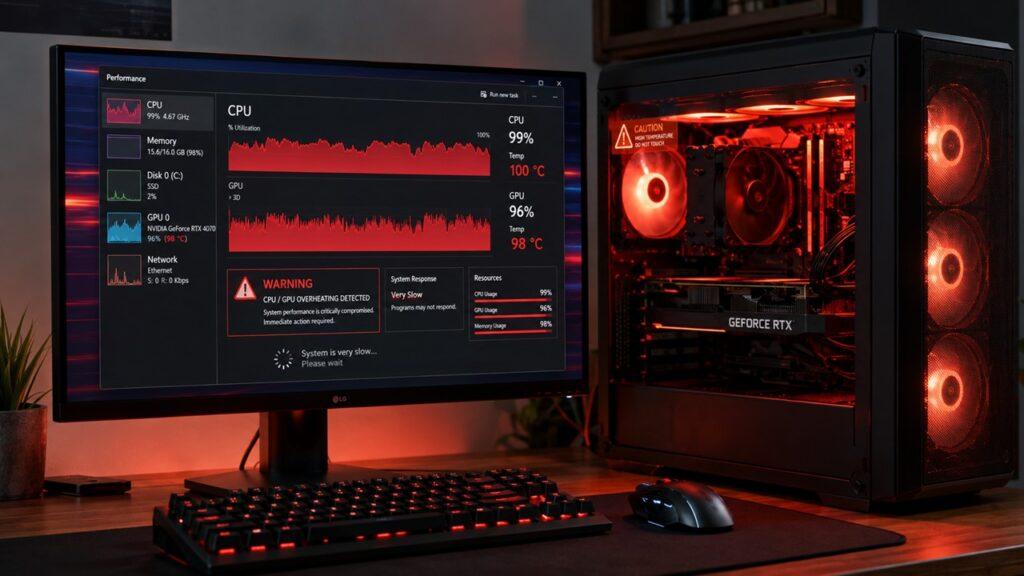
Your PC is overheating because its internal parts are producing more heat than the cooling system can remove. This usually happens because of dust buildup, blocked vents, weak fans, dried thermal paste, poor airflow, heavy CPU or GPU usage, malware, or a hot room.
In this guide, I’ll walk you through the common causes of PC overheating, the warning signs to watch for, safe temperature ranges, and practical fixes you can try before the heat damages your computer.
Key Takeaways
- A PC overheats when heat cannot escape fast enough.
- Dust buildup is one of the most common causes of overheating.
- Blocked vents can quickly make laptops and desktops run hotter.
- Loud fans, slow performance, shutdowns, and freezes are common warning signs.
- CPU or GPU temperatures above 85°C under load often need attention.
- Cleaning vents, improving airflow, and closing heavy apps can help.
- Dried thermal paste or failing fans may need professional repair.
- Repeated overheating can shorten the life of your PC components.
Why Is My PC Overheating?
Your PC overheats when the cooling system cannot keep up with the heat your hardware creates. The CPU, GPU, motherboard, storage drive, and power supply all produce heat while your computer is running. That heat is normal, but it becomes a problem when it gets trapped inside the case or laptop body.
Most PCs use fans, heatsinks, vents, thermal paste, and airflow to move heat away from important parts. If any part of that cooling path gets blocked, dirty, weak, or damaged, temperatures start climbing.
For example, a desktop may overheat because the case fans are dusty or the tower is pushed against a wall. A laptop may overheat because it is being used on a bed, pillow, or blanket that blocks the bottom vents.
So, the real question is not just, “Why is my PC hot?” A warm PC is normal. The bigger question is, “Why can’t my PC remove heat properly?” That is where the real overheating problem begins.
Common Signs Your PC Is Overheating
Overheating does not always appear as a clear warning message. Most of the time, your computer gives you small signs first. If you catch those signs early, you can often fix the problem before it becomes serious.
Loud Fan Noise
A loud fan is one of the most common signs of a hot PC. Fans naturally spin faster when you play games, edit videos, render files, or run heavy software. That part is normal.
But if your fans are loud even when you are only browsing the web or doing light work, your PC may be struggling to cool itself. Constant fan noise can mean the vents are blocked, the heatsink is dusty, or the fan is working harder than it should.
You may also hear rattling, grinding, or clicking sounds. Those noises can point to a worn-out fan bearing or a fan blade touching dust, cables, or internal parts.
Slow Performance or Lag
When a PC gets too hot, it may slow itself down to prevent damage. This is called thermal throttling.
Thermal throttling happens when the CPU or GPU reduces its speed because the temperature is too high. You may notice games lagging, apps opening slowly, videos stuttering, or the whole system feeling less responsive.
This can be confusing because it may look like a software problem. But if the slowdown happens after the PC warms up, overheating could be the real reason.
Random Shutdowns or Restarts
A PC that suddenly turns off may be protecting itself from heat damage. Many computers have built-in thermal protection. When temperatures reach a risky level, the system may shut down without warning.
This often happens during demanding tasks such as gaming, video editing, 3D rendering, or long software updates. If your PC shuts down only when it is under load, overheating should be one of the first things you check.
Freezing or Blue Screen Errors
Overheating can also make your system unstable. Your PC may freeze, crash, restart, or show a blue screen error.
This happens because hot components may stop working reliably. The CPU, GPU, memory, or motherboard can become unstable when the temperature stays too high for too long.
A single crash does not always mean overheating. But repeated crashes during heavy use are a strong warning sign.
Hot Laptop Body or Desktop Case
A laptop will usually feel warm during use. That is normal because all the hardware is packed into a small space. However, it should not feel painfully hot or uncomfortable to touch.
For desktops, the case may feel slightly warm near the exhaust area. But if hot air is blasting out constantly, or the case feels unusually hot, airflow may not be working properly.
Screen Glitches During Gaming or Editing
If your GPU overheats, you may see visual problems on the screen. These can include flickering, strange lines, texture glitches, random black screens, or game crashes.
This is especially common when gaming, editing high-resolution videos, or using graphics-heavy software. If the issue appears only during GPU-heavy tasks, check your graphics card temperature.
Safe PC Temperature Range: How Hot Is Too Hot?
Temperature depends on your hardware, cooling design, room temperature, and workload. A gaming laptop will often run hotter than a large desktop PC. Still, general temperature ranges can help you understand when your PC needs attention.
| Component or Condition | Normal Range | Warning Range | Possible Overheating Range |
| CPU at idle | 35°C–55°C | 60°C–70°C | Above 75°C at idle |
| CPU under load | 65°C–80°C | 80°C–85°C | 85°C–95°C+ |
| GPU at idle | 35°C–55°C | 60°C–70°C | Above 75°C at idle |
| GPU under load | 65°C–82°C | 82°C–88°C | 88°C–95°C+ |
| Laptop surface | Warm | Very warm | Too hot to touch comfortably |
Short temperature spikes are not always dangerous. For example, your CPU may briefly jump when opening a large program. The bigger concern is when temperatures stay high for several minutes during normal use.
If your CPU or GPU stays above 85°C under load, you should check airflow, dust, fan speed, thermal paste, and background apps. If your PC reaches 90°C or higher often, it needs attention.
What Causes a PC to Overheat?
Most overheating problems come from four simple areas: blocked airflow, poor heat transfer, heavy workload, or failing cooling hardware. The good news is that many causes are easy to check at home.
Dust Buildup Inside the PC
Dust is one of the biggest reasons a PC overheats. Over time, dust collects on fan blades, vents, filters, heatsinks, and internal components. This blocks airflow and traps heat.
Think of dust like a blanket over your cooling system. The fans may still spin, but they cannot move air properly. The heatsink may still be attached, but it cannot release heat efficiently.
Dust builds up faster if you keep your PC near carpet, pets, open windows, smoke, or a dusty workspace. Desktop PCs often collect dust through intake fans. Laptops collect dust through small vents and narrow internal cooling channels.
Blocked Air Vents
Your PC needs open vents to breathe. If those vents are blocked, hot air stays trapped inside.
For laptops, soft surfaces are a common problem. Beds, blankets, sofas, pillows, and even your lap can block the bottom or side vents. Once those vents are covered, the fan cannot pull in cool air properly.
For desktops, poor placement can cause the same issue. If the tower is pushed against a wall, placed inside a closed cabinet, or surrounded by clutter, airflow becomes restricted.
Failing or Weak Fans
Fans are moving parts, so they can wear out over time. A weak or failing fan may spin slowly, stop spinning, or make strange noises.
Common fan problem signs include:
- Rattling
- Grinding
- Clicking
- Weak airflow
- No airflow
- Fan spinning and stopping randomly
- Fan running loudly all the time
A failing CPU fan or GPU fan can make temperatures rise quickly. A failing case fan can also cause poor airflow inside a desktop case.
Dried or Poorly Applied Thermal Paste
Thermal paste helps transfer heat from the CPU or GPU to the heatsink. Without good thermal paste, heat cannot move away from the chip properly.
Over time, thermal paste can dry out, crack, or lose effectiveness. This is more common in older PCs or laptops that often run hot.
Bad thermal paste can cause the CPU temperature to rise very quickly, even when the fan is working. If your PC is a few years old and cleaning does not help, thermal paste may be part of the problem.
Heavy CPU or GPU Usage
Your PC creates more heat when the CPU or GPU works harder. This is why gaming, video editing, 3D rendering, streaming, AI tools, and large software projects can make your PC hot.
Too many browser tabs can also increase CPU and memory usage. Some websites, extensions, and background apps keep using resources even when you are not actively using them.
If your PC only overheats during heavy work, your cooling system may be weak, dirty, or simply not strong enough for the workload.
Malware or Hidden Background Processes
Malware can make your PC overheat by running hidden processes in the background. Some malware may use your CPU or GPU without your permission.
Crypto-mining malware is a good example. It can push your hardware hard while you are doing nothing. This can make your fans loud, your PC slow, and your temperature unusually high.
Even if it is not malware, a broken app or stuck background process can create the same problem. That is why checking Task Manager is important.
Poor Desktop Airflow or Cable Management
Desktop PCs need a clear path for cool air to enter and hot air to leave. If airflow is poorly designed, heat can build up inside the case.
This can happen when there are too few fans, fans are installed in the wrong direction, dust filters are clogged, or internal cables block airflow. A powerful graphics card in a small case can also raise internal temperatures.
Good desktop airflow usually has intake fans bringing cool air in and exhaust fans pushing hot air out.
Hot Room Temperature
Your PC can only cool itself using the air around it. If your room is hot, your PC will also run hotter.
This is especially true for laptops and compact desktops. During summer, a computer that normally runs fine may start overheating because the room temperature is higher.
Better room ventilation, a fan, or air conditioning can help reduce overall system temperature.
Outdated Drivers, BIOS, or Fan Control Software
Outdated software can sometimes affect fan behavior, power management, or hardware performance. This is more common on laptops, gaming PCs, and prebuilt systems.
A driver issue may cause the GPU to use more power than needed. A BIOS or firmware issue may affect fan curves or thermal settings. Manufacturer software may also control quiet, balanced, or performance modes.
Updating drivers, Windows, BIOS, and manufacturer control software can sometimes improve thermal behavior.
Aging Hardware or Weak Cooling Design
Older PCs may overheat because newer software is heavier than before. A laptop that handled basic tasks easily a few years ago may now work harder because apps, browsers, and background processes have become more demanding.
Some budget PCs also come with weak cooling systems. A small CPU cooler, limited case ventilation, or poor laptop design can make the system run hot even when nothing is technically broken.
How to Check If Your PC Is Overheating
Before you fix anything, confirm whether your PC is actually overheating. A few simple checks can help you separate real heat problems from software issues, fan noise, or normal warmth.
1. Check Physical Heat
Feel the laptop body, keyboard area, exhaust vent, or desktop exhaust area. Warm is normal. Too hot to touch comfortably is not normal.
Do not touch internal parts while the PC is running. Internal components can be hot, sharp, or electrically unsafe.
2. Listen to the Fans
Fans should get louder during heavy work and quieter during light use. If the fan is loud all the time, the PC may be dirty, overloaded, or overheating.
If you hear grinding, rattling, or clicking, the fan may be failing.
3. Use Temperature Monitoring Software
You can use tools like HWMonitor, Core Temp, HWiNFO, or MSI Afterburner to check CPU and GPU temperatures.
Check temperatures when the PC is idle and again during heavy use. This helps you understand whether the cooling problem happens all the time or only under load.
4. Check CPU and GPU Usage
Open Task Manager on Windows by pressing Ctrl + Shift + Esc. Look at CPU, GPU, memory, and disk usage.
If one app is using a lot of CPU or GPU while you are not doing much, that app may be causing extra heat.
5. Compare Idle and Load Temperatures
Idle temperature shows how your PC behaves when doing very little. Load temperature shows how it handles pressure.
If idle temperatures are high, the problem may be dust, fan failure, bad thermal paste, or poor airflow. If only load temperatures are high, your cooling may be struggling during demanding work.
6. Watch for Crash Patterns
Pay attention to when the PC shuts down, freezes, or slows down. If problems happen during gaming, rendering, charging, or hot weather, overheating is more likely.
How to Fix an Overheating PC
Start with simple fixes first. Many overheating problems are solved by cleaning dust, improving airflow, reducing workload, or changing where the computer is placed. If the simple fixes do not work, then look at fans, thermal paste, and deeper hardware issues.
Clean Dust From Vents, Fans, and Filters
Cleaning is often the first and most effective fix for an overheating PC. Dust blocks airflow and makes the cooling system work harder than it should.
Follow these basic safety steps:
- Turn off your PC completely.
- Unplug the power cable.
- Remove the laptop charger.
- Let the computer cool before cleaning.
- Use compressed air in short bursts.
- Keep the air can upright.
- Clean visible vents and dust filters.
- Hold desktop fans still while blowing air if possible.
- Use a dry microfiber cloth for outer surfaces.
- Avoid spraying liquid cleaner into vents.
For desktops, you can remove the side panel if you are comfortable doing so. Clean dust from case fans, filters, heatsinks, and the graphics card area.
For laptops, be more careful. Blowing air into vents may help, but it may not remove deep dust inside the cooling system. If the laptop is very dusty, professional cleaning may be safer.
Avoid using a household vacuum directly on internal PC parts. Static electricity can damage sensitive components.
Improve Airflow Around the Computer
Good airflow helps hot air escape and cool air enter. Even a clean PC can overheat if it is placed badly.
Try these airflow fixes:
- Keep a desktop tower several inches away from walls.
- Do not place your desktop inside a closed cabinet.
- Keep the back and side vents open.
- Do not stack items around the PC case.
- Use laptops on hard, flat surfaces.
- Avoid beds, blankets, pillows, and sofas.
- Raise the back of the laptop slightly if airflow improves.
- Keep cables away from desktop fan paths.
- Clean desk dust around the computer regularly.
For laptops, even a simple stand can help because it lifts the device and gives the bottom vents more breathing room.
Close Heavy Apps and Background Processes
If your PC is overheating because it is working too hard, reducing the workload can lower the temperature.
Open Task Manager and check which apps are using the most CPU, GPU, memory, or disk resources. Then close anything you do not need.
Pay attention to:
- Games
- Video editors
- Screen recorders
- Streaming software
- Large browser sessions
- Cloud sync apps
- Unresponsive apps
- Unknown background processes
- Browser extensions
Try not to run several heavy apps at the same time. For example, gaming, streaming, recording, and keeping dozens of browser tabs open can push your PC hard.
Change Power Settings
Power settings affect heat. If your PC is set to maximum performance all the time, it may run hotter than necessary.
On Windows, switching to Balanced or Best Power Efficiency can reduce heat, especially on laptops. It may slightly reduce peak performance, but it can make the system cooler and quieter.
Gaming laptops may also have manufacturer apps with modes like Silent, Balanced, Performance, Turbo, or Cool. If your laptop is overheating during light use, avoid maximum performance mode unless you really need it.
Update Drivers, Windows, and BIOS/UEFI
Updates can sometimes fix overheating problems related to fan control, graphics performance, or power management.
Start with Windows updates and graphics drivers. Then check your PC or laptop manufacturer’s official support page for BIOS, firmware, or thermal control updates.
Be careful with BIOS updates. Only download them from the official manufacturer website. Do not interrupt the update once it starts.
Reapply Thermal Paste
If your PC is older, dried thermal paste may be causing poor heat transfer. This can make the CPU or GPU run hot even when the fan is working.
Thermal paste replacement may help when:
- The PC is several years old.
- Temperatures are high after cleaning.
- The CPU heats up very quickly.
- Fans are loud but temperatures stay high.
- The PC shuts down during moderate work.
Desktop CPU repasting is usually easier than laptop repasting. Laptops are more compact and harder to open. If you are not confident, ask a technician to do it.
Also, using too much thermal paste can cause problems. A small, correct amount is better than a thick layer.
Replace Failing Fans
A bad fan should not be ignored. If the fan is grinding, rattling, spinning slowly, or not spinning at all, it may need replacement.
Desktop case fans are usually simple to replace. CPU coolers and GPU fans may need more care. Laptop fans are often harder because the device must be opened carefully.
If your fan has stopped completely, avoid using the PC for heavy work until it is fixed. Heat can rise quickly without proper airflow.
Use a Laptop Cooling Pad or Stand
A laptop cooling pad can help if your laptop has bottom vents. It pushes extra air toward the laptop and may reduce temperatures during long sessions.
However, a cooling pad is not a complete fix. It will not solve dried thermal paste, a dead fan, or thick dust inside the cooling system.
A laptop stand can also help by lifting the laptop and improving airflow. Sometimes that alone makes a noticeable difference.
Improve Desktop Cooling Setup
If you use a desktop PC, you have more cooling upgrade options than a laptop user.
Useful desktop cooling improvements include:
- Add front intake fans.
- Add rear or top exhaust fans.
- Clean dust filters regularly.
- Use a better CPU cooler.
- Improve cable management.
- Keep airflow paths clear.
- Make sure fans face the correct direction.
- Use a case with better ventilation.
- Avoid placing the tower in a tight space.
If you have a powerful GPU, make sure your case has enough airflow around it. Graphics cards can produce a lot of heat under load.
What to Do Immediately If Your PC Is Too Hot
If your PC feels dangerously hot or keeps shutting down, treat it seriously. The goal is to reduce heat quickly without causing extra damage.
- Save your work immediately.
- Close games and heavy software.
- Stop rendering, exporting, or recording tasks.
- Move your laptop to a hard, flat surface.
- Remove anything blocking vents.
- Unplug unnecessary external devices.
- Switch to Balanced or Power Saver mode.
- Shut down the PC if it remains very hot.
- Let it cool for 15–30 minutes.
- Check vents and fans before turning it back on.
- Do not keep forcing the PC to run after repeated shutdowns.
If your PC keeps shutting down from heat, do not ignore it. Repeated overheating can shorten the life of the CPU, GPU, motherboard, battery, storage drive, and power components.
Laptop Overheating vs Desktop Overheating
Laptops and desktops overheat for many of the same reasons, but the fixes are not always the same. Laptops are compact and harder to upgrade, while desktops usually offer more space for cleaning and cooling improvements.
| Issue | Laptop Overheating | Desktop Overheating |
| Common cause | Blocked bottom vents | Dusty case or poor airflow |
| Cooling space | Very limited | More open and upgradeable |
| Easy fix | Use a hard surface or stand | Clean filters and add fans |
| Fan replacement | Usually harder | Usually easier |
| Thermal paste replacement | More delicate | Easier on most builds |
| Airflow upgrade | Limited options | More fan and case options |
| Dust cleaning | Often harder internally | Usually easier |
| Professional repair need | More common | Depends on the part |
For laptops, placement matters a lot. Using the laptop on a bed or sofa can block airflow almost instantly.
For desktops, case airflow matters more. A dusty filter, wrong fan direction, or tower placed inside a closed desk can make temperatures rise.
Can Overheating Damage Your PC?
Yes, overheating can damage your PC over time. Modern computers are designed to protect themselves by slowing down or shutting off when temperatures become unsafe. That protection helps, but it does not mean repeated overheating is harmless.
When your PC runs too hot again and again, parts may wear out faster. Fans may fail sooner because they constantly spin at high speed. Laptop batteries may degrade faster when exposed to heat. Motherboards, storage drives, and graphics cards may also suffer from long-term thermal stress.
Overheating can also increase the risk of crashes and data loss. If your computer shuts down while saving a file, updating software, or writing data to a drive, something may become corrupted.
The occasional warm session is not a disaster. But regular overheating is a problem you should fix early.
How to Prevent Your PC From Overheating Again
Once your PC is running cooler, the next goal is prevention. A few simple habits can stop the same overheating problem from coming back.
- Clean vents and fans every few months.
- Deep clean desktops once or twice a year.
- Clean more often if you have pets or dust.
- Keep laptops on hard, flat surfaces.
- Avoid using laptops on beds or blankets.
- Keep desktops away from walls and cabinets.
- Monitor temperatures after major updates.
- Avoid running too many heavy apps together.
- Replace noisy or weak fans early.
- Keep your room well-ventilated.
- Use Balanced mode when full power is unnecessary.
- Keep drivers and system software updated.
- Reapply thermal paste when temperatures rise after years of use.
Good cooling is mostly about consistency. A clean PC with open airflow will usually run cooler, quieter, and more reliably.
When Should You Get Professional Help?
Some overheating fixes are easy to try at home. Cleaning vents, closing heavy apps, and improving airflow are beginner-friendly. But deeper hardware work can be risky if you do not have the right tools or experience.
Get professional help if you notice:
- The PC shuts down even after cleaning.
- The fan does not spin.
- The fan makes grinding or rattling sounds.
- The CPU gets hot right after startup.
- The laptop battery area feels swollen.
- You smell burning plastic or electronics.
- The PC crashes during light tasks.
- Temperatures stay high after simple fixes.
- You are not comfortable opening the device.
- You need thermal paste replacement on a laptop.
For laptops especially, professional cleaning or fan replacement is often safer. Laptops have small screws, fragile cables, tight cooling parts, and compact layouts.
Common Mistakes That Make PC Overheating Worse
Some fixes sound helpful but can make the problem worse. Avoid these mistakes when your PC is overheating.
- Using a laptop on a bed or blanket.
- Ignoring loud fan noise for months.
- Blocking desktop vents inside a tight cabinet.
- Spraying liquid cleaner into vents.
- Using a vacuum directly on internal components.
- Running games while the PC is already overheating.
- Ignoring unknown background processes.
- Downloading BIOS updates from unofficial sites.
- Applying too much thermal paste.
- Removing a CPU cooler without knowing how to reinstall it.
- Letting dust filters stay clogged for years.
- Assuming every loud fan is normal.
The safest approach is simple: reduce heat, improve airflow, clean carefully, and avoid forcing the PC to run when it is clearly too hot.
Quick Troubleshooting Checklist
Use this checklist if you want a fast way to diagnose and fix PC overheating. Start from the top and move down step by step.
- Check if vents are blocked.
- Move the PC to an open, cooler space.
- Put the laptop on a hard, flat surface.
- Close heavy apps in Task Manager.
- Check CPU and GPU temperatures.
- Listen for fan noise or fan failure.
- Clean dust from vents and filters.
- Scan for malware.
- Update Windows and drivers.
- Check manufacturer thermal settings.
- Switch to Balanced power mode.
- Reapply thermal paste if the PC is old.
- Replace failing fans.
- Improve desktop case airflow.
- Get professional help if shutdowns continue.
Final Thoughts
Your PC is overheating because heat is either being created too quickly or trapped inside the system. In most cases, the problem comes from dust buildup, blocked vents, poor airflow, heavy workload, failing fans, or old thermal paste.
Start with the simple fixes first. Clean the vents, give the PC more breathing room, close heavy apps, check temperatures, and listen to the fans. These steps solve many overheating problems without expensive repairs.
If your PC still overheats after that, the issue may be deeper. A failing fan, dried thermal paste, weak cooler, or internal hardware problem may need professional attention.
The sooner you deal with overheating, the easier it usually is to fix. A cooler PC is not just more comfortable to use. It is also faster, quieter, and more reliable.
Related FAQs
Why Is My PC Overheating All of a Sudden?
Your PC may suddenly overheat because a vent became blocked, a fan failed, dust reached a critical level, or a background process started using too much CPU or GPU power. It can also happen after a driver update, Windows update, malware infection, or a change in room temperature.
Is 90°C Too Hot for a PC?
Yes, 90°C is usually too hot if your PC stays there for long periods. Some CPUs and GPUs can briefly reach high temperatures under heavy load, but consistent 90°C temperatures should be checked. If your PC often sits near 90°C, clean the vents, check fans, reduce workload, and monitor temperatures closely.
Why Is My PC Overheating While Gaming?
Gaming pushes both the CPU and GPU hard, which creates a lot of heat. If your cooling system is dusty, weak, blocked, or poorly designed, temperatures can rise quickly. Lowering graphics settings, cleaning the PC, improving airflow, and checking GPU temperatures can help.
Can Dust Really Make a PC Overheat?
Yes, dust can absolutely make a PC overheat. Dust blocks vents, slows airflow, covers fan blades, and insulates heatsinks. Even a thin dust layer can make fans work harder. A thick dust buildup can cause serious overheating.
Why Is My Laptop Overheating on My Bed?
Your laptop overheats on a bed because soft surfaces block the bottom and side vents. This prevents cool air from entering and hot air from escaping. Use your laptop on a desk, stand, or hard flat surface instead.
Can Malware Cause PC Overheating?
Yes, malware can cause overheating by running hidden background tasks. Some malware uses your CPU or GPU heavily without your knowledge. If your PC gets hot while idle, scan for malware and check Task Manager for unknown high-usage processes.
Should I Use a Cooling Pad for My Laptop?
A cooling pad can help if your laptop has bottom vents and needs better airflow. It is useful for gaming, long work sessions, and hot rooms. However, it will not fix a broken fan, dried thermal paste, or heavy dust inside the laptop.
How Often Should I Clean My PC to Prevent Overheating?
Clean visible vents and filters every few months. A desktop PC should usually get a deeper clean once or twice a year. If you have pets, carpet, dust, or smoke in the room, you may need to clean it more often.
Can Overheating Cause My PC to Shut Down?
Yes, overheating can cause your PC to shut down suddenly. This is a safety feature that protects the CPU, GPU, and motherboard from heat damage. If shutdowns keep happening, stop using the PC heavily until you find the cause.
When Should I Replace Thermal Paste?
You should consider replacing thermal paste every few years, especially if your PC runs hot after cleaning and the fans still work properly. You may also need new thermal paste if the CPU temperature rises very quickly after startup.

Justin has spent years learning how blogs, websites, hosting, and online income work in the real world. Along with blogging and SEO, he also covers desktops, laptops, PC parts, and everyday tech, sharing easy-to-understand advice for readers who want to build better websites and choose better tools.