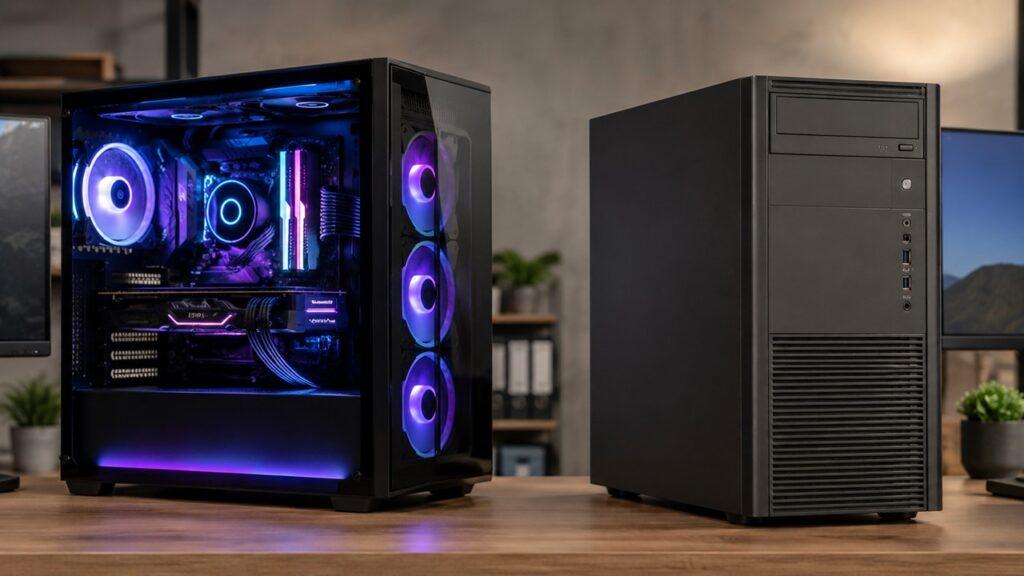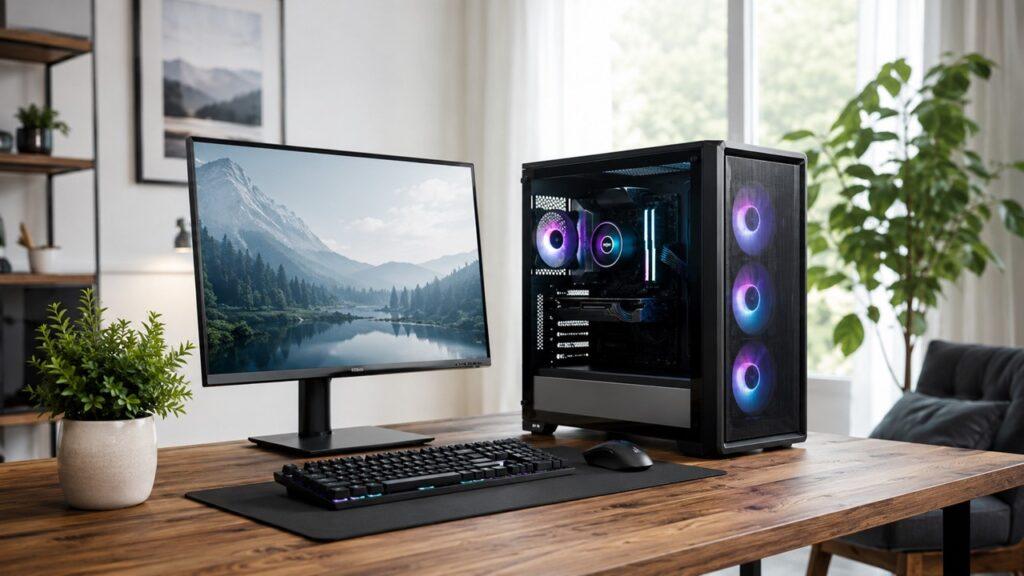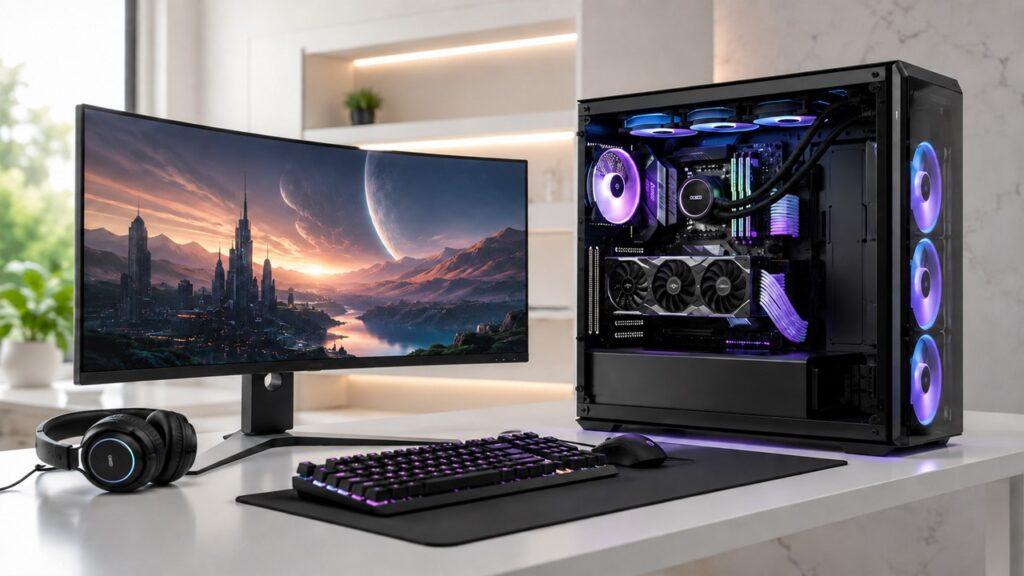
Airflow is important in a PC because it moves cool air into the case and pushes hot air out, helping components like the CPU, GPU, SSD, motherboard, RAM, and power supply stay within safe operating temperatures. Without proper airflow, heat gets trapped inside the case, which can lead to overheating, thermal throttling, loud fan noise, crashes, and shorter hardware lifespan.
In this guide, we’ll break down how PC airflow works, why it matters for performance and reliability, which parts need airflow the most, how intake and exhaust fans should be arranged, and what you can do to improve airflow in your own computer.
Key Takeaways
- PC airflow helps remove hot air and bring cooler air into the case.
- Poor airflow can cause overheating, thermal throttling, crashes, and restarts.
- The CPU and GPU usually benefit the most from strong airflow.
- Good airflow helps your PC maintain stable performance during heavy tasks.
- Balanced intake and exhaust fans help control internal temperature.
- Slight positive air pressure can help reduce dust entering through case gaps.
- Dusty filters, blocked vents, and messy cables can restrict airflow.
- Better airflow can also make your PC quieter because fans work less aggressively.
- A good airflow setup is about direction, balance, and clear air paths.
- Most users do not need a complicated setup, just clean intake and proper exhaust.
What Does Airflow Mean in a PC?
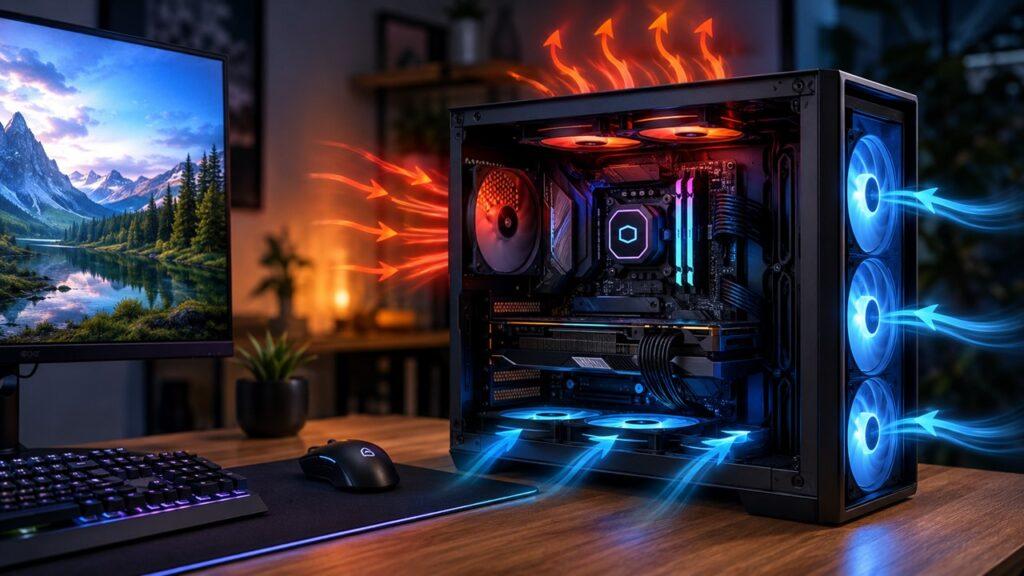
PC airflow simply means how air moves through your computer case. Cool air enters the case, passes over hot components, and then warm air leaves the case. That constant movement helps prevent heat from building up inside your system.
Most desktop PCs use intake fans and exhaust fans. Intake fans pull cooler air into the case, usually from the front, bottom, or side. Exhaust fans push warm air out, usually through the rear or top of the case.
Airflow is not the same thing as a CPU cooler or GPU cooler. A CPU cooler moves heat away from the processor. A GPU cooler moves heat away from the graphics card. But case airflow removes that warm air from the entire case.
Think of it like a small room on a hot day. A fan inside the room can move air around, but if there is no open window or door, the room still stays hot. Your PC case works the same way. The heat needs a way to leave.
Why Is Airflow Important in a PC?
Airflow matters because every powered PC component creates heat. If that heat stays trapped inside the case, your system becomes hotter, louder, slower, and less stable over time. Good airflow gives heat a clear path out of the PC.
It Prevents Overheating
The main job of airflow is to prevent overheating. Your CPU, GPU, motherboard, SSD, RAM, and power supply all generate heat when the PC is running. Gaming, streaming, video editing, 3D rendering, and heavy multitasking create even more heat.
If the case cannot remove that heat quickly enough, the inside of your PC becomes warmer and warmer. At first, you may only notice higher fan noise. Later, you may see stuttering, freezing, crashing, random restarts, or sudden shutdowns.
Good airflow keeps that heat moving. Instead of letting warm air sit around your parts, it replaces that warm air with cooler air from outside the case.
It Reduces Thermal Throttling
Thermal throttling happens when a component gets too hot and automatically slows itself down to protect the hardware. This is common with CPUs and GPUs.
For example, your graphics card may perform well at the start of a game. But after 30 minutes, if hot air is trapped inside the case, the GPU may reduce its speed. Then you may notice lower frame rates, stuttering, or less consistent performance.
The same thing can happen with the CPU during rendering, compiling, streaming, or other heavy workloads. Proper airflow helps your parts stay cool enough to maintain their normal boost speeds for longer.
It Helps Maintain Stable Performance
A PC with good airflow does not just perform well for a few minutes. It can hold steady performance over longer sessions.
This matters a lot for gaming PCs, workstation PCs, and editing systems. Short benchmark runs can look fine even on a warm system. But real use is different. You may game for hours, edit large videos, run many browser tabs, or render a long project.
Good airflow helps your PC stay consistent during those longer workloads. Your hardware can focus on performance instead of constantly fighting heat.
It Extends Component Lifespan
Heat is one of the biggest long-term enemies of electronics. Modern PC parts are designed to handle heat, but constantly running hot is still not ideal.
High temperatures can add stress to the motherboard, VRMs, capacitors, SSD controller, graphics card, power supply, and fans. Over time, that extra heat can contribute to wear.
Good airflow does not make your PC last forever, of course. But it does create a healthier environment for your components. Cooler parts usually have an easier life than parts that sit in trapped heat every day.
It Keeps Fan Noise Under Control
Bad airflow often makes a PC louder. When the case is hot, the CPU cooler, GPU fans, and case fans spin faster to compensate.
That is why some PCs sound quiet at idle but become very loud during gaming or editing. The fans are trying to remove heat from a case that cannot breathe properly.
With good airflow, fans do not need to work as aggressively. Air moves more efficiently, temperatures stay more stable, and the system can stay quieter under load.
It Helps Control Dust Buildup
Dust is another reason airflow matters. Dust collects on filters, fan blades, heatsinks, vents, and radiator fins. Once enough dust builds up, it blocks airflow and traps heat.
A balanced airflow setup can help control where dust enters the PC. Many builders prefer slightly positive air pressure, where intake airflow is a bit stronger than exhaust airflow. This helps push air out through small gaps instead of pulling dusty air in through unfiltered openings.
Airflow will not eliminate dust completely. You still need to clean your PC. But a smart airflow setup can make dust easier to manage.
PC Components That Need Good Airflow
The CPU and GPU usually create the most heat, but they are not the only parts that need airflow. A good PC airflow setup supports the entire system, not just one component.
CPU
The CPU handles instructions, calculations, background processes, gaming tasks, productivity apps, and many system operations. During heavy use, it can produce a lot of heat.
A CPU cooler moves heat away from the processor. But after that heat leaves the CPU, it needs to exit the case. If warm air stays trapped around the cooler, CPU temperatures can rise.
This is why case airflow still matters even if you have a good air cooler or liquid cooler.
GPU
The GPU is often the hottest component in a gaming PC. It works hard during gaming, rendering, video editing, 3D modeling, and GPU-heavy creative tasks.
Many graphics cards use open-air coolers. These coolers push heat away from the GPU, but much of that warm air stays inside the case. If your case airflow is weak, that hot air can circle around the graphics card and raise internal temperatures.
Good front intake airflow can feed cooler air toward the GPU. Rear and top exhaust fans can then help remove the warm air.
Motherboard VRMs
VRMs help regulate and deliver power to the CPU. They can get warm, especially during heavy workloads, overclocking, or long gaming sessions.
Most motherboards include small heatsinks over the VRMs. However, heatsinks work better when air moves over them. If the area around the CPU socket has poor airflow, VRM temperatures may rise.
This is especially important in compact cases or builds with high-power CPUs.
RAM
RAM usually does not need intense cooling during normal use. However, airflow can still help in some situations.
High-speed memory kits, RGB RAM, overclocked RAM, and cramped builds can benefit from moving air. Good case airflow keeps the area around the memory modules from becoming a hot pocket.
For most users, normal case airflow is enough.
SSD and M.2 Drives
M.2 NVMe SSDs can get warm during large file transfers, game installs, video editing, and heavy storage workloads. Some drives include heatsinks, and many motherboards provide M.2 heat spreaders.
However, a heatsink still needs some airflow around it. If an M.2 drive sits under the GPU or in a low-airflow area, it may heat up faster.
When SSDs get too hot, they may slow down temporarily to protect themselves. So airflow can help maintain storage performance during heavy transfers.
Power Supply
The power supply has its own fan, but it still needs access to fresh air. Many modern cases mount the PSU at the bottom, where it pulls air from below the case and exhausts it out the back.
This setup works well if the bottom dust filter is clean and the PC is not sitting on thick carpet. If the PSU intake is blocked, the power supply may run hotter and louder.
How PC Airflow Works: Intake, Exhaust, and Air Pressure
PC airflow works best when cool air has a clear entry point, warm air has a clear exit point, and fans are not fighting each other. That is where intake, exhaust, and case pressure come in.
Intake Airflow
Intake airflow brings cooler air into the case. Intake fans are usually placed at the front, bottom, or side of the case.
Front intake is the most common layout. It pushes fresh air toward the GPU, CPU cooler, motherboard, and storage area. Bottom intake can also help, especially when the case is designed for it.
Good intake airflow usually works best with dust filters and open mesh panels. If the front panel is solid or blocked, intake fans may struggle to pull in enough air.
Exhaust Airflow
Exhaust airflow removes warm air from the case. Exhaust fans are usually placed at the rear and top of the case.
A rear exhaust fan is one of the most useful fans in a standard PC build. It pulls warm air away from the CPU area and pushes it out of the case.
Top exhaust fans can also help because warm air naturally rises. They are especially useful in systems with powerful CPUs, large GPUs, or liquid cooling radiators.
Positive Air Pressure
Positive air pressure means your intake fans bring in more air than your exhaust fans push out.
This setup often helps with dust control. Since more air is entering through filtered intake fans, air tends to escape through small case gaps instead of entering through them. That can reduce the amount of dust pulled in through unfiltered openings.
Slight positive pressure is a good target for many home, office, and gaming PCs.
Negative Air Pressure
Negative air pressure means your exhaust fans push out more air than your intake fans bring in.
This can remove hot air quickly, but it may also pull dust into the case through small unfiltered gaps. That means more dust can collect on internal parts.
Negative pressure can work in some setups, especially if the case has strong filtered intakes and good cleaning habits. But for most everyday users, it is not always the easiest setup to maintain.
Neutral Air Pressure
Neutral air pressure means intake and exhaust are roughly balanced.
This can work very well in a clean, well-planned build. The goal is to move air smoothly through the case without creating too much pressure in either direction.
In real life, perfect neutral pressure is hard to measure without tools. So most builders aim for balanced airflow with a slight positive bias.
Positive vs Negative vs Neutral Air Pressure
Air pressure affects how air moves through your PC case. It also affects dust buildup, cooling behavior, and how predictable your airflow path becomes.
| Air Pressure Type | What It Means | Main Benefit | Main Drawback | Best For |
| Positive Pressure | More intake than exhaust | Better dust control | Too much intake can trap warm air | Most home and gaming PCs |
| Negative Pressure | More exhaust than intake | Strong hot-air removal | More dust can enter through gaps | Hot systems cleaned often |
| Neutral Pressure | Intake and exhaust are balanced | Smooth, stable airflow | Harder to tune perfectly | Clean, well-planned builds |
For most PC users, slightly positive or balanced airflow is the safest target. You do not want extreme intake or extreme exhaust. You want cool air entering smoothly and warm air leaving without resistance.
What Happens When a PC Has Poor Airflow?
Poor airflow can make a PC feel fine during light use but unstable during heavier workloads. The problems usually appear when your system is under pressure for more than a few minutes.
- CPU temperatures rise during demanding tasks.
- GPU temperatures stay high during gaming or rendering.
- Fans spin faster and create more noise.
- Performance drops because of thermal throttling.
- Games may stutter after running for a while.
- The PC may crash, freeze, restart, or shut down.
- Dust collects faster on heatsinks, filters, and fan blades.
- Hot air gets trapped around the graphics card.
- Motherboard and VRM temperatures may rise.
- SSDs may slow down during large file transfers.
- The system becomes harder to cool over time.
- Components experience more long-term heat stress.
The tricky part is that poor airflow is not always obvious right away. A PC can browse the web, play videos, and handle basic tasks without issue. But once you start gaming, editing, streaming, or rendering, airflow problems become much easier to notice.
Common Signs Your PC Has Bad Airflow
Bad airflow usually leaves clues. You may not need to open the whole system immediately. In many cases, fan noise, heat, dust, and performance behavior can tell you something is wrong.
- Fans suddenly become loud under normal use.
- The side panel feels unusually warm.
- CPU or GPU temperatures rise quickly under load.
- The PC performs well at first, then slows down.
- Games stutter after 20 to 30 minutes.
- The PC shuts down or restarts during heavy tasks.
- Dust builds up heavily around vents and filters.
- Hot air seems trapped inside the case.
- The rear exhaust fan barely pushes air out.
- Removing the side panel temporarily lowers temperatures.
- The front panel feels blocked or restrictive.
- GPU fans run loudly even in a normal room temperature.
A simple way to check is to monitor your CPU and GPU temperatures at idle and under load. If temperatures climb fast and stay high, airflow may be part of the problem.
Ideal PC Airflow Direction
Most PC cases follow a simple airflow pattern: cool air enters from the front or bottom, then warm air exits through the rear or top. This creates a clean path through the case.
Front-to-Back Airflow
Front-to-back airflow is the most common layout. Front fans pull cool air into the case, and the rear fan pushes warm air out.
This setup works well because it sends fresh air across the main components. The GPU, CPU cooler, motherboard, and storage area all benefit from that steady movement.
For most standard tower cases, this should be your starting point.
Bottom-to-Top Airflow
Bottom-to-top airflow uses lower fans as intake and top fans as exhaust. This layout can work well because warm air naturally rises.
Some modern cases are designed around this pattern. It can be useful for graphics cards that benefit from fresh air coming from below.
However, bottom intake needs enough clearance under the case. If the PC sits on thick carpet, airflow from the bottom can become restricted.
Side Intake Airflow
Side intake can feed fresh air directly to hot components, especially the graphics card. Some cases include side fan mounts or side ventilation for this reason.
This can be very useful in builds where the GPU produces a lot of heat. But it works best when the case is actually designed for side airflow.
Randomly adding side fans without thinking about the full airflow path can sometimes create turbulence.
Top Exhaust Airflow
Top fans are usually used as exhaust. Since warm air rises, top exhaust fans can help remove trapped heat from the upper part of the case.
This is helpful around the CPU cooler, motherboard heatsinks, and radiator area. In most standard builds, top exhaust is more natural than top intake.
That said, some special case layouts may use top intake. The right answer depends on the case design.
Best Fan Setup for Good PC Airflow
The best fan setup depends on your case, hardware, cooler type, and how much heat your system produces. Still, most builds can follow a few practical starting points.
| PC Build Type | Recommended Fan Setup | Why It Works |
| Basic Office PC | 1 front intake + 1 rear exhaust | Enough airflow for low-power parts |
| Budget Gaming PC | 2 front intake + 1 rear exhaust | Good balance for CPU and GPU cooling |
| Mid-Range Gaming PC | 2–3 front intake + 1 rear + 1 top exhaust | Removes GPU and CPU heat more efficiently |
| High-End Gaming PC | 3 intake + 2–3 exhaust | Better for powerful GPUs and CPUs |
| Small Form Factor PC | Case-specific airflow layout | Limited space requires careful planning |
| Liquid-Cooled PC | Radiator fans + balanced case fans | Keeps radiator and internal parts cooler |
You do not always need the maximum number of fans. A clean setup with correct fan direction is better than a crowded setup where fans fight each other.
How Case Design Affects PC Airflow
Even expensive fans cannot fully fix a case that blocks air from entering or leaving. Case design plays a huge role in how easily your PC can breathe.
Mesh Front Panels
Mesh front panels usually provide better airflow than solid front panels. They allow front intake fans to pull in more air with less resistance.
A solid front panel can still work if it has large side vents or a smart intake design. But for hot gaming PCs, mesh is often the safer choice.
If your current case has high temperatures, the front panel design is one of the first things to check.
Vent Placement
Good cases place vents where airflow actually makes sense. Front and bottom vents help with intake. Rear and top vents help with exhaust.
Poorly placed vents can make fans less useful. A fan behind a blocked panel cannot move much air, even if it spins fast.
The best airflow cases give air a direct path through the system.
Internal Space
Internal space affects how air moves around the components. A very cramped case can trap heat around the GPU, CPU cooler, or drive area.
Larger cases usually offer more room for airflow, but size alone is not everything. A compact case with smart ventilation can perform better than a large case with blocked panels.
The layout matters just as much as the size.
Dust Filters
Dust filters help keep dust out of the system, especially on intake fans. But they also need regular cleaning.
A clogged dust filter can restrict airflow badly. Your fans may spin faster, but less air enters the case. That leads to higher temperatures and more noise.
Clean filters are one of the easiest ways to restore airflow.
Cable Management Space
Good cable management improves both looks and airflow. Cases with routing channels, tie-down points, and space behind the motherboard tray make this easier.
Messy cables can block front intake fans or interrupt airflow around the GPU. This is especially true in smaller cases.
You do not need perfect cable management. But you should keep the main airflow path clear.
Airflow vs Cooling: What Is the Difference?
Cooling and airflow are connected, but they are not the same thing.
Cooling usually refers to removing heat from a specific component. For example, your CPU cooler moves heat away from the CPU. Your graphics card cooler moves heat away from the GPU. A heatsink on an SSD or motherboard VRM also helps move heat away from that specific part.
Airflow refers to moving air through the whole case. It brings cooler air in and pushes warmer air out.
You need both. A strong CPU cooler cannot perform its best if the case is full of trapped hot air. In the same way, strong case airflow cannot fully fix a badly mounted CPU cooler.
A healthy PC thermal setup combines good component cooling with good case airflow.
Does Better Airflow Improve PC Performance?
Better airflow does not magically make your CPU or GPU more powerful. It will not turn a budget graphics card into a high-end graphics card.
However, better airflow can help your hardware maintain its intended performance. This matters most when your system is already running too hot.
For example, if your GPU is thermal throttling during gaming, improving airflow may help it hold higher clock speeds for longer. That can improve FPS stability and reduce stuttering. If your CPU is overheating during editing or rendering, better airflow can also help maintain smoother performance.
So, better airflow does not directly increase performance in every PC. But it can recover lost performance when heat is holding your hardware back.
How Dust Affects PC Airflow
Dust is one of the most common airflow problems because it slowly blocks the exact places where air needs to move. A clean PC breathes better than a dusty one.
Dust Blocks Filters and Vents
Dust filters are useful, but they only work well when clean. Over time, dust collects on the filter and restricts air entering the case.
When intake airflow drops, internal temperatures rise. Fans may get louder because they are trying to pull air through a clogged surface.
Cleaning dust filters often gives an immediate airflow improvement.
Dust Covers Heatsinks
Heatsinks need surface area and airflow to work well. Dust reduces both.
When dust collects between heatsink fins, it acts like insulation. The heat becomes harder to move away from the component.
This can affect CPU coolers, GPU heatsinks, motherboard heatsinks, and M.2 SSD heatsinks.
Dust Makes Fans Less Effective
Dusty fan blades do not move air as cleanly. They may also become noisier over time.
A thick dust layer can reduce the fan’s effectiveness and create extra vibration. That means the fan may spin, but airflow still feels weak.
Cleaning fan blades carefully can help restore smoother airflow.
Dust Increases Maintenance Needs
Some environments create dust faster than others. Pet hair, carpeted floors, open windows, construction dust, and floor-mounted PCs can all make dust buildup worse.
If your PC is in a dusty room, you may need to clean filters more often. Good airflow helps, but cleaning is still part of PC maintenance.
How to Improve Airflow in Your PC
Improving airflow does not always require expensive upgrades. In many cases, small changes can make your PC cooler, quieter, and more stable.
- Use front or bottom fans as intake.
- Use rear and top fans as exhaust.
- Make sure every fan faces the correct direction.
- Keep cables tied behind the motherboard tray.
- Clean dust filters regularly.
- Clean dusty fan blades and heatsinks carefully.
- Avoid placing the PC inside a closed desk cabinet.
- Keep the front panel away from walls or furniture.
- Leave space behind the case for exhaust air.
- Remove unused drive cages if your case allows it.
- Use a mesh-front case if temperatures stay high.
- Keep the PC off thick carpet when possible.
- Adjust fan curves for better cooling under load.
- Replace weak, noisy, or failing case fans.
- Make sure the GPU has enough breathing room.
- Avoid blocking top exhaust vents with objects.
The goal is not to add as many fans as possible. The goal is to create a clean, predictable path where cool air enters, passes over hot components, and warm air exits.
Common PC Airflow Mistakes to Avoid
Airflow mistakes are common, especially in first-time PC builds. The good news is that most of them are easy to fix once you know what to look for.
- Installing all fans as intake.
- Installing all fans as exhaust.
- Mounting fans in the wrong direction.
- Forgetting to clean dust filters.
- Placing the PC against a wall.
- Keeping the PC inside a closed cabinet.
- Letting cables block front intake airflow.
- Using a solid-front case with hot hardware.
- Ignoring GPU airflow.
- Blocking top exhaust fans with books or objects.
- Assuming more fans always means better cooling.
- Using high-speed fans without proper fan curves.
- Forgetting that room temperature affects PC temperature.
- Installing a radiator in a way that heats the whole case.
- Leaving unused brackets or panels blocking airflow.
- Not checking temperatures after changing fan placement.
A small mistake, like one fan facing the wrong way, can disturb the whole airflow path. So when in doubt, check fan direction first.
How to Check If Your PC Airflow Is Working Properly
You do not need advanced tools to check basic airflow. A few temperature checks, sound checks, and visual inspections can tell you a lot.
Monitor CPU and GPU Temperatures
Start by checking CPU and GPU temperatures at idle and under load. Idle means the PC is not doing much. Load means the PC is gaming, rendering, stress testing, or doing something demanding.
If temperatures rise quickly and stay high, airflow may be restricted. If temperatures improve after cleaning filters or changing fan direction, airflow was likely part of the problem.
Listen to Fan Noise
Fan noise can reveal airflow issues. If your fans constantly ramp up and down, the system may be struggling to control heat.
A loud PC does not always mean bad airflow. Fan curves, cooler quality, and GPU design also matter. But sudden fan noise during normal use is worth checking.
Feel Exhaust Air
You can carefully feel the air coming from the rear or top exhaust area. Warm air coming out usually means heat is leaving the case.
If exhaust fans are spinning but you feel very little airflow, check fan speed, dust buildup, and fan direction.
Do not touch internal components while the PC is running. Keep this check simple and safe.
Test With the Side Panel Removed
A quick test is to remove the side panel and compare temperatures under the same workload.
If temperatures drop a lot with the side panel removed, your case airflow may be restricted. This could be due to a blocked front panel, poor fan layout, messy cables, clogged filters, or weak intake fans.
This is not a permanent fix. It is only a clue.
Inspect Dust Filters and Vents
Dust filters and vents are easy to overlook. Check the front, bottom, top, and rear of the case.
If filters look gray, thick, or blocked, clean them. If the case sits on the floor, also check the bottom filter near the power supply.
Sometimes the simplest cleaning gives the biggest improvement.
Airflow Tips for Different Types of PC Builds
Different PCs need different airflow priorities. A quiet office PC does not need the same airflow plan as a high-end gaming system or workstation.
Gaming PCs
Gaming PCs need strong GPU airflow. The graphics card usually produces the most heat, especially during long gaming sessions.
Use front intake fans to feed cool air toward the GPU. Use rear and top exhaust fans to remove warm air. Also make sure the graphics card is not pressed too close to a solid panel or blocked by cables.
If your GPU fans are always loud, case airflow should be one of the first things you check.
Workstation PCs
Workstation PCs often run heavy tasks for long periods. Video editing, rendering, simulation, compiling, and 3D work can keep the CPU and GPU under load for hours.
For these builds, stable airflow matters more than short bursts of cooling. You want a setup that can maintain temperatures over time.
A strong CPU cooler, good GPU ventilation, clean intake, and reliable exhaust are all important.
Small Form Factor PCs
Small form factor PCs are more difficult because space is limited. Components sit closer together, and there is less room for air to move.
In these builds, case-specific airflow matters a lot. Fan placement, cooler height, GPU thickness, cable routing, and vent location all affect temperature.
You may not be able to follow a standard front-to-back layout. Instead, follow the airflow design of the specific case.
Prebuilt PCs
Some prebuilt PCs have strong specs but weak airflow. They may use restricted front panels, limited fans, or cramped layouts.
Before buying or upgrading a prebuilt PC, check the front panel ventilation, fan count, rear exhaust, dust filters, and available fan mounts.
If you already own a prebuilt, adding an intake fan or cleaning blocked vents may help. But if the case itself is very restrictive, airflow upgrades may be limited.
Quiet PCs
Quiet PCs still need airflow. In fact, good airflow can make a PC quieter because fans do not need to spin as fast.
For a quiet build, use larger fans when possible, avoid restrictive panels, set smooth fan curves, and keep the airflow path clean.
The goal is not zero airflow. The goal is efficient airflow at lower fan speeds.
Is More Airflow Always Better?
More airflow can help, but only when it is controlled. Adding more fans without a plan can create turbulence, extra noise, and conflicting air paths.
For example, if one fan pulls air in and another nearby fan immediately pulls it out, that air may never reach the hot components. If too many fans push air into a restricted case, warm air may not leave efficiently.
Better airflow means better direction, not just more fan speed. Cool air should reach the CPU, GPU, motherboard, and storage area. Warm air should leave through the rear or top.
So, the best setup is not always the setup with the most fans. It is the setup with the clearest airflow path.
How Often Should You Clean Your PC for Better Airflow?
For most users, cleaning dust filters every few weeks and doing a deeper internal clean every 3 to 6 months is a practical routine.
However, your environment matters. If you have pets, carpeted floors, open windows, or a dusty room, you may need to clean more often. If your PC sits on the floor, the bottom and front filters may collect dust faster.
Cleaning helps maintain airflow, reduce fan noise, and prevent heat buildup. It also gives you a chance to check fan direction, loose cables, and blocked vents.
When cleaning, shut down the PC, unplug it, and be careful around fans and components. Hold fans still when blowing dust off them so they do not spin freely.
Quick Airflow Checklist for Your PC
Use this simple checklist if you want to quickly inspect your PC airflow.
- Front or bottom fans are pulling cool air in.
- Rear or top fans are pushing warm air out.
- Fan direction is correct.
- Dust filters are clean.
- Vents are not blocked.
- Cables are not blocking the main airflow path.
- GPU has enough breathing room.
- CPU cooler is not surrounded by trapped heat.
- PSU intake is not blocked by carpet or dust.
- The PC is not inside a closed cabinet.
- There is space behind the case for exhaust air.
- Temperatures stay stable during gaming or heavy work.
- Fans are not constantly running at maximum speed.
- Dust buildup is not returning too quickly.
- The case has enough ventilation for your hardware.
If you can check most of these boxes, your airflow is probably in decent shape.
Final Verdict
PC airflow matters because it keeps your computer cooler, more stable, quieter, and healthier over time. It helps remove the heat created by your CPU, GPU, SSD, motherboard, RAM, and power supply before that heat becomes a bigger problem.
Good airflow also helps prevent thermal throttling. That means your hardware can maintain its intended performance during longer gaming, editing, streaming, or productivity sessions. It may not magically increase performance, but it can stop heat from stealing performance you already paid for.
For most users, the best approach is simple: bring cool air in from the front or bottom, push warm air out through the rear or top, keep filters clean, manage cables, and avoid blocking the case. You do not need a complicated setup. You just need a PC that can breathe properly.
Related FAQs
Does Airflow Really Matter in a PC?
Yes, airflow really matters in a PC. It removes hot air from the case and brings in cooler air, helping components stay stable under load.
Can Bad Airflow Damage a PC?
Bad airflow can contribute to overheating, crashes, shutdowns, and long-term heat stress. Modern parts have protections, but constant heat is still not ideal.
Does Better Airflow Increase FPS?
Better airflow can improve FPS stability if your CPU or GPU was thermal throttling. It does not make the hardware faster by itself.
How Many Fans Does a PC Need for Good Airflow?
Many gaming PCs work well with two or three intake fans and one or two exhaust fans. The ideal number depends on the case and hardware.
Is Positive Air Pressure Good for PC Airflow?
Slight positive air pressure is good for many PCs because it helps control dust by pushing air out through case gaps instead of pulling dust in.
Should Top PC Fans Be Intake or Exhaust?
Top PC fans are usually best as exhaust because warm air rises. However, some special case designs may use top intake differently.
Why Is My PC Still Hot With Many Fans?
Your PC may still run hot if fans face the wrong direction, filters are clogged, cables block airflow, or the case has poor ventilation.
Is a Mesh PC Case Better for Airflow?
A mesh PC case is usually better for airflow because it allows more cool air to enter through the front panel with less restriction.
Can Cable Management Improve PC Airflow?
Yes, cable management can improve airflow by keeping wires away from fans, vents, and the main air path inside the case.
Should I Remove My Side Panel for Better Airflow?
Removing the side panel can lower temperatures temporarily, but it is not the best long-term solution. It is better to fix the case airflow problem.

Justin has spent years learning how blogs, websites, hosting, and online income work in the real world. Along with blogging and SEO, he also covers desktops, laptops, PC parts, and everyday tech, sharing easy-to-understand advice for readers who want to build better websites and choose better tools.