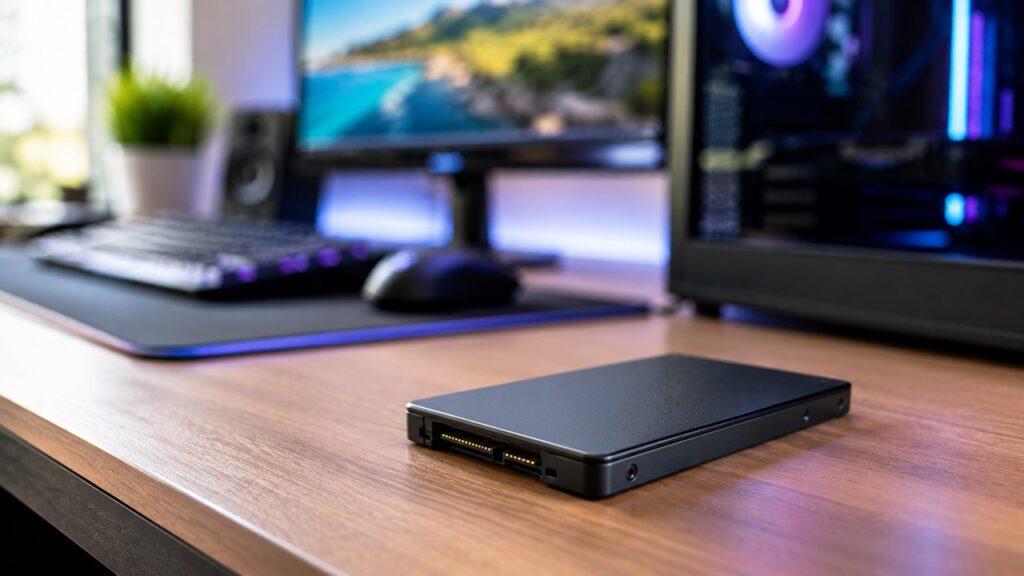
Most modern SSDs last around 5 to 10 years under normal use. Many can last even longer, especially if you are using your computer for browsing, work, gaming, streaming, school tasks, or general file storage. In many cases, an SSD becomes outdated or too small before it actually wears out.
In this guide, we will look at what affects SSD lifespan, what TBW and DWPD mean, how to estimate your SSD’s remaining life, how to check SSD health, and what warning signs tell you it may be time to replace the drive.
Key Takeaways
- Most SSDs last about 5 to 10 years with normal everyday use.
- Light users may keep the same SSD working for longer than 10 years.
- SSD lifespan depends heavily on TBW, heat, workload, drive quality, and power stability.
- TBW tells you how much data the SSD is rated to write over its lifetime.
- A normal home user may never reach the SSD’s official write limit.
- SSDs do not make clicking sounds like hard drives because they have no moving parts.
- Warning signs include slow speeds, corrupted files, crashes, read-only errors, and the SSD disappearing.
- You can check SSD health with SMART tools, manufacturer software, or system utilities.
- A healthy SSD can still fail suddenly, so backups are always important.
How Long Do SSDs Last?
A typical SSD lasts 5 to 10 years, but that number is not the same for everyone. If you use your computer for emails, web browsing, office work, streaming, light gaming, and normal downloads, your SSD may last a very long time. You will probably upgrade your computer before the SSD reaches its write limit.
However, if you write huge amounts of data every day, the drive can wear faster. For example, video editors, database users, virtual machine users, and people who move large files constantly may put more stress on an SSD than a regular home user.
The good news is that modern SSDs are built to handle a lot of use. They do not have spinning disks, moving heads, or motors like traditional hard drives. That makes them more resistant to bumps, drops, and mechanical wear. Still, they are not indestructible. Heat, power loss, poor firmware, low-quality components, and heavy write workloads can all shorten their life.
So, the practical answer is simple: for most people, an SSD should last through the normal life of the computer. But if the data matters, you should still monitor the drive and keep backups.
SSD Lifespan at a Glance
SSD lifespan changes depending on how the drive is used. A student laptop, gaming PC, office desktop, and business server will not put the same pressure on storage. Here is a quick comparison to make the idea easier.
| User Type | Typical Use | Expected SSD Lifespan | Main Risk |
| Light user | Browsing, documents, streaming | 8–10+ years | Age, random failure |
| Average user | Work, gaming, downloads | 5–10 years | Heat, low free space |
| Gamer | Game installs, updates, loading games | 5–10 years | Heat, large updates |
| Content creator | Video editing, photo editing, large transfers | 4–8 years | Heavy writes |
| Business workstation | Daily apps, files, backups, multitasking | 4–7 years | Constant workload |
| Server or database system | Continuous read/write activity | 2–5+ years | Write endurance limit |
What Actually Determines SSD Lifespan?
SSD lifespan is not based only on age. It depends on how much data is written, how the SSD manages wear, how hot it gets, and how good the drive’s hardware and firmware are. To understand SSD life properly, you need to know a few basic terms.
TBW: Terabytes Written
TBW stands for Terabytes Written. It tells you how much data the SSD is rated to write during its expected lifetime. For example, if a 1TB SSD has a 600 TBW rating, the manufacturer expects the drive to handle around 600 terabytes of written data before reaching its rated endurance limit.
This does not mean the SSD will instantly die after 600 TBW. It also does not mean the drive is guaranteed to last forever before that point. TBW is a useful endurance estimate, not an exact death date.
In general, a higher TBW rating is better. Larger SSDs also usually have higher TBW ratings because there are more NAND cells available to spread out writes.
DWPD: Drive Writes Per Day
DWPD stands for Drive Writes Per Day. It tells you how many times the full capacity of the SSD can be written every day during the warranty period.
For example, a 1TB SSD with 1 DWPD over five years is designed to handle writing 1TB of data every day for five years. That is far more than most home users write.
DWPD is more common in enterprise SSDs, servers, databases, and professional storage systems. For regular users, TBW is usually the easier number to understand.
MTBF: Mean Time Between Failures
MTBF stands for Mean Time Between Failures. It is a reliability estimate, usually shown in hours. Many SSDs list very high MTBF numbers, such as hundreds of thousands or even millions of hours.
However, MTBF is not a simple countdown timer for your personal SSD. It is based on statistical reliability testing across many drives. For normal buyers, TBW, warranty length, brand reputation, and real-world usage are usually more helpful than MTBF alone.
NAND Type
The type of NAND flash inside an SSD affects endurance, price, and performance. You do not need to memorize every technical detail, but this basic breakdown helps.
- SLC: Highest endurance, very expensive, mostly used in specialized or enterprise storage.
- MLC: Strong endurance, less common in modern consumer SSDs.
- TLC: Common in modern consumer SSDs, with a good balance of durability, speed, and price.
- QLC: Often cheaper and available in large capacities, but usually has lower write endurance than TLC.
For most everyday users, a good TLC SSD is more than enough. QLC can also be fine for general storage, gaming libraries, and light use, but it may not be ideal for constant heavy writing.
Controller and Firmware Quality
An SSD is more than just memory chips. It also has a controller, firmware, cache systems, error correction, and management features that help the drive work smoothly.
A good controller helps with wear leveling, garbage collection, thermal control, and error correction. Firmware also matters because it controls how the SSD behaves under different workloads.
This is why two SSDs with similar capacity can perform very differently. A high-quality SSD from a trusted brand usually has better firmware support, stronger endurance ratings, and more reliable performance over time.
Storage Capacity
Capacity also affects SSD lifespan. A 1TB SSD usually has more endurance than a 250GB SSD from the same product family. That is because the drive has more NAND cells available for writing and wear leveling.
This does not mean everyone needs a huge SSD. But if you regularly work with large files, install many games, or keep your drive nearly full, choosing a larger SSD gives you more breathing room.
SSD Lifespan Calculation: How to Estimate Yours
You can roughly estimate SSD lifespan by comparing the drive’s TBW rating with how much data you write daily. This is not a perfect prediction, but it helps you understand whether you are likely to reach the write limit.
Formula:
Estimated SSD lifespan = TBW ÷ daily writes in TB ÷ 365
Example:
Let’s say your SSD is rated for 600 TBW, and you write around 40GB per day.
Since 40GB is 0.04TB, the calculation is:
600 ÷ 0.04 ÷ 365 = about 41 years
That sounds huge, and that is the point. Most everyday users do not write enough data to wear out a modern SSD quickly.
However, do not treat this number as a guarantee. Your SSD may still fail because of heat, controller problems, firmware bugs, power loss, physical damage, or simple random hardware failure. The calculation only tells you how long the NAND write endurance may last under that daily write pattern.
SSD Lifespan by Capacity
SSD capacity matters because larger drives often have higher endurance ratings. The exact numbers vary by brand and model, but this table gives you a practical idea of what to expect.
| SSD Capacity | Common TBW Range | Best For | Lifespan Expectation |
| 250GB | 60–150 TBW | Basic office use, old PC upgrades | Fine for light use |
| 500GB | 150–300 TBW | Everyday laptops and desktops | Good for average users |
| 1TB | 300–600+ TBW | Gaming, work, general storage | Strong long-term choice |
| 2TB | 600–1,200+ TBW | Creators, gamers, large files | Better endurance headroom |
| 4TB+ | 1,200+ TBW | Heavy storage, production work | Best for high-write users |
What Shortens SSD Lifespan?
A modern SSD can last many years, but certain habits and conditions can reduce its lifespan. Most of these problems are easy to avoid if you understand what stresses the drive.
Heavy Daily Writes
The biggest wear factor for an SSD is writing data. Normal browsing, gaming, streaming, and office work are not usually a problem. The real stress comes from constant large writes.
Examples include 4K or 8K video editing, running virtual machines, using the SSD as a scratch disk, database work, surveillance recording, and copying large files every day.
This does not mean you should be afraid to use your SSD. SSDs are made to be used. The point is that a small budget SSD used for nonstop heavy writing will wear faster than a larger, higher-end SSD used for normal tasks.
High Temperatures
Heat can reduce performance and affect long-term reliability. NVMe SSDs can get especially warm because they are small, fast, and often placed close to the CPU, GPU, or motherboard heatsinks.
When an SSD gets too hot, it may throttle its speed to protect itself. That means file transfers and loading times can slow down. Over time, poor cooling may also increase the chance of instability.
Good airflow, clean vents, and a proper heatsink can help, especially in gaming PCs, compact desktops, and performance laptops.
Nearly Full Storage
Keeping an SSD almost full can hurt both performance and efficiency. SSDs need free space for background tasks like garbage collection and wear leveling.
When the drive has enough free space, it can spread writes more evenly across the NAND cells. When it is nearly full, the SSD has less room to manage data efficiently.
A good habit is to keep at least 10–20% free space if possible. You do not need to obsess over this every day, but do not run your SSD at 99% full for months.
Sudden Power Loss
Sudden shutdowns during active writes can corrupt files or damage important drive metadata. This is more serious on desktops in areas with unstable electricity.
A good power supply and a UPS can help protect desktop systems. For laptops, keeping the battery healthy and avoiding forced shutdowns during updates or file transfers can reduce risk.
Low-Quality SSDs
Not all SSDs are built the same. Very cheap no-name SSDs may use lower-grade NAND, weak controllers, poor firmware, or misleading specs.
A low-quality SSD may work fine at first but become unstable later. If you are storing important files, it is usually better to choose a drive from a trusted brand with clear TBW ratings, warranty coverage, and diagnostic software.
Outdated Firmware
SSD firmware controls how the drive manages data, performance, errors, and compatibility. Sometimes firmware updates fix bugs or improve stability.
You do not need to update firmware every week. But it is worth checking your SSD manufacturer’s software occasionally, especially if your drive has stability issues or your computer behaves strangely.
Signs Your SSD May Be Failing
SSDs usually fail differently from hard drives. A hard drive may click, grind, or make unusual noises. An SSD has no moving parts, so it will usually stay silent even when something is wrong.
Watch for these SSD failure signs:
- Your computer freezes or crashes more often.
- You see frequent blue screen errors.
- Files become corrupted or fail to open.
- The SSD becomes read-only.
- Apps take much longer to open.
- File transfers become unusually slow.
- The computer sometimes boots into BIOS instead of Windows.
- The SSD disappears from File Explorer, Disk Management, or BIOS.
- SMART tools show warnings, bad blocks, or low remaining life.
- Windows or macOS reports disk errors repeatedly.
One warning sign does not always prove the SSD is dying. Sometimes bad drivers, malware, overheating, RAM issues, or operating system problems can look similar. But if storage symptoms keep coming back, back up your files first and troubleshoot after.
SSD Failure Symptoms by Severity
Not every SSD warning has the same urgency. Some signs mean “monitor this.” Others mean “back up right now.” This table can help you decide how serious the situation is.
| Severity | Symptoms | What You Should Do |
| Moderate | Slower speeds, high temperature, minor health warning | Back up files and monitor health |
| High | File errors, app crashes, read/write problems | Back up immediately and plan replacement |
| Critical | SSD disappears, boot failure, read-only mode | Stop relying on the drive and replace it |
| Emergency | Important data is inaccessible | Avoid repeated repair attempts and contact data recovery help |
How to Check SSD Health
You do not have to guess your SSD’s condition. Most SSDs report internal health information through SMART data. You can check this information with free tools, system commands, or manufacturer software.
Check SSD Health on Windows
Windows users have several easy options. The simplest method is to use a visual tool that reads SMART data and shows health, temperature, and total writes.
Useful options include:
- Use CrystalDiskInfo to check health status, temperature, power-on hours, and total host writes.
- Use your SSD brand’s software for firmware updates and detailed diagnostics.
- Use Command Prompt for a basic status check.
- Use PowerShell for more detailed storage information.
A basic Command Prompt check can show whether Windows thinks the drive is okay, but it is not very detailed. For a better view, use CrystalDiskInfo or your manufacturer’s SSD tool.
Check SSD Health on macOS
On macOS, you can start with Disk Utility. Open Disk Utility, choose your drive, and check its SMART status if available.
You can also use System Information to inspect storage details. Advanced users may use Terminal commands, but SMART support can vary depending on the Mac model, SSD type, and external enclosure.
If you are using an external SSD, remember that some USB adapters and enclosures do not pass full SMART data to macOS. In that case, the drive may be healthy even if the system does not show complete details.
Check SSD Health on Linux
Linux gives advanced users strong tools for checking SSD health. The most common tool is smartctl, which is part of the smartmontools package.
For SATA SSDs, smartctl can show SMART attributes, power-on hours, temperature, and error logs. For NVMe SSDs, tools like nvme-cli can show health logs, percentage used, temperature, data written, and warning status.
Linux health reports can look technical, but they are useful if you want detailed information about the drive.
Use Manufacturer SSD Software
Manufacturer tools are often the easiest way to check SSD health because they are designed for specific drives.
Common SSD tools include:
- Samsung Magician
- Western Digital Dashboard
- Crucial Storage Executive
- Kingston SSD Manager
- Seagate SeaTools
- SanDisk Dashboard
These tools may show health percentage, remaining life, temperature, firmware updates, total bytes written, performance tests, and security options.
What Is a Good SSD Health Percentage?
An SSD health percentage is an estimate of remaining endurance. If your SSD health is near 100%, the drive is new or lightly used. If it is above 90%, it is usually in very good condition. If it is around 70–80%, it may still be fine, but you should monitor it more carefully.
If the health drops below 50%, you should start planning ahead, especially if the drive stores important files. If your SSD tool shows a warning, critical status, or bad blocks, back up your data immediately.
But here is the important part: SSD health percentage is not a promise. A drive can fail unexpectedly even if the health score looks good. That is why backups matter more than any health number.
SSD vs HDD Lifespan: Which Lasts Longer?
SSDs and HDDs fail in different ways. An SSD wears through flash memory and electronic components. An HDD wears through mechanical parts, spinning platters, and moving read/write heads. Here is a simple comparison.
| Feature | SSD | HDD |
| Moving parts | No | Yes |
| Shock resistance | Better | Worse |
| Speed | Much faster | Slower |
| Wear type | NAND write wear | Mechanical wear |
| Failure sound | Usually silent | Clicking or grinding possible |
| Typical lifespan | 5–10 years | 3–7 years |
| Data recovery | Can be harder | Often easier |
SSDs are usually better for speed, durability, and daily computer performance. HDDs can still make sense for cheap bulk storage, backups, and large media libraries. The smartest setup is often an SSD for your operating system and programs, plus a separate backup drive for important files.
Do SSDs Last Longer Than Hard Drives?
In many everyday situations, yes, SSDs can last longer than hard drives. This is especially true in laptops because SSDs handle movement and bumps much better. Since they have no spinning disks or moving heads, they are less likely to fail from shock damage.
However, hard drives can also last many years in a stable desktop environment. If an HDD sits in a cool, clean system and is not moved around, it may keep working for a long time.
The better choice depends on your use. For speed and daily reliability, SSDs are usually the better option. For low-cost storage and backups, HDDs can still be useful.
How to Make Your SSD Last Longer
You do not need to treat your SSD like fragile glass. Modern SSDs are tough enough for normal use. Still, a few simple habits can improve performance, reduce wear, and lower the risk of data loss.
Keep 10–20% Free Space
Try to keep some free space on your SSD. A good target is 10–20% free space, especially on your main system drive.
This helps the SSD manage wear leveling, garbage collection, and background cleanup. It can also keep the drive feeling faster over time.
If your SSD is always almost full, move large files to another drive, uninstall games you no longer play, or use external storage for media files.
Keep the SSD Cool
Heat is one of the easiest problems to overlook. A warm SSD may still work, but long-term heat is not ideal.
To keep your SSD cool:
- Improve airflow inside your desktop case.
- Use an M.2 heatsink if your NVMe SSD runs hot.
- Avoid blocking laptop vents.
- Clean dust from fans, vents, and filters.
- Monitor SSD temperature during gaming or editing.
- Avoid placing laptops on beds, blankets, or soft surfaces.
You do not need extreme cooling for normal use. Just make sure your system can breathe.
Avoid Unnecessary Heavy Writes
Normal use will not kill your SSD quickly. You can install games, download files, edit documents, update Windows, and move photos without worrying.
But if you constantly write huge files, use the right SSD for the job. For example, content creators should consider larger SSDs with higher TBW ratings. If you use a drive for video cache, scratch files, virtual machines, or recording, endurance matters more.
The rule is simple: do not use a tiny low-end SSD for nonstop heavy write work.
Do Not Defragment an SSD
Traditional hard drives benefit from defragmentation because data can be scattered across spinning disks. SSDs work differently. They access data electronically, so traditional defragmentation is not needed.
In fact, unnecessary defragmentation can add extra writes without giving the same benefit it gives to HDDs.
Modern operating systems usually detect SSDs and run SSD-friendly optimization, such as TRIM, instead of old-style defragmentation.
Keep TRIM Enabled
TRIM helps your operating system tell the SSD which blocks of data are no longer needed. This allows the SSD to manage deleted data more efficiently.
Most modern versions of Windows, macOS, and Linux handle TRIM automatically for internal SSDs. Still, it is worth checking if you are using an older system, cloned drive, or unusual storage setup.
TRIM helps maintain performance and supports better long-term drive management.
Update Firmware Carefully
Firmware updates can fix bugs, improve compatibility, and increase stability. If your SSD manufacturer offers official software, check it occasionally.
Before updating firmware, back up important files. Firmware updates are usually safe, but you should never update a drive without a backup if the data matters.
Also, only download firmware tools from the official manufacturer. Avoid random third-party update tools.
Use a UPS for Desktops
If you live in an area with frequent power cuts or voltage problems, a UPS can help protect your desktop computer. Sudden shutdowns during active writes can corrupt files and create storage problems.
A UPS gives your computer enough time to shut down properly. It can also protect against short power interruptions that happen during storms or unstable electricity.
This is especially useful for work PCs, editing systems, servers, and computers that store important files.
Back Up Important Files
Making your SSD last longer is not the same as protecting your data. Any drive can fail. SSDs, HDDs, memory cards, and USB drives can all stop working without warning.
Keep at least one backup of important files. For very important data, use more than one backup location. For example, you can use an external drive plus cloud storage.
A backup is boring until the day it saves you.
Common Myths About SSD Lifespan
There are many misconceptions about SSD lifespan that come from outdated information or misunderstandings about how modern drives work. While early SSDs had limitations, today’s models are far more reliable and efficient. It’s important to separate fact from fiction so you can use your SSD confidently without unnecessary worry.
- SSDs do not die quickly under normal use; most last many years.
- Writing large files to an SSD is completely normal and safe.
- SSDs can fail, even though they have no moving parts.
- A high health score does not guarantee the drive will never fail.
- Regular backups are still essential, regardless of SSD condition.
When Should You Replace an SSD?
You should replace an SSD when it starts showing serious warning signs or no longer fits your needs. Waiting too long can turn a simple upgrade into a stressful data recovery problem.
Replace your SSD if:
- SMART tools show critical warnings.
- The SSD becomes read-only.
- The SSD disappears from BIOS or the operating system.
- Files become corrupted repeatedly.
- Your system crashes during storage-heavy tasks.
- The drive has very low remaining health.
- The SSD is too small for your current work.
- The drive is too slow for your system.
- It stores important files and already shows errors.
If the SSD only has low storage space, you may not need to replace it immediately. You can move files, uninstall apps, or add another drive. But if the SSD shows health warnings, treat the situation seriously.
A new SSD is usually cheaper than losing years of personal files, work documents, or client projects.
Is It Safe to Use an Old SSD?
Yes, it can be safe to use an old SSD if the drive health is good, it has no serious errors, and your important files are backed up. An old SSD can still work well for light storage, secondary systems, basic office tasks, or older computers.
However, you should be careful if the SSD is many years old and has unknown usage history. Older SSDs may have lower endurance, slower speeds, outdated firmware, and weaker controllers compared with modern drives.
Never use an old SSD as the only place for important files. If it is a secondary drive for non-critical storage, that is fine. If it holds business documents, family photos, or important projects, keep a backup.
Conclusion
Most SSDs last 5 to 10 years, and many last longer with normal use. For everyday users, the write limit is usually not the biggest concern. Heat, power issues, low-quality hardware, firmware problems, and unexpected failure can matter just as much.
The best thing you can do is simple: choose a reliable SSD, keep it cool, leave some free space, check its health occasionally, and back up your important files. Your SSD will probably last through the useful life of your computer, but no storage drive should ever be treated as permanent.
Related FAQs
How Many Years Does an SSD Usually Last?
Most SSDs usually last around 5 to 10 years with normal use. Light users may get more life, while heavy write workloads can shorten it.
Can an SSD Last 10 Years?
Yes, an SSD can last 10 years if it is used normally, kept cool, and not pushed through constant heavy writes. However, backups are still necessary.
Does Gaming Wear Out an SSD?
Gaming does not usually wear out an SSD quickly. Game installs and updates write data, but playing games mostly reads data from the drive.
Is It Bad to Keep an SSD Almost Full?
Yes, keeping an SSD almost full can reduce performance and make wear leveling less efficient. Try to keep at least 10–20% free space.
How Do I Know If My SSD Is Dying?
Common signs include slow file access, crashes, corrupted files, read-only errors, boot problems, and SMART health warnings.
Can SSD Data Be Recovered After Failure?
Sometimes SSD data can be recovered, but it is often harder than HDD recovery. If the data is important, stop using the SSD and contact a professional.
Should I Replace My SSD If Health Is 80%?
Not always. An SSD with 80% health can still work well, but you should monitor it and keep important files backed up.
Do NVMe SSDs Last Longer Than SATA SSDs?
Not automatically. NVMe SSDs are faster, but lifespan depends on TBW, NAND type, heat, controller quality, firmware, and workload.
What Happens When an SSD Reaches Its TBW Limit?
The SSD may still work after reaching its TBW rating, but reliability can become less predictable. Back up your data and plan a replacement.
Do SSDs Lose Data If Not Used?
SSDs can lose data over very long periods without power, especially in poor storage conditions. For long-term archiving, keep multiple backups.

Justin has spent years learning how blogs, websites, hosting, and online income work in the real world. Along with blogging and SEO, he also covers desktops, laptops, PC parts, and everyday tech, sharing easy-to-understand advice for readers who want to build better websites and choose better tools.