RAM usually lasts 8 to 10+ years under normal use, and many memory sticks can keep working for much longer. Since RAM has no moving parts, it often becomes outdated or too small for modern software before it actually fails.
In this guide, we’ll look at how long RAM lasts in different computers, what can shorten its lifespan, the warning signs of bad RAM, how to test it, and when replacing or upgrading your memory makes the most sense.
Key Takeaways
- RAM usually lasts 8 to 10+ years, and often longer.
- Many RAM sticks outlive the computer they are installed in.
- RAM does not wear out like an SSD or hard drive.
- Heat, high voltage, power surges, moisture, and physical damage can shorten RAM lifespan.
- Bad RAM can cause blue screens, freezing, random restarts, and file corruption.
- Testing tools can help confirm whether RAM is actually failing.
- Most people upgrade RAM for more capacity before the old RAM dies.
How Long Does RAM Usually Last?
RAM usually lasts around 8 to 10 years, but that is not a hard limit. In many normal home computers, RAM can work for 10, 15, or even 20 years if the system is kept clean, cool, and stable.
The reason RAM lasts so long is simple: it does not have moving parts. A hard drive has spinning platters. A fan has bearings. Even an SSD has limited write endurance. RAM, however, temporarily holds data while your computer is turned on and clears that data when the system shuts down.
So, in real life, RAM usually does not “wear out” quickly. Most people replace RAM because their computer needs more memory, a newer RAM generation, or a full platform upgrade. The RAM itself may still be working perfectly.
That said, RAM can still fail. Manufacturing defects, overheating, unstable overclocking, power surges, moisture, and physical damage can all cause memory problems. So while RAM is very durable, it is not completely immune to failure.
RAM Lifespan by Use Case
RAM lifespan depends on how the computer is used, how hot the system runs, and whether the memory is running at safe settings. The table below gives a practical estimate for different types of users.
| Use Case | Expected RAM Lifespan | Why It May Last This Long |
| Basic Home Use | 10–15+ years | Browsing, office work, and streaming do not heavily stress RAM |
| Student Laptop | 8–12 years | Daily use is steady, but laptops can run warmer |
| Gaming PC | 8–12 years | Games use RAM heavily, but normal gaming rarely kills RAM |
| Video Editing PC | 6–10 years | Long workloads can increase heat and system stress |
| Office Workstation | 8–12 years | Regular daily use is usually stable and predictable |
| Server or 24/7 System | 3–7 years | Constant uptime, heat, and workload pressure can reduce lifespan |
| Overclocked PC | Varies widely | High voltage and unstable settings can shorten memory life |
| Laptop with Soldered RAM | 5–10+ years | RAM may last long, but replacement can be difficult or impossible |
The important thing to remember is that heavy use alone does not instantly damage RAM. The bigger risks are heat, voltage, poor airflow, unstable settings, and low-quality power delivery.
Why RAM Usually Lasts So Long
RAM is one of the most durable parts inside a computer. It works hard every time your system is on, but it is built for that job.
Unlike storage drives, RAM does not permanently save your files. It only holds temporary data that your CPU needs quick access to. When you open a browser, launch a game, edit a video, or switch between apps, your RAM helps keep everything responsive.
Once you shut down your PC, the data inside RAM disappears. That is why RAM is called volatile memory.
Because RAM is not constantly writing permanent data like an SSD, it does not have the same kind of write-wear limit. That is why old DDR2, DDR3, and DDR4 memory sticks can still work years after the computer itself feels outdated.
In most cases, RAM is replaced for one of these reasons:
- The computer needs more memory.
- The user is upgrading to a newer platform.
- The motherboard requires a newer RAM generation.
- The current RAM speed is too slow for the new system.
- The RAM is incompatible with a new CPU or motherboard.
So, your RAM may still be alive, but it may no longer be enough for the way you use your computer.
What Can Shorten RAM Lifespan?
RAM is durable, but a few things can reduce its lifespan. Most RAM failures are not caused by normal browsing or gaming. They are usually linked to heat, voltage, bad power, damage, or poor conditions.
Excessive Heat
Heat is one of the biggest enemies of computer hardware. RAM does not usually need a dedicated fan, but it still needs a healthy environment inside the case.
If your PC is dusty, poorly ventilated, or packed tightly with hot components, the memory modules may run hotter than they should. Over time, that extra heat can stress the chips and other parts around them.
A clean case, working fans, and proper airflow help RAM last longer.
Overvoltage and Bad Overclocking
Many users enable XMP or EXPO to run RAM at its advertised speed. That is usually fine when the settings match the memory kit and motherboard support.
The risk starts when you manually push RAM too far. Too much voltage, unstable timings, or aggressive overclocking can create crashes and may reduce long-term reliability.
If your PC started crashing after changing memory settings, the RAM may not be dying. It may simply be unstable at those settings.
Power Surges and Unstable Electricity
A sudden power spike can damage RAM, the motherboard, storage drives, or the power supply. This is especially important if you live in an area with unstable electricity or frequent storms.
A good surge protector or UPS can help protect your system from sudden voltage problems. It is not just about saving the RAM. It also protects the whole computer.
Poor-Quality RAM Modules
Not every RAM kit is built with the same quality control. Well-known brands usually offer better testing, stronger warranties, and more reliable memory chips.
That does not mean budget RAM always fails. Many affordable kits work for years. However, extremely cheap or unknown modules can be riskier, especially if they use lower-quality chips or poor manufacturing standards.
Physical Damage or Incorrect Installation
RAM can be damaged during installation if it is forced into the slot incorrectly. The notch on the memory stick must line up with the slot. If it does not, pushing harder can damage the module or motherboard.
You should also avoid touching the gold contact pins. Oils, dirt, moisture, or static discharge can cause issues.
Always shut down the PC, unplug it, and handle RAM by the edges.
Moisture, Dust, and Corrosion
Dust usually harms RAM indirectly. It blocks airflow, traps heat, and makes the inside of your PC run hotter.
Moisture is more serious. If a computer is stored in a humid room for a long time, the contacts can corrode. This may cause boot problems, random crashes, or memory detection issues.
Keeping your PC dry, clean, and properly ventilated goes a long way.
Signs Your RAM Might Be Failing
Bad RAM can create confusing problems because its symptoms often look like software issues, driver problems, or even storage failure. Still, there are some common warning signs worth watching.
- Frequent blue screen errors
- Random restarts without warning
- Freezing during multitasking
- Crashes while gaming or editing
- Apps closing unexpectedly
- Files becoming corrupted
- Memory-related error messages
- Failure to boot after installing RAM
- Beeping sounds during startup
- No display after a RAM upgrade
- System instability that gets worse over time
- Windows installation errors
- Problems loading or saving files
However, do not blame the RAM immediately. A bad power supply, overheating CPU, failing SSD, corrupted Windows files, bad drivers, or motherboard problems can cause similar symptoms.
That is why testing matters before buying new memory.
Is My RAM Dying or Is Something Else Wrong?
Some RAM symptoms overlap with other computer problems. This table can help you narrow down the possible cause before replacing parts.
| Symptom | Could It Be RAM? | Other Possible Causes |
| Blue screen errors | Yes | Drivers, Windows corruption, overheating, SSD failure |
| Random restarts | Yes | Power supply issue, motherboard fault, overheating |
| Freezing during gaming | Yes | GPU driver issue, high temperatures, unstable overclock |
| Slow performance | Sometimes | Not enough RAM, too many apps, old storage drive |
| Files becoming corrupted | Yes | Failing SSD/HDD, software errors, storage cable issues |
| No boot after upgrade | Yes | Incompatible RAM, wrong slot, loose module, BIOS issue |
| Beeping at startup | Yes | RAM, GPU, CPU, or motherboard issue depending on beep code |
| Apps crashing often | Yes | Software bugs, driver conflicts, unstable system settings |
If the problem started right after installing new RAM, changing memory settings, or enabling an overclock, RAM should be one of the first things you test.
How to Test If Your RAM Is Bad
Testing RAM is the best way to avoid guessing. A slow PC does not always mean bad RAM. Sometimes you simply do not have enough memory for your workload.
Use Windows Memory Diagnostic
Windows includes a built-in memory testing tool. You can search for Windows Memory Diagnostic in the Start menu and choose to restart the computer.
After restarting, Windows will check your RAM for basic memory errors. When the test finishes, it will boot back into Windows and show the result.
This is a good first step because it is simple and already included with Windows.
Use MemTest86 for a Deeper Test
MemTest86 is a more thorough memory testing tool. It runs outside Windows, which helps it check RAM more deeply without the operating system interfering.
This test can take longer, especially if you have 32GB, 64GB, or more RAM. But if you are getting random crashes and Windows Memory Diagnostic does not find anything, MemTest86 is worth using.
Test One RAM Stick at a Time
If your PC has two or four RAM sticks, test them one at a time. This helps you find out whether one stick is faulty.
For example, if your PC crashes with one stick but runs fine with another, you may have found the bad module.
This method takes more time, but it gives you a clearer answer.
Try Different RAM Slots
Sometimes the RAM stick is not the problem. The motherboard slot may be faulty, dirty, or unstable.
Try moving a known-working RAM stick to another slot. If the same stick works in one slot but fails in another, the motherboard may be the issue.
Also check your motherboard manual. Some boards require RAM to be installed in specific slots for the best stability.
Check BIOS or UEFI Settings
If your RAM problems started after enabling XMP, EXPO, or manual overclocking, go back into the BIOS and return the memory settings to default.
Unstable memory settings can look exactly like bad RAM. Before replacing anything, test the system at stock settings.
You can also update the BIOS if your motherboard has known memory compatibility issues, but follow the manufacturer’s instructions carefully.
Does Gaming or Heavy Use Wear Out RAM Faster?
Gaming, video editing, streaming, virtual machines, and heavy multitasking all use RAM heavily. But that does not mean they quickly destroy your memory.
RAM is designed to handle constant reading and writing while your computer is on. The real concern is the environment created by heavy workloads.
For example, a gaming PC may run hotter because the CPU and GPU are working hard. If the case has poor airflow, every component inside the system feels that extra heat, including the RAM.
So, gaming does not usually kill RAM by itself. Poor cooling, unstable overclocking, high voltage, and long-term heat are the bigger problems.
A gaming PC with good airflow and stable RAM settings can run the same memory kit for many years.
Does Overclocking Reduce RAM Lifespan?
Overclocking can reduce RAM lifespan if it uses unsafe voltage or unstable settings. However, using a rated memory profile like XMP or EXPO is usually safe when your motherboard and CPU support it.
The key difference is between normal rated performance and aggressive manual tuning.
- Using XMP or EXPO at the RAM’s rated speed is usually fine.
- Pushing voltage too high can increase long-term risk.
- Tight timings may cause instability if the system cannot handle them.
- Crashes after overclocking often mean the settings are unstable.
- Returning to default settings is a smart first troubleshooting step.
If you are not chasing benchmark scores, stability is more important than squeezing out a tiny performance gain.
How to Make RAM Last Longer
RAM does not need complicated maintenance. Most of the time, you just need to keep your computer clean, cool, stable, and protected from power problems.
- Keep your PC clean and dust-free.
- Make sure your case fans are working.
- Keep cables away from airflow paths.
- Avoid unnecessary high-voltage overclocking.
- Use XMP or EXPO only when your system supports it.
- Use a surge protector or UPS.
- Handle RAM by the edges.
- Do not touch the gold contact pins.
- Keep the computer away from moisture.
- Avoid placing the PC in very hot areas.
- Shut down and unplug the PC before changing RAM.
- Make sure the RAM is compatible with your motherboard.
- Seat the RAM firmly until the slot clips lock into place.
- Do not mix random RAM sticks unless you understand compatibility risks.
These simple habits protect not only your RAM, but also your motherboard, CPU, GPU, and storage drives.
When Should You Replace RAM?
You do not need to replace RAM just because it is old. Replace it when it is faulty, incompatible, or no longer enough for your workload.
Replace RAM When It Fails Testing
If Windows Memory Diagnostic, MemTest86, or repeated single-stick testing confirms errors, replacing the faulty RAM is the right move.
Bad RAM can make your system unstable and may corrupt files. So once errors are confirmed, do not ignore them.
Replace RAM When Your System Needs More Capacity
Sometimes your RAM is healthy, but your computer still feels slow. This often happens when the system does not have enough memory.
For many modern users, 8GB can feel limiting. If you open many browser tabs, use office apps, stream music, and run background programs, 16GB may feel much smoother.
For gaming, editing, content creation, and heavy multitasking, 32GB can be a better long-term choice.
Replace RAM When Building on a New Platform
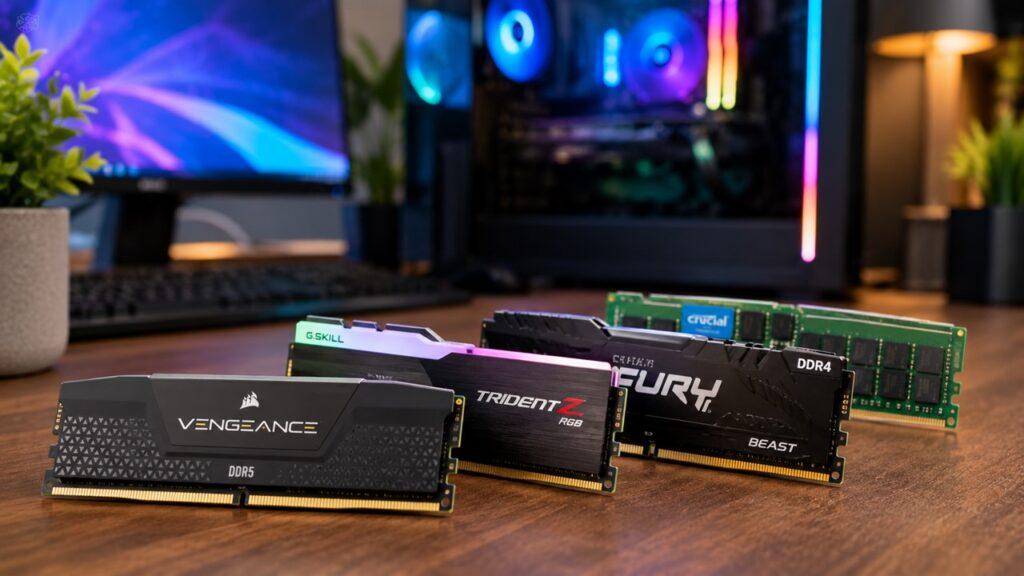
RAM generations are not interchangeable. DDR3, DDR4, and DDR5 use different designs and motherboard support.
If you are building a new PC, you may need new RAM even if your old RAM still works. For example, a DDR5 motherboard cannot use DDR4 memory unless it is specifically designed for that generation.
Replace RAM When It Is Incompatible
RAM compatibility matters. Desktop RAM and laptop RAM are different sizes. Motherboards also have limits for RAM generation, speed, capacity, and supported configurations.
If your computer does not boot after a RAM upgrade, the RAM may be incompatible, installed incorrectly, or unsupported by the BIOS.
Before buying RAM, always check your motherboard or laptop specifications.
Should You Upgrade RAM Before It Dies?
Yes, upgrading RAM before it dies often makes sense. In fact, most RAM upgrades happen because the computer needs more memory, not because the old RAM has failed.
For example, a computer with 4GB or 8GB of RAM may still work, but it can struggle with modern browsers, background apps, and heavier software.
Here is a practical way to think about it:
- 4GB RAM is too low for most modern users.
- 8GB RAM is usable for basic tasks, but can feel tight.
- 16GB RAM is a comfortable baseline for many people.
- 32GB RAM is better for gaming, editing, heavy browsing, and multitasking.
- 64GB+ RAM is useful for professional workloads, virtual machines, and advanced creative work.
More RAM does not automatically make every computer faster. If your system already has enough memory, adding more may not change much.
But if your PC regularly runs out of memory, upgrading RAM can make the computer feel much smoother.
Laptop RAM vs Desktop RAM Lifespan
Laptop and desktop RAM can both last a long time. The bigger difference is not always lifespan. It is heat, repair difficulty, and upgrade flexibility.
| Factor | Laptop RAM | Desktop RAM |
| Lifespan | Usually long | Usually long |
| Replacement Difficulty | Easy if removable, difficult if soldered | Usually easy |
| Heat Exposure | Often higher due to tight space | Usually lower with good airflow |
| Upgrade Options | Limited by laptop design | More flexible |
| Failure Impact | More serious if soldered | Easier to troubleshoot |
| Form Factor | SO-DIMM or soldered | DIMM |
| Repair Cost | Can be higher | Usually lower |
Soldered laptop RAM is the biggest concern. The RAM itself may still last for many years, but if it fails, replacing it can require motherboard-level repair.
That is why buying enough RAM at the start matters more with laptops than desktops.
DDR3, DDR4, and DDR5: Does RAM Type Affect Lifespan?
RAM generation affects speed, bandwidth, voltage, efficiency, and compatibility more than basic lifespan.
DDR3 systems can still run today, but they are outdated for many modern tasks. DDR4 is still common and reliable. DDR5 is newer, faster, and used in many current platforms.
But newer does not mean immortal. DDR5 can fail, and DDR3 can still work after many years.
The bigger issue is usefulness. A working DDR3 kit may not help if you are building a modern PC that requires DDR4 or DDR5. So, RAM often becomes outdated before it becomes dead.
Is Used RAM Safe to Buy?
Used RAM can be safe if you buy carefully. Since RAM does not store personal files and does not wear like an SSD, used memory is often less risky than used storage.
- Buy from a reliable seller.
- Check the RAM generation before buying.
- Confirm desktop or laptop form factor.
- Match the capacity and speed to your system.
- Ask if it was heavily overclocked.
- Inspect the gold contact pins.
- Avoid RAM with corrosion or physical damage.
- Test it immediately after installation.
- Prefer sellers with a return window.
Used RAM is a decent budget upgrade for older PCs. Just make sure it is compatible before you pay for it.
RAM Lifespan Myths
RAM is often misunderstood because its symptoms can overlap with many other PC issues. Clearing up these common myths can help you better understand how memory actually behaves and avoid unnecessary upgrades or replacements.
- RAM does not slow down just because it gets older; performance issues are usually caused by software, low capacity, or outdated hardware.
- Adding more RAM only improves performance if your system is running out of memory; extra unused RAM does not boost speed.
- Gaming does not quickly damage RAM; proper cooling and stable settings matter more for long-term reliability.
- Blue screen errors are not always caused by bad RAM; they can also result from drivers, overheating, storage issues, or power problems.
Quick RAM Health Checklist
Use this checklist if you think your RAM may be causing problems.
- Is your PC crashing under heavy load?
- Have you seen recent blue screen errors?
- Did the problem start after installing new RAM?
- Did the issue begin after enabling XMP or EXPO?
- Did you recently change BIOS memory settings?
- Are your case fans working?
- Is the inside of your PC dusty?
- Is your laptop running unusually hot?
- Have you tested RAM with Windows Memory Diagnostic?
- Have you tested RAM with MemTest86?
- Have you tried one RAM stick at a time?
- Have you tried different RAM slots?
- Have you checked motherboard compatibility?
- Are you mixing different RAM brands, speeds, or capacities?
If several of these apply, RAM should be part of your troubleshooting process.
How Long Does RAM Last Compared to Other PC Parts?
RAM is usually one of the longer-lasting components in a computer. This table gives a simple comparison.
| Component | Typical Lifespan | Common Reason for Replacement |
| RAM | 8–10+ years | More capacity or platform upgrade |
| SSD | 5–10+ years | Write wear, capacity needs, or upgrade |
| HDD | 3–6 years | Mechanical wear or failure |
| GPU | 5–8 years | Gaming performance or hardware failure |
| CPU | 8–10+ years | Platform upgrade or performance needs |
| Power Supply | 5–10 years | Aging capacitors or power instability |
| Motherboard | 5–10 years | Platform upgrade, ports, or failure |
| Case Fans | 3–7 years | Bearing wear, noise, or airflow problems |
In many computers, RAM is not the first thing to fail. Storage drives, fans, batteries, and power supplies often show problems earlier.
Final Verdict
You should expect RAM to last 8 to 10+ years in a normal computer. With good airflow, stable voltage, and careful handling, it can last much longer. Many memory sticks keep working long after the computer becomes outdated.
However, RAM can still fail early because of heat, bad overclocking, power surges, moisture, physical damage, or manufacturing defects.
If your computer is crashing, freezing, restarting, or showing blue screens, do not guess. Test the RAM first. If the RAM fails testing, replace it. If the RAM passes but your PC still feels slow, you may simply need more capacity instead of new replacement memory.
Related FAQs
How Long Does RAM Last on Average?
RAM usually lasts 8 to 10+ years under normal use. In many well-maintained systems, it can last 15 years or more.
Can RAM Last 20 Years?
Yes, RAM can last 20 years if it is not damaged by heat, moisture, voltage problems, or physical stress. Many old DDR2 and DDR3 systems still run with their original memory.
Does RAM Wear Out Like an SSD?
No, RAM does not wear out like an SSD. SSDs have limited write endurance, while RAM is designed for constant temporary data access while the computer is on.
What Are the First Signs of Bad RAM?
Common signs include blue screens, freezing, random restarts, failed boots, app crashes, and file corruption. These symptoms can also come from other hardware or software issues.
Can Bad RAM Damage Other Parts?
Bad RAM usually causes instability rather than damaging other parts. However, a bad power supply or motherboard issue can damage RAM and other components together.
Is It Better to Replace or Upgrade RAM?
Replace RAM if it is faulty. Upgrade RAM if it still works but your computer needs more memory for modern apps, gaming, editing, or multitasking.
Does Overclocking RAM Shorten Its Life?
Safe rated profiles like XMP or EXPO are usually fine. High voltage and unstable manual overclocking can increase the risk of crashes and long-term damage.
How Do I Know If My RAM Is Compatible?
Check your motherboard or laptop manual. You need the right RAM generation, form factor, capacity, speed, and supported slot configuration.
Can Dust Damage RAM?
Dust usually damages RAM indirectly by trapping heat and reducing airflow. Moisture mixed with dust can also increase corrosion risk on the contacts.
Should I Replace RAM in an Old Computer?
Replace RAM if it is faulty or too low in capacity. For very old computers, a full upgrade may be better than spending too much on old memory.
Can a Computer Run Without RAM?
No, a computer cannot run without RAM. If RAM is missing or not detected, the system usually will not boot properly.
How Often Should You Test Your RAM?
You do not need to test RAM regularly if your PC is stable. Test it when you notice crashes, blue screens, random restarts, or boot problems.

Justin has spent years learning how blogs, websites, hosting, and online income work in the real world. Along with blogging and SEO, he also covers desktops, laptops, PC parts, and everyday tech, sharing easy-to-understand advice for readers who want to build better websites and choose better tools.