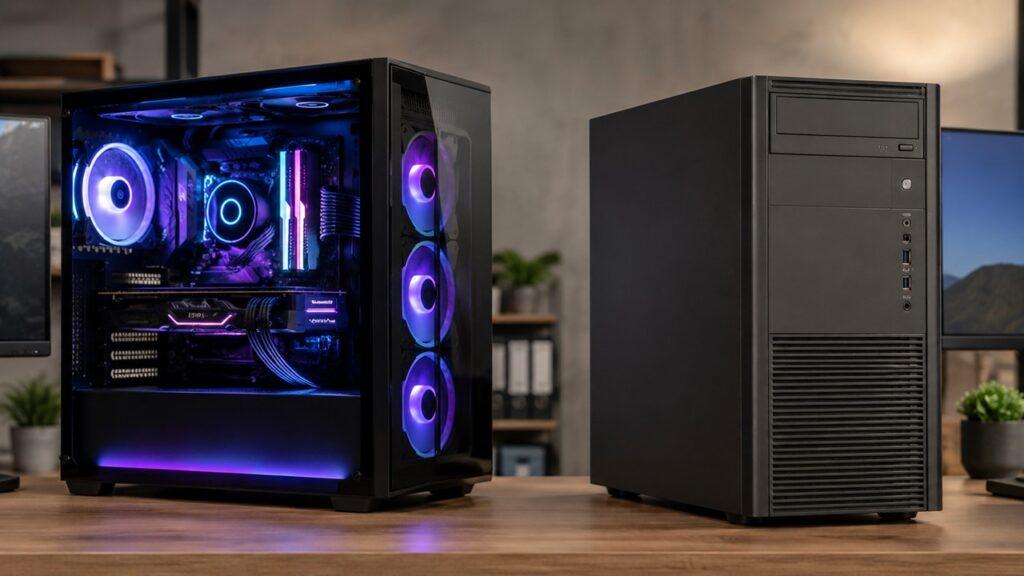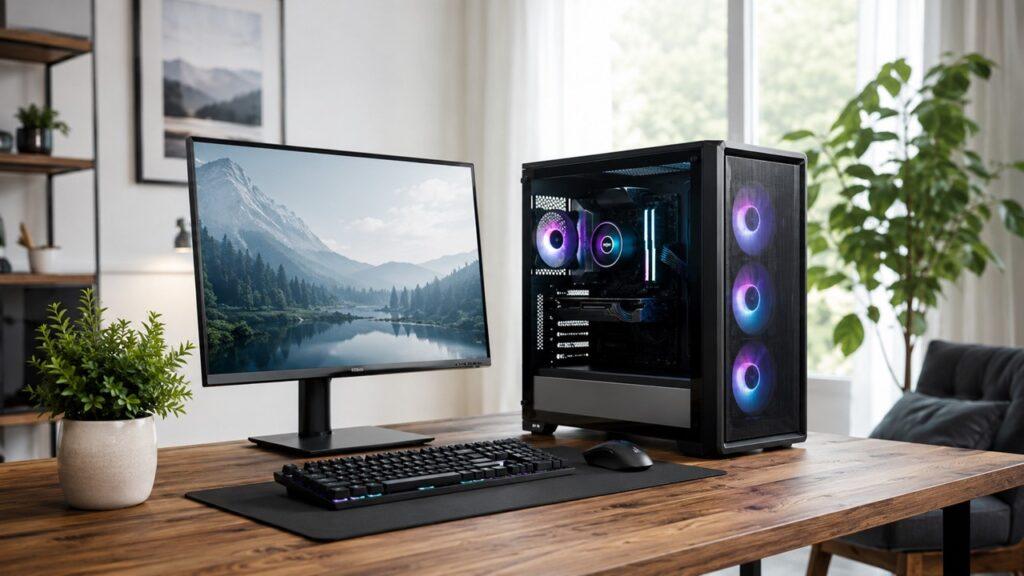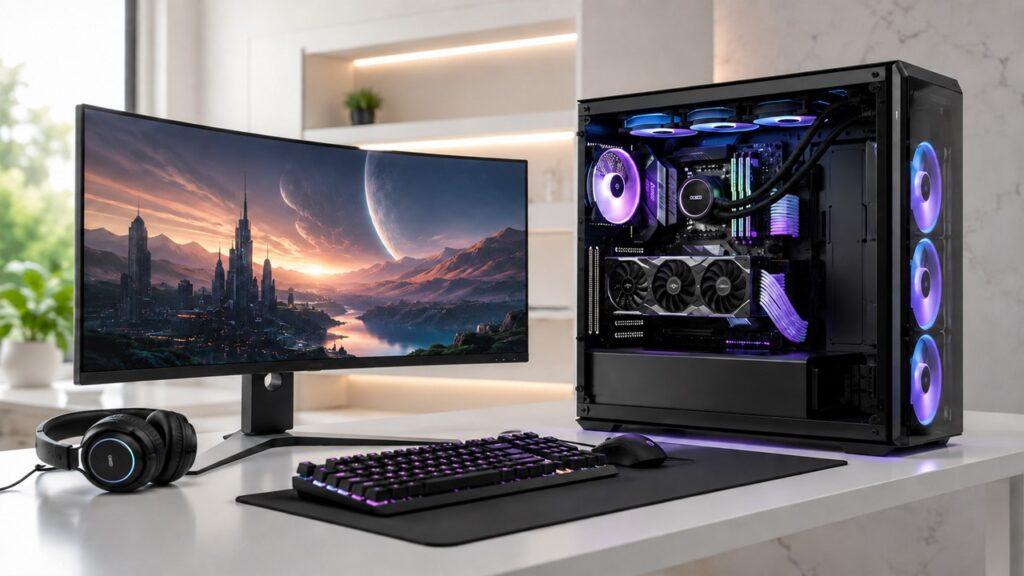
Yes, you can upgrade a desktop computer. Most desktop PCs are built with replaceable parts, which means you can add more RAM, install a faster SSD, upgrade the graphics card, replace the CPU, improve cooling, or even change the power supply to extend the life of your system.
In this guide, we’ll walk through what desktop parts you can upgrade, which upgrades make the biggest difference, how to check compatibility, when upgrading is worth it, and when buying a new desktop may be the smarter move.
Key Takeaways
- Most desktop computers are easier to upgrade than laptops.
- RAM and SSD upgrades are usually the easiest beginner upgrades.
- A graphics card upgrade gives the biggest boost for gaming and visual work.
- CPU upgrades need more planning because of motherboard compatibility.
- Power supply, cooling, and case size matter before bigger upgrades.
- Prebuilt desktops can be upgraded, but some have brand-specific limits.
- Very old desktops may not be worth upgrading if too many parts need replacing.
- Always check compatibility before buying any new desktop component.
Can You Upgrade a Desktop Computer?
Desktop computers are usually upgrade-friendly because they are made from separate parts. Instead of replacing the whole machine, you can often replace only the part that is slowing you down.
For example, if your desktop takes forever to start, an SSD upgrade may fix the problem. If your computer struggles with many browser tabs, more RAM may help. If games run poorly, the graphics card may be the part holding you back.
However, not every desktop has the same upgrade options. A large custom-built tower is usually easier to upgrade than a small office desktop. A standard gaming PC often gives you more room than a compact prebuilt machine.
Your upgrade options mainly depend on the motherboard, power supply, case size, cooling system, and the age of the computer. So yes, you can upgrade a desktop computer, but the real question is which upgrade makes sense for your specific PC.
Desktop Computer Upgrade Options: Quick Comparison
Before opening your PC or buying parts, it helps to understand what each upgrade actually does. Some upgrades make your computer feel faster right away, while others only help specific tasks like gaming, editing, or heavy multitasking.
| Upgrade | Difficulty | Typical Benefit | Best For |
| RAM | Easy | Smoother multitasking and fewer slowdowns | Browsing, office work, gaming, daily use |
| SSD | Easy to Medium | Faster startup, loading, and file transfers | Older desktops with HDDs |
| Graphics Card | Medium | Better gaming, rendering, and display performance | Gamers, creators, 3D users |
| CPU | Hard | Better processing speed for heavy tasks | Editing, productivity, CPU-heavy software |
| Power Supply | Medium | Supports stronger parts safely | GPU or CPU upgrades |
| Cooling | Easy to Medium | Lower temperature, less noise, better stability | Hot, noisy, or upgraded PCs |
| Motherboard | Hard | Supports newer CPUs, RAM, and features | Major platform upgrades |
| PC Case | Medium | More space, airflow, and cable management | Large GPUs and better cooling |
As you can see, not every upgrade has the same purpose. For most people, RAM and SSD upgrades are the best starting points. For gamers, the graphics card often matters more. Furthremore, for older systems, a full platform upgrade may be needed.
What Parts of a Desktop Computer Can You Upgrade?
A desktop computer has many replaceable parts, but some are easier to upgrade than others. The key is to match the upgrade with the problem you are trying to solve.
RAM
RAM is your computer’s short-term memory. It holds the active data your computer needs right now, such as open browser tabs, running apps, documents, and game assets.
If your desktop does not have enough RAM, it may start to feel slow when you multitask. You may notice apps freezing, browser tabs reloading, or your system becoming less responsive.
Common signs you may need more RAM include:
- Apps lag when several programs are open.
- Browser tabs reload when you switch between them.
- Task Manager shows high memory usage.
- Games stutter during busy scenes.
- Creative software feels slow during editing.
For basic use, 8GB can still work, but 16GB is a much better target for modern everyday use. For gaming, video editing, design work, or heavy multitasking, 32GB may be more comfortable.
Before buying RAM, check whether your motherboard supports DDR3, DDR4, or DDR5 memory. You should also check the number of RAM slots, maximum supported capacity, and supported memory speed.
Storage Drive
Storage is one of the most noticeable desktop upgrades. If your computer still uses an old hard drive, replacing it with an SSD can make the whole PC feel much faster.
An SSD can improve:
- Windows startup speed.
- App opening time.
- File transfer speed.
- Game loading time.
- General system responsiveness.
There are two common SSD types you will see in desktops. SATA SSDs connect through a SATA cable and work with many older computers. NVMe SSDs usually install directly into an M.2 slot on the motherboard and are much faster than SATA SSDs.
If your desktop is old, a SATA SSD may still be a huge upgrade. If your motherboard supports M.2 NVMe storage, that can be an even faster option.
You can also add a second drive instead of replacing the existing one. For example, you can use an SSD for Windows and apps, then keep a hard drive for photos, videos, backups, and large files.
Graphics Card
The graphics card, or GPU, controls visual performance. It matters most for gaming, video editing, 3D rendering, AI workloads, and high-resolution display setups.
A GPU upgrade makes sense when:
- Games run at low frame rates.
- You cannot use higher graphics settings.
- Video editing previews are slow.
- 3D rendering takes too long.
- You want to use a higher-resolution monitor.
- Your current desktop relies only on basic integrated graphics.
However, a graphics card upgrade needs more checking than RAM or storage. You must make sure your power supply can handle the GPU. You also need to check whether your case has enough physical space.
Another thing to consider is bottlenecking. If your CPU is very old, installing a powerful new GPU may not give you the full performance you expect. The graphics card may be ready to work harder, but the processor may not feed it data fast enough.
Processor
The processor, or CPU, handles instructions, calculations, background tasks, and general computing work. A CPU upgrade can help with video editing, software development, multitasking, streaming, compression, and other processor-heavy tasks.
But CPU upgrades are not always simple. A new CPU must match your motherboard’s socket, chipset, BIOS support, and power requirements. A CPU that physically fits into the socket may still not work if the motherboard does not support it.
A CPU upgrade may also require:
- A BIOS update.
- A better CPU cooler.
- A new motherboard.
- New RAM.
- A stronger power supply.
That is why CPU upgrades need more planning. If you can upgrade to a better processor on the same motherboard, it may be worth doing. But if you need to replace the motherboard and RAM too, you are getting closer to a full rebuild.
Power Supply Unit
The power supply unit, or PSU, sends power to every part of your computer. It is not the most exciting upgrade, but it is one of the most important.
A weak or low-quality power supply can cause crashes, shutdowns, instability, or even component damage. This matters especially when upgrading to a stronger graphics card or higher-power CPU.
Before upgrading your PSU, check:
- Total wattage.
- Build quality.
- Efficiency rating.
- CPU power connector.
- GPU power connectors.
- Cable length and cable type.
- Case compatibility.
Do not choose a power supply only because the wattage number looks high. A good-quality PSU with proper protections is better than a cheap unit with inflated wattage claims.
Cooling System
Cooling helps your desktop stay stable under load. When a PC gets too hot, it may slow itself down to avoid damage. This is called thermal throttling.
Better cooling can reduce heat, lower fan noise, and improve long-term reliability. It becomes even more important after installing a stronger CPU or GPU.
Common cooling upgrades include:
- Adding more case fans.
- Replacing the CPU air cooler.
- Installing a liquid cooler.
- Reapplying thermal paste.
- Improving cable management.
- Using a better airflow-focused case.
Sometimes, you do not need new hardware at all. Cleaning dust from fans, vents, and heatsinks can improve temperatures noticeably, especially in older desktops.
Motherboard
The motherboard connects all your major PC parts. It decides what CPU, RAM, storage, expansion cards, and ports your desktop can support.
A motherboard upgrade is usually a major upgrade, not a small one. When you change the motherboard, you may also need a new CPU, new RAM, a new Windows activation, and extra setup time.
You may need a motherboard upgrade if:
- Your current board does not support newer CPUs.
- You want to move from DDR4 to DDR5 RAM.
- You need more M.2 slots.
- You want newer USB, Wi-Fi, or PCIe features.
- Your old motherboard limits future upgrades.
For simple speed improvements, you usually do not start with the motherboard. But for a major platform upgrade, the motherboard becomes the foundation.
PC Case
A PC case upgrade does not always make the computer faster directly, but it can make future upgrades easier. A better case can provide more space, stronger airflow, easier cable management, and support for larger graphics cards.
A case upgrade makes sense when your current case has:
- Poor airflow.
- Limited GPU clearance.
- No room for extra fans.
- Bad cable space.
- Weak front panel ports.
- Difficult access to parts.
If you plan to install a large GPU or a bigger CPU cooler, measure your case first. Many upgrade problems happen simply because the new part does not fit.
Which Desktop Upgrade Should You Do First?
The best first upgrade depends on what feels slow or limited. Do not upgrade randomly. Start with the problem, then choose the part that fixes that problem.
| Problem | Most Likely Upgrade |
| Slow startup | SSD |
| Apps lag during multitasking | RAM |
| Games run poorly | Graphics card |
| PC overheats | Cooling |
| New GPU needs more power | Power supply |
| CPU usage is always high | CPU |
| Running out of space | Larger SSD or HDD |
| Old platform limits all upgrades | Motherboard, CPU, and RAM |
For many older desktops, the best first upgrade is an SSD. It can make a slow computer feel much more responsive without changing the CPU or GPU.
The second most useful upgrade is usually RAM. If your computer already has an SSD but slows down with many apps open, more RAM may solve the problem.
For gaming, the GPU is often the biggest upgrade. But before buying one, check your CPU, power supply, and case size.
How to Check If Your Desktop Computer Can Be Upgraded
Before buying parts, you need to know what your current desktop supports. This step saves money and prevents compatibility mistakes.
Check Your Motherboard Model
Your motherboard model tells you what CPU, RAM, storage, and expansion options are available. You can usually find it through System Information in Windows, BIOS, the motherboard label, or the manufacturer’s website.
On Windows, you can search for “System Information” and look for BaseBoard manufacturer and BaseBoard product. This should show your motherboard brand and model.
Once you have the model, search the official support page for specifications. Look for supported CPUs, RAM type, maximum memory capacity, M.2 slots, PCIe slots, and BIOS updates.
Check Your RAM Type and Slots
RAM compatibility is very specific. DDR3, DDR4, and DDR5 are not interchangeable. A DDR4 motherboard cannot use DDR5 RAM, and a DDR5 motherboard cannot use DDR4 RAM.
Check these details before buying RAM:
- RAM generation.
- Number of RAM slots.
- Empty slots available.
- Maximum supported capacity.
- Supported memory speed.
- Current RAM stick size.
- Dual-channel support.
It is usually best to use matching RAM sticks when possible. Mixing random RAM sticks can work, but it may reduce speed or cause stability issues.
Check Your Storage Connections
Your storage upgrade depends on available ports and slots. Older desktops often support SATA drives. Newer desktops may support both SATA and M.2 NVMe drives.
Check for:
- SATA ports.
- M.2 slots.
- NVMe support.
- Drive bay space.
- Available SATA power cables.
- Boot drive configuration.
Do not assume every M.2 slot supports NVMe. Some older M.2 slots may support only SATA-based M.2 drives. Always check the motherboard specifications.
Check Your Power Supply
The power supply is very important for GPU and CPU upgrades. A low-wattage or low-quality PSU can limit what you can safely install.
Check:
- PSU wattage.
- Brand and model.
- Efficiency rating.
- PCIe GPU power connectors.
- CPU power connector.
- Available cables.
- Physical PSU size.
If you are upgrading to a stronger graphics card, check the GPU manufacturer’s recommended power supply wattage. Also check whether the card needs 6-pin, 8-pin, 12VHPWR, or other power connectors.
Check Your Case Size
A part can be compatible on paper but still fail to fit physically. This happens often with graphics cards, CPU coolers, and liquid cooling radiators.
Measure or check:
- GPU length clearance.
- CPU cooler height clearance.
- Radiator support.
- Drive bay space.
- Fan mounting points.
- Cable clearance.
- Motherboard form factor support.
This is especially important for compact desktops and prebuilt office PCs. Many small systems have limited room for full-size parts.
Check Your BIOS Support
A BIOS update may be required before your motherboard can support a newer CPU. This is common when a motherboard supports multiple processor generations.
Do not buy a CPU only because the socket matches. Always check the motherboard’s CPU support list. Also check which BIOS version is required.
If your desktop cannot boot with the new CPU until the BIOS is updated, you may need to update the BIOS before removing the old processor.
Easiest Desktop Upgrades for Beginners
Some desktop upgrades are beginner-friendly because they require fewer steps and less troubleshooting. These are good starting points if you are new to working inside a PC.
Beginner-friendly upgrades include:
- Adding more RAM.
- Replacing an HDD with an SSD.
- Adding a second storage drive.
- Installing more case fans.
- Replacing old thermal paste.
- Adding Wi-Fi or Bluetooth with a USB adapter.
- Installing a PCIe Wi-Fi card.
- Cleaning dust from the inside of the case.
Even easy upgrades still require care. Always shut down the PC, unplug the power cable, and avoid touching the gold connector pins on components.
If you are nervous, start with RAM or storage. These upgrades are simple, useful, and less risky than changing the CPU or motherboard.
Hardest Desktop Upgrades to Do Yourself
Some upgrades are more difficult because they involve more cables, more compatibility checks, or more setup work. They are not impossible, but they require patience.
The harder desktop upgrades include:
- CPU upgrade.
- Motherboard upgrade.
- Power supply replacement.
- Liquid cooling installation.
- Case swap.
- Full platform upgrade.
- Custom cable management.
- Major prebuilt desktop modification.
A CPU upgrade may require thermal paste, cooler removal, BIOS updates, and careful socket handling. A motherboard upgrade can involve almost every cable in the PC. A power supply replacement also takes time because every powered component must be reconnected correctly.
If you are doing one of these upgrades for the first time, take photos before removing cables. That one simple habit can save you from a lot of confusion later.
Is It Better to Upgrade or Buy a New Desktop?
Sometimes upgrading is the smart choice. Other times, buying a new desktop makes more sense. The right answer depends on cost, compatibility, age, and your performance needs.
| Situation | Better Choice |
| PC only needs faster daily performance | Upgrade to SSD or more RAM |
| PC has a decent CPU but weak GPU | Upgrade the GPU |
| PC is more than 7–10 years old | Consider buying new |
| Upgrade costs more than half of a new PC | Consider buying new |
| Motherboard supports no useful modern parts | Buy new or rebuild |
| You only need more storage | Upgrade |
| You need modern software support | Upgrade platform or buy new |
| You want full warranty and less hassle | Buy new |
| Only one or two parts are limiting performance | Upgrade |
| Almost every major part needs replacing | Buy new or build new |
Here is the simple rule I would use: if one or two upgrades solve your problem, upgrading makes sense. If you need to replace the CPU, motherboard, RAM, PSU, cooler, and case together, you are basically building a new computer.
An SSD or RAM upgrade can be a great value for an older desktop. But spending too much money on a very old platform can trap you. At some point, your money is better used toward a newer system.
How Much Does It Cost to Upgrade a Desktop Computer?
Desktop upgrade cost depends on the part, performance level, brand, and compatibility needs. Instead of looking only at the price of one component, calculate the full upgrade cost.
| Upgrade | Typical Cost Level | Notes |
| RAM | Low to Medium | Great value for multitasking |
| SATA SSD | Low to Medium | Excellent for older desktops |
| NVMe SSD | Medium | Faster, but needs M.2 NVMe support |
| Graphics Card | Medium to High | Often the most expensive upgrade |
| CPU | Medium to High | May require cooler or motherboard changes |
| Power Supply | Medium | Important for safety and stability |
| Cooling | Low to Medium | Helps heat, noise, and throttling |
| Motherboard | Medium to High | Usually part of a larger platform upgrade |
| PC Case | Medium | Useful for airflow and space |
For example, a graphics card upgrade may also require a new power supply. A CPU upgrade may require a new motherboard and RAM. A better cooler may be needed if the new processor runs hotter.
That is why the real upgrade cost is not always the price of one part. Always check the extra parts needed before deciding.
Common Desktop Upgrade Mistakes to Avoid
Many desktop upgrade problems happen because people buy first and check later. A little planning can prevent most issues.
Avoid these common mistakes:
- Buying RAM without checking DDR type.
- Buying a CPU only because the socket matches.
- Installing a strong GPU with a weak PSU.
- Forgetting to measure GPU length.
- Ignoring CPU cooler height.
- Assuming every M.2 slot supports NVMe.
- Mixing random RAM sticks without checking stability.
- Forgetting to back up files before storage upgrades.
- Ignoring BIOS update requirements.
- Touching components without grounding yourself.
- Spending too much on a very old system.
- Forgetting to install new drivers.
- Not checking power connectors.
- Blocking airflow with messy cables.
The safest approach is simple: identify the problem, check compatibility, buy the right part, install carefully, and test the computer before moving to the next upgrade.
How to Upgrade a Desktop Computer Safely
Upgrading a desktop computer is not too scary when you go slowly. The goal is to protect your data, avoid static damage, and make troubleshooting easier.
Back Up Your Important Files
Always back up important files before major upgrades. This is especially important when replacing a storage drive, reinstalling Windows, or changing the motherboard.
Use an external drive, cloud storage, or another backup method. Even if the upgrade seems simple, a backup gives you peace of mind.
Turn Off and Unplug the PC
Shut down the computer fully before opening the case. Then switch off the power supply, unplug the power cable, and press the power button once to discharge leftover power.
Do not work inside the PC while it is connected to power. It is not worth the risk.
Work on a Clean, Static-Safe Surface
Static electricity can damage sensitive parts. Work on a clean table, avoid carpet if possible, and touch a metal part of the case before handling components.
You can also use an anti-static wrist strap. At the very least, handle parts by the edges and avoid touching connector pins.
Take Photos Before Removing Cables
Before unplugging cables, take a few photos with your phone. This is especially helpful when replacing a power supply, motherboard, or case.
Photos help you remember where each cable goes. This is a simple real-world trick that makes upgrades much less stressful.
Install One Upgrade at a Time
If possible, upgrade one part at a time. This makes troubleshooting easier.
For example, install the RAM first and test the PC. Then install the SSD and test again. If you change five parts at once and the computer does not boot, it becomes harder to know what went wrong.
Test the PC After Each Upgrade
After installing a new part, check whether everything works properly.
Test these things:
- Does the PC turn on?
- Is the new part detected?
- Are temperatures normal?
- Are drivers installed?
- Does performance improve?
- Are there crashes or errors?
- Are fans spinning properly?
- Is the boot drive selected correctly?
Do not close the case fully until you know the upgrade works. It is much easier to fix a loose cable while the side panel is still open.
Do Desktop Upgrades Improve Performance?
Yes, desktop upgrades can improve performance, but only when you upgrade the right part. The best upgrade is the one that fixes the actual bottleneck.
Here is how common upgrades improve performance:
- SSD improves boot speed and loading time.
- RAM improves multitasking and app switching.
- GPU improves gaming and visual workloads.
- CPU improves processing-heavy tasks.
- Cooling prevents thermal throttling.
- PSU improves stability for stronger components.
- More storage gives you room for files, games, and backups.
A wrong upgrade may show little improvement. For example, buying a powerful graphics card may not help much if your old CPU is always holding it back. Adding more RAM may not help much if your computer already has enough memory and the real issue is a slow hard drive.
That is why you should always match the upgrade to the symptom.
Can You Upgrade a Prebuilt Desktop Computer?
Yes, many prebuilt desktop computers can be upgraded. However, they may have more restrictions than custom-built PCs.
Some prebuilt desktops use standard parts, which makes upgrading easy. Others use proprietary parts, meaning the motherboard, power supply, case, or connectors may be unique to that brand.
Common prebuilt upgrade limits include:
- Proprietary motherboard shape.
- Non-standard power supply.
- Small case size.
- Limited cooling.
- Restricted BIOS settings.
- Weak PSU wattage.
- Few expansion slots.
- Warranty concerns.
A full-size gaming prebuilt is usually easier to upgrade than a small office desktop. Compact business PCs often have tight cases, low-wattage power supplies, and limited GPU options.
Before upgrading a prebuilt desktop, search the exact model number and check what other users have successfully upgraded.
Can You Upgrade an Old Desktop Computer?
Yes, you can upgrade an old desktop computer, and sometimes the results are surprisingly good. A cheap SSD and extra RAM can make an older PC feel much better for browsing, office work, streaming, and basic tasks.
Useful upgrades for old desktops include:
- Replacing an HDD with an SSD.
- Adding more RAM.
- Cleaning dust from fans and heatsinks.
- Reinstalling Windows.
- Adding a low-power graphics card.
- Upgrading Wi-Fi with USB or PCIe.
- Replacing a failing power supply.
- Adding more case airflow.
However, very old desktops have limits. They may not support modern CPUs, DDR5 RAM, NVMe SSDs, Windows 11, or newer connectivity standards. In some cases, the motherboard becomes the main barrier.
My practical advice is this: upgrade an old desktop only if the upgrade is affordable and solves a clear problem. Avoid spending heavily on a system that is already too limited.
When Should You Not Upgrade a Desktop Computer?
Upgrading is not always the best decision. Sometimes a new desktop gives you better value, better reliability, and fewer headaches.
You may not want to upgrade when:
- The motherboard supports no useful CPU upgrades.
- The PC is too old for modern software.
- Upgrade cost is close to a new desktop.
- The power supply is poor-quality or proprietary.
- The case cannot fit modern parts.
- Several major parts need replacing.
- You need strong warranty coverage.
- The computer has repeated hardware failures.
- You only need a software cleanup, not new parts.
- The system cannot support your future needs.
Before spending money, try basic fixes too. Remove unused programs, disable unnecessary startup apps, scan for malware, clean dust, and check temperatures. Sometimes a desktop feels slow because of software clutter or overheating, not because the hardware is useless.
Desktop Upgrade Checklist Before Buying Parts
Use this checklist before ordering anything. It can save you from buying the wrong part.
- Identify the exact problem you want to fix.
- Check your current CPU, GPU, RAM, and storage.
- Find your motherboard model.
- Check supported RAM type and speed.
- Check maximum RAM capacity.
- Check storage slots and ports.
- Check PSU wattage and connectors.
- Measure GPU clearance.
- Check CPU cooler height clearance.
- Confirm BIOS compatibility.
- Check cooling and airflow.
- Compare upgrade cost against a new PC.
- Back up important files.
- Download drivers before installation.
- Keep old parts until the new upgrade works.
A desktop upgrade should feel planned, not random. The more you check before buying, the smoother the upgrade will be.
Conclusion
So, can you upgrade a desktop computer? Yes, and in many cases, upgrading is one of the smartest ways to get more life from your PC. Desktops are usually more flexible than laptops because their parts are easier to access, replace, and expand.
For most users, RAM and SSD upgrades are the best place to start. They are practical, affordable, and can make a slow desktop feel much smoother. For gaming or creative work, a graphics card upgrade may deliver the biggest performance jump. CPU, motherboard, and power supply upgrades can also help, but they need more planning.
Before buying anything, identify the exact problem, check compatibility, measure your case, review power requirements, and compare the full upgrade cost against buying a new desktop. A good upgrade should solve a real problem without forcing you to replace half the computer.
Related FAQs
Can Any Desktop Computer Be Upgraded?
Most desktop computers can be upgraded, but not every part is always replaceable. Upgrade options depend on the motherboard, power supply, case size, and whether the PC uses standard or proprietary parts.
What Is the Easiest Desktop Upgrade?
The easiest desktop upgrades are usually adding RAM or replacing an old hard drive with an SSD. These upgrades are affordable, beginner-friendly, and often make the computer feel much faster.
Is It Worth Upgrading an Old Desktop?
It is worth upgrading an old desktop if one or two affordable parts solve the problem. If the system needs a new CPU, motherboard, RAM, PSU, and case, buying a newer desktop may be smarter.
Can I Upgrade My Desktop CPU?
Yes, you can upgrade a desktop CPU if the new processor matches your motherboard socket, chipset, BIOS support, and cooling capacity. In many cases, a CPU upgrade may also require a new motherboard.
Can I Upgrade My Desktop GPU?
Yes, most desktop GPUs can be upgraded if the motherboard has a PCIe slot, the case has enough room, and the power supply has enough wattage and connectors.
Do I Need a New Power Supply When Upgrading My PC?
You may need a new power supply if you install a stronger GPU, higher-power CPU, or more demanding components. Always check wattage, connector type, and PSU quality before upgrading.
Can Upgrading RAM Make My Desktop Faster?
Yes, upgrading RAM can make your desktop faster if your current memory is limiting performance. It helps most with multitasking, browser tabs, office work, gaming, and creative software.
Should I Upgrade My Desktop or Buy a New One?
Upgrade your desktop if a small number of parts can fix the issue. Buy a new one if your current system is too old, incompatible with modern parts, or too expensive to upgrade properly.
Can I Upgrade a Prebuilt Desktop Computer?
Yes, many prebuilt desktops can be upgraded, but some have limited space, proprietary power supplies, or restricted motherboards. Always check the exact model before buying parts.
Will Upgrading My Desktop Delete My Files?
Most upgrades, such as RAM, GPU, PSU, or cooling, do not delete files. Storage upgrades can affect data, so always back up important files before replacing or formatting a drive.

Justin has spent years learning how blogs, websites, hosting, and online income work in the real world. Along with blogging and SEO, he also covers desktops, laptops, PC parts, and everyday tech, sharing easy-to-understand advice for readers who want to build better websites and choose better tools.