Yes, a power supply can affect PC performance, but not by directly increasing FPS or making your computer faster. A good PSU helps your CPU, GPU, motherboard, storage, and fans receive stable power. A bad, weak, or low-quality PSU can cause crashes, shutdowns, stuttering, throttling, black screens, and even long-term hardware damage.
In this guide, we’ll break down how a PSU affects your PC, when it becomes a real performance problem, how to spot PSU-related symptoms, and how to choose the right power supply for gaming, work, upgrades, and everyday use.
Key Takeaways
- A good PSU does not directly increase FPS or PC speed.
- A bad PSU can cause crashes, shutdowns, freezing, and instability.
- An underpowered PSU often fails when the CPU or GPU is under load.
- PSU wattage matters, but quality matters just as much.
- 80 Plus ratings show efficiency, not guaranteed performance quality.
- Modern GPUs can create short power spikes that weak PSUs may not handle.
- A PSU issue can look like a GPU, RAM, driver, or overheating problem.
- Never open a PSU casing because it can hold dangerous voltage.
- Replace your PSU immediately if you smell burning or see melted cables.
- A quality PSU protects your PC and helps components perform reliably.
Can a Power Supply Affect PC Performance? Quick Answer
A power supply can affect PC performance when it cannot deliver enough stable power to your components. However, it does not work like a CPU, GPU, RAM, or SSD upgrade. Installing a stronger PSU will not magically make a healthy PC faster.
Think of the PSU as the foundation of your computer. If the foundation is strong, your CPU and GPU can perform normally. If the foundation is weak, unstable, or overloaded, the whole system can become unreliable.
So, the real answer is this: a good PSU will not boost performance above normal, but a bad PSU can stop your PC from performing properly. You may see random restarts, sudden shutdowns, game crashes, black screens, freezing, stuttering, or failed boost behavior during demanding tasks.
This is why the PSU matters so much. It may not be the most exciting part of a PC build, but it quietly decides whether your expensive hardware can run safely and consistently.
Power Supply and PC Performance: Quick Comparison Table
Before we go deeper, here is a simple comparison. This table shows what different PSU conditions can do to your PC and what symptoms you may notice.
| PSU Condition | Direct FPS Boost? | Possible Performance Impact | Common Symptoms |
| Good PSU with enough wattage | No | Stable CPU and GPU performance | Smooth operation under load |
| Underpowered PSU | No | Crashes, shutdowns, possible throttling | Restarts during gaming or rendering |
| Low-quality PSU | No | Voltage instability and ripple issues | Freezing, black screens, random errors |
| Failing PSU | No | Unstable system behavior | No power, shutdowns, burning smell |
| High-efficiency PSU | No | Less wasted heat and better reliability | Quieter and cooler operation |
| Very high-wattage PSU | No | No real speed gain | Usually just extra cost |
The important point is simple. A PSU does not create performance like a graphics card does. It supports performance by giving your system clean and stable power.
What Does a PSU Actually Do in a PC?
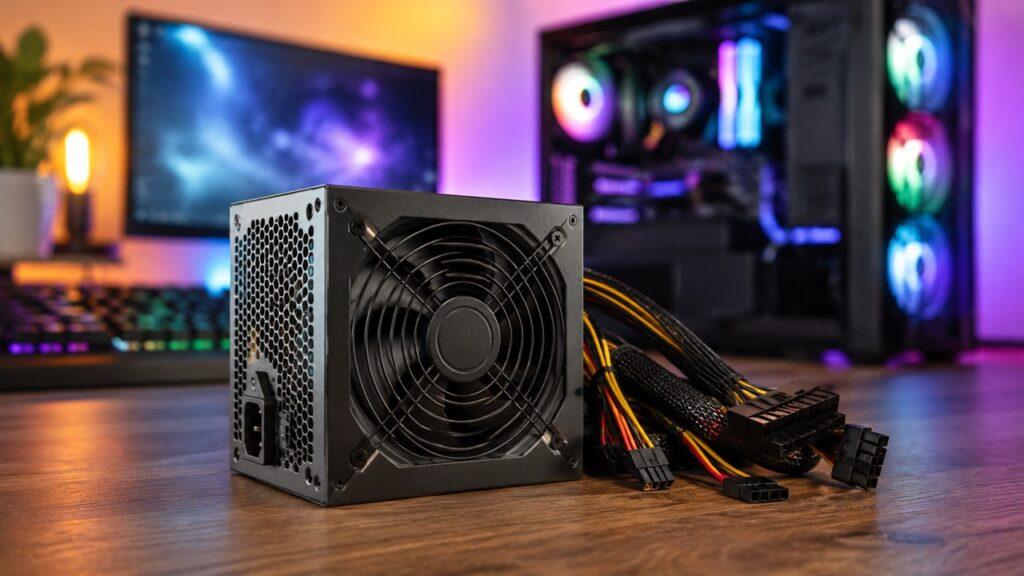
A Power Supply Unit, or PSU, converts electricity from your wall outlet into usable power for your PC. Your home outlet supplies AC power, but your computer parts need DC power. The PSU handles that conversion and sends the right voltage to different components.
Your motherboard, CPU, GPU, SSD, hard drive, cooling fans, RGB lighting, USB devices, and other accessories all depend on the power supply. Without it, none of those parts can work.
The most important job of a PSU is not speed. Its job is stable power delivery. Your CPU and GPU need clean, consistent power, especially when you are gaming, editing videos, rendering, streaming, or running heavy software.
A PSU also includes safety protections. Good power supplies protect against electrical problems like over-current, over-voltage, under-voltage, short circuits, overload, and overheating. Cheap PSUs may cut corners here, and that can put the rest of your PC at risk.
So, the PSU is not the “brain” of your computer. It is more like the heart. It keeps energy moving to every important part.
Does a Better Power Supply Increase FPS?
No, a better power supply does not increase FPS if your current PSU is already healthy, high quality, and powerful enough. For example, replacing a good 650W PSU with a good 850W PSU will not automatically give you higher frame rates.
Your FPS mainly depends on your GPU, CPU, RAM, game settings, resolution, drivers, cooling, and storage behavior. The PSU simply provides the power those parts need.
However, there is one important exception. If your old PSU was underpowered, failing, or unstable, replacing it can make your PC feel better. You may notice fewer crashes, fewer black screens, smoother load behavior, and more stable gaming sessions.
In that case, the new PSU is not “boosting” FPS beyond normal. It is allowing your CPU and GPU to run as they should have been running all along.
So, if your PC is already stable, a PSU upgrade is not a performance upgrade. But if your PSU is the problem, replacing it can restore normal performance.
How a Bad or Underpowered PSU Can Affect Performance
PSU-related issues usually appear when your PC is working hard. You may not notice anything while browsing the web, watching videos, or typing documents. But once you launch a demanding game, render a video, stress test the GPU, or push the CPU, the power supply may struggle.
Random Shutdowns During Heavy Loads
One of the most common signs of an underpowered PSU is a sudden shutdown. The PC may turn off instantly when a game loads, when the GPU starts boosting, or when a rendering task begins.
This happens because the CPU and GPU can suddenly demand much more power. If the PSU cannot keep up, the system may shut down to protect itself.
A classic example is a PC that works fine on the desktop but shuts off during games. Another example is a system that runs normally with an older GPU but becomes unstable after installing a stronger graphics card.
This does not always mean the PSU is bad. Overheating, GPU failure, motherboard problems, and unstable overclocks can also cause shutdowns. But the PSU should be high on your checklist when shutdowns happen under heavy load.
Game Crashes and Black Screens
A weak or unstable PSU can also cause games to crash. Sometimes the game closes to the desktop. Sometimes the screen goes black. In other cases, the GPU driver may crash and recover.
This happens because your graphics card needs stable power during fast changes in load. Modern GPUs can jump from low power to high power very quickly. If the PSU or GPU cable cannot support that demand, instability can appear.
Still, you should not blame the PSU immediately. Game crashes can also come from outdated drivers, corrupted game files, unstable overclocks, bad RAM, overheating, or Windows issues.
The clue is timing. If crashes happen mostly during heavy GPU loads, right after a GPU upgrade, or when the system pulls more power, the PSU becomes a more likely suspect.
CPU or GPU Throttling
Throttling means a component lowers its speed to stay safe. CPUs and GPUs usually throttle because of heat, power limits, or stability protection.
A PSU is not the most common cause of throttling. Most throttling comes from high temperatures, poor airflow, old thermal paste, weak coolers, or strict motherboard/GPU power limits.
However, a weak or unstable PSU can contribute to unstable boost behavior. If the system cannot maintain clean power during load changes, the CPU or GPU may fail to sustain its expected performance.
This can look like sudden drops in clock speed, inconsistent frame times, or strange performance dips during demanding tasks.
Stuttering and Inconsistent Performance
A PSU does not usually cause normal low FPS. If every game runs slowly, the issue is more likely a weak GPU, old CPU, single-channel RAM, high settings, overheating, or driver problems.
But an unstable PSU can contribute to sudden stutters, freezes, or frame drops during power spikes. The PC may feel smooth for a few minutes, then suddenly hitch or freeze when the GPU load changes.
This is why PSU problems can be confusing. They do not always look like a simple “slow PC” problem. They often appear as random, inconsistent, and hard-to-repeat issues.
System Freezing and Blue Screens
A failing or low-quality PSU can cause system freezes and blue screen errors. This happens because unstable voltage can affect the motherboard, CPU, GPU, RAM, storage drives, and other connected devices.
Blue screens are not always PSU-related. RAM errors, bad drivers, Windows corruption, storage failure, and unstable overclocks are more common causes.
However, if blue screens appear during heavy loads or after installing a stronger GPU, the PSU should be checked. The same applies if freezing happens with no clear pattern and other parts test fine.
Hardware Damage Over Time
A cheap PSU can be dangerous because it may supply unstable power. Poor voltage regulation, high ripple, weak components, and missing safety protections can slowly stress your hardware.
Sensitive parts like the motherboard, GPU, SSD, hard drive, and RAM depend on stable electrical behavior. A good PSU helps protect those parts. A bad one can shorten their lifespan.
Professional PSU testing often checks far more than wattage. Review labs may test voltage regulation, ripple, transient response, thermals, acoustics, efficiency, protections, and build quality. Tom’s Hardware notes that serious PSU testing requires equipment such as programmable loads, oscilloscopes, power analyzers, and thermal tools.
Signs Your Power Supply Is Affecting Your PC
PSU symptoms can be tricky because they often look like GPU, RAM, motherboard, driver, or overheating problems. Still, some warning signs strongly point toward power delivery issues.
Watch for these signs:
- Your PC shuts down during gaming or rendering.
- Your PC restarts randomly under heavy load.
- The screen goes black when the GPU is stressed.
- Games crash without a clear error message.
- The PSU fan suddenly becomes very loud.
- The PC does not turn on consistently.
- USB devices disconnect randomly.
- You hear clicking, buzzing, or electrical noise.
- The system works at idle but fails under load.
- Your PC crashes after a GPU upgrade.
- You smell burning from the case or PSU area.
- You see melted, discolored, or loose power connectors.
- The PSU feels unusually hot during normal use.
- Your system becomes unstable after overclocking.
If you smell burning or see damaged cables, shut down the PC and unplug it immediately. Do not keep testing the computer under load. A damaged PSU or cable can become a serious safety risk.
PSU Problems vs Other PC Problems
Many PC problems look similar from the outside. A shutdown can be caused by the PSU, but it can also be caused by overheating. A black screen can be caused by the PSU, but it can also come from a GPU driver problem.
Here is a quick troubleshooting table to help you compare symptoms.
| Symptom | Could Be PSU? | Other Possible Causes |
| PC shuts off instantly under load | Yes | Overheating, GPU fault, motherboard issue |
| Low FPS in every game | Sometimes, but uncommon | CPU bottleneck, GPU bottleneck, RAM, settings |
| Game crashes to desktop | Yes | Drivers, unstable overclock, corrupted game files |
| Blue screen errors | Yes | RAM, drivers, storage, Windows corruption |
| Burning smell | Yes | PSU, GPU cable, motherboard connector |
| Loud fan noise | Yes | Dust, high load, poor airflow, bad fan curve |
| PC does not turn on | Yes | Motherboard, power button, wall outlet |
| Stuttering in only one game | Less likely | Game optimization, shader cache, drivers |
| USB devices disconnect | Sometimes | Motherboard, drivers, USB power settings |
| PC unstable after GPU upgrade | Yes | GPU drivers, old BIOS, overheating |
The best approach is not to guess. Check temperatures, remove overclocks, update drivers, inspect cables, and compare your PSU capacity with your system’s real power needs.
How PSU Wattage Affects PC Performance
PSU wattage is one of the most misunderstood parts of PC building. Many people think more watts automatically means more speed. That is not how it works.
What PSU Wattage Means
PSU wattage tells you the maximum amount of power the unit is designed to provide. A 750W PSU can provide up to 750 watts under proper conditions, but your PC does not use 750 watts all the time.
Your components draw only the power they need. If your PC is browsing the web, it may use very little power. If you launch a demanding game, the CPU and GPU will draw much more.
So, wattage is about capacity. It is not a speed rating.
What Happens If PSU Wattage Is Too Low?
If the PSU wattage is too low for your PC, the system may become unstable. This usually happens when several parts demand power at the same time.
Common issues include:
- PC shuts down during heavy loads.
- GPU crashes during demanding games.
- CPU or GPU fails to boost consistently.
- Overclocking becomes unstable.
- PSU fan runs loud because the unit is stressed.
- Future upgrades become risky.
- Black screens appear under GPU load.
- The PSU runs hotter than it should.
A PSU running near its limit all the time is not ideal. It may become hotter, louder, less efficient, and less reliable over time.
What Happens If PSU Wattage Is Too High?
A high-wattage PSU will not force extra power into your PC. Your components still draw only what they need.
For example, a 1000W PSU will not make a 500W gaming PC faster. It simply gives more available headroom.
Too much wattage is usually not harmful, but it can waste money. The better goal is to choose enough wattage with sensible headroom, not the biggest number you can afford.
How Much PSU Headroom Should You Have?
For most gaming and productivity PCs, aim for around 25% to 40% extra headroom above your estimated full-load power draw.
For example, if your PC is expected to draw around 500W under heavy load, a good 650W or 750W PSU usually makes sense. If you plan to upgrade the GPU later, choose more headroom.
This extra room helps the PSU run cooler, quieter, and more comfortably. It also helps with sudden power spikes and future upgrades.
Recommended PSU Wattage by PC Type
The right PSU wattage depends mostly on your CPU and GPU. A basic office PC needs far less power than a high-end gaming PC or workstation.
Use this table as a general starting point, not a fixed rule.
| PC Type | Typical PSU Range | Notes |
| Basic office PC | 300W–450W | Good for integrated graphics and low-power parts |
| Home/media PC | 400W–500W | Fine for light use and simple upgrades |
| Budget gaming PC | 500W–650W | Works for many entry-level graphics cards |
| Mid-range gaming PC | 650W–750W | Good range for many modern builds |
| High-end gaming PC | 850W–1000W | Better for powerful CPUs and GPUs |
| Workstation PC | 1000W+ | Depends on GPU count and workload |
| Overclocked build | Add extra headroom | Higher voltage increases power demand |
| Future GPU upgrade build | Add more headroom | Helps avoid replacing the PSU again |
Always check the GPU manufacturer’s PSU recommendation before buying. Also remember that PSU quality matters. A good 750W PSU can be safer than a cheap 850W unit from an unknown brand.
Why Modern GPUs Make PSU Quality More Important
Modern graphics cards can be very demanding. It is not just about average wattage anymore. Sudden power changes, connector design, cable quality, and PSU standards now matter more than before.
Transient Power Spikes
A transient power spike is a very short burst of power demand. Your GPU may pull much more power for a split second than it uses on average.
A weak or poor-quality PSU may not handle these spikes well. The result can be a black screen, driver crash, system freeze, or instant shutdown.
This is one reason newer PSU standards matter for modern gaming builds. Intel’s ATX Version 3 design guide focuses on desktop PSU design guidance and includes updated expectations for newer power supply behavior.
12VHPWR and 12V-2×6 Connectors
Newer high-power GPUs may use a 16-pin power connector instead of traditional 6-pin or 8-pin PCIe cables.
The 12V-2×6 connector is the newer replacement for 12VHPWR in the PCIe CEM 5.1 ecosystem. PCI-SIG describes 12V-2×6 as replacing the earlier 12VHPWR connector.
This connector can simplify cabling, but it also makes proper cable seating very important. A loose or poorly seated GPU power cable can create heat and connection problems.
ATX 3.0 vs ATX 3.1 PSUs
ATX 3.0 and ATX 3.1 PSUs are designed with modern hardware behavior in mind. They are especially useful for systems with newer, power-hungry graphics cards.
For many modern GPU builds, a quality ATX 3.0 or ATX 3.1 PSU with a native GPU power cable is better than relying on cheap adapters.
That does not mean every older PSU is useless. Many good older PSUs still work well with the right hardware. But if you are building a new high-end PC today, newer PSU standards are worth considering.
Cable Seating and Connector Safety
Cable safety matters more than many builders think. A strong PSU can still cause problems if the wrong cable is used or the connector is not fully inserted.
Follow these basic safety tips:
- Fully insert the GPU power cable.
- Avoid sharp bends near the connector.
- Use the original cables from your PSU manufacturer.
- Do not mix modular PSU cables from different brands.
- Avoid cheap adapters for high-power GPUs.
- Check connectors for heat, discoloration, or looseness.
- Make sure the cable is not pulling sideways on the GPU port.
- Replace damaged cables immediately.
Never force a connector. If it does not seat correctly, stop and inspect the cable, GPU port, and PSU compatibility.
PSU Efficiency Ratings Explained
Efficiency ratings are helpful, but they are often misunderstood. A higher efficiency rating can mean less wasted energy and less heat, but it does not automatically mean higher FPS or better gaming performance.
What 80 Plus Means
80 Plus is a certification program for internal power supply units. It includes multiple efficiency levels, such as 80 Plus, Bronze, Silver, Gold, Platinum, and Titanium. The official 80 PLUS program describes these as certification levels for increasing energy efficiency.
Efficiency means how much wall power becomes usable PC power. The rest is lost as heat.
For example, a more efficient PSU wastes less electricity as heat. That can help the PSU run cooler and quieter, especially under load.
80 Plus Rating Comparison
Here is a simple way to understand the common 80 Plus levels.
| Rating | General Meaning | Best For |
| 80 Plus White | Basic efficiency | Very budget systems |
| Bronze | Entry-level acceptable choice | Budget gaming PCs |
| Silver | Better efficiency | Less common consumer option |
| Gold | Strong balance of value and efficiency | Most gaming PCs |
| Platinum | Higher efficiency | Premium builds and workstations |
| Titanium | Very high efficiency | High-end efficiency-focused builds |
For most gaming PCs, 80 Plus Gold is a nice sweet spot. It usually offers a good balance of price, efficiency, heat, and quality.
Does 80 Plus Gold Improve FPS?
No, 80 Plus Gold does not improve FPS by itself. It only tells you that the PSU meets a certain efficiency level.
That said, Gold-rated PSUs are often built better than the cheapest units on the market. But you should still read proper reviews before buying. Efficiency certification alone does not guarantee excellent voltage regulation, quiet operation, or strong protections.
So, use 80 Plus as one helpful signal, not the only buying factor.
PSU Quality Matters More Than Wattage Alone
Wattage is important, but it is not the whole story. A cheap 750W PSU can be worse than a high-quality 650W PSU. This is where many beginners make a costly mistake.
A good PSU should offer:
- Strong voltage regulation
- Low ripple
- Reliable internal components
- Good capacitors
- Safe thermal design
- Stable 12V power delivery
- Over-current protection
- Over-voltage protection
- Under-voltage protection
- Short-circuit protection
- Over-power protection
- Over-temperature protection
- A good warranty
- Positive independent reviews
This is why I would rather use a well-reviewed PSU from a trusted line than a no-name unit with a big wattage number on the label.
Cheap PSUs may look fine on paper. But when the PC is under real stress, weak design and poor protections can show up quickly.
Can a PSU Bottleneck a PC?
A PSU does not bottleneck a PC in the same way a weak CPU bottlenecks a powerful GPU. A normal bottleneck means one part limits another part’s performance.
For example, if your CPU is too weak for your GPU, the GPU may not reach full usage in some games. That is a typical performance bottleneck.
A PSU works differently. It usually either provides enough stable power or causes instability. When it cannot support your PC properly, you may see crashes, shutdowns, black screens, freezes, or failed boost behavior.
So, when people say “PSU bottleneck,” they usually mean the power supply cannot support the system under load.
A PSU bottleneck is not usually low FPS. It is more often instability, crashes, restarts, shutdowns, or unreliable performance during demanding tasks.
Can a Bad PSU Make a Computer Run Slow?
A bad PSU can make a computer feel slow, but it is not the most common reason for a slow PC.
Most slow computer problems come from other causes. These include low RAM, an old hard drive, too many startup apps, malware, overheating, outdated drivers, a weak CPU, or a weak GPU.
However, the PSU can still be involved in some situations. A failing PSU may cause stutters, freezes, crashes, restarts, or unstable boost behavior. This can make the computer feel slow or unreliable.
The key difference is pattern. If your PC is always slow, look at RAM, storage, background apps, and temperatures first. If your PC is fine at idle but fails during heavy loads, the PSU becomes a stronger suspect.
PSU and Overclocking: Why Stable Power Matters
Overclocking increases power demand. When you raise CPU or GPU clock speeds, you often increase voltage too. That means your system needs more stable power than it did at stock settings.
Overclocking Increases Power Demand
A PC that works perfectly at stock settings may crash after overclocking. That does not always mean the CPU or GPU is bad. It may simply mean the system needs more voltage stability, better cooling, or more PSU headroom.
Overclocking can create sharp load changes. During stress tests or heavy games, the CPU and GPU may demand more power than usual.
If your PSU is already close to its limit, overclocking can expose the weakness quickly.
Why Cheap PSUs Are Risky for Overclocking
Cheap PSUs are especially risky for overclocking because they may struggle under sudden load changes.
Common risks include:
- Less stable voltage
- More electrical ripple
- Higher internal heat
- Weaker protection features
- Less headroom during power spikes
- Loud fan noise under stress
- Crashes during stress testing
- Greater risk to expensive components
Overclocking already adds extra stress. Pairing it with a weak PSU makes the whole setup more fragile.
What PSU to Choose for Overclocking
For overclocking, choose a high-quality PSU with more headroom than a normal build. Look for strong independent reviews, good voltage regulation, low ripple, and solid protection features.
For serious gaming or workstation overclocking, I would usually start with at least an 80 Plus Gold unit from a trusted PSU series. But again, the specific model matters more than the badge alone.
The goal is not just more watts. The goal is stable power under stress.
How to Check If Your PSU Is Causing Performance Problems
Before replacing your PSU, diagnose the problem carefully. PSU symptoms can overlap with overheating, RAM errors, GPU driver crashes, motherboard problems, and unstable overclocks.
Here is a practical step-by-step checklist:
- Check when the problem happens: If the issue appears during gaming, rendering, or GPU stress, it may indicate that the PSU is struggling to handle higher power demands.
- Monitor CPU and GPU temperatures: Overheating can often be mistaken for a PSU problem, so it is important to check temperatures to rule out thermal issues.
- Remove all overclocks: Reset CPU, GPU, and RAM settings to stock values before testing, as overclocking can increase power demand and cause instability.
- Update GPU drivers: Outdated or faulty drivers can cause crashes that resemble power-related problems, so keeping them updated is essential.
- Check the power cables: Ensure that all GPU, motherboard, and CPU power cables are properly connected and fully inserted.
- Inspect for cable damage: Look for signs such as melting, discoloration, loose pins, or burning smells, which can indicate serious electrical issues.
- Compare PSU wattage with your parts: Verify that your PSU can handle your CPU and GPU power requirements, and make sure there is enough headroom.
- Run a controlled load test: If the PC shuts down or becomes unstable under heavy load, the PSU may be unable to supply sufficient power.
- Test with another known-good PSU if possible: Swapping in a reliable PSU is one of the most effective ways to confirm whether the original unit is the problem.
- Replace the PSU if there are safety signs: Burning smells, sparks, melted cables, or repeated shutdowns are serious warnings that require immediate PSU replacement.
Never open a PSU casing. The capacitors inside can hold dangerous voltage even after the PC is unplugged. If the PSU itself needs internal repair, replace it or contact a qualified technician.
How to Choose the Right PSU for Your PC
Choosing the right PSU is not difficult when you know what to check. The goal is to match your hardware, leave enough headroom, and avoid low-quality units that can risk your system.
Calculate Your System Power Needs
Start with your CPU and GPU. These two parts usually draw the most power, especially in gaming PCs.
Then include your motherboard, RAM, SSDs, hard drives, fans, liquid cooler, RGB lighting, USB devices, and future upgrades.
You can use a PSU calculator as a rough estimate, but do not treat it as perfect. Also check the official GPU recommendation from the graphics card manufacturer.
Add Enough Wattage Headroom
Do not buy a PSU that barely matches your estimated power draw. A little headroom helps with efficiency, noise, heat, aging, and sudden power spikes.
For most PCs, 25% to 40% headroom is a practical target. If you plan to upgrade your GPU later, add more.
For example, if your system may draw around 550W under heavy load, a quality 750W PSU is usually a more comfortable choice than a 600W unit.
Choose the Right Efficiency Rating
For a very basic PC, Bronze can be acceptable. For most gaming PCs, Gold is a strong sweet spot. Moreover, for high-end systems, Platinum or Titanium can be useful if you care about efficiency, heat, and premium build quality.
But remember, efficiency is not everything. A good review matters more than a shiny label.
A bad model with a decent rating is still not ideal. A well-tested PSU with strong electrical performance is always the safer choice.
Check GPU and Motherboard Connectors
Before buying, check the cables your system needs.
Look for:
- 24-pin motherboard cable
- 8-pin CPU EPS cable
- Extra 4-pin or 8-pin CPU cable if needed
- PCIe 8-pin cables for older GPUs
- Native 12VHPWR or 12V-2×6 cable for newer GPUs
- SATA power cables for SSDs, hard drives, and accessories
- Enough cable length for your PC case
Do not assume every PSU has every connector. Always check the product details.
Match the PSU Form Factor to Your Case
Most standard desktop PCs use ATX power supplies. Smaller builds may need SFX or SFX-L units.
If you are building in a compact case, check the case manual before ordering. A full-size ATX PSU may not fit inside a small form factor case.
Also think about cable space. Modular PSUs are especially useful in small cases because you can remove unused cables.
Read Independent PSU Reviews
Do not trust wattage labels alone. A PSU can say 750W on the box and still perform poorly under stress.
Independent reviews are valuable because they test things most buyers cannot test at home. These include voltage regulation, ripple, transient response, fan noise, efficiency, internal temperature, and protection behavior.
This is also why brand name alone is not enough. Some brands sell both excellent and average models. Always check the exact PSU model, not just the logo.
Common PSU Myths That Confuse PC Builders
Power supplies are surrounded by myths. Let’s clear up the most common ones so you do not waste money or misdiagnose your PC.
- Myth: A higher-wattage PSU gives more FPS: Higher wattage only provides more available power capacity for your system and does not directly increase performance or frame rates, as FPS depends on components like the CPU and GPU.
- Myth: Any 750W PSU is good enough: Not all 750W power supplies are equal, because build quality, internal components, and protection features matter just as much as the wattage rating.
- Myth: 80 Plus Gold always means high quality: The 80 Plus Gold rating only reflects efficiency levels and does not guarantee overall build quality, reliability, or electrical performance.
- Myth: A PSU pushes power into components: A power supply does not force power into your hardware, since components draw only the amount of power they need to operate.
- Myth: Modular PSUs perform better: Modular designs mainly improve cable management and airflow inside the case, but they do not provide any direct performance advantage.
- Myth: PSU problems always cause low FPS: Power supply issues typically lead to instability such as crashes, shutdowns, or black screens rather than consistently low frame rates.
- Myth: A cheap PSU is fine if the wattage is high: Even with a high wattage rating, a low-quality PSU can have poor internal components and weak protections that may damage your system.
- Myth: You only need to replace the PSU when it dies: It is safer to replace a PSU earlier if it becomes outdated, underpowered, noisy, or shows signs of instability to avoid potential hardware damage.
When Should You Upgrade Your PSU?
You do not need to upgrade your PSU just because a newer model exists. But there are situations where replacing it is the smart move.
Upgrade your PSU if:
- You are installing a much stronger GPU.
- Your PC shuts down during gaming or rendering.
- Your PSU is old, cheap, or from an unknown brand.
- You need connectors your current PSU does not have.
- You are moving to a high-end CPU and GPU combination.
- You plan to overclock.
- Your PSU fan is noisy or failing.
- You smell burning from the case.
- You see melted or damaged power cables.
- Your current PSU has poor protection features.
- Your system is unstable after hardware upgrades.
- Your PSU runs extremely hot under normal use.
- You want better headroom for future upgrades.
If your PSU is causing safety concerns, do not wait. Replace it before it damages other parts.
Practical PSU Buying Checklist
Buying a PSU is easier when you follow a checklist. This helps you avoid weak, unsafe, or overpriced units.
Use this checklist before you buy:
- Choose enough wattage for your CPU and GPU.
- Add 25% to 40% headroom.
- Prefer 80 Plus Bronze minimum.
- Choose 80 Plus Gold for most gaming PCs.
- Check independent reviews, not only product pages.
- Confirm the PSU has the right GPU connectors.
- Use native cables when possible.
- Avoid cheap adapters for high-power GPUs.
- Do not mix modular cables from different PSUs.
- Make sure the PSU fits your case.
- Check cable length for your build.
- Look for strong safety protections.
- Choose a reviewed model from a reliable PSU line.
- Check the warranty length.
- Avoid unknown no-name PSUs for gaming PCs.
- Replace immediately if you see melted cables or smell burning.
The PSU is not the place to save a tiny amount of money if the rest of your PC is expensive. A stable power supply protects everything connected to it.
When the PSU Is and Is Not the Problem
It is easier to understand PSU issues with real examples. These scenarios show when the power supply is likely involved and when you should look elsewhere first.
Example 1: PC Shuts Off When Launching Games
This is a classic possible PSU issue. If the PC works fine on the desktop but shuts off during demanding games, the power supply may not be handling the load.
This is especially likely after a GPU upgrade. A stronger graphics card can draw much more power than the old one. If the PSU was already close to its limit, the new GPU may expose the problem.
Still, check temperatures and cables too. A shutdown can also happen because of overheating or a loose GPU power connector.
Example 2: Low FPS But No Crashes
If your FPS is low but the PC does not crash, the PSU is less likely to be the main problem.
Low FPS is usually caused by a weak GPU, old CPU, single-channel RAM, high graphics settings, background apps, thermal throttling, or driver problems.
A healthy PSU does not decide your normal frame rate. It simply allows your CPU and GPU to run safely.
Example 3: Black Screen During GPU Load
A black screen during gaming can be PSU-related, especially if it happens under heavy GPU load. The PSU may be struggling with power demand, or the GPU cable may not be seated correctly.
But other causes are also possible. GPU drivers, unstable overclocks, overheating, faulty graphics cards, and monitor cable issues can all create black screens.
Start with the simple checks first. Reseat the GPU cable, remove overclocks, update drivers, and monitor temperatures.
Example 4: PC Works Fine Until Overclocked
If your PC is stable at stock settings but crashes when overclocked, the PSU may not have enough clean power headroom.
Overclocking increases power demand. It also makes the system less forgiving. A PSU that was “good enough” at stock settings may become unstable under overclocked loads.
In this case, you should also check cooling and voltage settings. But PSU quality is definitely part of the overclocking equation.
Final Verdict
A PSU is not a performance upgrade in the same way as a GPU, CPU, RAM, or SSD. If your current power supply is already good, replacing it will not suddenly increase FPS, reduce render times, or make Windows feel faster.
But a bad PSU can absolutely affect PC performance. It can cause crashes, shutdowns, stuttering, black screens, freezing, failed boost behavior, and long-term hardware damage.
So, the power supply is best understood as a stability and protection component. It does not create speed, but it allows your performance parts to run properly.
A good PSU will not make a healthy PC faster, but a bad PSU can make a powerful PC unstable, unreliable, and sometimes slower under load.
Related FAQs
Can a Power Supply Cause Low FPS?
A PSU usually does not cause normal low FPS. Low FPS is more often caused by the GPU, CPU, RAM, game settings, drivers, or overheating. However, a failing PSU can cause stuttering, crashes, or unstable performance under load.
Can a Bad PSU Make Games Crash?
Yes, a bad PSU can make games crash, especially when the GPU and CPU demand more power. It may cause black screens, shutdowns, driver crashes, or sudden restarts during heavy gaming sessions.
Can a PSU Cause Stuttering?
A PSU can cause stuttering if power delivery is unstable, but it is not the most common cause. Game optimization, RAM, storage, drivers, overheating, and CPU/GPU bottlenecks are more common reasons.
Does a Higher-Watt PSU Improve Performance?
No, a higher-watt PSU does not improve performance by itself. It only gives your system more available power headroom. If your current PSU is already enough, more wattage will not increase FPS.
Is 750W Enough for a Gaming PC?
For many mid-range and some high-end gaming PCs, 750W is enough. However, it depends on your CPU, GPU, overclocking plans, and future upgrades. Always check your GPU’s PSU recommendation.
Is 80 Plus Gold Worth It?
Yes, 80 Plus Gold is worth it for many gaming PCs because it offers a good balance of efficiency, heat, noise, and price. But you should still check independent reviews because efficiency alone does not guarantee full PSU quality.
How Do I Know If My PSU Is Too Weak?
A weak PSU may cause shutdowns, restarts, black screens, or crashes during gaming and rendering. If the PC works fine at idle but fails under load, the PSU could be too weak or unstable.
Can a PSU Damage Other PC Parts?
Yes, a low-quality or failing PSU can damage other PC parts. Poor voltage regulation, weak protections, and electrical faults can harm the motherboard, GPU, SSD, hard drives, and other components.
Should I Replace My PSU Before Upgrading My GPU?
You should replace your PSU before upgrading your GPU if your current unit lacks wattage, connectors, quality, or headroom. A powerful new GPU can expose weaknesses in an older or cheaper PSU.
How Long Does a PC Power Supply Last?
A good PC power supply can often last 5 to 10 years, depending on quality, heat, dust, workload, and usage. Replace it sooner if it becomes noisy, unstable, underpowered, or unsafe.

Justin has spent years learning how blogs, websites, hosting, and online income work in the real world. Along with blogging and SEO, he also covers desktops, laptops, PC parts, and everyday tech, sharing easy-to-understand advice for readers who want to build better websites and choose better tools.