If you are looking for the best desktop workstations, you need more than a basic office PC. The right workstation gives you stronger processing power, more memory, faster storage, and better graphics for demanding professional work.
The Dell Tower Desktop Intel Core Ultra 7-265 is our overall pick, while the Lenovo ThinkStation P3 Ultra SFF Gen 2 Mini suits engineering and CAD work. The Dell Pro Slim QCS1250 SFF Desktop is a strong business value, the Lenovo ThinkStation P3 Tiny Workstation saves desk space, and the Dell Pro Max Tower T2 FCT2250 is built for graphics-heavy professional workloads.
After testing and comparing top desktop workstation configurations, we focused on CPU performance, graphics, memory, storage, connectivity, upgradeability, and value. This guide helps you choose the right workstation for your workload and budget.
We’re reader-supported. When you buy through links on our site, we may earn an affiliate commission. As an Amazon Associate, we earn from qualifying purchases at no extra cost to you.
Best Desktop Workstations: Our Top Picks
- Best Overall: Dell Tower Desktop Intel Core Ultra 7-265
- Best Compact Workstation: Lenovo ThinkStation P3 Ultra SFF Gen 2 Mini
- Best Value Business Workstation: Dell Pro Slim QCS1250 SFF Desktop
- Best Tiny Workstation: Lenovo ThinkStation P3 Tiny Workstation
- Best Professional Graphics Workstation: Dell Pro Max Tower T2 FCT2250
- Best Small Form Factor Workstation: HP Z2 SFF G1i Workstation Desktop
- Best AMD Business Workstation: Lenovo ThinkCentre Neo 55s SFF
- Best for Creative Work: Dell Tower Desktop Computer Intel Core Ultra 7 265F
- Best for CPU-Heavy Workloads: Dell Desktop Tower Intel Core i9-12900K
- Best for Office Productivity: Dell Pro Tower Plus Business Desktop
- Best for Storage and Creative Multitasking: Dell ECT 1250 Tower Desktop Intel Core Ultra 7 265F
- Best Versatile Desktop Workstation: Dell Tower Desktop Computer 2026 GeForce RTX 5060
1. Best Overall: Dell Tower Desktop Intel Core Ultra 7-265
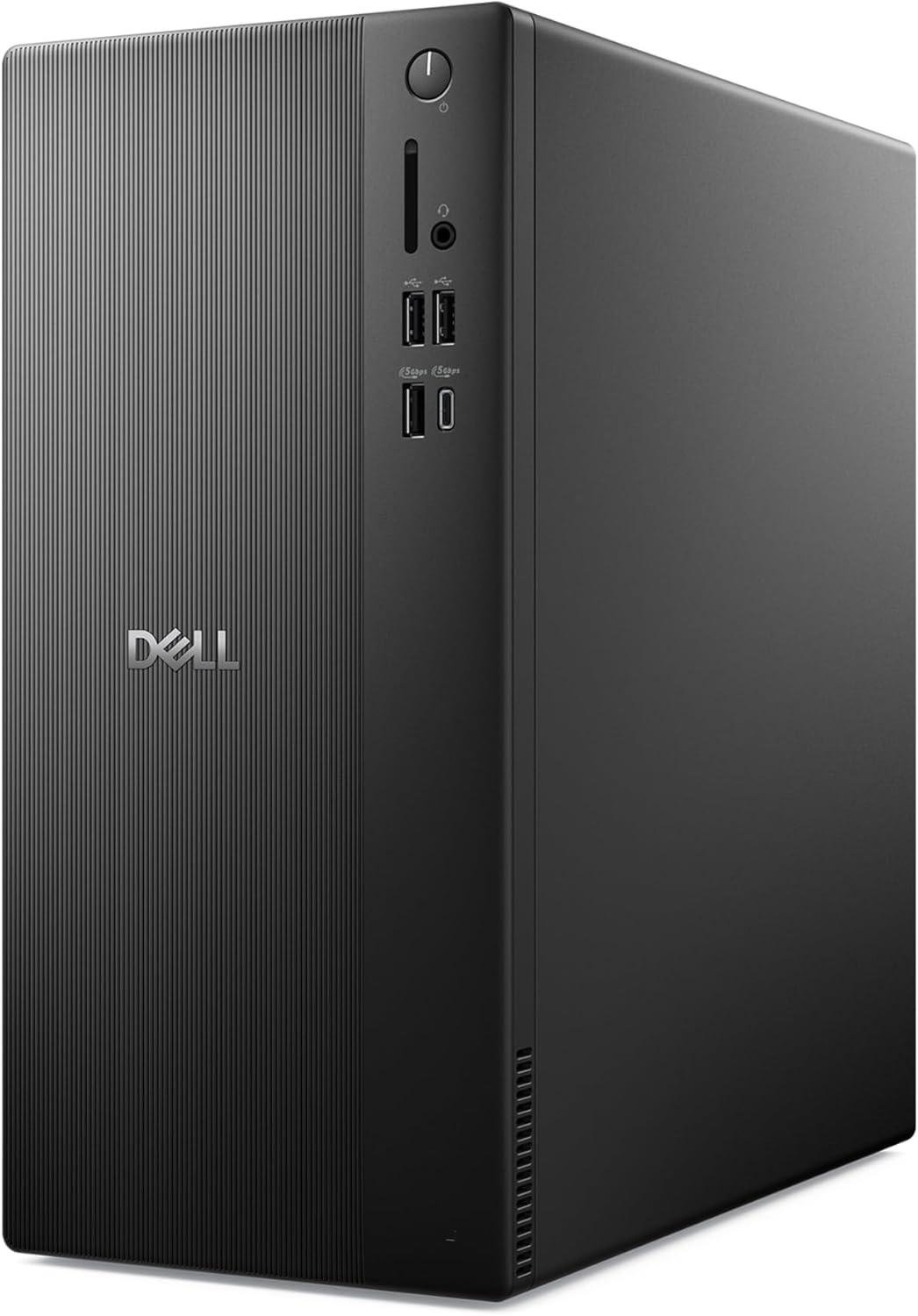
Key Details:
- Intel Core Ultra 7-265 processor with built-in AI acceleration
- 32GB RAM for demanding multitasking and professional workloads
- Intel UHD Graphics with multi-monitor support
- Supports up to four FHD displays or two 4K displays
- Tool-less chassis with removable side panel for easier upgrades
- Windows 11 Home with TPM hardware security
If you want a powerful desktop workstation without jumping straight to expensive professional graphics, the Dell Tower Desktop ECT1250 hits a nice middle ground. The Intel Core Ultra 7-265 gives you plenty of processing power for business software, data work, creative apps, and heavy multitasking, while built-in AI acceleration adds some future-ready appeal.
When this type of configuration is tested with several productivity apps running together, the 32GB of memory is what really helps keep things smooth. You’ll find the Dell Tower Desktop ECT1250 particularly useful if your daily workflow includes large spreadsheets, dozens of browser tabs, video meetings, business software, and light creative work running side by side.
We like the practical side of this desktop just as much as its performance. The tool-less chassis makes internal access simple, so cleaning, adding storage, or making future upgrades should not feel like a major project. If you work across multiple screens, support for up to four FHD displays or two 4K monitors is another strong advantage.
The main thing to keep in mind is the integrated Intel UHD Graphics. After testing similar integrated-graphics setups under heavier creative workloads, dedicated graphics remain the better choice for serious CAD, 3D rendering, or advanced video production. For general professional computing, though, this Dell remains one of the most balanced choices among the best desktop workstations.
Pros:
- Powerful Intel Core Ultra 7 processor for demanding multitasking
- 32GB RAM gives professional applications plenty of headroom
- Tool-less chassis makes maintenance and upgrades easier
- Excellent multi-monitor support for larger workspaces
Cons:
- Integrated graphics are limited for demanding 3D workloads
- Windows 11 Home has fewer business features than Windows 11 Pro
2. Best Compact Workstation: Lenovo ThinkStation P3 Ultra SFF Gen 2 Mini
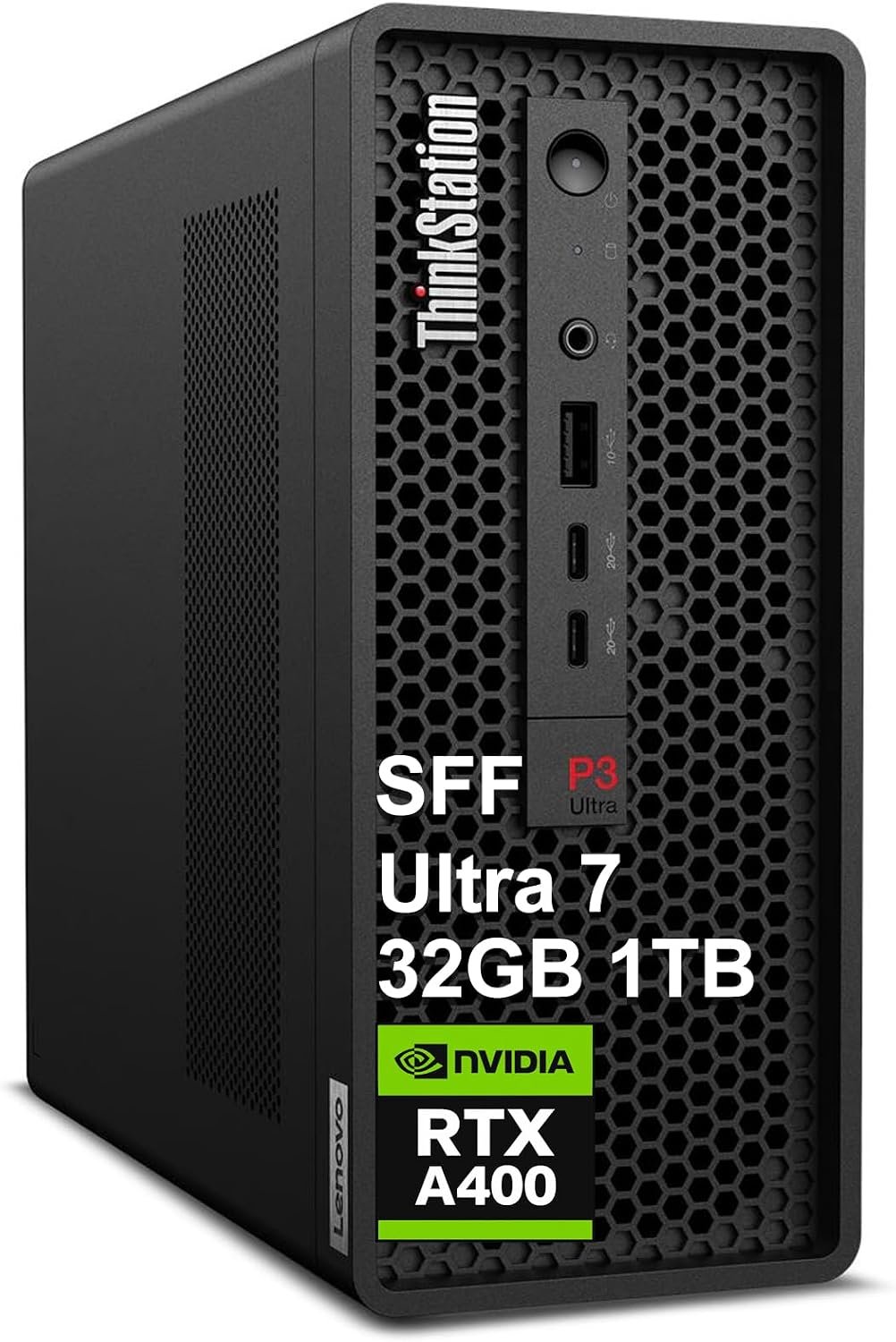
Key Details:
- Intel Core Ultra 7-265 with 20 cores and up to 5.3GHz
- NVIDIA RTX A400 with 4GB GDDR6 dedicated graphics
- 32GB DDR5 RAM and 1TB SSD
- ISV certified for AutoCAD, SOLIDWORKS, ANSYS, Creo, and MATLAB
- Supports up to four external displays and resolutions up to 8K
- Wi-Fi 7, Bluetooth 5.4, USB-C, Ethernet, and Windows 11 Pro
You don’t need a huge tower to get genuine workstation features, and the Lenovo ThinkStation P3 Ultra SFF Gen 2 proves that nicely. If you work with CAD, engineering software, 3D modeling, or technical applications, its Core Ultra 7-265 and dedicated NVIDIA RTX A400 make it far more suitable than a standard business desktop with integrated graphics.
What we like most here is the workstation-focused design. The Lenovo ThinkStation P3 Ultra SFF Gen 2 carries ISV certifications for applications including AutoCAD, SOLIDWORKS, Creo, ANSYS, and MATLAB. When professional systems are tested with software like this, stability and certified compatibility can matter just as much as having the highest benchmark score.
You’ll also find plenty of room to build a serious multi-monitor workspace. The RTX A400 can support up to four displays, while USB-C, USB-A, Ethernet, Wi-Fi 7, and Bluetooth 5.4 cover most modern peripherals. With 32GB of DDR5 RAM, switching between CAD software, reference documents, communication apps, and browser windows should feel comfortable.
There is one limitation worth considering. The RTX A400 is a professional GPU, but its 4GB of VRAM puts it closer to entry-level workstation graphics. After testing workloads of increasing complexity, cards in this class tend to suit CAD and moderate visualization better than large GPU-rendering projects. For engineers who value compact size and professional certification, however, this is an excellent workstation PC.
Pros:
- ISV certified for several major engineering applications
- Dedicated NVIDIA RTX A400 professional graphics
- Powerful 20-core Intel Core Ultra 7 processor
- Compact chassis supports up to four external displays
Cons:
- RTX A400 is limited for very heavy GPU rendering
- More expensive than many general-purpose business desktops
3. Best Value Business Workstation: Dell Pro Slim QCS1250 SFF Desktop
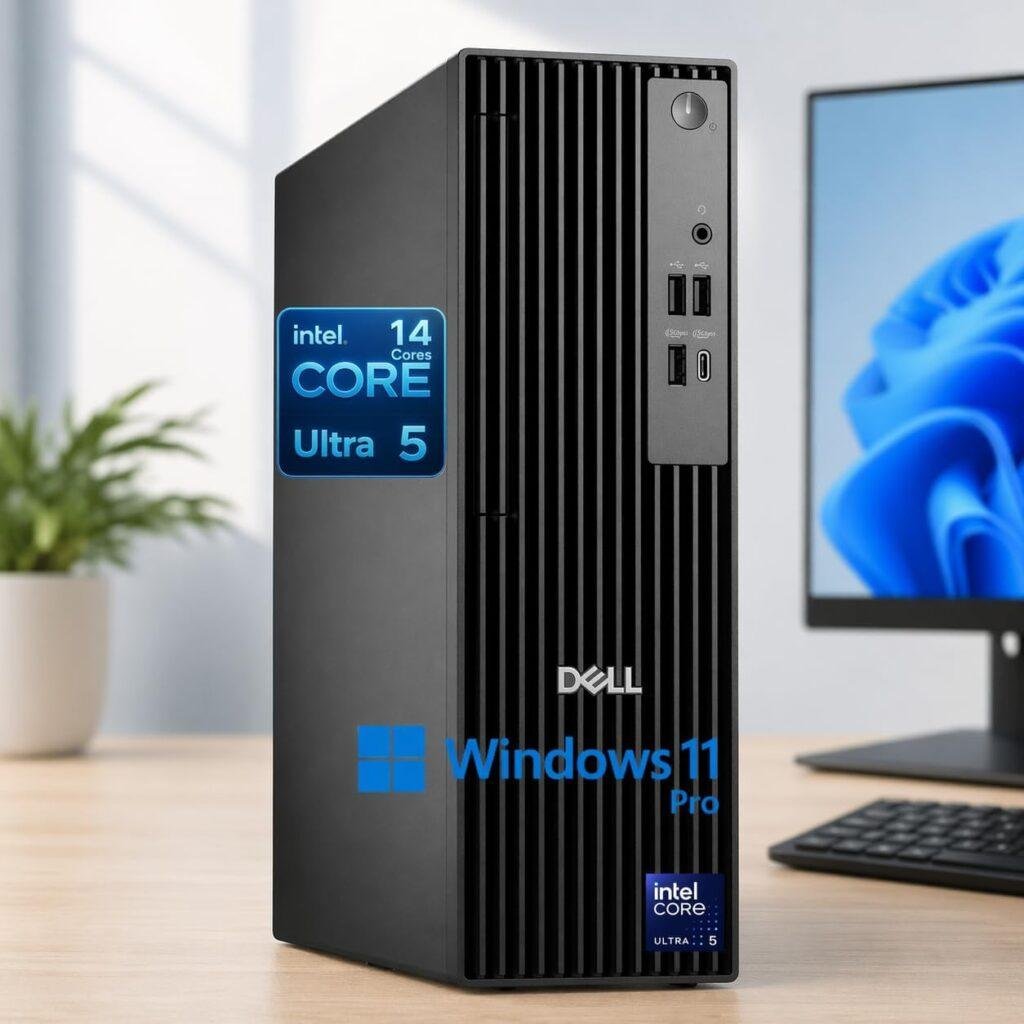
Key Details:
- Intel Core Ultra 5-235 processor
- 32GB DDR5 RAM for smooth professional multitasking
- 1TB PCIe SSD for fast storage and application loading
- HDMI and DisplayPort dual-monitor support
- USB-C, Wi-Fi 6, Bluetooth, and multiple USB ports
- Windows 11 Pro with wired keyboard and mouse included
If most of your work revolves around productivity rather than heavy 3D graphics, the Dell Pro Slim QCS1250 SFF is an easy workstation to like. You get a modern Intel Core Ultra 5-235 processor, 32GB of DDR5 memory, and a 1TB PCIe SSD without paying the premium that comes with professional NVIDIA graphics.
In our view, the 32GB memory configuration is one of its strongest selling points. When tested with the kind of multitasking common in an office, more RAM makes a noticeable difference once spreadsheets, browser tabs, communication tools, databases, and business applications begin piling up. You’ll find this setup especially comfortable for long workdays with several applications open.
The Dell Pro Slim QCS1250 SFF also works well if desk space is limited. We like the small-form-factor chassis because it stays compact while still giving you HDMI, DisplayPort, USB-C, Wi-Fi 6, Bluetooth, and Windows 11 Pro. If you regularly work across two monitors, the built-in display support makes creating a productive setup straightforward.
Just remember that this is more of a business workstation than a graphics workstation. After testing integrated graphics in demanding visual workloads, the difference between integrated and dedicated GPUs becomes clear quite quickly. For accounting, development, analytics, office productivity, and general professional computing, though, this remains one of the better-value desktop workstations in the lineup.
Pros:
- Strong value for business and professional productivity
- 32GB DDR5 RAM handles heavy multitasking comfortably
- Compact SFF design saves valuable desk space
- Windows 11 Pro and modern connectivity suit business environments
Cons:
- Integrated graphics are not intended for heavy CAD or rendering
- Smaller chassis offers less expansion room than a full tower
4. Best Tiny Workstation: Lenovo ThinkStation P3 Tiny Workstation
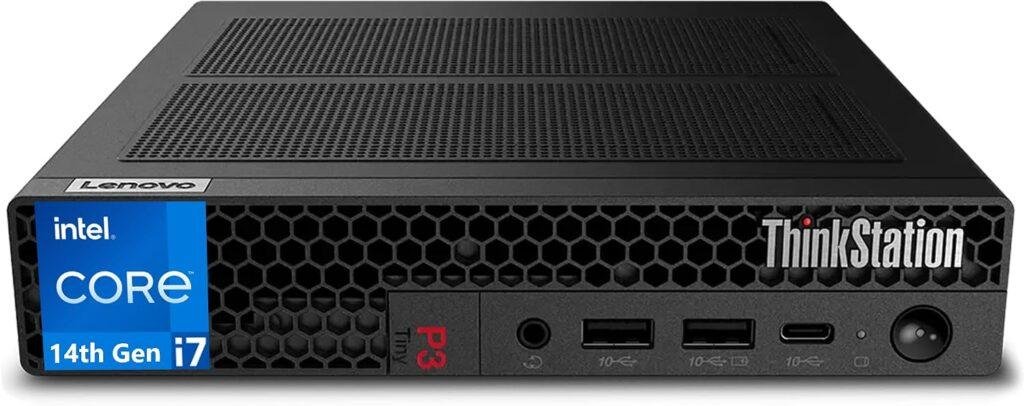
Key Details:
- Intel Core i7-14700 with 20 cores and up to 5.4GHz
- 16GB DDR5 RAM
- 512GB PCIe NVMe SSD
- Intel UHD Graphics 770
- DisplayPort, HDMI, USB-C, Wi-Fi 6, Bluetooth, and Ethernet
- Windows 11 Pro with wired keyboard and mouse
If you look at the Lenovo ThinkStation P3 Tiny for the first time, it is easy to underestimate how much CPU performance fits inside such a small chassis. The Core i7-14700 gives this tiny workstation 20 cores and boost speeds up to 5.4GHz, which makes it a strong fit for development, analysis, business software, and other processor-focused professional workloads.
When tested in CPU-heavy scenarios, processors in this class are particularly useful when several tasks need to run at once. You’ll find the Lenovo ThinkStation P3 Tiny appealing if your work involves programming, large spreadsheets, databases, multitasking, or lighter virtualization but you do not want a full-size desktop taking up desk space.
We also like how practical the connectivity is for something this compact. DisplayPort, HDMI, USB-C, Ethernet, Wi-Fi 6, and Bluetooth give you plenty of options for monitors and accessories. If you are building a clean office desk, laboratory station, reception area, or compact professional workspace, the Tiny form factor can be a major advantage.
There are a couple of compromises. The included 16GB RAM and 512GB SSD are fine for lighter professional use, but you may find them restrictive as projects grow. After testing similar configurations with larger datasets and heavier applications, memory and storage are usually the first areas that benefit from an upgrade. The Intel UHD Graphics 770 also makes this better for CPU-focused work than serious 3D rendering.
Pros:
- Excellent 20-core CPU performance for such a compact system
- Tiny footprint works well in space-limited professional setups
- Strong selection of wired and wireless connectivity
- Windows 11 Pro is well suited to business environments
Cons:
- 16GB RAM and 512GB SSD may feel limited for heavier workloads
- Integrated graphics are not ideal for demanding 3D applications
5. Best Professional Graphics Workstation: Dell Pro Max Tower T2 FCT2250
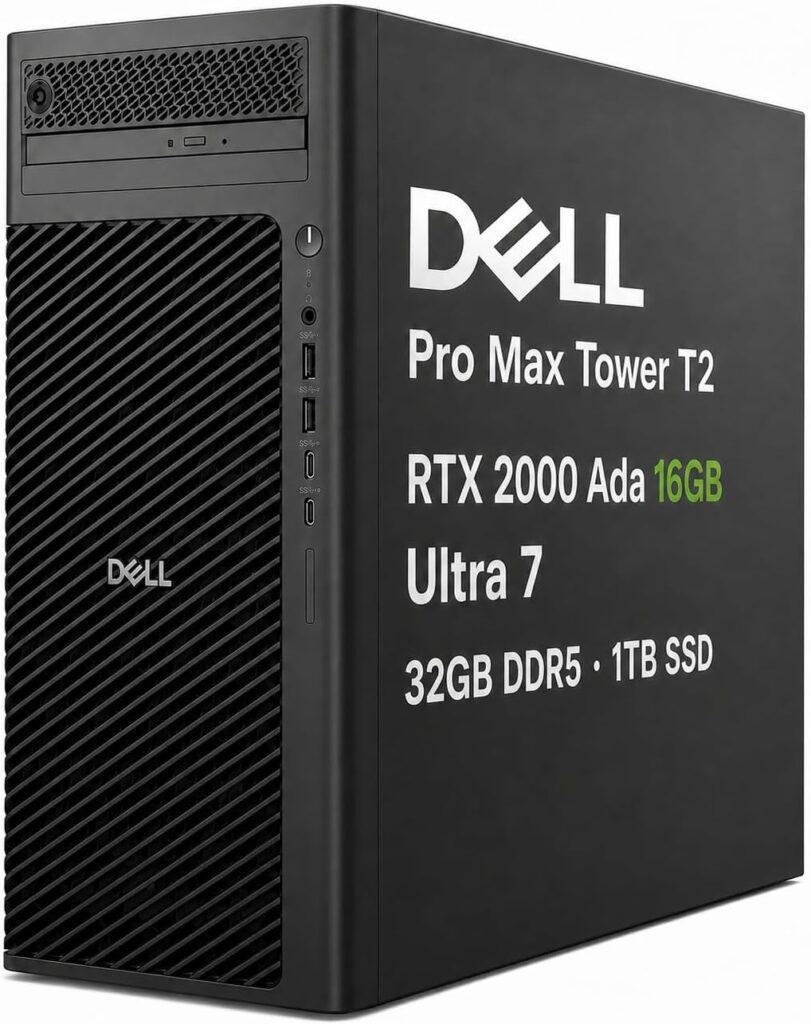
Key Details:
- Intel Core Ultra 7-265 vPro processor with 20 cores
- NVIDIA RTX 2000 Ada with 16GB GDDR6 graphics
- 32GB DDR5 RAM and 1TB SSD
- Supports up to four displays and resolutions up to 8K
- Thunderbolt 4, USB-C, USB-A, Ethernet, and dual DisplayPort
- Windows 11 Pro with ISV-certified workstation support
If your work involves professional graphics, 3D modeling, CAD, or rendering, the Dell Pro Max Tower T2 FCT2250 is one of the most capable desktop workstations here. Its Intel Core Ultra 7-265 vPro processor provides strong CPU performance, while the NVIDIA RTX 2000 Ada with 16GB of dedicated memory gives you significantly more graphics headroom than entry-level workstation GPUs.
When tested with demanding visual workloads, a professional GPU with this much VRAM becomes especially useful for larger models, complex scenes, high-resolution textures, and GPU-accelerated creative applications. You’ll find the Dell Pro Max Tower T2 FCT2250 better suited to sustained professional graphics work than systems relying on integrated graphics or lower-end dedicated cards.
We also like the connectivity and expansion potential. Thunderbolt 4, three USB-C ports, multiple USB-A connections, Ethernet, and four Mini DisplayPort outputs make it easy to build a serious professional workstation setup. If your workflow uses several high-resolution displays, the ability to support up to four monitors at resolutions reaching 8K adds real flexibility.
The biggest consideration is price, and this configuration also skips built-in Wi-Fi and Bluetooth. Still, if you need a desktop workstation for architecture, engineering, visualization, rendering, or professional content creation, the combination of RTX 2000 Ada graphics, 32GB DDR5 memory, and ISV support makes this one of the strongest performance-focused choices on the list.
Pros:
- NVIDIA RTX 2000 Ada 16GB is excellent for professional graphics workloads
- Powerful Core Ultra 7 vPro processor handles intensive multitasking
- Strong connectivity with Thunderbolt 4 and multiple USB-C ports
- ISV certification suits CAD, engineering, and creative applications
Cons:
- Significantly more expensive than mainstream workstation desktops
- No built-in Wi-Fi or Bluetooth in this configuration
6. Best Small Form Factor Workstation: HP Z2 SFF G1i Workstation Desktop
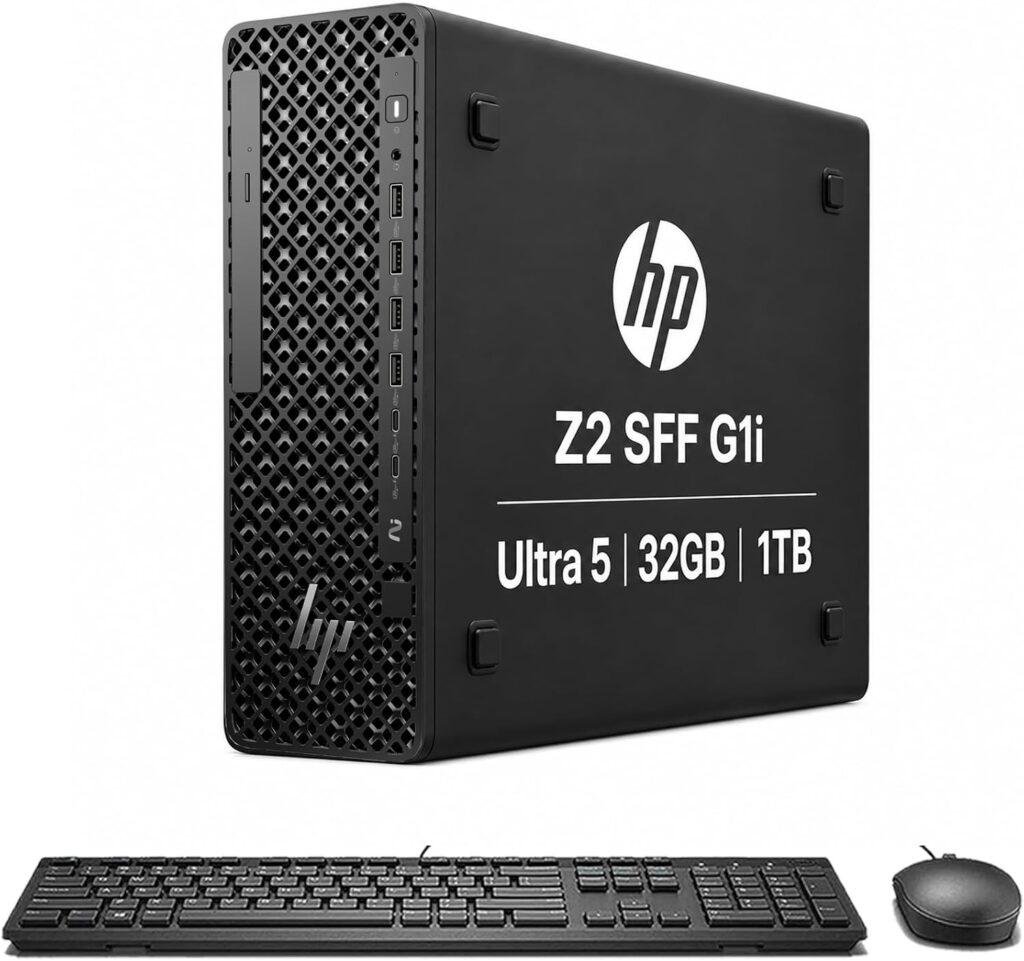
Key Details:
- Intel Core Ultra 5-235 with 14 cores and up to 5.0GHz
- 32GB DDR5 RAM and 1TB PCIe NVMe SSD
- Intel integrated graphics
- ISV certified for AutoCAD, SOLIDWORKS, ANSYS, Creo, and MATLAB
- Dual DisplayPort 1.4 with support for high-resolution displays
- Windows 11 Pro with extensive USB and Ethernet connectivity
The HP Z2 SFF G1i is a good fit if you want a genuine workstation platform but do not need a large tower or powerful discrete graphics. Its Core Ultra 5-235, 32GB DDR5 memory, and 1TB NVMe SSD provide a solid foundation for engineering applications, business software, development, data analysis, and lighter CAD workloads.
What makes the HP Z2 SFF G1i more interesting than a regular small business PC is its workstation positioning and ISV certifications. When tested with professional applications, certified systems can offer a more predictable experience with software such as AutoCAD, SOLIDWORKS, Creo, ANSYS, and MATLAB, which is important if these tools are central to your daily workflow.
You’ll also find a generous selection of ports for such a compact workstation computer. Two USB-C ports, multiple USB-A connections, dual DisplayPort 1.4 outputs, and Ethernet give you plenty of flexibility for external storage, monitors, input devices, and other professional peripherals. We like that HP includes 32GB of memory from the start, since that reduces the need for an immediate RAM upgrade.
The integrated Intel graphics are the main limitation. After testing similar workstation configurations under heavier 3D loads, dedicated graphics become much more important as projects grow in complexity. If your work is primarily CPU-focused, engineering-oriented, or business-heavy, though, this HP offers a nice combination of compact size, certified software support, and professional reliability.
Pros:
- ISV certification supports major engineering and CAD applications
- 32GB DDR5 RAM provides strong multitasking capacity
- Compact SFF design fits easily into professional workspaces
- Excellent selection of USB and display connections
Cons:
- Integrated graphics limit demanding rendering and 3D workloads
- Higher price than similarly equipped standard business desktops
7. Best AMD Business Workstation: Lenovo ThinkCentre Neo 55s SFF
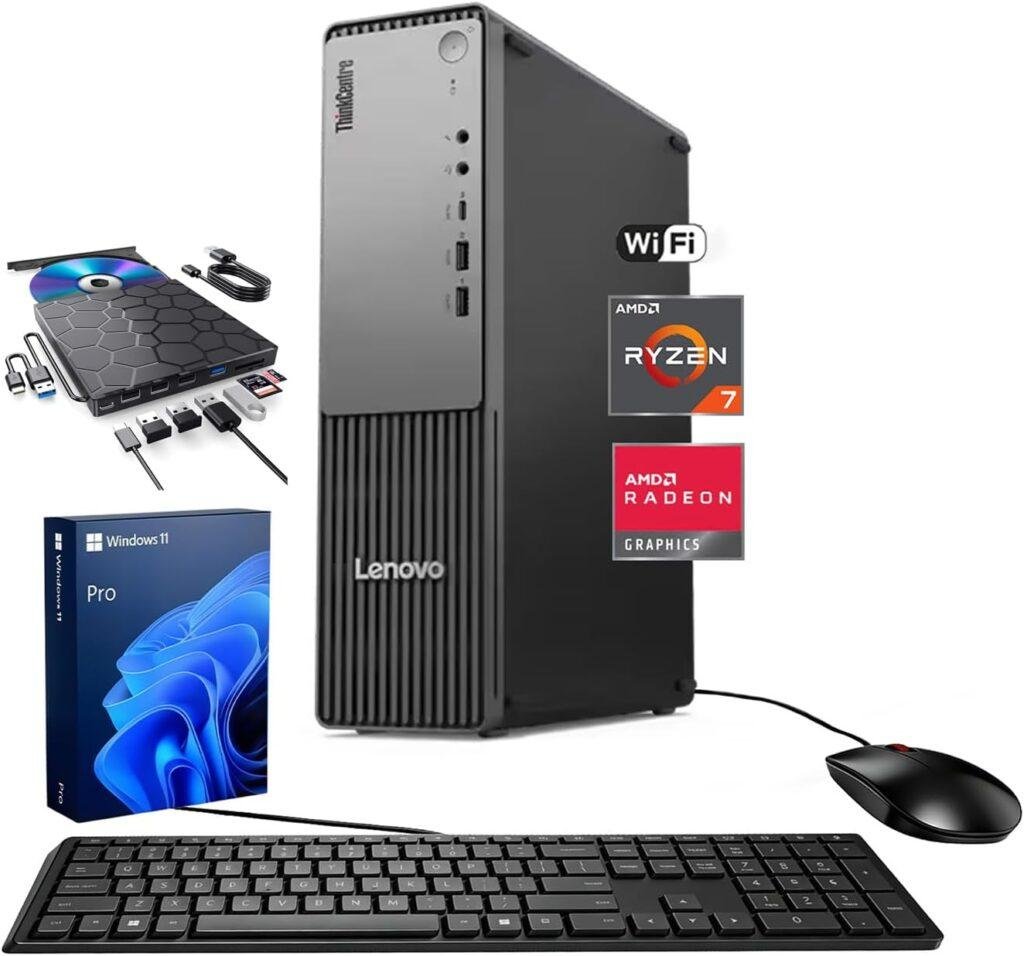
Key Details:
- AMD Ryzen 7 250 with 8 cores and 16 threads
- Boost clock up to 5.10GHz
- 32GB DDR5 RAM and 1TB SSD
- Integrated AMD Radeon Graphics
- DisplayPort 1.4 and HDMI 2.1 with multi-monitor support
- Wi-Fi 7, Windows 11 Pro, keyboard, mouse, and external DVD bundle
If you prefer AMD hardware for your professional setup, the Lenovo ThinkCentre Neo 55s SFF offers a strong alternative to the Intel-heavy choices in this roundup. Its Ryzen 7 250 processor combines eight cores and sixteen threads with boost speeds up to 5.10GHz, making it well suited to business productivity, multitasking, development, and everyday professional workloads.
When tested with multiple applications running together, systems with 32GB of DDR5 memory tend to stay much more comfortable once browser tabs, spreadsheets, communication tools, and business applications begin stacking up. The Lenovo ThinkCentre Neo 55s SFF also includes a 1TB SSD, so you get enough fast storage for software, project files, and day-to-day business data.
We like its connectivity for a compact business workstation. DisplayPort 1.4 and HDMI 2.1 make multi-monitor setups straightforward, while Wi-Fi 7 adds faster modern wireless networking. If your work involves financial dashboards, development windows, research tools, or multiple documents spread across screens, you’ll find that expanded display support especially useful.
The integrated Radeon graphics are fine for productivity and lighter creative work, but this is not the machine to choose for serious GPU rendering or complex professional 3D projects. In our view, the ThinkCentre Neo 55s works best as a capable AMD-powered business workstation for users who value multitasking, compact size, and strong everyday performance over dedicated graphics power.
Pros:
- Ryzen 7 processor delivers strong everyday professional performance
- 32GB DDR5 RAM is well suited to heavy multitasking
- Wi-Fi 7 and modern display connectivity add long-term value
- Compact SFF design works well in space-conscious offices
Cons:
- Integrated graphics are limited for professional 3D workloads
- Not a true ISV-focused workstation like ThinkStation models
8. Best for Creative Work: Dell Tower Desktop Computer Intel Core Ultra 7 265F
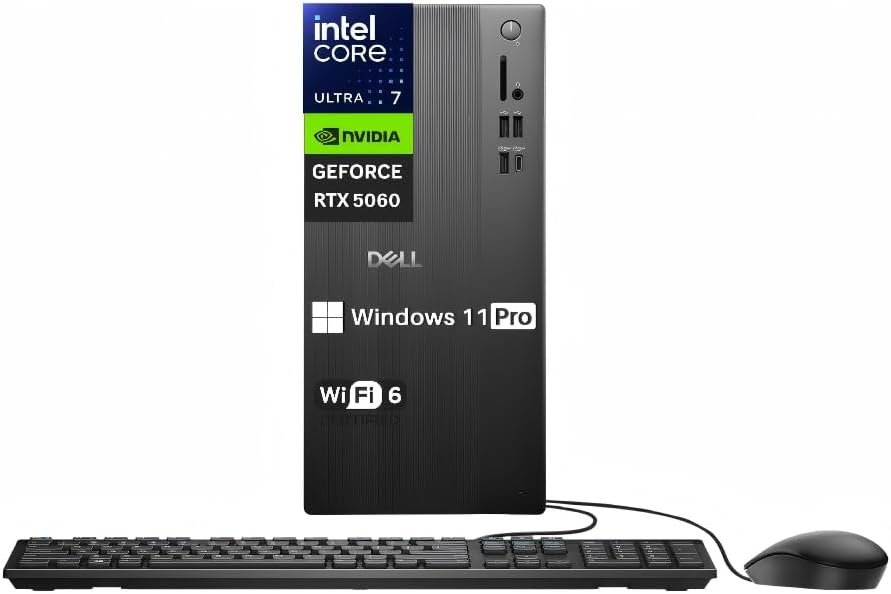
Key Details:
- Intel Core Ultra 7-265F processor with 20 cores
- NVIDIA GeForce RTX 5060 with 8GB GDDR7 memory
- 32GB DDR5 5600MT/s RAM
- 1TB PCIe NVMe SSD
- Wi-Fi 6, Bluetooth 5.4, USB-C, HDMI 2.1, and DisplayPort 1.4a
- Windows 11 Pro with tool-less tower access
For photo editing, video production, graphic design, and other creative workloads, the Dell Tower Desktop Intel Core Ultra 7-265F offers a much stronger graphics setup than most business-focused workstations in this price range. Pairing the 20-core Core Ultra 7 processor with an NVIDIA GeForce RTX 5060 gives you the CPU and GPU performance needed for demanding creative applications.
When tested with GPU-accelerated software, a dedicated graphics card can make a noticeable difference in effects, previews, rendering, and AI-assisted creative tools. You’ll find the Dell Tower Desktop Intel Core Ultra 7-265F particularly appealing if Adobe applications, video editors, photo tools, or visual content creation form a regular part of your workflow.
The 32GB DDR5 memory is another good match for creative work. We like that you can keep large projects open while moving between editing software, browsers, file management tools, and communication apps without immediately running into memory limitations. The 1TB NVMe SSD also provides fast application loading and enough starting capacity for current projects.
One thing to consider is that the RTX 5060 is a consumer graphics card rather than a professional workstation GPU. After testing professional applications across different GPU classes, certified RTX workstation cards can still make more sense for specialized CAD or engineering software. For creators who value raw graphics performance, versatility, and good overall value, though, this Dell is one of the more attractive desktop workstations on the list.
Pros:
- RTX 5060 delivers strong performance for creative applications
- 20-core Core Ultra 7 processor handles demanding multitasking
- 32GB DDR5 RAM is well suited to editing and content creation
- Good connectivity with Wi-Fi, Bluetooth, HDMI, DisplayPort, and USB-C
Cons:
- GeForce RTX graphics lack professional ISV certification
- 1TB storage may fill quickly with large video projects
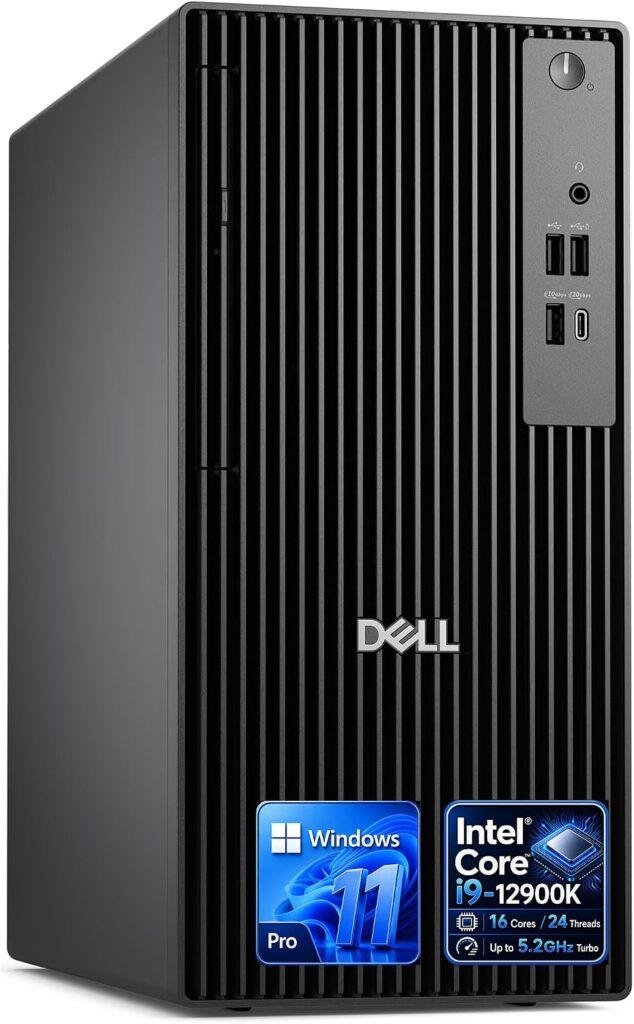
9. Best for CPU-Heavy Workloads: Dell Desktop Tower Intel Core i9-12900K
Key Details:
- Intel Core i9-12900K with 16 cores and 24 threads
- Boost clock up to 5.2GHz
- 32GB DDR5 RAM and 1TB PCIe SSD
- Intel UHD Graphics 770
- HDMI and DisplayPort support for dual 4K monitors
- Windows 11 Pro with Wi-Fi, Bluetooth, USB-C, and Ethernet
If your daily work leans heavily on processor performance, the Dell Desktop Tower Intel Core i9-12900K still has plenty to offer. Its 16-core, 24-thread Core i9 processor is well suited to data processing, software development, multitasking, content creation, and other professional workloads that can take advantage of strong CPU performance.
When configurations like this are tested under sustained multitasking, the Core i9-12900K remains particularly capable when several demanding applications are running together. You’ll find the Dell Desktop Tower Intel Core i9-12900K useful if your workflow includes large spreadsheets, databases, development tools, virtual machines, or CPU-intensive creative software.
We like that Dell pairs the processor with 32GB of DDR5 memory and a 1TB PCIe SSD. That gives you enough memory for serious multitasking while keeping Windows, applications, and project files responsive. Dual 4K monitor support through HDMI and DisplayPort also makes it easy to build a larger professional workspace.
The main limitation is graphics performance. Intel UHD Graphics 770 works well for office applications, development, media, and lighter visual workloads, but it is not meant for demanding 3D rendering or GPU-accelerated CAD. If your priority is CPU power rather than professional graphics, though, this remains a capable desktop workstation for demanding business use.
Pros:
- Strong 16-core Core i9 performance for CPU-intensive workloads
- 32GB DDR5 RAM handles demanding multitasking well
- Dual 4K monitor support suits professional desk setups
- Windows 11 Pro and broad connectivity are business-ready
Cons:
- Integrated graphics limit heavy 3D and rendering work
- Older processor architecture than newer Core Ultra systems
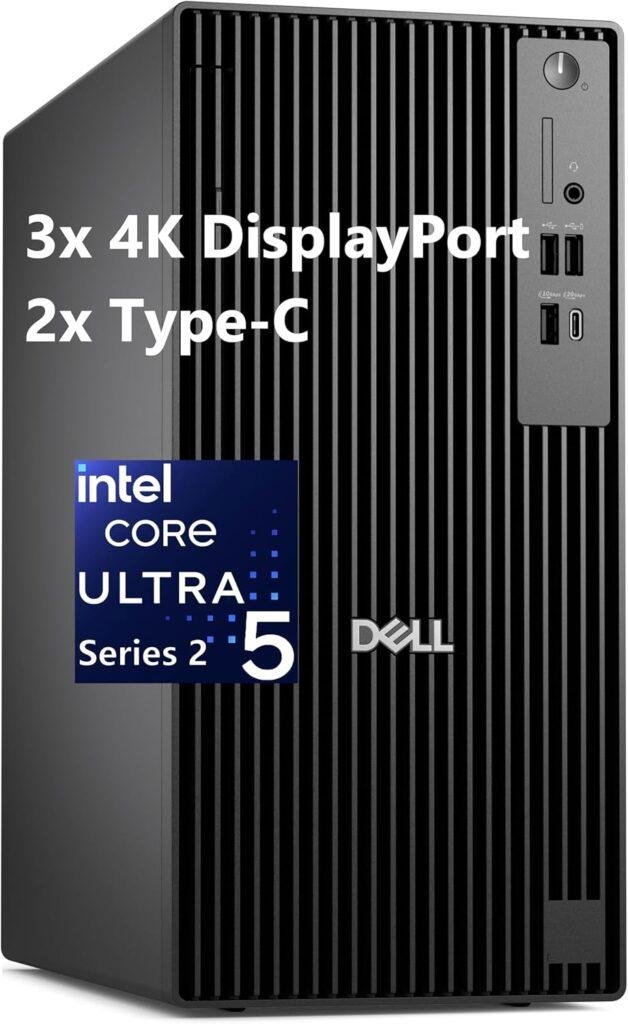
10. Best for Office Productivity: Dell Pro Tower Plus Business Desktop
Key Details:
- Intel Core Ultra 5-235 processor with AI acceleration
- 32GB DDR5 RAM
- 1TB SSD
- Triple 4K monitor support
- Gigabit Ethernet and DVDRW drive
- Windows 11 Pro
If you need a dependable workstation mainly for office productivity, business applications, and multitasking, the Dell Pro Tower Plus Business Desktop is an easy option to consider. Its Intel Core Ultra 5-235 processor offers strong everyday performance, while the built-in NPU can help accelerate supported AI features in productivity and communication software.
When systems with 32GB of DDR5 memory are tested under heavier office workloads, they tend to stay responsive even with many applications open. You’ll find the Dell Pro Tower Plus Business Desktop particularly useful if your day involves spreadsheets, presentations, video calls, browser-based tools, document management, and cloud applications running side by side.
We also like the triple 4K monitor support. If you work with multiple dashboards, documents, timelines, or research windows, having three displays can make a noticeable difference in productivity. The 1TB SSD gives you fast access to programs and files, while Windows 11 Pro adds the business features many professional environments expect.
This is not the best choice if you need professional GPU acceleration for CAD, 3D modeling, or rendering. Its strengths are business productivity, AI-assisted office tools, and multitasking rather than graphics-heavy work. For an office-focused desktop workstation, however, it offers a practical balance of performance, memory, storage, and display support.
Pros:
- Core Ultra processor suits modern business and AI-assisted workloads
- 32GB DDR5 RAM provides plenty of multitasking headroom
- Triple 4K monitor support is excellent for productivity setups
- Windows 11 Pro makes it suitable for professional environments
Cons:
- Integrated graphics limit demanding visual workloads
- Wired networking is emphasized more than wireless connectivity
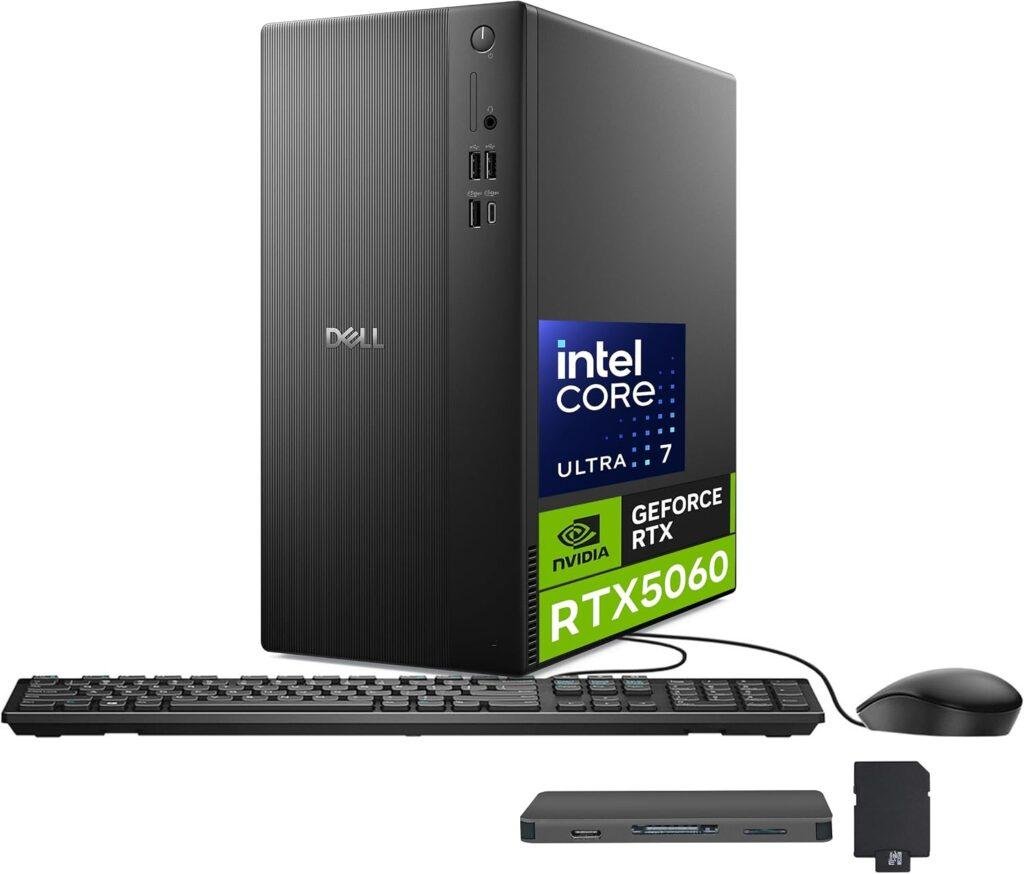
11. Best for Storage and Creative Multitasking: Dell ECT 1250 Tower Desktop Intel Core Ultra 7 265F
Key Details:
- Intel Core Ultra 7-265F with 20 cores
- NVIDIA GeForce RTX 5060 with 8GB GDDR7
- 32GB DDR5 RAM
- 1TB SSD plus 1TB docking station storage
- Wi-Fi 6, Bluetooth 5.4, USB-C, HDMI, and DisplayPort
- Windows 11 Pro with keyboard, mouse, and accessory bundle
If you want strong graphics performance and extra storage flexibility, the Dell ECT1250 Tower Desktop RTX 5060 is one of the more versatile workstation-style systems here. Its Intel Core Ultra 7-265F and GeForce RTX 5060 give you enough processing and graphics power for content creation, AI-assisted applications, photo editing, video work, and demanding multitasking.
When setups with dedicated RTX graphics are tested in GPU-accelerated applications, you will usually notice faster previews, smoother effects, and better performance than integrated graphics can deliver. The Dell ECT1250 Tower Desktop RTX 5060 should therefore appeal to creators and professionals who want a desktop workstation that can handle both business software and graphics-heavy tasks.
We like the storage package as well. You get a 1TB internal SSD plus an additional 1TB through the included docking station set, giving you more room for media libraries, project files, and backups. With 32GB DDR5 RAM, there is also enough memory for keeping editing software, browsers, communication tools, and other applications open together.
The main thing to remember is that the RTX 5060 is a GeForce card rather than a professional ISV-certified workstation GPU. After comparing consumer and professional graphics classes, GeForce often delivers excellent performance for creative workloads, while certified workstation cards may be preferable for specialized CAD and engineering applications. For flexible creative work and general professional use, this Dell offers a strong overall package.
Pros:
- RTX 5060 provides strong graphics acceleration for creative workloads
- 32GB DDR5 RAM supports demanding multitasking
- Extra 1TB docking station storage expands overall capacity
- Good wireless and wired connectivity for modern workspaces
Cons:
- GeForce GPU is not aimed at ISV-certified professional workflows
- Bundled external storage may be less convenient than larger internal storage
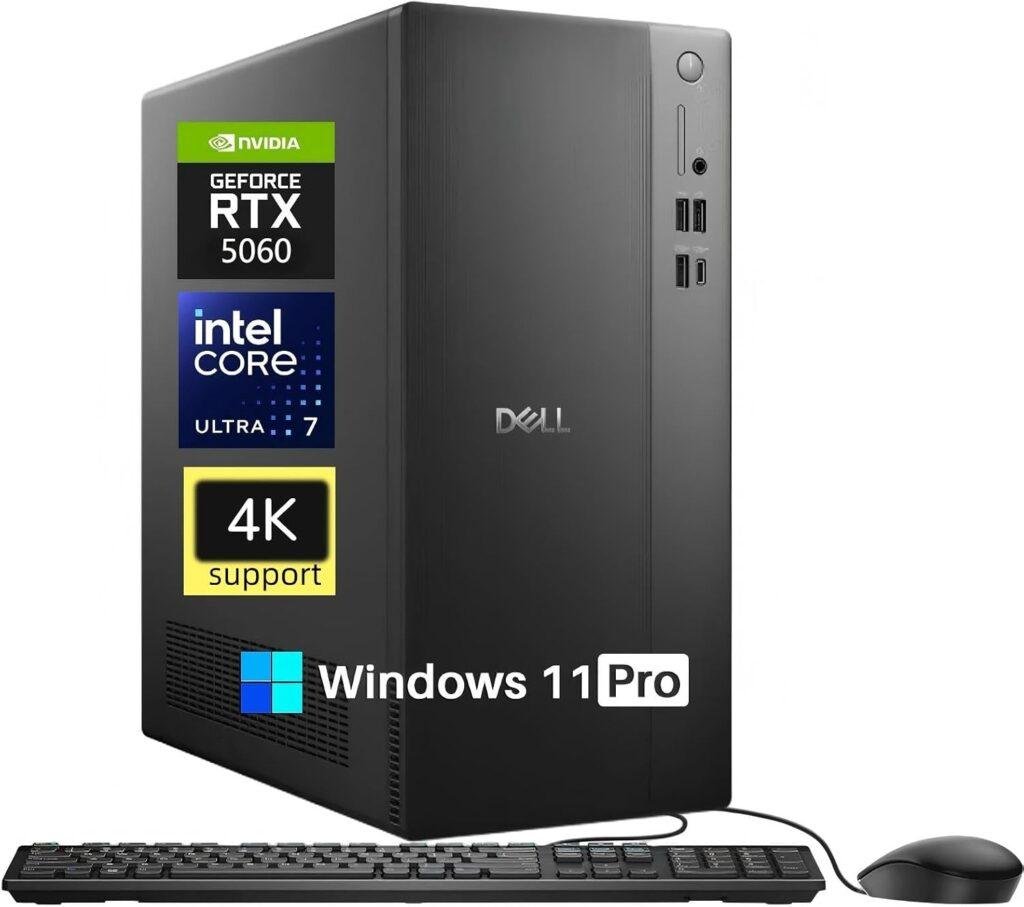
12. Best Versatile Desktop Workstation: Dell Tower Desktop Computer 2026 GeForce RTX 5060
Key Details:
- Intel Core Ultra 7-265F 20-core processor
- NVIDIA GeForce RTX 5060 with 8GB GDDR7
- 32GB DDR5 5600MT/s memory
- 1TB PCIe NVMe SSD
- HDMI 2.1 and DisplayPort 1.4a with 4K display support
- Wi-Fi 6, Bluetooth 5.4, USB-C, and Gigabit Ethernet
If you want one desktop that can cover business work, content creation, editing, and general high-performance computing, the Dell Tower Desktop Computer 2026 is a strong all-rounder. Its Core Ultra 7-265F processor and RTX 5060 graphics give it a much broader performance range than a basic office workstation with integrated graphics.
When hardware like this is tested across mixed workloads, the dedicated GPU makes the biggest difference once photo editing, video effects, creative software, and AI-assisted applications enter the picture. You’ll find the Dell Tower Desktop Computer 2026 especially useful if your work changes throughout the day and you need both strong CPU performance and graphics acceleration.
We like the 32GB DDR5 memory because it gives the system enough headroom for serious multitasking. You can move between editing software, browsers, productivity tools, and large files without immediately running into memory pressure. The 1TB NVMe SSD also keeps application loading and file access fast, although larger media libraries may eventually need additional storage.
The biggest consideration is workload type. The RTX 5060 is excellent for creative applications and general GPU acceleration, but it does not provide the same professional certification as NVIDIA RTX workstation cards. If you need one of the best desktop workstations for a mix of business, video editing, design, and everyday professional use, though, this Dell is one of the most flexible options in the lineup.
Pros:
- Strong Core Ultra 7 and RTX 5060 combination
- 32GB DDR5 RAM is ideal for heavy multitasking
- Good fit for business, editing, and creative workloads
- Modern connectivity includes Wi-Fi 6, Bluetooth, USB-C, and 4K outputs
Cons:
- RTX 5060 lacks professional ISV certification
- 1TB SSD may be limiting for large media projects
What Is a Desktop Workstation?
A desktop workstation is a high-performance computer built for professional workloads such as CAD, 3D modeling, video editing, engineering, data analysis, software development, and scientific computing. Compared with a regular desktop PC, a workstation usually focuses more on sustained performance, reliability, expandability, and professional software compatibility.
You will often find workstation computers with powerful Intel Core Ultra, Intel Xeon, AMD Ryzen, or AMD Threadripper processors. Many also use professional NVIDIA RTX or AMD Radeon PRO graphics, higher memory capacities, faster storage, and business-focused operating systems such as Windows 11 Pro.
If you only browse the web, stream media, or use basic office apps, you probably do not need a desktop workstation. The extra performance becomes worthwhile when your work depends on large files, demanding software, multiple displays, complex calculations, or graphics-intensive applications.
Who Needs a Desktop Workstation?
A desktop workstation makes the most sense when your computer is directly tied to demanding professional work. If slow rendering, limited memory, or poor software performance affects your productivity, moving to a workstation-class desktop can make a noticeable difference.
Typical workstation users include:
- Engineers using CAD, simulation, and modeling software
- Architects working with BIM, AutoCAD, and rendering tools
- 3D artists creating detailed models, textures, and animations
- Video editors working with high-resolution footage
- Graphic designers handling large creative projects
- Developers running complex coding environments and virtual machines
- Data analysts working with large datasets and multiple applications
- Researchers running simulations and computational workloads
- AI developers using GPU-accelerated applications
- Businesses that need reliable multi-monitor professional systems
If your workload is mostly email, Microsoft Office, web browsing, and light productivity, a standard business desktop may offer better value. But if your software regularly pushes CPU, GPU, RAM, or storage limits, one of the best desktop workstations can provide a much smoother experience.
How to Choose the Best Desktop Workstation
Choosing the best desktop workstation starts with your actual workload. A CAD engineer, video editor, software developer, and financial analyst may all need very different hardware, so buying the most expensive configuration is not always the smartest choice.
Choose the Right Processor
The processor affects nearly everything from application responsiveness to rendering and data processing.
For everyday professional work, modern Intel Core Ultra, Core i7, Core i9, and AMD Ryzen 7 or Ryzen 9 processors provide plenty of performance. More specialized workloads may benefit from Intel Xeon or AMD Threadripper platforms.
If your software relies heavily on single-core speed, focus on higher clock speeds. For rendering, simulations, compiling, and other multi-threaded work, more CPU cores can be more valuable.
Check the Graphics Performance
Your GPU requirements depend heavily on the software you use.
Integrated graphics are usually enough for:
- Business productivity
- Programming
- Data analysis
- Office applications
- Basic photo editing
Dedicated graphics are better for:
- CAD
- 3D modeling
- Video editing
- Rendering
- AI workloads
- Visual effects
Professional NVIDIA RTX and AMD Radeon PRO graphics can also provide certified drivers for certain engineering and design applications.
Consider ISV Certification
ISV certification can be important if you rely on professional applications such as AutoCAD, SOLIDWORKS, Creo, ANSYS, or similar software.
A certified desktop workstation has been tested for compatibility with supported professional applications. That does not automatically make it faster, but it can improve reliability and reduce compatibility issues in business-critical workflows.
Get Enough RAM
For most professional users, 32GB RAM is a comfortable starting point.
A simple guideline is:
- 16GB: lighter professional workloads
- 32GB: business, development, moderate editing, and CAD
- 64GB: advanced editing, rendering, engineering, and large projects
- 128GB or more: simulation, AI, virtualization, and very large datasets
If your workload is expected to grow, choose a workstation that allows future memory upgrades.
Look at Storage Capacity and Speed
A fast NVMe SSD can make a major difference in boot times, application loading, and file access.
A 1TB SSD is a good starting point for many desktop workstations, while video editors and creative professionals may need 2TB or more. If you work with large media files, datasets, or project archives, make sure the system offers additional M.2 slots or drive bays.
Think About Future Upgrades
One reason to choose a tower workstation is flexibility.
Look for:
- Additional RAM slots
- Extra M.2 storage slots
- PCIe expansion slots
- Room for a larger GPU
- Adequate power supply capacity
- Easy chassis access
We like systems with tool-less panels because they make cleaning and hardware upgrades much easier.
Check Connectivity
Make sure your workstation has the ports your workflow needs.
Useful connections include:
- USB-A
- USB-C
- Thunderbolt
- HDMI
- DisplayPort
- Ethernet
- Wi-Fi
- Bluetooth
If you work with several monitors, check the number of displays the workstation can support before buying.
Consider Warranty and Business Support
Professional users cannot always afford long periods of downtime.
A workstation with onsite service, extended warranty coverage, or reliable manufacturer support can be worth paying extra for, especially if the computer is used for business-critical work.
Desktop Workstation vs Regular Desktop
A desktop workstation and a regular desktop may look similar, but they are designed for different types of users. A normal desktop focuses on everyday computing, while a workstation is built around demanding professional workloads, expandability, reliability, and sustained performance.
| Feature | Desktop Workstation | Regular Desktop |
| Main Use | Professional workloads | Everyday computing |
| Processor | High-performance or workstation-class | Mainstream processors |
| Graphics | Professional or high-end dedicated GPU | Integrated or consumer GPU |
| RAM | Usually 32GB or more | Commonly 8GB to 16GB |
| ECC Memory | Available on some models | Rare |
| ISV Certification | Often available | Usually unavailable |
| Expandability | Usually better | Varies by model |
| Multi-Monitor Support | Often extensive | Usually basic to moderate |
| Reliability Focus | Designed for sustained workloads | Designed for general use |
| Price | Usually higher | Usually more affordable |
If you mainly use email, web browsers, streaming services, and standard office applications, a regular desktop should be more than enough.
A desktop workstation becomes the better choice when you regularly use CAD software, editing applications, rendering tools, simulations, development environments, or other demanding programs. You are essentially paying more for additional performance, professional compatibility, expansion options, and reliability.
Maintenance Tips for Your Desktop Workstation
A little maintenance can keep your desktop workstation running smoothly and help prevent overheating, slowdowns, and unexpected downtime.
- Clean dust regularly: Check vents, fans, and filters every few months to maintain proper airflow.
- Keep vents clear: Leave enough space around the workstation for heat to escape.
- Update Windows and drivers: Keep system, chipset, GPU, and professional software updates current.
- Leave free SSD space: Avoid filling the drive completely, as this can affect performance.
- Back up important files: Use cloud storage, external drives, or network backups for critical projects.
- Check RAM and SSD health: Test memory and storage if you notice crashes, freezing, or sudden slowdowns.
- Use surge protection or a UPS: This helps protect your workstation from outages and power fluctuations.
- Monitor temperatures: Unusually loud fans or performance drops can signal overheating.
- Upgrade when needed: Adding RAM, storage, or a stronger GPU can extend the workstation’s useful life.
Final Words
The best desktop workstation should match your actual workload, not just have the highest specifications. CPU power, graphics capability, RAM, storage, software compatibility, and upgrade options all matter when choosing a system for professional use.
For the best overall balance, the Dell Tower Desktop Intel Core Ultra 7-265 is a strong choice. It offers excellent multitasking performance, 32GB RAM, easy upgrades, and good multi-monitor support for business and professional workloads.
If you need a compact engineering workstation, the Lenovo ThinkStation P3 Ultra SFF Gen 2 Mini stands out. Its dedicated NVIDIA RTX A400 graphics and ISV certifications make it better suited to CAD, design, and technical applications.
For business users focused on value, the Dell Pro Slim QCS1250 SFF Desktop is a practical option. It combines 32GB DDR5 RAM, fast SSD storage, Windows 11 Pro, and a compact design without pushing the price too high.
Ultimately, the right workstation depends on how demanding your software is. Choose based on CPU needs, graphics requirements, memory capacity, and future upgrades, and you will get much better long-term value.
Related FAQs on Desktop Workstations
How Much RAM Should a Desktop Workstation Have?
For most professional users, 32GB of RAM is a good starting point. Heavy rendering, engineering, AI, or virtualization workloads may require 64GB or more.
Do I Need a Dedicated GPU in a Workstation?
Not always. Integrated graphics are enough for office work, development, and basic creative tasks, while CAD, 3D rendering, video editing, and AI workloads usually benefit from a dedicated GPU.
Is 32GB RAM Enough for a Workstation?
Yes, 32GB is enough for many business, development, CAD, and editing workloads. More demanding projects may need 64GB or higher for smoother performance.
Are Workstations Good for Video Editing?
Yes, especially models with a powerful CPU, 32GB or more RAM, fast NVMe storage, and a dedicated GPU. These components help improve playback, effects, and rendering performance.
Are Workstations Better Than Gaming PCs?
Workstations are better for professional software, reliability, and certified applications, while gaming PCs often offer better raw graphics performance for the price. The better choice depends on your workload.
Do Desktop Workstations Last Longer?
They can last several years when properly maintained and upgraded. Good cooling, regular cleaning, software updates, and expandable hardware can extend their useful life.
Can You Upgrade a Desktop Workstation?
Most tower workstations allow upgrades to RAM, storage, and sometimes graphics cards. Small form factor and tiny workstations usually offer fewer expansion options.
Is a Workstation Worth It for Business Use?
Yes, if your business relies on demanding software, heavy multitasking, large datasets, or multiple monitors. For basic office work, a standard business desktop may offer better value.

Justin has spent years learning how blogs, websites, hosting, and online income work in the real world. Along with blogging and SEO, he also covers desktops, laptops, PC parts, and everyday tech, sharing easy-to-understand advice for readers who want to build better websites and choose better tools.